Table of Contents >> Show >> Hide
- What You Need Before You Share an Apple Calendar
- How to Share an Apple Calendar on iPhone or iPad in 6 Steps
- Private Sharing vs. Public Sharing in Apple Calendar
- Can You Share One Event Instead of an Entire Calendar?
- How to Make Apple Calendar Sharing Work Smoothly
- When to Use Family Sharing Instead
- Common Mistakes People Make When Sharing an Apple Calendar
- Why Shared Apple Calendars Are So Useful
- Real-World Experiences With Sharing Apple Calendar on iPhone or iPad
- Conclusion
- SEO Tags
If organizing family dinners, school pickups, dentist appointments, and that one mysterious “important meeting” written in all caps has become your full-time side quest, Apple Calendar can help. Sharing an Apple Calendar on an iPhone or iPad is surprisingly simple once you know where the tiny little info button lives. And yes, that tiny icon is doing a lot of heavy lifting.
This guide walks you through exactly how to share an Apple Calendar on iPhone or iPad in six clear steps. You’ll also learn the difference between sharing a whole calendar and inviting someone to a single event, how to change permissions, what to do when sharing does not work, and how to avoid accidentally handing your schedule to the entire internet. Because “public calendar” is useful, but “public calendar by mistake” is a character-building experience nobody asked for.
What You Need Before You Share an Apple Calendar
Before you jump into the steps, there are a few basics worth knowing. First, the calendar you want to share should be an iCloud calendar. If the calendar belongs to Gmail, Outlook, Exchange, or a subscribed calendar feed, the sharing options may be different or unavailable inside Apple Calendar. In short, if the share button seems to have vanished like your motivation on Monday morning, the calendar type is often the reason.
Second, private calendar sharing works best when the people you invite are also using Apple’s ecosystem with an Apple Account and iCloud Calendar enabled. If you want anyone to view a calendar without editing it, a public calendar link can be the better route. That version is read-only, which is great if you want people informed but not creatively rearranging your life.
Third, make sure your contacts have an email address saved. Apple Calendar relies on that detail when you send invitations. No email, no invite. Technology can land a rover on Mars, but it still needs an email field to share a calendar.
How to Share an Apple Calendar on iPhone or iPad in 6 Steps
These steps work for both iPhone and iPad. The wording is nearly identical, though the Calendars button appears at the bottom of the screen on iPhone and in the top-left area or sidebar on iPad.
-
Step 1: Open the Calendar app
Start with the built-in Calendar app on your iPhone or iPad. This is Apple Calendar, not a third-party calendar app. If you use several calendar apps, make sure you are in the Apple one with the familiar clean interface and color-coded calendars.
-
Step 2: Tap the Calendars button
On an iPhone, tap Calendars at the bottom of the screen. On an iPad, look for Calendars in the sidebar or top-left corner. This opens your full list of calendars, including iCloud, Gmail, Outlook, holidays, and any subscribed calendars.
-
Step 3: Find the iCloud calendar you want to share
Scroll to the iCloud section and pick the calendar you want to share. Then tap the Info button next to it. It usually looks like a small lowercase “i” inside a circle. If you do not see the option to add people or make it public, double-check that the calendar is under iCloud and not another service.
-
Step 4: Tap Add Person
Inside the calendar settings, tap Add Person. This is where private sharing begins. You can enter a person’s name, type their email address, or choose someone from your contacts. If you are sharing with a spouse, coworker, babysitter, or anyone who needs the full calendar, this is the menu you want.
-
Step 5: Enter the contact and send the invitation
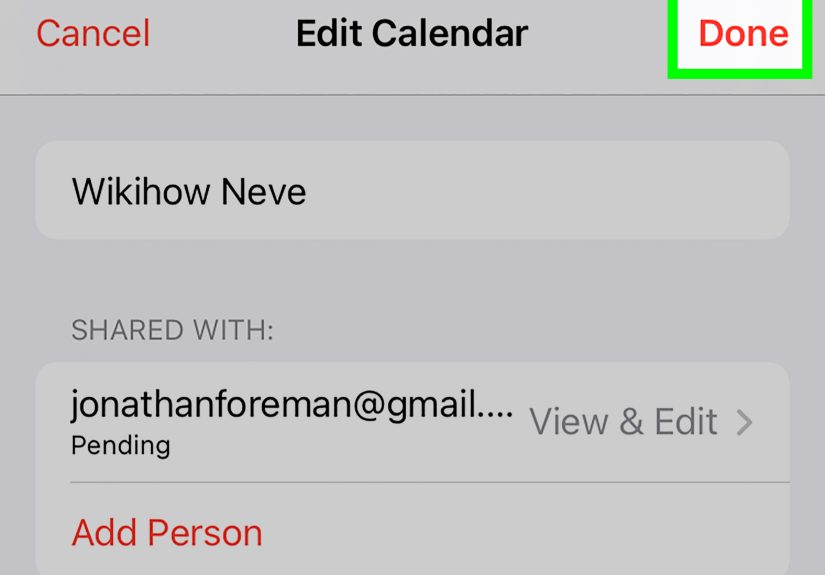
Type the name or email address of the person you want to invite, then tap Done. Apple sends them an invitation to join the shared calendar. Once they accept, the calendar appears on their device, and they can see the events you have included.
-
Step 6: Adjust sharing permissions if needed
After inviting someone, tap their name inside the shared calendar settings to manage access. You can turn Allow Editing on or off. If editing is enabled, they can add, change, or remove events. If it is turned off, they are basically there to observe, not redecorate the timeline. You can also stop sharing the calendar entirely from this menu if your coordination era has officially ended.
Private Sharing vs. Public Sharing in Apple Calendar
One of the most common points of confusion is the difference between a private shared calendar and a public calendar. They sound similar, but they serve different purposes.
Private Apple Calendar sharing
This is the best option when you want to share a calendar with specific people, such as family members, roommates, coworkers, or a partner. You invite them directly. Depending on the permissions you choose, they can either view events only or help manage the calendar by editing entries.
Public Apple Calendar sharing
If you turn on Public Calendar, Apple creates a shareable link. Anyone with that link can subscribe to the calendar in a compatible app. This is useful for clubs, teams, classrooms, event schedules, or community notices. The key point is that public sharing is read-only. People can view the calendar, but only the owner can make changes.
If you are sharing personal appointments, work deadlines, or anything that would make you sweat if it showed up in the wrong inbox, stick with private sharing. Public links are useful, but they are not the place for “annual checkup” or “argue with accountant” events.
Can You Share One Event Instead of an Entire Calendar?
Yes, and this is where many people accidentally over-share. If you only want someone to attend a single meeting, dinner, school conference, or birthday party, you do not need to share the whole calendar. Just open that specific event, tap Edit, choose Invitees, and add the person’s email address.
This sends an event invitation rather than giving them access to your full calendar. It is the digital equivalent of saying, “Please come to this dinner,” instead of handing someone your entire life schedule and hoping they behave.
For work and school settings, event invitations are often the smarter choice. Full calendar sharing is better for ongoing coordination, while event invites are best for one-off plans.
How to Make Apple Calendar Sharing Work Smoothly
Calendar sharing is easy when everything is set up correctly. It becomes dramatically less fun when one device is not syncing, another person says they never got the invite, and someone else swears they accepted it “like, yesterday.” These tips help avoid that spiral.
Use iCloud Calendar, not just any calendar
If the calendar sits under Gmail, Outlook, or another account, Apple’s native sharing options may not appear the same way. Creating a separate iCloud calendar specifically for shared plans is often the cleanest solution.
Check iCloud Calendar settings
On iPhone or iPad, go to Settings > [your name] > iCloud and make sure iCloud Calendar is turned on. If it is off, shared calendars can fail to appear or update properly.
Confirm the right Apple Account
If you use more than one Apple Account across devices, syncing can get messy fast. Shared calendars work best when you are signed in correctly and using the same Apple Account across the devices meant to show that calendar.
Save contacts with email addresses
If the contact card is missing an email address, the invitation may not go through the way you expect. This is one of those tiny technical details that can waste twenty minutes and at least one dramatic sigh.
Ask invitees to check for the invitation
Sometimes the issue is not the share itself, but the response. The invited person may need to accept the calendar invitation before it appears properly. If they do not see it, have them check the Calendar app notifications or their email associated with the Apple Account.
Be careful with suspicious calendar invitations
Calendar invites can sometimes be used in phishing scams. If a shared calendar or invite looks strange, unexpected, or stuffed with suspicious links, treat it carefully. A legitimate Apple Calendar invitation should make sense in context and come from a recognizable sender or schedule.
When to Use Family Sharing Instead
If you are managing schedules inside a household, Apple’s Family Sharing can be another useful option. Families can use a shared family calendar for recurring life logistics like sports practice, school events, vacation plans, and the deeply emotional topic of whose turn it is to buy groceries.
The main advantage is convenience. Once Family Sharing is already set up, adding events to the family calendar can be faster than manually maintaining separate shared calendars. The downside is that it is family-focused, not a flexible tool for every situation. If you need to coordinate with coworkers, clients, roommates, or a friend group planning a reunion, a standard shared iCloud calendar is usually the better fit.
Common Mistakes People Make When Sharing an Apple Calendar
- Sharing the wrong calendar: People often tap the Info button on a subscribed or external calendar and wonder why the expected options are missing.
- Using public sharing when private sharing is better: Public links are handy, but they are not ideal for private schedules.
- Forgetting permission settings: If someone can edit the calendar, they can do more than just look at it.
- Sending a full calendar when an event invite would do: Not every lunch plan needs access to your entire month.
- Ignoring sync settings: iCloud Calendar must be enabled on the device, or shared calendars may not behave correctly.
Why Shared Apple Calendars Are So Useful
Shared calendars solve a very real modern problem: too many schedules, too many people, and not enough memory. They are useful for parents coordinating school pickups, partners planning household tasks, students managing group projects, teams tracking deadlines, and friends trying to schedule a trip without launching a forty-seven-message group chat.
The best part is visibility. When everyone can see the same plan, fewer things fall through the cracks. The second-best part is plausible deniability. If the event was on the calendar and someone still forgot, the calendar did its job. The rest is between them and destiny.
Real-World Experiences With Sharing Apple Calendar on iPhone or iPad
In real life, shared Apple Calendars tend to become one of those tools people barely notice until they stop using them. Then everything gets chaotic. A parent may start by sharing a calendar for school pickup times and weekend activities, only to realize a month later that the shared calendar has quietly become the family’s command center. Dentist appointments, dance recitals, parent-teacher meetings, birthdays, soccer practice, and “remember to bring cupcakes” all live in one place. It is not glamorous, but neither is forgetting a child’s costume day.
Couples often use a shared calendar for a different reason: reducing repeat conversations. Instead of texting, “What time is your doctor appointment again?” or “Are we free Friday night?” fifteen times a week, they can check the shared calendar and move on with their lives. It sounds simple, but that tiny reduction in friction adds up. One person adds travel plans, the other adds dinner reservations, and suddenly the week looks less like chaos and more like an organized human effort.
Students and roommates use shared calendars in a slightly more tactical way. A shared Apple Calendar can help track rent due dates, cleaning rotations, exam weeks, moving dates, and house guests. It becomes a neutral ground where nobody has to play memory police. Instead of saying, “You never told me your cousin was staying over,” the calendar can quietly stand there like a witness with receipts.
Small teams and freelancers also benefit from calendar sharing, especially when the work does not justify a giant project-management system. A photographer might share a calendar with an assistant to track shoots and editing deadlines. A tutor might share available hours with a parent. A consultant might keep a read-only public calendar for booking windows and a private shared calendar for internal planning. In these cases, Apple Calendar works best because it is fast, familiar, and already built into the device people are carrying around all day anyway.
Even the mistakes can be useful lessons. Many people learn the difference between event invites and full calendar sharing only after sharing far more than they meant to. Others discover that public calendar links are excellent for team schedules but not ideal for personal details. And nearly everyone who uses shared calendars long enough develops one strong opinion about permissions. The first accidental edit by another person usually turns “Sure, they can help” into “Actually, view-only feels peaceful.”
What makes the experience stick is not just convenience. It is trust. When a shared calendar works well, people stop relying on memory and start relying on a system. That system reduces missed appointments, duplicate plans, surprise obligations, and the classic excuse of “I thought you told me.” Shared Apple Calendars are not flashy. They will not change your personality or make your inbox disappear. But they can absolutely make daily life feel more coordinated, more predictable, and a little less like a juggling act performed on two hours of sleep.
Conclusion
Learning how to share an Apple Calendar on iPhone or iPad is one of those small tech skills that pays off immediately. In just a few taps, you can coordinate family routines, simplify work planning, manage school events, or keep group schedules from turning into a mess of texts and crossed wires. The trick is knowing which kind of sharing you want: private for trusted people, public for read-only access, or single-event invites when you do not need to hand over the whole calendar.
Once you understand the six steps and the permission options behind them, Apple Calendar becomes much more than a place to park appointments. It becomes a practical planning tool that helps everyone stay on the same page without constantly asking, “Wait, what day was that again?”