Table of Contents >> Show >> Hide
- What Does “Copy an Email” Mean on iPhone or iPad?
- How to Copy an Email on iPhone or iPad in 7 Easy Steps
- Step 1: Open the email and decide exactly what you want to copy
- Step 2: Touch and hold the text to start selection
- Step 3: Drag the selection handles to highlight the right text
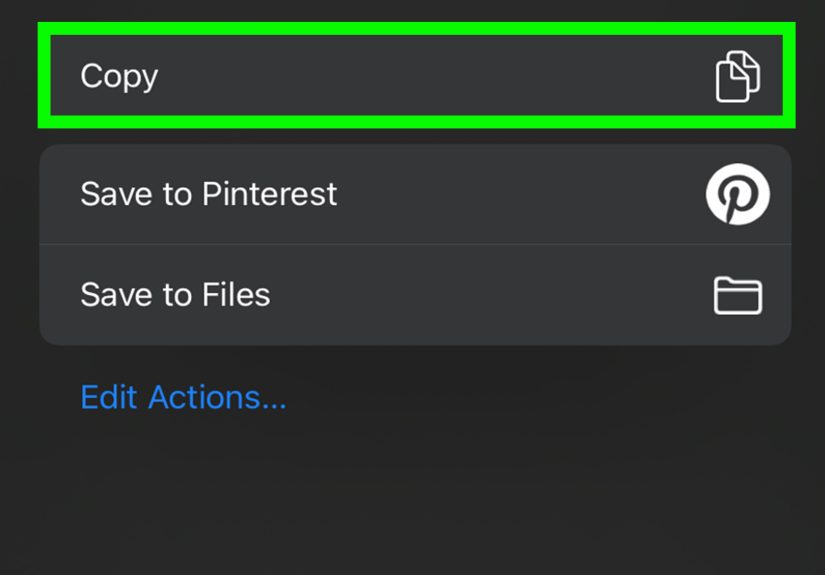
- Step 4: Tap “Copy”
- Step 5: Open the app or field where you want to paste it
- Step 6: Touch and hold, then tap “Paste”
- Step 7: Clean up formatting before sending or saving
- How to Copy a Link or Email Address from a Message
- How to Copy an Entire Email (or Most of It)
- Bonus Tips for iPad Users (Because the Bigger Screen Deserves Better)
- Copy Between iPhone and iPad with Universal Clipboard
- Troubleshooting: Why Can’t I Copy or Paste an Email on iPhone or iPad?
- Best Practices When Copying Email Content
- Conclusion
- Real-World Experiences: What Actually Happens When You Start Using This Daily (500+ Words)
If you have ever tried to copy part of an email on your iPhone or iPad and ended up opening a link, selecting the wrong sentence, or summoning a menu you did not ask for, welcome to the club. Mobile email is convenient, but text selection on a touchscreen can feel like trying to pick up a single grain of rice with oven mitts.
The good news? Copying an email (or part of one) on iPhone and iPad is actually very easy once you know the rhythm: tap, select, copy, paste. This guide walks you through 7 easy steps using the built-in Apple Mail app, and the same basic method also works in many other email apps like Gmail and Outlook on iOS/iPadOS.
We will also cover how to copy links, how to paste without making a formatting mess, what to do if copy/paste is not working, and a few time-saving tricks for iPad users and anyone juggling multiple Apple devices.
What Does “Copy an Email” Mean on iPhone or iPad?
Before we jump in, let’s clear up a common confusion. “Copy an email” can mean a few different things:
- Copy text from the email body (most common)
- Copy the sender’s email address
- Copy a link inside an email
- Copy the whole message content to paste into Notes, Messages, or another email
This tutorial focuses on copying text from an email message, but I’ll show quick variations for links and addresses too.
How to Copy an Email on iPhone or iPad in 7 Easy Steps
Step 1: Open the email and decide exactly what you want to copy
Open the Mail app (or your preferred email app) and tap the message. Take a second to decide what you need:
- A single sentence?
- A paragraph?
- The entire message body?
- A URL or email address?
This tiny planning step saves a lot of “Why did I just copy the wrong part?” frustration.
Step 2: Touch and hold the text to start selection
Tap and hold on a word in the email body until the text becomes highlighted and you see the editing menu. On iPhone and iPad, you can also use quick selection gestures:
- Double-tap a word to select it
- Triple-tap to select a paragraph (in many editing contexts/apps)
If the email is highly formatted (newsletters, promotional emails, image-heavy messages), selection may be trickier. In that case, try tapping a plain-text area first.
Step 3: Drag the selection handles to highlight the right text
Once a word is highlighted, you will see selection handles (the little draggable points). Drag them to expand or shrink your selection.
Pro tip: Move slowly. iPhone and iPad text selection is accurate, but it rewards patience, not speed-running. If your selection jumps around, tap again and restart from a nearby word.
If you need everything, look for Select All in the menu. Some emails and apps show it immediately; others hide it under the arrow or “more” menu.
Step 4: Tap “Copy”
With your text highlighted, tap Copy in the pop-up menu. That text is now on your clipboard.
You can also use the optional gesture shortcut (great on iPad, slightly dramatic on iPhone):
- Pinch in with three fingers to copy
It feels futuristic when it works and mildly theatrical when it doesn’t. Either way, the regular Copy button is perfectly fine.
Step 5: Open the app or field where you want to paste it
Now go to the destination app or text field. Common examples:
- A reply email draft
- Notes
- Messages
- Calendar notes
- A document app
If you are pasting into a new email, tap Compose in Mail, then tap inside the message body where the text should go.
Step 6: Touch and hold, then tap “Paste”
Tap and hold in the destination text field until the menu appears, then tap Paste.
Optional gesture shortcut:
- Pinch out with three fingers to paste
If you do not see Paste, tap again in the text field and make sure the cursor is active. Some apps also require a long press rather than a quick tap.
Step 7: Clean up formatting before sending or saving
This is the step people skipand then wonder why their email looks like it was assembled by three different fonts and a stressed printer.
After pasting, quickly check for:
- Weird spacing
- Extra line breaks
- Odd font sizes/colors
- Copied signatures, legal disclaimers, or tracking text you did not mean to include
If formatting looks messy, paste into Notes first, clean it up, then copy and paste again into your final destination.
How to Copy a Link or Email Address from a Message
Sometimes you do not need the text bodyyou just want the URL or address.
Copy a link in an email
- Open the email.
- Press and hold on the link (not the text around it).
- Tap Copy from the menu.
- Paste it anywhere you need.
If pressing the link opens a preview instead of a copy menu, try again with a slightly lighter/longer press.
Copy an email address
In many emails, tapping a sender or recipient address opens actions like New Message, Add to Contacts, or Copy. If Copy appears, tap it. If not, try selecting the address from the message body (for example, in a signature line) like normal text.
How to Copy an Entire Email (or Most of It)
There is no single universal “Copy entire email” button in every app/view, but these methods usually work:
- Select All in the email body (if available), then tap Copy.
- Use Reply and copy from the quoted text in the draft if direct selection in the original email is limited.
- For image-based text (screenshots, scanned flyers, picture-heavy emails), use Live Text from a screenshot or photo to extract and copy text.
Always review pasted content afterward, especially if the original email includes hidden formatting, tables, or legal footers.
Bonus Tips for iPad Users (Because the Bigger Screen Deserves Better)
Copying email on an iPad is the same basic process, but you get a few comfort upgrades:
- Three-finger gestures are easier on the larger screen.
- Split View lets you open Mail on one side and Notes/Messages on the other for fast copy-paste work.
- Keyboard/trackpad users can place the cursor more precisely and move faster in long drafts.
If you regularly copy details from emails (addresses, order numbers, appointment notes), iPad multitasking is a productivity cheat code.
Copy Between iPhone and iPad with Universal Clipboard
Here is the neat part: you can copy text on your iPhone and paste it on your iPad (or vice versa) using Universal Clipboard.
To make it work smoothly, your devices typically need to:
- Be signed in to the same Apple Account (Apple ID)
- Have Wi-Fi and Bluetooth turned on
- Have Handoff enabled
- Be near each other
Then just copy on one device and paste on the other like normal. It feels like magic, and unlike most magic tricks, this one is actually useful.
Troubleshooting: Why Can’t I Copy or Paste an Email on iPhone or iPad?
1) The menu won’t appear
Try a longer press, or tap a different part of the text. Some email formatting makes certain areas hard to select.
2) It keeps opening links instead of selecting text
Tap and hold on nearby plain text first, then drag the selection handles toward the content you want.
3) Paste doesn’t show up
Make sure the destination field is editable and the cursor is active. Tap once, then tap-and-hold again.
4) Pasted text looks weird
That is usually formatting from the original email. Paste into Notes first, clean it up, then copy again.
5) You can’t select text at all
The content may be an image. Take a screenshot and use Live Text (if supported on your device) to copy the text from the image.
Best Practices When Copying Email Content
- Respect privacy: Double-check before sharing copied text that includes addresses, phone numbers, or account details.
- Trim signatures and disclaimers: Copy only what is relevant.
- Proofread after pasting: Especially when using Live Text from screenshots or photos.
- Avoid accidental edits: If you are copying from a draft, confirm you are not deleting text by mistake (copy and cut are different actions).
Conclusion
Learning how to copy an email on iPhone or iPad is one of those tiny skills that pays off constantly. Whether you are moving a tracking number into Messages, saving a confirmation code in Notes, or reusing part of a client email in a reply, the process comes down to a simple flow: select, copy, paste, review.
The main thing that trips people up is not the feature itselfit is the touch gestures and the formatting quirks of modern email. Once you get comfortable with selection handles and the copy/paste menu (plus a few backup tricks like Live Text and Universal Clipboard), you can move information around your Apple devices quickly and cleanly.
In short: no more retyping long email details with one thumb while pretending you enjoy it.
Real-World Experiences: What Actually Happens When You Start Using This Daily (500+ Words)
In real life, most people do not search for “how to copy an email on iPhone or iPad” because they are curious about mobile operating systems. They search because they are in a hurry. Usually, it is one of these situations: a delivery driver is waiting downstairs, a doctor’s office asks for a referral number, a teacher wants a link right now, or a coworker messages, “Can you send me the part about the deadline?” and your laptop is nowhere near you.
One of the most common experiences is copying a small but important detaillike a tracking number or confirmation codefrom an email into another app. At first, people often try to memorize the number (bold strategy), then switch apps, then forget half of it, then return to the email, then sigh dramatically. Once they learn the copy-and-paste workflow, that whole routine disappears. You highlight the code, tap Copy, paste it into Messages or a website form, and move on with your day like the organized adult you were always meant to be.
Another very common scenario happens in work email. Let’s say you are replying to a client and want to quote a specific sentence from their message. On desktop, this feels effortless. On iPhone, the first attempt can be awkward: you tap too long and open a link, select the wrong paragraph, or accidentally grab the signature line with the “Sent from my phone” footer. The good news is that this is normal. After a few tries, your fingers learn the rhythm. Most people report that once they get used to the selection handles, their speed improves fastespecially on iPad, where the bigger screen gives you a little more room to work.
There is also the “copy now, paste later” habit that becomes surprisingly useful. For example, many users copy travel details from an emailhotel addresses, booking IDs, check-in instructionsand paste them into a single Notes document before a trip. That way, they are not digging through inbox folders in an airport line while balancing luggage and a coffee they should not have bought. The same trick works for event tickets, appointment instructions, school announcements, and customer support case numbers.
People who use both an iPhone and iPad usually have the biggest “aha” moment when they discover Universal Clipboard. You copy text on your iPhone while standing in line, sit down with your iPad a minute later, tap Paste, and the text appears. It feels like a tiny superpower. It is especially helpful when you use your iPad for writing, note-taking, or multitasking but your email notifications land first on your phone.
Of course, not every experience is smooth. Newsletter emails and marketing blasts are famous for weird formatting. You copy one sentence and somehow paste five line breaks, a product title, and a mystery button label. That is why experienced users often do a quick “paste into Notes first” cleanup. It sounds like an extra step, but it actually saves time when you care about readability.
Finally, there is the confidence factor. Once someone learns how to reliably copy email text, they stop retyping so much information by hand. That reduces mistakes, saves time, and lowers frustration. It is a small skill, but it quietly improves everyday digital lifeexactly the kind of trick that does not sound exciting until you use it three times in one morning and wonder how you ever lived without it.