Table of Contents >> Show >> Hide
- What “Default Google Account” Actually Means
- How to Change the Default Google Account on Desktop
- How to Change the Default Google Account in Chrome
- How to Change Default Google Account on Android
- How to Change Default Google Account on iPhone or iPad
- Common Problems and Easy Fixes
- Best Practices for Managing Multiple Google Accounts
- Real-World Experiences: What Changing a Default Google Account Actually Feels Like
- Final Thoughts
- SEO Tags
If your laptop opens Gmail with your work account, your phone keeps tossing you into the wrong YouTube profile, and Google Drive acts like your personal account doesn’t exist, welcome to the wonderfully confusing world of multiple Google accounts. It is convenient right up until it absolutely is not.
The good news is that changing your default Google account is not hard. The mildly annoying news is that the exact method depends on where you are doing it: in a browser, in Chrome, on Android, or on an iPhone. In some places, Google treats the first signed-in account as the default. In others, the app simply remembers the last account you used. That is why this whole thing can feel less like a setting and more like a scavenger hunt.
This guide breaks it down in plain English. You will learn how to change the default Google account on desktop, Chrome, Android, and iPhone or iPad, plus how to avoid the most common mistakes people make when juggling personal, work, school, and side-hustle logins.
What “Default Google Account” Actually Means
Before you start clicking profile pictures like you are defusing a bomb, it helps to understand what “default” means in Google’s world.
On the web, your default Google account is usually the first account you sign in with in that browser session. That account often becomes the one Google uses first for services like Gmail, Drive, Calendar, and other pages that check your identity automatically. If you add more accounts later, they are available, but they are not the default.
In Chrome, there is another layer: your Chrome profile. A Chrome profile stores its own bookmarks, saved passwords, browsing history, extensions, and sync settings. That means your Google account and your Chrome profile are related, but they are not exactly the same thing. Think of your Google account as the person, and your Chrome profile as that person’s backpack full of browser stuff.
On mobile, things get even more interesting. Some Google apps let you switch accounts inside the app. Some remember the last account you used. Others lean on the account already tied to the device. So if your “default” feels different from app to app, you are not imagining it. Google really does handle this a little differently depending on the product.
How to Change the Default Google Account on Desktop
If you want to change the default Google account on Chrome or any desktop browser, the cleanest method is still the classic one: sign out of all Google accounts, then sign back in with the account you want first.
Step-by-Step on the Web
- Open a Google service such as Gmail, Google Search, or Google Drive.
- Click your profile picture in the top-right corner.
- Choose Sign out of all accounts.
- On the account chooser screen, sign in with the account you want to become the default.
- After that, add your other Google accounts back.
That first login becomes the default account for that browser session. It is simple, effective, and slightly dramatic, like rebooting your social life by leaving the group chat and coming back with better boundaries.
Why This Works
Google generally assigns default status to the first account signed in on the web. So if the wrong account keeps opening first, you do not need a secret menu or hidden toggle. You just need to control the login order.
When This Matters Most
This matters a lot if you use:
- Gmail for separate work and personal inboxes
- Google Drive with different storage plans
- YouTube channels linked to different accounts
- Google Calendar for school, work, and home life
- Google Ads, Analytics, or other products that can be picky about account switching
Some Google products do not play nicely with multiple simultaneous logins, so the default account may be the one that keeps showing up whether you invited it or not.
How to Change the Default Google Account in Chrome
A lot of people search for how to change the default Google account in Chrome when the real issue is that they are mixing up Google account sign-in with Chrome profile management.
Option 1: Change the Web Default Inside Chrome
If your problem is that Google websites open under the wrong account, use the same sign-out-all method described above. Since Chrome is just the browser in this case, the browser session controls which Google account is first.
Option 2: Create Separate Chrome Profiles
If you constantly switch between work and personal accounts, Chrome profiles are the smarter long-term solution.
- Open Chrome.
- Click the profile icon in the top-right corner.
- Select Add or Add Chrome profile.
- Name the profile something obvious, like “Work” or “Personal.”
- Sign in with the Google account you want tied to that profile.
Now each profile can have its own bookmarks, extensions, saved passwords, and sync. This reduces account mix-ups and cuts down on those “Why is my office Slack open next to cat videos?” moments.
Why Chrome Profiles Are Better Than Constantly Switching Accounts
Profiles keep everything cleaner. Instead of one browser session stuffed with five Google accounts and a prayer, you get separate spaces. That is especially useful if you handle client work, school accounts, or family logins on the same computer.
If you share a computer, Chrome profiles are also more practical than leaving multiple accounts signed in together. They are not perfect security on a shared device, but they do help keep browsing environments separate and organized.
How to Change Default Google Account on Android
Android is where things get messy, because people often mean two different things:
- They want a different Google account to open first in apps like Gmail, Chrome, Play Store, or Drive.
- They want a different Google account to be the main account tied to the phone.
Those are related, but not identical.
Switch Accounts in Google Apps
In many Google apps on Android, you can tap your profile picture and switch to another account immediately. That changes which account you are using in that app, but it does not necessarily rewrite the device-wide account order.
For quick switching, this is enough. For a true “make this one primary” situation, you may need to do more.
Change the Main Google Account on Android
Android does not usually hand you a big shiny button labeled Make this my default Google account. Instead, the practical fix is usually this:
- Back up anything important first.
- Open Settings.
- Go to Passwords & accounts, Users & accounts, or a similarly named menu.
- Remove the Google account you no longer want as primary.
- Add the Google account you want to use first.
- Then add any secondary accounts back.
On many Android phones, adding the preferred account first is the easiest way to make it behave like the primary account for Google services. Menu names can vary by device brand, Android version, and whether your phone maker loves changing perfectly normal settings labels for fun.
What About Chrome on Android?
Chrome on Android lets you sign in with a Google account, and that can connect your browser data, sync, and other Google services. But Android Chrome supports only one Chrome profile on the device. So if you want a truly separate Chrome life for another person, that usually means switching to another Android user on the device, not just another Chrome profile.
How to Change Default Google Account on iPhone or iPad
If you use Google on iPhone or iPad, the behavior can feel less centralized than on Android. That is because Google apps on iOS often manage accounts inside each app.
In the Gmail App
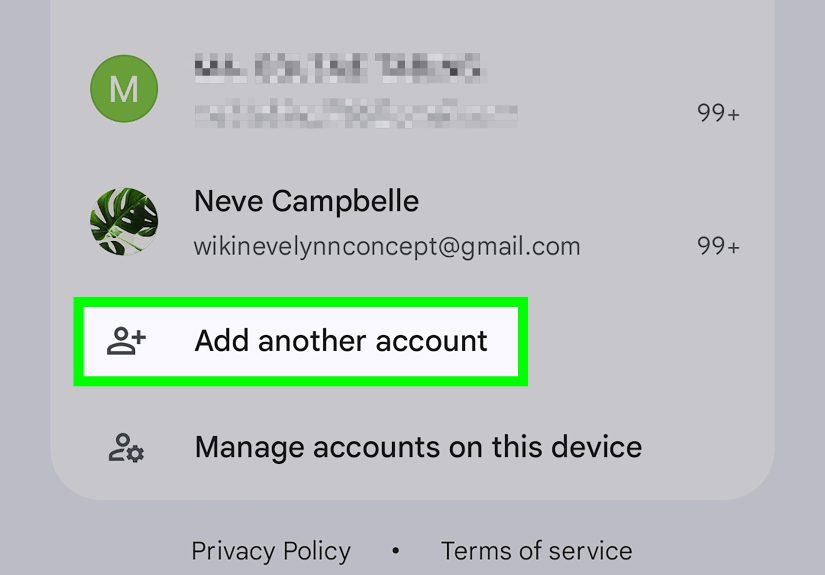
Open Gmail, tap your profile picture, and switch to the account you want. You can also add another account from the same menu. If Gmail keeps returning to the wrong inbox, switch manually and give it a minute to remember the change.
In the Google App
Open the Google app, tap your profile image, then choose the account you want to use. This is useful if Search, Discover, or your saved activity is showing under the wrong identity.
In Chrome for iPhone
Open Chrome, tap your account icon, and switch to the account you want. You can also remove accounts from the device if you want to clean things up and start fresh.
Important iPhone Reality Check
There is not always one magical universal default Google account across every Google app on iPhone. Many apps remember the account last used in that app, or let you switch separately. So if your goal is consistency, use the same account first across Gmail, Chrome, Drive, and the Google app, then remove any old accounts you no longer need on that device.
Common Problems and Easy Fixes
The Wrong Account Still Opens in Gmail or Drive
Sign out of all Google accounts in your browser, close the browser tab, reopen it, then sign in with the correct account first. If that still fails, clear cookies for Google sites or use a separate Chrome profile.
Chrome Sync Is Tied to the Wrong Account
Check the Chrome profile itself, not just the tab you are in. You may be using the right Gmail account in a tab but the wrong Chrome profile overall.
My Work or School Account Keeps Taking Over
If your Google account is managed by an organization, some settings may be controlled by your admin. In that case, account behavior may be limited by company or school rules.
I Do Not Want to Sign Out of Everything
Then your best bet is Chrome profiles or Incognito mode. They are cleaner than constantly reshuffling which account is first in one crowded browser session.
Shared Device Worries
On shared computers, avoid staying signed in to multiple Google accounts unless you trust everyone using the device. Separate profiles or guest sessions are much safer.
Best Practices for Managing Multiple Google Accounts
- Use one Chrome profile per major identity: personal, work, school, freelance, or family.
- Give each account a different profile photo so you can spot mistakes faster.
- Keep your most-used account as the first signed-in account on web sessions.
- Remove old accounts from phones you no longer use for that purpose.
- Use Incognito for temporary logins instead of permanently adding every account everywhere.
These small habits save a surprising amount of time. They also reduce the chance of sending a casual email from your formal work account or uploading personal files into the shared office Drive. That is the kind of mistake that makes you stare at the ceiling at 2 a.m.
Real-World Experiences: What Changing a Default Google Account Actually Feels Like
In real life, people usually notice they need to change their default Google account when something small goes wrong for the third or fourth time. It is rarely a dramatic tech crisis at first. It is more like death by a thousand tiny annoyances.
For example, a student might open Google Docs to turn in an assignment, only to discover the document was created under a personal account with no access to the school’s shared folders. A freelancer may click a client Drive link and get that cheerful but deeply unhelpful “You need access” message because Chrome opened the wrong account by default. A parent might buy an app subscription on a phone and realize the Play Store was tied to the child’s account instead of the family account. None of these problems are impossible to fix, but all of them waste time.
One of the most common experiences is with YouTube and Gmail. Someone signs into YouTube using a secondary account to manage a channel, then later opens Gmail and wonders why everything looks unfamiliar. Suddenly the inbox is wrong, the profile picture is wrong, and the brain starts doing that fast little panic dance. In reality, it is usually just a default-account issue in the browser session.
People who work from home run into this constantly. They may have one account for office email, one for personal life, and one for side projects. At first, keeping all three signed in feels efficient. Then calendar invites start landing in the wrong place, saved passwords sync to the wrong Chrome profile, and bookmarks become a chaotic museum of mixed identities. After that, many users discover that separate Chrome profiles are not just a nice feature. They are a sanity-preservation tool.
On phones, the experience is different but equally relatable. Android users often assume there must be one simple setting that says, “Use this Google account for everything.” Then they spend fifteen minutes tapping around Settings and finding menus with names like Passwords & Accounts, Manage Accounts, Users & Accounts, or some manufacturer-created title that sounds like it was generated by a committee. iPhone users have the opposite problem: the account switching is often easy inside each app, but it can feel inconsistent because each app behaves slightly differently.
The people who end up happiest are usually the ones who simplify. They pick one main account per device or browser profile. They remove old logins they never use. They stop treating one browser window like a crowded family reunion of every Google account they have ever created since middle school. Once that cleanup happens, Google becomes much less confusing. Not perfect, because this is still technology, but definitely less likely to ruin your morning before coffee.
Final Thoughts
If you want to change your default Google account, the fastest solution on desktop is still to sign out of all accounts and sign back in with the one you want first. In Chrome, separate profiles are often the better long-term move. On Android, changing the practical “main” account may require removing and re-adding accounts in the right order. On iPhone and iPad, account switching usually happens app by app.
Once you understand that Google handles “default” differently across web browsers, Chrome profiles, Android, and iOS, the confusion starts to make sense. More importantly, it becomes fixable. And that is really the dream: fewer mystery logins, fewer wrong inboxes, and fewer moments where Google acts like it has never met you before.
Note: Steps can vary slightly by device model, Chrome version, app version, and whether your Google account is managed by a school or workplace.