Table of Contents >> Show >> Hide
- Why Blocking Someone on YouTube Feels More Confusing Than It Should
- Way 1: Hide a User From Your Channel
- Way 2: Block a Person on YouTube Through Live Chat or Mentions
- Which YouTube Blocking Option Should You Use?
- Common Mistakes People Make When Trying to Block Someone on YouTube
- Extra Tips for a Cleaner, Calmer YouTube Channel
- Experiences Related to Blocking Someone on YouTube
- Final Thoughts
- SEO Tags
YouTube is fantastic when it is full of helpful comments, clever creators, and the occasional cat who somehow understands camera angles better than most humans. But when one annoying person shows up in your comments, live chat, or mentions, the platform can suddenly feel less like a fun video app and more like a digital mosquito convention.
The good news is that you do have options. The slightly less charming news is that YouTube does not always label them in the most obvious way. In some places, the platform uses the word block. In other places, it uses hide user from channel. Those tools are related, but they are not exactly the same. That is where many people get tripped up.
If you are trying to figure out how to block a person on YouTube quickly, this guide keeps it simple. Below, you will learn the two easiest ways to block a person on YouTube, what each method actually does, when to use one over the other, and how to avoid the classic mistake of using the wrong tool for the wrong problem. Think of this as your no-nonsense, troll-reducing, peace-restoring YouTube survival guide.
Why Blocking Someone on YouTube Feels More Confusing Than It Should
Here is the big thing to know before you start clicking menus like a game show contestant: YouTube has different moderation tools for different situations. If someone is bothering you on your channel, the best move is often to hide them from your channel. If someone is bothering you in a live chat or through mentions, the platform also offers a more direct block option.
That means the phrase “block a person on YouTube” can really mean one of two things:
- Hide them from your channel so their comments stop appearing publicly on your videos and channel spaces.
- Block them in YouTube interactions so you stop seeing their messages, mentions, or live chat activity connected to you.
Once you understand that split, everything gets much easier. The trick is choosing the method that matches your situation instead of using a tool that sounds right but does not fully solve the problem.
Way 1: Hide a User From Your Channel
If you run a YouTube channel and want to stop someone from cluttering your comment section with nonsense, this is usually the best method. It is the creator-friendly option and, in real life, the most useful one for handling trolls, repeat spammers, fake experts, and that one person who thinks every video is a courtroom cross-examination.
Quick Steps From a Comment
- Sign in to your YouTube account.
- Find a comment the person left on your video or channel.
- Open the More menu next to the comment.
- Select Hide user from channel.
That is the fastest route when the person has already left a comment. You spot the problem, click a couple of buttons, and YouTube handles the rest. No dramatic speech required.
Quick Steps in YouTube Studio
If you would rather manage things from the back end, or if you already know the person’s channel URL, YouTube Studio gives you another clean option.
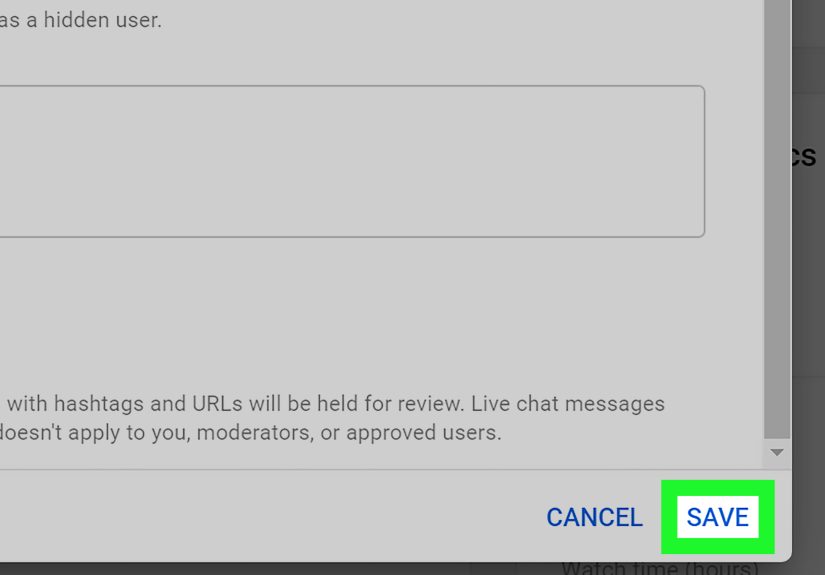
- Open YouTube Studio.
- Go to Settings.
- Select Community.
- Under Hidden users, paste the person’s channel URL.
- Click Save.
This method is especially handy if you are doing a moderation cleanup session and want to manage several annoying accounts at once. It feels more organized, more creator-friendly, and far less emotional than dealing with each irritating comment one by one.
What Happens After You Hide Someone?
When you hide a user from your channel, YouTube makes their comments stop showing on your channel. That means your viewers no longer have to scroll through their drama, fake giveaways, link spam, or “first!!!” masterpieces. Better still, YouTube does not notify the person that you hid them, which helps avoid extra conflict.
There is another bonus: this action applies across your channel, not just one video. So if the same person loves leaving strange comments everywhere, you do not have to play whack-a-mole forever. You are solving the issue at the channel level, which is far more efficient.
This option is best for:
- Creators dealing with repeat trolls
- Businesses managing branded channels
- Teachers or coaches protecting community spaces
- Anyone tired of spammy or disruptive comments
In plain English, if you want someone to stop being visible in your channel’s public conversation, hide user from channel is usually your smartest move.
Way 2: Block a Person on YouTube Through Live Chat or Mentions
The second easy way to block a person on YouTube is to use YouTube’s direct blocking tools. This works best when the problem is happening in live chat or through mention notifications. It is more interaction-based than channel moderation-based.
Quick Steps to Block Someone in Live Chat
- Open the live stream where the person is active.
- Click or tap the person’s message, or open the More menu next to it.
- Select Block.
- Confirm your choice.
This is the fastest response when someone is actively being annoying during a live event. Maybe they are spamming the chat, picking fights, posting weird copy-paste messages, or acting like the livestream is their personal stage production. In that moment, quick action matters, and blocking from the chat is the cleanest fix.
Block Someone From a Mention Notification
If someone mentions your channel and you would rather not keep seeing them pop up in your YouTube life, you may also be able to block them from the mentions area in the app.
- Open the YouTube app.
- Tap Notifications.
- Open Mentions.
- Tap More next to the person’s mention.
- Select Block this user.
- Confirm the block.
This route is useful when the problem is not your comment section, but rather a person trying to get your attention in a way you no longer appreciate. Maybe it started as networking and turned into digital clinginess. Maybe it started as feedback and became a hobby-level nuisance. Either way, YouTube gives you a way to shut that door more neatly.
When This Method Is Better Than Hiding a User
Use this second method when your main goal is personal distance in active YouTube interactions. It is helpful when you want to stop seeing someone in live chat, stop receiving mentions from them, or reduce repeated interaction headaches.
However, if you are a channel owner and the real issue is public comments appearing on your videos, you will usually want to return to Way 1. That is the more powerful moderation tool for creators.
Which YouTube Blocking Option Should You Use?
If you are deciding between the two, here is the easiest rule of thumb:
- Use “Hide user from channel” if you want their comments gone from your channel space.
- Use “Block” in live chat or mentions if you want to stop direct interaction in those areas.
Think of it this way: one tool protects your channel, while the other protects your interactions. Same neighborhood, different locks on the door.
Common Mistakes People Make When Trying to Block Someone on YouTube
One of the biggest mistakes is assuming every YouTube block does the exact same thing. It does not. That is why people often say, “I blocked them, so why are they still around?” In many cases, they used a live-chat block when they really needed a channel moderation action, or they hid a user and then expected every possible interaction on YouTube to vanish like magic.
Another mistake is relying on very old tutorials. YouTube changes menus, labels, and page layouts often enough to keep the internet permanently on its toes. If a guide tells you to hunt for an option that you cannot find, do not assume you are losing your mind. There is a decent chance the interface changed, the label shifted, or the platform moved the feature into Studio.
Finally, some users forget that comment settings matter too. If you deal with repeated spam, scam links, or troublesome phrases, it may be worth using blocked words, link filtering, or stricter comment moderation settings in YouTube Studio. Blocking one person solves one problem. Better moderation settings can solve ten future problems before they start.
Extra Tips for a Cleaner, Calmer YouTube Channel
If your channel is growing, moderation is not just a defensive move. It is part of good channel management. A clean comment section feels more welcoming, more trustworthy, and more professional. That matters whether you are building a personal brand, running a business, teaching a class, or reviewing power tools with suspicious enthusiasm.
Here are a few practical ways to make blocking on YouTube more effective:
- Review comments regularly instead of waiting for a mess to build up.
- Use YouTube Studio to manage hidden users in one place.
- Turn on stricter comment filters if spam becomes frequent.
- Act early with repeat offenders instead of hoping they magically become delightful.
- Use reporting tools when behavior crosses the line into harassment, abuse, or scams.
The goal is not to build a silent channel. It is to build a healthy one. Good moderation protects real viewers while quietly showing bad actors the exit.
Experiences Related to Blocking Someone on YouTube
In real-world use, blocking someone on YouTube usually feels less dramatic than people expect and more practical than they imagine. A small creator might upload weekly cooking videos and notice that one account leaves rude comments on every single post. At first, the creator ignores it, hoping the person will get bored and wander off into some other corner of the internet. Instead, the comments become more frequent, more distracting, and more annoying to other viewers. The moment that creator uses Hide user from channel, the whole comment section becomes calmer. Nothing flashy happens. There is no confetti cannon. But the stress level drops immediately, and the creator can focus on making videos again instead of managing nonsense.
Another common experience happens with live streams. Imagine a gaming channel running a friendly Friday-night stream. Most viewers are there for fun, but one person starts flooding the chat with repetitive messages, baiting arguments, or trying to hijack the mood. Live chat problems feel bigger because they happen in real time. They can throw off the host, distract moderators, and make normal viewers leave early. In that situation, using the live chat Block option is not about being overly sensitive. It is about keeping the event watchable. Many streamers discover that quick moderation protects not only their mood, but also the quality of the entire broadcast.
Brand accounts often run into a different version of the same issue. A company posts tutorials, product demos, or customer education videos, and one user repeatedly shows up to post misleading claims, spam unrelated links, or derail the discussion. The social media manager may first try replying politely, because brands are trained to be professional. But eventually they realize that not every account wants help. Some accounts simply want attention. That is usually the moment moderation becomes a business decision rather than a personal one. Hiding the user keeps the public space more useful for actual customers.
Educational channels have their own experiences too. A teacher or coach may use YouTube to share lessons, lectures, or guidance for students. In that setting, safety and clarity matter more than “letting everyone say whatever they want.” If one person keeps posting disruptive remarks, the teacher is not being harsh by removing that noise. They are protecting the learning environment. Many creators in this position say the biggest relief is not just removing one person. It is seeing other viewers engage more comfortably afterward.
Then there are the viewers, not creators, who get pulled into annoying mention chains or awkward live chat exchanges. For them, blocking on YouTube is not about running a channel at all. It is about reducing unwanted interaction. A person may leave one comment on a video, then suddenly another account keeps mentioning them, replying to them, or popping up in chats. Blocking becomes a way to reclaim some quiet. And honestly, quiet is underrated on the internet.
The most consistent lesson across all these experiences is simple: YouTube moderation tools work best when you use them early and use the right one. Waiting too long usually makes the problem feel bigger. Choosing the wrong tool makes it feel like nothing changed. But once users understand the difference between hiding someone from a channel and blocking them in interactive spaces, the whole process becomes much easier. Less confusion, fewer headaches, and a much better chance that your YouTube experience stays fun instead of turning into a full-time troll management internship.
Final Thoughts
If you need to block a person on YouTube, the fastest path depends on where the problem is happening. For creators, Hide user from channel is usually the most effective fix for comment trouble. For live streams and mentions, YouTube’s Block option is the better move. Once you know which tool fits which situation, the process is quick, clean, and much less frustrating.
In other words, you do not need to tolerate chaos just because someone found your comment section and decided to make it their new hobby. YouTube gives you a few solid ways to protect your space. Use them generously, use them wisely, and save your energy for better things, like making great videos or watching them without interruption from Captain Keyboard.