Table of Contents >> Show >> Hide
- Surface 3 vs. Surface Pro 3: The Quick Identity Check
- Specs Snapshot: What You’re Really Comparing
- Design and Kickstand: Desk Device vs. Anywhere Device
- Display and Pen: Notes, Sketches, and the “Paper Replacement” Dream
- Performance: The Atom vs. Core Reality Check
- Battery Life and Charging: Promises vs. People’s Days
- Keyboard and Accessories: The Hidden Cost of “Starting at $499”
- Ports, Connectivity, and “Can I Plug In My Stuff?”
- Which One Should You Choose?
- Bottom Line
- Real-World Experience (Extra ): What Daily Life Feels Like
- Sources Used (No Links)
Two devices. One number. Very different vibes. If you’ve ever looked at a “Surface 3” listing and thought,
“Ah yes, surely that’s the same thing as a Surface Pro 3, just… three-er,” welcome to the club.
Microsoft’s naming here is like ordering a “small coffee” and receiving a teacup or a bucketboth are technically
beverages, but your day is about to go in two very different directions.
This guide breaks down what actually matters: performance, portability, pen-and-paper vibes, keyboard comfort,
ports, battery expectations, and which one makes sense for your work (or school, or couch-based doomscrolling).
We’ll keep it practical, a little funny, and very allergic to marketing fog.
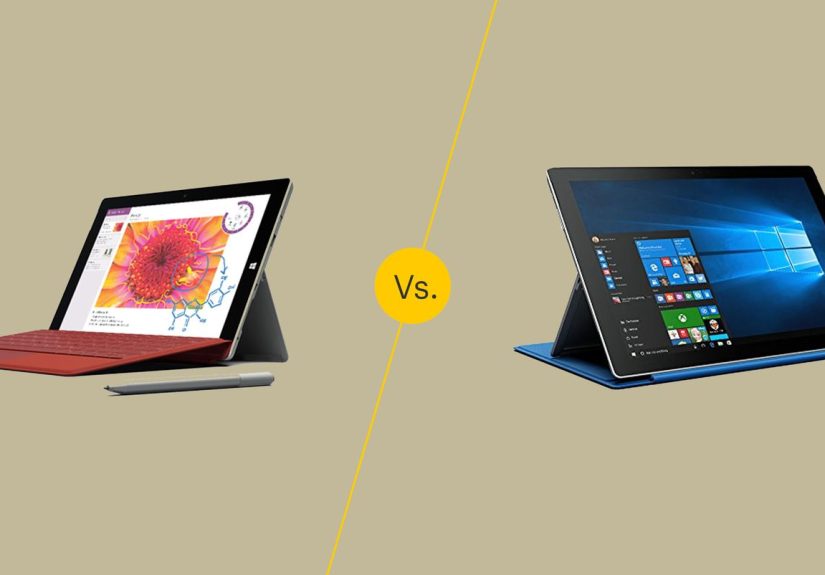
Surface 3 vs. Surface Pro 3: The Quick Identity Check
Here’s the easiest way to think about it:
- Surface 3 = the lighter, more budget-friendly “full Windows in a smaller tablet” option.
- Surface Pro 3 = the more powerful “this can replace a laptop (if you believe in magic)” option.
Both are 2-in-1 Windows devices with kickstands and optional keyboard covers. Both support pen input.
Both have that “I’m productive in a coffee shop” aesthetic. But under the hood, they’re built for very different workloads:
Surface 3 leans efficiency; Surface Pro 3 leans power.
Specs Snapshot: What You’re Really Comparing
Specs aren’t everything, but they’re the fastest way to explain why one device calmly handles spreadsheets
while the other starts negotiating with you the moment you open 18 browser tabs and a photo editor.
Display and size
- Surface 3: 10.8-inch display, 1920 × 1280 resolution, 3:2 aspect ratio.
- Surface Pro 3: 12-inch display, 2160 × 1440 resolution, 3:2 aspect ratio.
Translation: the Pro 3 gives you more screen real estate (and more pixels to make text and drawings look crisp),
while the Surface 3 is easier to hold like a tablet without feeling like you’re bench-pressing your email.
The 3:2 aspect ratio on both is great for reading, note-taking, and documents because it’s taller than a typical widescreen.
Processor class (the “why does this feel faster?” factor)
- Surface 3: Intel Atom x7 class chipdesigned for efficiency and fanless use.
- Surface Pro 3: 4th-gen Intel Core i3/i5/i7 optionsdesigned for heavier work.
In real life, this is the biggest difference. The Core chips in the Pro 3 are simply in another league for
demanding tasks: big Office files, multiple monitors, heavier creative apps, and multitasking that doesn’t feel like a slow-motion documentary.
Weight and portability
- Surface 3: about 1.37 lb (622 g) for the tablet.
- Surface Pro 3: about 1.76 lb (800 g) for the tablet.
On paper, that difference looks small. In the hand, it’s noticeableespecially if you’re reading, marking up PDFs,
or holding it one-handed while the other hand does something important like… opening snacks.
Design and Kickstand: Desk Device vs. Anywhere Device
Both devices follow the Surface “kickstand + Type Cover” formula, but they don’t execute it the same way.
Kickstand flexibility
The Surface Pro 3 is famous for its more continuously adjustable kickstand style, letting you dial in angles for typing,
drawing, and awkward airplane tray-table situations. Reviews loved the ambitionthough “using it on your lap”
still sparked debate because a kickstand + thin keyboard doesn’t behave exactly like a traditional laptop hinge.
The Surface 3 uses a simpler approach (multiple set positions rather than “pick any angle your heart desires”),
which is often totally fine for normal use: desk typing, couch browsing, and note-taking. The tradeoff is fewer micro-adjustments,
but also a more straightforward “set it and go” feel.
Portability vibe
If your day includes lots of picking the device up and moving aroundclassroom to library, kitchen table to couch,
meeting room to meeting roomthe Surface 3 feels more naturally “tablet-first.”
The Pro 3 is still portable, but it’s the kind of portable that says, “I’m a laptop replacement,” and expects to be treated with respect.
Display and Pen: Notes, Sketches, and the “Paper Replacement” Dream
Both support pen input, and the 3:2 display shape makes handwriting and document markup feel less cramped than widescreen tablets.
That said, the experiences differ in a few important ways.
Resolution and comfort
The Pro 3’s higher resolution (2160 × 1440) gives you more workspace for side-by-side documents and sharper-looking text,
which matters when you’re reading for hours or doing detailed annotation. The Surface 3 is still sharp at 1920 × 1280,
and plenty of reviewers found it bright and pleasantjust not as “premium display” as the Pro model.
Pen expectations
A key “real-world” detail: depending on configuration and bundle, the Pro line was typically positioned as more pen-centric
(and often packaged accordingly), while Surface 3 was more cost-sensitive and could require buying accessories separately.
If you’re shopping used today, always verify what’s actually included: pen, Type Cover, and charger situation can vary wildly.
Performance: The Atom vs. Core Reality Check
Let’s put this gently: the Surface 3 is not “slow,” but it is “selectively enthusiastic.”
It’s built for everyday computingOffice, web browsing, streaming, note-takingwithout the fan noise and heat of more powerful chips.
Where Surface 3 feels great
- Word docs, PDFs, and school assignments
- Email, calendars, and Teams/Zoom-style basics (within reason)
- Web browsing with a sane number of tabs
- Light photo edits and casual creative work (think: quick tweaks, not heavy production)
Where Surface 3 starts bargaining
- Heavy multitasking (lots of tabs + big Office files + background apps)
- Serious creative work (large Photoshop projects, video editing, big CAD files)
- Anything that expects sustained high performance for long periods
Where Surface Pro 3 pulls ahead
The Surface Pro 3’s Intel Core options are designed for real laptop-class work. That means better performance in:
larger spreadsheets, more complex presentations, code editors, creative suites, and generally anything where you want
the device to respond instantly instead of taking a thoughtful pause to reflect on the meaning of your request.
If you’re buying specifically for “workhorse” tasks, the Pro 3 is the safer pickespecially in higher-end configurations
with more RAM and storage.
Battery Life and Charging: Promises vs. People’s Days
Microsoft marketing tends to speak in “up to” language. Real life speaks in “I have 12% left and a meeting starts in 6 minutes.”
Surface Pro 3 battery claims
Microsoft listed the Surface Pro 3 at up to about 9 hours of web browsing in official specs documentation.
In reviews, results varied depending on brightness, workload, and configuration, but it was generally treated as usable
for a workday with reasonable settings.
Surface 3 battery positioning
The Surface 3 was positioned around efficiencyan Atom-class chip, fanless design, and “portable productivity” messaging.
Multiple reviewers liked the concept, even if battery results weren’t always the dramatic slam-dunk people expected.
The most honest advice: plan for “several hours of mixed use,” and if you’re pushing brightness and multitasking,
expect the battery meter to move faster than your optimism.
Charging differences that actually matter
One of the most practical differences is charging style: the Surface 3 family leaned into more common charging approaches for its time,
while the Pro line kept more proprietary charging hardware. If you’re shopping used, this affects replacement cost,
travel convenience, and how annoyed you’ll be when you forget the charger at home.
Keyboard and Accessories: The Hidden Cost of “Starting at $499”
Both devices become dramatically more useful with a Type Cover keyboard. Without it, you have a tablet. With it,
you have a surprisingly capable mini workstation.
Typing comfort
Reviewers often praised Microsoft’s Type Cover improvements over timebetter trackpads, better feel, more “this is actually usable”
energy. Still, a kickstand + thin cover is not the same as a rigid laptop base. If you type on your lap daily,
the Surface Pro 3 gets closer to a laptop experience than earlier Surfaces, but it can still feel less stable than a clamshell notebook.
Accessory math
Budget shoppers: remember the accessory stack. If you buy a Surface 3 because it looks cheaper, but then add a Type Cover and a pen,
your “affordable” device can creep toward Pro territory fast. Meanwhile, used bundles can flip the mathsometimes a Pro 3 lot includes
the keyboard and pen, making it the better deal.
Ports, Connectivity, and “Can I Plug In My Stuff?”
These are productivity devices, so ports matter. You want to connect a mouse, a USB drive, a monitor, maybe an adapter chain that looks
like a cyberpunk necklace. Good news: both devices include genuinely useful ports for their era.
Surface Pro 3 ports (highlights)
- Full-size USB 3.0
- Mini DisplayPort
- microSD card slot (under the kickstand)
- Headset jack
Surface 3 ports (highlights)
- Full-size USB 3.0
- Mini DisplayPort
- microSD card support
- Headset jack
If your plan includes external displays, storage expansion, or traditional USB accessories, both can do the job.
The bigger distinction is performance: the Pro 3 is more comfortable driving heavier workflows while connected to extra gear.
Which One Should You Choose?
Instead of pretending there’s one “best,” let’s match devices to humans.
Choose Surface 3 if you want…
- A lighter Windows 2-in-1 for writing, reading, classes, and everyday productivity
- A fanless, quieter device for casual use and note-taking
- A more tablet-friendly size that’s easier to hold for long periods
- Basic computing with occasional “real desktop apps,” not heavy creative production
Choose Surface Pro 3 if you want…
- Laptop-class performance for work, multitasking, and heavier software
- A bigger, higher-resolution display for split-screen productivity
- More headroom for “I don’t know what I’ll need, but I want options” usage
- A stronger bet for external monitors, bigger files, and sustained performance
The “used device” reality (important)
In 2026, you’re almost certainly buying these secondhand. That shifts the decision:
- Condition matters: battery health, screen wear, and keyboard hinge wear can outweigh spec differences.
- Bundle value matters: a Pro 3 with Type Cover + pen can beat a Surface 3 “tablet only” deal.
- Configuration matters: RAM and storage influence day-to-day comfort more than people expect.
If you can only verify one thing before buying, verify what accessories are included and whether the device charges reliably.
(Nothing ruins productivity like a charger that only works when held at a sacred angle discovered through trial and sorrow.)
Bottom Line
The Surface 3 vs. Surface Pro 3 decision is mostly a decision about performance headroom vs. portability.
If your tasks are lightweight-to-moderate and you care about a smaller, easier-to-hold Windows tablet,
Surface 3 can be genuinely charmingespecially for students and note-takers.
If you want a more legitimate laptop replacement, expect heavier multitasking, or simply don’t want to think about limitations,
Surface Pro 3 is the more capable machine. It’s the one that says, “Sure, open that huge spreadsheet,” and means it.
Real-World Experience (Extra ): What Daily Life Feels Like
Let’s talk about “experience,” the part no spec sheet can capturethe little daily moments that decide whether you love a device
or list it online with the caption “barely used” (which, as we all know, is marketplace code for “we had creative differences”).
With the Surface 3, daily life tends to feel lightweight and casualin a good way. People often describe it as the Surface that’s
easiest to treat like a tablet. You grab it for the couch, prop it on a kitchen counter while following a recipe, or toss it in a bag
for class without feeling like you packed a small anvil. It’s particularly pleasant for reading and note-taking because the 3:2 screen
is tall enough to make documents feel natural, and the overall size doesn’t fight you when you hold it in portrait mode.
The “fanless” vibe also changes how it feels to use: no spinning noise ramping up during quiet moments, and fewer “why is my device
impersonating a tiny hair dryer?” interruptions. For writing sessionsWord docs, Google Docs in a browser, PDFs and highlightsSurface 3
can feel like a tidy, focused tool. The catch is that it rewards a calmer lifestyle. If your browsing habit looks like
“25 tabs, two streaming videos paused mid-frame, three messaging apps, and a background download,” Surface 3 may still do it,
but it might do it with the emotional energy of someone carrying groceries in one trip: determined, slightly stressed, and making
choices about what gets prioritized.
The Surface Pro 3 experience is different: it’s more “portable workstation.” People who use it for work often talk about the relief of
having a device that can actually handle heavier tasks without constantly nudging you to close things. The bigger screen helps more than
you’d thinksplit-screen email and a document, two windows side-by-side, or a reference PDF next to your notes. If you’re editing slides,
working in large spreadsheets, or doing professional multitasking, the Pro 3 tends to feel less fragile and more confident.
But here’s the funny part: the Pro 3 can be “too much tablet” and “not quite laptop” at the same time. As a tablet in bed or on the couch,
it can feel big and heavier than you want. As a laptop on your lap, the kickstand-and-cover design is better than earlier Surfaces,
but still not as stable as a traditional clamshell. In real life, many users end up using it like a laptop at tables and desks,
and like a tablet mostly when they’re holding the pen for notes or markups.
So the everyday choice often comes down to where you live: if your computing life happens in classrooms, couches, and coffee shops with lots of
“pick it up and go,” the Surface 3 experience can feel friendlier. If your life is “work tabs, files, external monitors, and I refuse to close anything,”
the Surface Pro 3 experience feels like the grown-up answerslightly less cuddly, much more capable.
Sources Used (No Links)
Microsoft Support; Microsoft News and official blogs; and U.S. tech publications including Ars Technica, The Verge, Wired, PCWorld,
Laptop Mag, Time, TechCrunch, Forbes, Gizmodo, Computerworld, and Digital Trends.