Table of Contents >> Show >> Hide
- What Is an Out of Office Message in Microsoft Teams?
- Before You Start: Teams, Outlook, and Microsoft 365
- How to Set an Out of Office Message in Microsoft Teams
- Step 1: Open Microsoft Teams
- Step 2: Select Your Profile Picture
- Step 3: Choose “Set Status Message”
- Step 4: Select “Schedule Out of Office”
- Step 5: Turn On Automatic Replies
- Step 6: Write Your Out of Office Message
- Step 7: Choose Whether to Send Replies Outside Your Organization
- Step 8: Set a Time Period
- Step 9: Save Your Settings
- Alternative Method: Set Out of Office from Teams Settings
- How to Set Out of Office in Outlook So It Appears in Teams
- How to Set a Basic Status Message in Teams
- What Should Your Out of Office Message Say?
- Best Practices for Teams Out of Office Messages
- How to Turn Off an Out of Office Message in Microsoft Teams
- Troubleshooting: Why Is My Teams Out of Office Not Working?
- Out of Office vs. Away vs. Do Not Disturb
- Real-World Experiences: What Actually Works When Setting Out of Office in Teams
- Conclusion
Setting an out of office message in Microsoft Teams is one of those tiny workplace tasks that can prevent a surprisingly large amount of chaos. Without it, coworkers may keep pinging you like a doorbell with no off switch. With it, everyone knows you are away, when you will return, and who can help while you are not available.
The good news: Microsoft Teams makes the process fairly simple, especially if your organization uses Microsoft 365 with Outlook. The even better news: when configured correctly, your Teams out of office message can sync with Outlook automatic replies, meaning your chat status and email response can work together instead of behaving like distant cousins at a family reunion.
In this guide, you will learn how to set an out of office message in Microsoft Teams, schedule it for specific dates, customize replies for people inside and outside your organization, turn it off, troubleshoot common problems, and write a message that actually helps people instead of simply saying, “I am away.”
What Is an Out of Office Message in Microsoft Teams?
An out of office message in Microsoft Teams is a status message that tells colleagues you are unavailable. Depending on your Microsoft 365 setup, it can also trigger automatic replies in Outlook. That means when someone messages you in Teams, opens your profile, or sends you an email, they may see the away message you created.
Think of it as your digital “Gone fishing” sign, except more professional and less likely to involve actual fish.
Teams out of office settings are especially useful when you are on vacation, attending a conference, taking sick leave, traveling for business, working a different schedule, or simply unavailable for a focused block of time. For remote and hybrid teams, this feature is not just polite; it is practical communication hygiene.
Before You Start: Teams, Outlook, and Microsoft 365
Before setting your out of office message, it helps to understand how Teams and Outlook are connected. In many work and school Microsoft 365 accounts, Teams out of office settings sync with Outlook automatic replies. If you schedule an out of office message in Teams, Outlook may show the same automatic reply with the same time range.
However, this depends on your account type, organization settings, and version of Teams. Some free or personal Teams experiences may only allow you to set a status message rather than a full scheduled out of office automatic reply. If you do not see the “Schedule out of office” option, your account may not support the full feature, or your organization may manage availability settings differently.
For most business users, the best place to begin is inside Teams. If something looks different, Outlook is the reliable backup option.
How to Set an Out of Office Message in Microsoft Teams
Here is the standard method for setting an out of office message directly from your profile in Microsoft Teams.
Step 1: Open Microsoft Teams
Open the Microsoft Teams desktop app or Teams on the web. Make sure you are signed in with your work or school Microsoft 365 account.
Step 2: Select Your Profile Picture
In the top-right corner of Teams, select your profile picture or initials. This opens your account and status menu.
Step 3: Choose “Set Status Message”
Select Set status message. This is the area where Teams lets you create a custom message that appears when people view your profile or contact you.
Step 4: Select “Schedule Out of Office”
At the bottom of the status message window, select Schedule out of office. This opens the out of office settings panel.
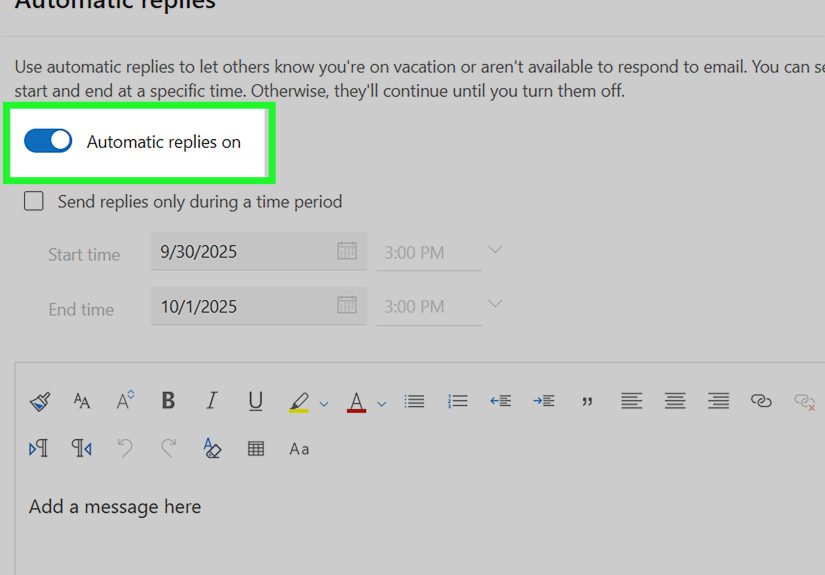
Step 5: Turn On Automatic Replies
Switch on Turn on automatic replies. This activates the out of office message field.
Step 6: Write Your Out of Office Message
Enter a clear message explaining that you are unavailable. Include your return date and, if helpful, the name or email address of someone who can assist while you are away.
Example:
Hello, thanks for your message. I am out of office from May 6 through May 10 and will respond when I return on May 13. For urgent project questions, please contact Jordan Lee at [email protected].
Step 7: Choose Whether to Send Replies Outside Your Organization
If you want external contacts to receive an automatic reply, select the option to send replies outside your organization. Depending on your settings, you may be able to reply to all external senders or only contacts.
For privacy and security, avoid putting too much detail in external messages. Your coworkers may need to know you are on vacation in Colorado. A random vendor probably does not need the full itinerary, your dog’s name, and the fact that your inbox is emotionally unsupervised.
Step 8: Set a Time Period
Select the option to send replies only during a specific time period. Enter your start date, start time, end date, and end time. This is strongly recommended because it turns your message off automatically.
If you skip the time period, your out of office reply may remain active until you manually turn it off. That can lead to the classic Monday morning confusion: “Why does Teams still think I am on a beach?”
Step 9: Save Your Settings
Select Save. Your out of office message is now scheduled in Teams. If your organization supports syncing, Outlook automatic replies should reflect the same message and schedule.
Alternative Method: Set Out of Office from Teams Settings
You can also schedule an out of office message from the Teams settings menu.
- Open Microsoft Teams.
- Select Settings and more, usually shown as three dots near your profile picture.
- Choose Settings.
- Go to General.
- Find the Out of Office section.
- Select Schedule.
- Turn on automatic replies, write your message, set your time range, and save.
This method is helpful if you cannot find the option from your profile menu or if you prefer managing everything from Settings.
How to Set Out of Office in Outlook So It Appears in Teams
If Teams is being stubborn, Outlook is your backup quarterback. Because Teams and Outlook are connected in many Microsoft 365 environments, setting automatic replies in Outlook can also update your Teams out of office status.
In New Outlook for Windows
- Open Outlook.
- Select View, then View settings.
- Go to Accounts.
- Select Automatic Replies.
- Turn on automatic replies.
- Set a start and end time.
- Write your internal and external messages.
- Save your changes.
In Outlook on the Web
- Open Outlook in your browser.
- Select the gear icon for Settings.
- Go to Mail, then Automatic replies.
- Turn on automatic replies.
- Choose your time range.
- Write your message.
- Save.
After saving, give Teams a little time to update. If your status does not change immediately, refresh Teams, restart the app, or check whether your Outlook calendar has an out of office event during the same time period.
How to Set a Basic Status Message in Teams
If you do not have the full out of office scheduling option, you can still set a basic Teams status message. This is useful for free Teams users, mobile users, or anyone who only needs a visible chat note rather than an automatic email reply.
- Select your profile picture in Teams.
- Choose Set status message.
- Type your message.
- Turn on Show when people message me if available.
- Choose when the message should clear.
- Select Done.
This does not always send automatic replies through Outlook, but it does help people understand your availability inside Teams.
What Should Your Out of Office Message Say?
A good out of office message is short, specific, and useful. It should answer three basic questions:
- When are you unavailable?
- When will you respond?
- Who can help in the meantime?
Simple Internal Out of Office Example
Hi, I am out of office from June 3 to June 7 and will respond after I return on June 10. For urgent requests, please contact Priya Shah.
External Out of Office Example
Thank you for your message. I am currently away and will respond after June 10. For immediate assistance, please contact our support team at [email protected].
Short Sick Day Example
Hi, I am out today and may be slow to respond. For urgent matters, please contact my team lead.
Conference or Business Travel Example
Hello, I am attending a work event from April 15 to April 17 and may have limited availability. I will respond as soon as possible after I return.
Keep the tone friendly but not too casual. “I have escaped the spreadsheet mines and will return when morale improves” may be funny, but it is probably not the best message for external clients.
Best Practices for Teams Out of Office Messages
Use a Clear Return Date
“I am away this week” is less helpful than “I will return on Monday, August 12.” Dates reduce guesswork and prevent follow-up messages asking when you will be back.
Name an Alternate Contact
If someone else can help while you are away, include their name, role, or shared mailbox. Make sure that person knows you are listing them. Nobody enjoys becoming the emergency contact by surprise.
Create Separate Internal and External Replies
Internal messages can include more detail, such as project names or team contacts. External messages should be more general and careful. Avoid sharing private information, travel details, or internal processes.
Always Schedule an End Time
Using a time range is one of the smartest out of office habits. It prevents your message from lingering after you return and saves you from looking like you are permanently unavailable.
Update Your Calendar Too
Your out of office message is more effective when your calendar also shows you as unavailable. This helps coworkers avoid scheduling meetings during your absence.
How to Turn Off an Out of Office Message in Microsoft Teams
If you set an end time, Teams should turn off your out of office message automatically. If you need to disable it manually, follow these steps:
- Open Teams.
- Select your profile picture.
- Choose Set status message.
- Select Schedule out of office.
- Turn off Turn on automatic replies.
- Select Save.
If your status still shows as out of office, check Outlook automatic replies and your Outlook calendar. Sometimes the out of office signal comes from Outlook rather than Teams itself.
Troubleshooting: Why Is My Teams Out of Office Not Working?
You Do Not See “Schedule Out of Office”
Your account may not support full out of office scheduling in Teams. Try setting automatic replies in Outlook instead. You can also use a basic Teams status message as a workaround.
Teams Still Shows Out of Office After You Returned
Open Teams and turn off automatic replies. Then check Outlook automatic replies and your calendar. If a calendar event is still marked as “Out of office,” Teams may continue showing that availability.
Your Outlook Reply Did Not Sync to Teams
Wait a few minutes, then restart Teams. If that does not work, sign out and sign back in. Organization policies, account type, or service delays may affect syncing.
People Outside the Organization Are Not Getting Replies
Check whether external replies are enabled. Also confirm whether replies are limited to your contacts only. Some organizations restrict automatic replies to external senders for security reasons.
Your Message Is Too Vague
If people keep messaging you anyway, your message may not answer the right questions. Add your return date and an alternate contact. The goal is not just to announce absence; it is to redirect action.
Out of Office vs. Away vs. Do Not Disturb
Teams has several availability states, and they are not all the same.
Out of Office means you are unavailable for a scheduled reason and may have automatic replies enabled. Away usually means you are inactive or stepped away from your device. Do Not Disturb means you are working but do not want interruptions. Busy usually appears when you are in a meeting or scheduled event.
Use out of office when you are truly unavailable for a meaningful period. Use Do Not Disturb when you are present but focused. Use Away when you briefly leave your desk. Use Busy when you are booked. Your status is a small signal, but in a busy workplace, small signals save time.
Real-World Experiences: What Actually Works When Setting Out of Office in Teams
After using Teams out of office messages in real work environments, one lesson becomes obvious: the best message is not the cleverest one; it is the one that reduces confusion. A beautifully written out of office reply that forgets to mention your return date is like a GPS that says, “You will arrive eventually.” Technically comforting, practically useless.
One common experience is that coworkers do not always read long messages. If your Teams out of office note is five paragraphs, most people will skim the first line and miss the important part. That is why the strongest format is usually simple: “I am out from this date to that date. I will reply when I return. Contact this person for urgent needs.” It is not glamorous, but neither is a fire extinguisher, and both are helpful when things get dramatic.
Another practical lesson is to set your out of office message before your last working hour, not five minutes before you leave. When people see your status early, they have time to ask urgent questions while you are still available. This is especially useful before vacations, holidays, medical appointments, business travel, or school breaks. A message scheduled in advance gives your team a graceful runway instead of a sudden cliff.
It also helps to coordinate your Teams message with your Outlook calendar. In many organizations, coworkers rely heavily on calendar availability when scheduling meetings. If your Teams message says you are out but your calendar looks open, someone may still invite you to a meeting. Then you return to a calendar full of ghost meetings, which is nobody’s favorite souvenir. Marking your calendar as out of office makes your availability clearer across Microsoft 365.
External replies deserve extra care. Internal teammates may need detailed instructions, but outside contacts usually need a shorter message. A good external reply should avoid sensitive details. Instead of saying, “I am on vacation in Miami until Friday and will not check email,” say, “I am currently away and will respond after Friday. For immediate assistance, please contact our support team.” The second version is cleaner, safer, and less likely to inspire unnecessary follow-up.
For managers, project leads, and client-facing roles, the alternate contact matters more than the away message itself. If you list a backup contact, make sure they know what may come their way. Give them context, links, or a short handoff note before you leave. Otherwise, your out of office message may simply move confusion from your inbox to someone else’s desk, which is not teamwork; it is inbox dodgeball.
One more experience: always test your setup if the absence is important. After saving your Teams out of office message, check your profile, Outlook automatic replies, and calendar status. If you manage client accounts or urgent workflows, ask a teammate to confirm what they see. It takes less than a minute and can prevent days of missed expectations.
Finally, remember to turn the message off if you did not schedule an end time. The easiest way to avoid this problem is to always use a date range. Coming back to work with an active out of office message is like walking into a room while still wearing a “Do Not Enter” sign. People may respect it, but it will make collaboration awkward.
The most effective Teams out of office setup is thoughtful, brief, scheduled, and synced. It tells people what they need to know, points them in the right direction, and protects your time while keeping work moving. That is the quiet magic of a good out of office message: it works while you are not working.
Conclusion
Learning how to set an out of office message in Microsoft Teams is a small skill with a big payoff. It keeps coworkers informed, supports smoother project handoffs, reduces unnecessary follow-ups, and helps Teams and Outlook present a consistent picture of your availability.
For the best results, schedule your message from your Teams profile or Settings, turn on automatic replies, set a specific time range, write a clear message, and include an alternate contact when needed. If Teams does not show the full out of office option, use Outlook automatic replies or a basic Teams status message as a backup.
A good out of office message does not need to be fancy. It needs to be useful. Tell people when you are away, when you will return, and where they can go for urgent help. Do that, and your future self will thank you when you return to a calmer inbox and fewer “just checking in” messages.