Table of Contents >> Show >> Hide
- Before You Start: Quick Reality Check (So You Don’t Yell at Your Phone)
- 12 Steps to Download Music on Apple Music (Without Losing Your Mind)
- Step 1: Confirm You’re Signed In (and Actually Subscribed)
- Step 2: Get on Wi-Fi (and Plug In if You’re Downloading a Lot)
- Step 3: Turn On “Sync Library” (iPhone/iPad) or Library Sync (Android/Mac/Windows)
- Step 4: Choose Smart Download Settings (Quality, Cellular, and Storage)
- Step 5: Add Music to Your Library First (Yes, That’s Usually Required)
- Step 6: Download a Single Song
- Step 7: Download an Album or Playlist in One Go
- Step 8: Find Your Downloads (So You Don’t Re-Download the Same Stuff)
- Step 9: Verify Offline Playback (Airplane Mode Is Your Lie Detector)
- Step 10: Turn On “Automatic Downloads” (Optional, but Great for Future You)
- Step 11: Manage Storage Like a Grown-Up (or at Least Like Someone Trying)
- How to remove downloads (without deleting from your library)
- Use “Optimize Storage” (if you want Apple Music to clean up for you)
- Step 12: Troubleshoot Common Download Problems
- Problem: “Download” is missing
- Problem: Downloads keep pausing
- Problem: Downloaded songs disappear
- Problem: Windows confusion
- Extra Pro Tips (Because “Download” Is Only the Beginning)
- Real-World Experiences: What Downloading Apple Music Is Actually Like (500+ Words)
- Conclusion
Apple Music is basically a musical buffet: endless tracks, zero dishes to wash. The only catch? Your favorite song will always disappear the second you drive into a dead zone, board a plane, or step into that one elevator that seems powered by ancient curses.
The fix is simple: download your music for offline listening. In this guide, you’ll get 12 clear steps that work across iPhone, iPad, Android, Mac, and Windows, plus the settings that keep downloads from eating your storage like a hungry raccoon in a snack drawer.
Before You Start: Quick Reality Check (So You Don’t Yell at Your Phone)
- Apple Music downloads are in-app only. You can’t “save an MP3” from Apple Music’s catalog and drag it into another player. Offline playback happens inside Apple Music.
- You usually need an active subscription for Apple Music catalog downloads to keep working.
- Purchased music is different. Songs you bought from the iTunes Store can be downloaded too, but they follow different rules than subscription catalog tracks.
12 Steps to Download Music on Apple Music (Without Losing Your Mind)
-
Step 1: Confirm You’re Signed In (and Actually Subscribed)
Open Apple Music and make sure you’re signed in with your Apple Account. If you’re on a shared device (or borrowing a family iPad), this matters more than you’d think.
Why this matters: downloads are tied to your account and your library syncing.
-
Step 2: Get on Wi-Fi (and Plug In if You’re Downloading a Lot)
For big playlists, Wi-Fi is your best friend. Downloading over cellular can be slower, burn data, and drain batterylike running a marathon while carrying groceries.
If you’re planning a long trip, start downloads while charging so you don’t end up with 14% battery and 14% of your playlist.
-
Step 3: Turn On “Sync Library” (iPhone/iPad) or Library Sync (Android/Mac/Windows)
This is the “let my devices agree on what I like” switch.
- iPhone/iPad:
Settings>Apps>Music> turn onSync Library. - Android: Apple Music app
Settings> turn onSync Library(wording may vary). - Mac: Music app
Settings/Preferences>General>Sync Library. - Windows: Apple Music app
Settings> enable library sync options.
Tip: If your Library tab looks empty on a new device, this setting is often the culprit.
- iPhone/iPad:
-
Step 4: Choose Smart Download Settings (Quality, Cellular, and Storage)
If you don’t adjust anything, Apple Music will still download finebut you might be silently downloading higher-quality files than your storage can handle.
- Set download quality (iPhone/iPad):
Settings>Apps>Music>Audio Quality>Downloads. Choose what fits your storage (and your audiophile soul). - Limit downloads over cellular: look for
Download over Cellularor similar toggles. - Storage helpers: options like
Optimize Storagecan automatically remove older downloads if space gets tight.
Rule of thumb: Download quality is a trade: higher quality = bigger files. If you love lossless, your storage needs to love it too.
- Set download quality (iPhone/iPad):
-
Step 5: Add Music to Your Library First (Yes, That’s Usually Required)
Apple Music typically wants you to add a song/album/playlist to your Library before you download it. Think of “Add to Library” as “bookmark,” and “Download” as “pack it in your suitcase.”
In the Apple Music app, tap
+,Add, orAdd to Library(exact wording varies by device). -
Step 6: Download a Single Song
Perfect for when you only need one tracklike that song you play before every presentation to feel unstoppable.
- iPhone/iPad/Android: tap the
Morebutton (often three dots) next to the song, then tapDownload. - Mac/Windows: hover over the song and click the
Downloadicon (often a down arrow).
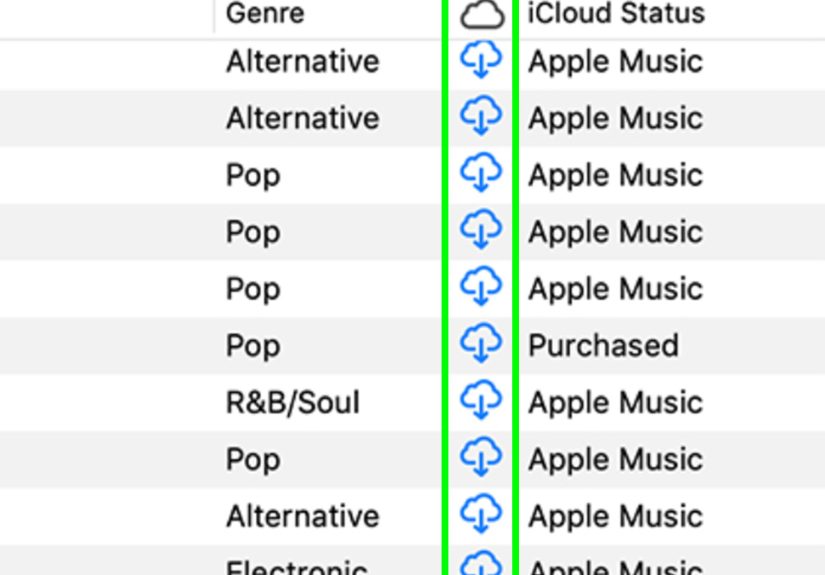
Visual clue: downloaded items often show a small down-arrow icon.
- iPhone/iPad/Android: tap the
-
Step 7: Download an Album or Playlist in One Go
This is the “I’m going camping” move.
- On mobile: open the album/playlist and tap the
Downloadbutton near the top. - On Mac/Windows: open the album/playlist and click the
Downloadbutton at the top.
Tip: Want to download “everything”? Put it in a playlist first. Bulk downloading is easier when your music is organized into playlists.
- On mobile: open the album/playlist and tap the
-
Step 8: Find Your Downloads (So You Don’t Re-Download the Same Stuff)
Apple Music is politeit doesn’t always announce where it stored things. Here’s where to look:
- iPhone/iPad: go to the
Librarytab, then look forDownloaded(orDownloaded Music). - Android: open
Libraryand filter/sort by downloads (wording varies). - Mac/Windows: your Library view will show download indicators; some versions also let you filter to downloaded items.
If you don’t see a downloads section, update the app and double-check that Sync Library is enabled.
- iPhone/iPad: go to the
-
Step 9: Verify Offline Playback (Airplane Mode Is Your Lie Detector)
To confirm a download actually finished, turn on
Airplane Modeand play the track. If it plays, congratulationsyou’re ready for the subway tunnel.If it doesn’t, the download may be incomplete, paused, or blocked by a setting (like cellular restrictions).
-
Step 10: Turn On “Automatic Downloads” (Optional, but Great for Future You)
If you hate repeating yourself (and you do), automatic downloads can save time: anything you add to your Library can download automatically.
iPhone/iPad:
Settings>Apps>Music> turn onAutomatic Downloads.Best use case: You add albums at home on Wi-Fi, and they quietly download so you’re ready for offline listening later.
Worst use case: You casually add 40 playlists and wonder why your phone is begging for storage. (Automatic means automatic.)
-
Step 11: Manage Storage Like a Grown-Up (or at Least Like Someone Trying)
Downloads are wonderful until your phone starts sending “Storage Almost Full” notifications like it’s your boss.
How to remove downloads (without deleting from your library)
- On iPhone/iPad: find the song/album/playlist, tap
More(three dots), then chooseRemove Download(wording may vary). - On Mac/Windows: look for options like
Remove Downloador remove the downloaded file from the device while keeping it in your library.
Use “Optimize Storage” (if you want Apple Music to clean up for you)
On iPhone,
Optimize Storagecan automatically remove older downloads when storage is tight, while leaving your Library intact so you can re-download later. - On iPhone/iPad: find the song/album/playlist, tap
-
Step 12: Troubleshoot Common Download Problems
Problem: “Download” is missing
- Make sure the item is added to your Library first.
- Confirm you’re signed in and Sync Library is enabled.
- Update the Apple Music app and your device OS.
Problem: Downloads keep pausing
- Switch to Wi-Fi and plug in power.
- Check if cellular downloads are restricted.
- Restart the app (the tech equivalent of “turn it off and on again,” which annoyingly works).
Problem: Downloaded songs disappear
- Check if Optimize Storage is enabled and set aggressively.
- Confirm you still have an active subscription (for Apple Music catalog items).
Problem: Windows confusion
- On newer Windows setups, Apple provides a dedicated Apple Music app.
- Some users may still use iTunes for certain libraries and downloads, depending on device and content type.
Extra Pro Tips (Because “Download” Is Only the Beginning)
Tip 1: Build a “Travel Downloads” Playlist
Make one playlist called Travel Downloads and toss in anything you’ll want offline: boarding music, gym hype tracks, podcasts (if applicable), and “calm down” songs for delays. Download the entire playlist once and keep it updated.
Tip 2: Use Download Filters Instead of Guessing
On mobile, a Downloaded filter helps you avoid the classic mistake: “I swear I downloaded this” (you didn’t).
Tip 3: Storage Strategy That Doesn’t Hurt
If you’re short on space, download playlists you’ll replay often (commute mixes, workout sets), and stream everything else. Your phone gets breathing room, and you still get the soundtrack.
Real-World Experiences: What Downloading Apple Music Is Actually Like (500+ Words)
In real life, downloading music on Apple Music usually falls into one of three categories: the planner, the panicker, or the “why is my storage full?” philosopher. And honestly, most people rotate through all threesometimes in the same afternoon.
The planner downloads on Wi-Fi the night before a trip. They make a playlist, hit download, and test it in Airplane Mode like they’re running pre-flight checks on a spaceship. This approach is painfully effective. The next day, while everyone else is stuck listening to the rhythmic hum of the airplane, the planner is offline with a perfectly curated mix that says, “I have my life together,” even if they absolutely do not.
Then there’s the panicker. The panicker remembers offline music at the worst possible time like when the train doors close or when the rideshare is already three minutes away. They frantically tap Download while the signal drops from four bars to one bar to “good luck.” The download wheel spins, their phone heats up, and the moment becomes a tiny thriller movie called Will My Playlist Survive? The lesson here is simple: if you’re going to panic, panic earlypreferably on Wi-Fi.
The third experience is the storage philosopher: the person who downloads with joyful abandon for weeks, then wakes up to a “Storage Almost Full” alert and enters the bargaining stage of grief. They start asking big questions like, “Do I really need 19 versions of the same lo-fi beat playlist?” and “Why does my phone feel personally attacked by audio files?”
This is where settings change everything. Choosing a reasonable download quality (instead of maxing it out just because it’s there) can cut down file sizes dramatically. Turning on Optimize Storage can help if you’re the kind of person who downloads a lot but only listens to the same favorites anyway. On the flip side, if you hate surprise deletions, leaving optimization off and manually removing downloads can feel more predictablelike you’re the boss of your own tiny music warehouse.
Another common experience: people assume downloaded tracks will behave like regular files. They won’t. Apple Music catalog downloads are designed for offline listening in the Apple Music app, not for exporting, sharing, or moving to a USB drive like it’s 2009. Once you accept that, the whole experience gets smoother: you’re downloading access for offline playback, not “owning a file.”
On Windows, experiences can be a little more “it depends.” Some users love having a dedicated Apple Music app, while others still run into moments where they need iTunes for specific content types or legacy setups. The practical takeaway: whichever app you’re using, the workflow stays similaradd to Library, then download. When it works, it’s easy. When it doesn’t, it’s almost always a sign-in, sync, or settings issue.
The best “real world” habit is simple: keep one offline-ready playlist updated, and treat downloads like packing. If you wouldn’t throw random objects into a suitcase five minutes before leaving, don’t do it to your music library either. Download ahead of time, verify offline playback, and you’ll never have to raw-dog a road trip with only radio commercials again.
Conclusion
Downloading music on Apple Music is refreshingly straightforward once you know the pattern: sync your library, add music to your Library, then download it. After that, your biggest wins come from smart settingsdownload quality, automatic downloads (if you want them), and storage management so your device doesn’t stage a rebellion. Follow the 12 steps above and you’ll have Apple Music offline listening ready for flights, commutes, workouts, and anywhere Wi-Fi goes to die.