Table of Contents >> Show >> Hide
- Before You Convert: A 30-Second Prep Checklist
- Method 1 (Windows): Print to PDF from Notepad (Built-In, Free)
- Method 2 (Mac): Save as PDF from Print Dialog (Built-In, Free)
- Method 3 (Any Device): Convert via Google Drive + Google Docs (Free)
- Method 4 (Windows/Mac/Linux): LibreOffice Writer Export as PDF (Free, Powerful)
- Method 5 (Fastest in a Browser): Use a Trusted Online TXT-to-PDF Converter (Free Options)
- How to Keep Your TXT-to-PDF Conversion Looking Clean
- Batch Conversion: When You Have a Whole Folder of TXT Files
- Troubleshooting: Common TXT-to-PDF Problems (and Fixes)
- Quick Recommendations (If You Don’t Want to Think About It)
- Wrap-Up
- Extra: Real-World Experiences and “Oh No” Moments (So You Can Avoid Them)
- 1) The student who submitted a TXT and got “Please resubmit as PDF”
- 2) The developer who converted logs and accidentally destroyed the alignment
- 3) The office worker who used an online converter… and then remembered the file was confidential
- 4) The “Why is my PDF 400 pages?” panic
- 5) The neat freak who wanted headers, page numbers, and a “real document” feel
TXT files are the comfy sweatpants of the file world: simple, reliable, and absolutely not trying to impress anyone.
But the moment you need to email your notes, submit an assignment, share a log file, or make something look even
slightly official, sweatpants become… questionable.
That’s where PDF comes inclean layout, consistent printing, and it looks the same on basically any device. The good news:
you don’t need paid software or a tech degree. Below are five free, easy ways to convert a text file to PDF on Windows,
Mac, or in your browserplus tips to keep your formatting from turning into a chaotic noodle pile.
Before You Convert: A 30-Second Prep Checklist
- Scan for weird symbols: If you see � characters, your file might have an encoding issue (more on that later).
- Decide if formatting matters: Plain paragraphs are easy. Code/logs need monospaced fonts and line wrapping control.
- Remove super-long lines: A single 800-character line can explode your PDF width or wrap into unreadable spaghetti.
- Think privacy: If your TXT contains passwords, client data, or anything sensitive, prefer offline methods (Windows/Mac/LibreOffice).
Method 1 (Windows): Print to PDF from Notepad (Built-In, Free)
If you’re on Windows, you can usually convert a TXT file to PDF using the built-in virtual printer
Microsoft Print to PDF. No downloads. No sign-ins. No “start a 7-day trial” surprise.
Best for
- Quick conversions
- Basic notes, drafts, checklists
- Anyone who wants “done” in under a minute
Steps
- Right-click your .txt file and choose Open with → Notepad.
- Go to File → Print.
- In the printer list, choose Microsoft Print to PDF.
- Click Print, choose a location, name the file, and click Save.
Pro tips (so your PDF doesn’t look like it time-traveled from 1997)
-
In Notepad, try File → Page Setup to adjust margins and headers/footers
(helpful if Notepad insists on printing file paths at the top). -
If your TXT is code/logs, consider a monospaced font by opening the TXT in a more flexible editor
(like WordPad or a code editor) and printing from there. - If “Microsoft Print to PDF” is missing, it may be disabled as an optional Windows feature (see the Troubleshooting section below).
Method 2 (Mac): Save as PDF from Print Dialog (Built-In, Free)
On macOS, the print dialog includes a built-in “Save as PDF” option. It works with TextEdit and most apps that can print.
This is one of the cleanest ways to convert a text document to PDF without extra tools.
Best for
- Mac users who want a reliable, offline option
- Sharing notes that need consistent formatting
Steps
- Open the TXT file in TextEdit (or any text editor).
- Go to File → Print.
- In the bottom-left of the print window, click the PDF dropdown.
- Select Save as PDF, choose a location, and save.
Bonus option: Export directly from TextEdit
TextEdit can also export to PDF from the File menu. If you prefer “Export as PDF” over printing, it’s a nice one-click route.
Method 3 (Any Device): Convert via Google Drive + Google Docs (Free)
If you’re bouncing between devices (or you’re on a Chromebook), Google Drive and Google Docs are a solid free route:
upload the TXT, open it in Docs, then download as a PDF.
Best for
- Chromebook users
- People who want to convert on mobile or shared computers
- Light editing before creating the PDF
Steps
- Upload the TXT file to Google Drive.
- Right-click the file and choose Open with → Google Docs.
- Optional: Add a title page, headings, or spacing so it looks polished.
- Go to File → Download → PDF Document (.pdf).
Formatting tip
Google Docs usually keeps basic line breaks and simple formatting fine, but extremely complex spacing (like ASCII tables
or fixed-width code blocks) may shift unless you apply a monospaced font and adjust margins.
Method 4 (Windows/Mac/Linux): LibreOffice Writer Export as PDF (Free, Powerful)
LibreOffice is free and great when your TXT file needs better controlfonts, spacing, page breaks, headers, and clean export settings.
It’s especially helpful for longer text files (reports, transcripts, drafts) where “Print to PDF” feels a little too casual.
Best for
- Long documents that need headings and page structure
- TXT files with encoding issues (UTF-8 vs ANSI, etc.)
- Anyone who wants more layout control without paying
Steps
- Install and open LibreOffice Writer.
- Open your TXT file (Writer may ask about character set/encodingchoose the correct one if prompted).
- Format as needed: set font, spacing, margins, headings, and page breaks.
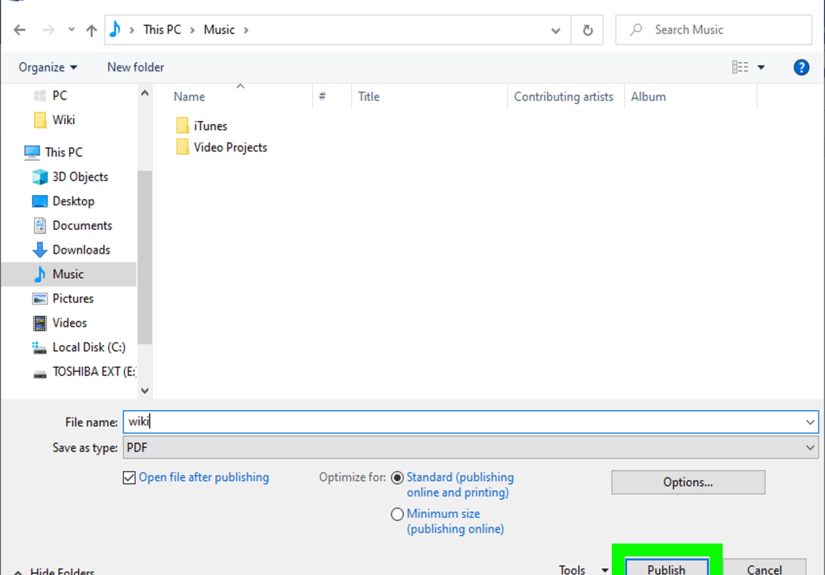
- Go to File → Export As → Export as PDF.
- Choose PDF options (like quality, bookmarks, or PDF/A if needed), then export.
Why this works so well
- Cleaner typography and page layout than basic text editors
- Export options for accessibility and long-term archiving
- Reliable when you need a “professional-looking PDF” from a plain text file
Method 5 (Fastest in a Browser): Use a Trusted Online TXT-to-PDF Converter (Free Options)
Online converters are the microwave popcorn of file conversion: fast, convenient, and slightly suspicious if you think about it too much.
They’re great for non-sensitive text files when you need a PDF immediately and don’t want to install anything.
Best for
- One-off conversions
- Devices where you can’t install software (school/work computers)
- Simple TXT files without confidential content
How it usually works
- Open the converter website.
- Upload your TXT file (or drag-and-drop it).
- Click Convert.
- Download the PDF.
Important privacy note
Don’t upload sensitive content (password lists, private customer info, internal logs). If your TXT contains anything you’d be sad to see
on a billboard, use an offline method (Windows/Mac/LibreOffice) instead.
How to Keep Your TXT-to-PDF Conversion Looking Clean
1) Preserve code/log formatting with monospaced fonts
If your TXT file contains code, terminal output, columns, or ASCII tables, a proportional font can wreck alignment.
Use a monospaced font (like Courier or Consolas) in the app you’re converting from.
2) Control wrapping and margins
- Too much wrapping: Increase page width (landscape) or reduce font size slightly.
- Text cut off: Reduce margins or turn on wrapping in your editor before exporting.
3) Fix weird characters (encoding issues)
If accented characters or symbols look wrong, your TXT file might be encoded differently than the app expects.
Tools like LibreOffice are handy because they often prompt for encoding on import, making it easier to choose UTF-8 when needed.
Batch Conversion: When You Have a Whole Folder of TXT Files
If you have a pile of TXT files (meeting notes, daily logs, chat exports), here are practical ways to handle it without losing your weekend:
- Windows/Mac printing: Great for a few files. Painful for 80 files.
- LibreOffice: Better for consistent formatting across many documents (especially if you apply the same styles).
- Online tools: Some allow multiple uploads and even merging into one PDFbut use only for non-sensitive files.
Troubleshooting: Common TXT-to-PDF Problems (and Fixes)
“Microsoft Print to PDF” is missing on Windows
This feature can be disabled. Check Windows optional features and turn it back on, then restart.
If you’re in a managed school/work environment, you may need admin permissions.
My PDF is a million pages (or looks like garbage)
- Look for one extremely long line causing aggressive wrappingbreak it into shorter lines.
- Reduce headers/footers or adjust margins in Page Setup.
- Try converting from LibreOffice or Google Docs for better layout control.
My PDF looks different on other devices
PDFs are usually consistent, but font substitutions can happen if you use unusual fonts.
Stick to common fonts or use tools that embed fonts during export (LibreOffice is often reliable here).
Quick Recommendations (If You Don’t Want to Think About It)
- Fastest on Windows: Notepad → Print → Microsoft Print to PDF
- Fastest on Mac: Print → Save as PDF
- Best for editing first: Google Docs → Download as PDF
- Best for “professional PDF”: LibreOffice Writer → Export as PDF
- Fastest without installing anything: Trusted online converter (non-sensitive files only)
Wrap-Up
Converting a TXT file to PDF is basically a glow-up: same words, nicer outfit. Whether you use built-in tools on Windows and Mac,
Google Docs in your browser, LibreOffice for serious formatting, or an online converter for speed, you’ve got free options that work.
If you want the best results, treat your TXT file like a haircut appointment: do a tiny bit of prep (clean up long lines, pick the right font),
then export. Your PDF will look intentional instead of “I hit Print and hoped for the best.”
Extra: Real-World Experiences and “Oh No” Moments (So You Can Avoid Them)
Let’s talk about what happens in real lifewhen people convert TXT to PDF not in a perfect tutorial world, but in the messy universe
where deadlines exist and printers sense fear. These are common scenarios and the simple lessons they teach.
1) The student who submitted a TXT and got “Please resubmit as PDF”
A super common story: someone writes an assignment draft in a plain text editor (fast, distraction-free, totally valid), then uploads the TXT to a portal.
The portal either rejects it or the instructor wants a PDF for consistent viewing and printing. The quickest fix on Windows is printing to PDF from Notepad.
On a Mac, “Save as PDF” from the print dialog is just as fast. The real lesson: if you’re submitting anything formal, PDF is the universal “I did my homework”
outfit. TXT is more like “I’m still in the brainstorming phase.”
2) The developer who converted logs and accidentally destroyed the alignment
Log files and code snippets are where conversions go to get weird. The developer prints a TXT log to PDF and suddenly the neat columns look like they were
rearranged by a raccoon. The culprit is usually font choice: proportional fonts make fixed-width columns drift. The fix is simple: use a monospaced font.
If your basic text editor doesn’t let you control fonts well, open the TXT in a tool that does (LibreOffice, Google Docs with a monospaced font, or a code editor),
then export/print to PDF. The lesson: alignment is not “automatic.” It’s a fragile house of cards built on monospaced fonts and reasonable line lengths.
3) The office worker who used an online converter… and then remembered the file was confidential
Online converters are convenient, but they’re not magicthey involve uploading your document to a service. People often realize this after the upload,
usually at the exact moment their brain replays the contents: client names, internal notes, pricing, phone numbers, or “temporary password” lines that were supposed
to be temporary in the same way diets are temporary. The safer habit is: if the TXT contains sensitive information, convert offline using Windows/Mac built-in options
or LibreOffice. The lesson: speed is great, but privacy is better. Don’t trade security for convenience when you don’t have to.
4) The “Why is my PDF 400 pages?” panic
This happens when a TXT file has a few extremely long lines (like a raw data export, minified text, or a giant pasted blob). When you convert to PDF, those lines wrap
aggressively and can balloon page count. The fix is boring but effective: break long lines, insert line breaks where it makes sense, or convert using a tool that gives you
more control over page size and margins (LibreOffice is great here). The lesson: PDFs reflect layout. If your text has layout chaos, the PDF will proudly display it.
5) The neat freak who wanted headers, page numbers, and a “real document” feel
Sometimes you don’t just want a PDFyou want a document that looks like it belongs in a meeting. That’s where “Print to PDF” can feel limited, because it often produces
a plain result with minimal styling. LibreOffice (or Google Docs) makes it easy to add headings, page numbers, spacing, and even a simple title page before exporting as PDF.
The lesson: if the PDF is going to be shared widely, spending five extra minutes on formatting can make it look 10x more professional.
Bottom line: the “best” TXT-to-PDF method depends on what your file contains (simple notes vs. code), what device you’re on, and whether privacy matters.
Once you’ve converted a few files, you’ll develop your own go-to: built-in printing for speed, LibreOffice for polish, and online tools only when the content is safe to upload.