Table of Contents >> Show >> Hide
- Before You Buy: The One Thing That Trips People Up (iPhone vs. Android)
- Method 1: Buy on iPhone/iPad Using the Kindle App’s “Get Book” Button
- Method 2: Buy Kindle Books in a Mobile Browser (Works on iPhone, iPad, and Android)
- Method 3: Buy Inside the Kindle App on Android (If You Have the Buy Button)
- Method 4: Buy on a Computer and Deliver to Your Kindle App (Best for Power Shoppers)
- Method 5: Buy Directly on a Kindle eReader (The Classic, “Born for This” Option)
- Method 6: Buy Kindle Books as Gifts (A.K.A. “I Love You, Here’s a Plot Twist”)
- Smart Shopping Tips to Save Money (Without Becoming a Coupon Detective)
- Troubleshooting: “I Bought It… Where Did It Go?”
- Extra: of Real-World Kindle Buying Experiences (So You Don’t Repeat My Mistakes)
- Conclusion
Buying Kindle books should be as simple as tapping a button, whispering “Take my money,” and getting back to reading.
But if you’ve ever opened the Kindle app and thought, “Where’s the buy button… and why is my phone judging me?”you’re not alone.
The good news: there are multiple legit, easy ways to buy books for the Kindle app on iPhone, iPad, and Android. Some methods work everywhere,
some depend on your device, and one of them feels like a secret passageway (but totally isn’t).
Let’s walk through six practical methods, plus pro tips so your next book shows up instantly instead of playing hide-and-seek.
Before You Buy: The One Thing That Trips People Up (iPhone vs. Android)
The Kindle app is a reading powerhouse, but buying ebooks on mobile has been… complicated. For years, iPhone and iPad users typically couldn’t
purchase Kindle books directly inside the app. More recently, the iOS Kindle app added a friendlier workflow by using a button that opens your browser
to finish the purchase. On Android, Amazon has also experimented with smoother in-app purchasing options in certain cases.
Translation: if your Kindle app doesn’t show a purchase button, it doesn’t mean you’re doing it wrong.
It usually means you need to buy through Amazon in a browser (or use the app’s browser-jump feature) and then let the Kindle app sync.
Quick pre-flight checklist (60 seconds that saves 60 minutes)
- Confirm you’re signed into the right Amazon account in the Kindle app.
- Have a payment method on file (card, gift card balance, etc.).
- Know your destination: phone Kindle app, tablet Kindle app, Kindle eReader, or “All of the above.”
- Turn on Wi-Fi or data so your library can sync after purchase.
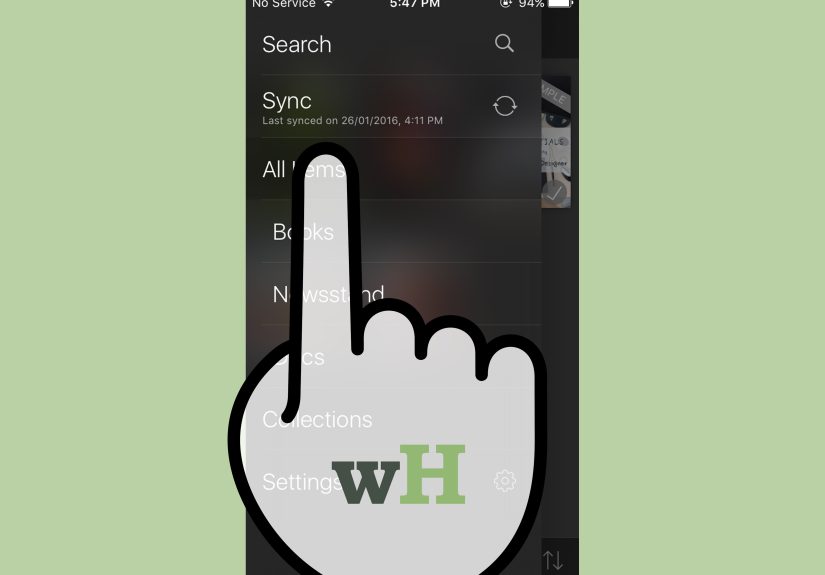
Method 1: Buy on iPhone/iPad Using the Kindle App’s “Get Book” Button
This is the closest thing to “buying inside the Kindle app” on iOS without the app actually processing the payment.
You browse in the Kindle app, tap a button (often labeled Get Book), and your iPhone/iPad opens a browser page where you complete the purchase.
Then you bounce right back to the Kindle app to read.
Step-by-step
- Open the Kindle app on your iPhone or iPad.
- Search for the title you want (or browse recommendations).
- On the book’s listing, tap Get Book.
- Your device will open your web browser to Amazon. Sign in if needed.
- Choose the Kindle edition, then complete the purchase (often with 1-Click if you have it enabled).
- Return to the Kindle app and go to Library. Pull down to refresh if the book doesn’t appear immediately.
When to use this method
- You’re on iOS and want the fastest path from “I want it” to “I’m reading it.”
- You prefer browsing in the Kindle app but buying through Amazon’s checkout.
- You want fewer steps than manually hunting Amazon in Safari.
Pro tip: If you don’t see “Get Book,” update the Kindle app and try again. Also check that you’re in the Kindle Store area of the app
(not just your Library).
Method 2: Buy Kindle Books in a Mobile Browser (Works on iPhone, iPad, and Android)
This is the universal methodlike the “plain bagel” of Kindle buying. Not flashy, but it works every time.
You purchase directly on Amazon’s website in Safari/Chrome, then the Kindle app automatically syncs your new book into your library.
Step-by-step
- Open Safari (iPhone/iPad) or Chrome (Android, or iOS if you prefer).
- Go to Amazon and search your book title + “Kindle edition.”
- Open the book’s product page and confirm you’re selecting the Kindle format (not paperback or Audible).
- Tap Buy now / Buy with 1-Click (wording varies based on your settings).
- Open the Kindle app → Library to download and start reading.
A real-life example
You’re at the airport. Your flight boards in 20 minutes. You remember you’re halfway through a thriller series and you absolutely can’t be left
hanging at Chapter 18. You buy the next book in Safari, open the Kindle app, and it appears like magic. The gate agent calls your group.
You walk on the plane feeling like the main character. (This is what self-care looks like.)
Bonus: This method also makes it easier to compare editions, check publisher info, and confirm you’re not accidentally buying
“Book 2.5: The Side Quest Nobody Asked For.”
Method 3: Buy Inside the Kindle App on Android (If You Have the Buy Button)
Android users sometimes have a more direct experience. Depending on your app version, account, and how Amazon is rolling out purchasing options,
you may see an actual Buy button in the Kindle app that lets you purchase without hopping to a browser.
If you don’t see a buy option in your Android Kindle app, don’t panicuse Method 2 instead. You’re still getting the same book,
just with an extra step.
Step-by-step
- Open the Kindle app on Android.
- Search for your book in the Kindle Store section.
- If available, tap Buy Now (or similar purchase button).
- Confirm payment (often using the Amazon payment method already on your account).
- Go to Library and download the book.
If the Buy button is missing
- Update the Kindle app from Google Play.
- Sign out and sign back in (yes, it’s annoyingyes, it works surprisingly often).
- Use the browser method (Method 2) and let the Kindle app sync.
Method 4: Buy on a Computer and Deliver to Your Kindle App (Best for Power Shoppers)
If you like a big screen for browsing reviews, comparing series order, and reading the fine print (a.k.a. “Is this actually the full book?”),
buying on a laptop/desktop is underrated. It also gives you the cleanest control over where your book is delivered.
Step-by-step
- On your computer, open Amazon and search for your book.
- Select the Kindle edition.
- Look for a delivery option such as Deliver to (wording varies by layout/account).
- Choose your destination: your phone’s Kindle app, tablet, Kindle eReader, or a default device.
- Complete the purchase, then open the Kindle app on your device and sync/download.
Power move: resend or manage delivery
If you bought the book but it landed on the “wrong” device, use Amazon’s content/device management area to deliver or remove the title from specific devices.
This is especially helpful if you have multiple Kindles, share an account, or use both a phone and an eReader.
Method 5: Buy Directly on a Kindle eReader (The Classic, “Born for This” Option)
Kindle eReaders were designed for this. You shop on the device, buy the book, and it downloads right there over Wi-Fi.
If you love a distraction-free buying-and-reading flow, this is your method.
Step-by-step
- On your Kindle eReader, tap the Store icon or use the search bar.
- Search for a title, author, or series.
- Open the book details page and confirm the price/format.
- Tap Buy (or equivalent), then download when prompted.
- Your purchase will also sync to your Kindle app library on your phone/tablet.
Tip: If you buy on the Kindle eReader and want to read on your phone immediately, open the Kindle app and refresh your Library.
Your ebook should appear quickly once the purchase is processed.
Method 6: Buy Kindle Books as Gifts (A.K.A. “I Love You, Here’s a Plot Twist”)
Kindle books can be giftedperfect for birthdays, book clubs, or that friend who says “I don’t need anything” while clearly needing a cozy mystery and a nap.
Gifting is usually handled through Amazon’s website (mobile or desktop), then the recipient redeems the book and reads it in the Kindle app.
Step-by-step
- Open Amazon in a browser (phone or computer).
- Find the book and choose the Kindle edition.
- Look for an option like Buy for others / Give as a gift (availability varies by title/publisher).
- Enter the recipient’s email, add a message, and schedule delivery if you want.
- The recipient redeems it and the book appears in their Kindle app library.
Gift pro tips
- Double-check the recipient’s email. Sending a book to the wrong address is… a very modern tragedy.
- If gifting isn’t available for a specific title, an Amazon gift card is the reliable backup plan.
- For book clubs, gifting the first book in a series is basically social engineering (the wholesome kind).
Smart Shopping Tips to Save Money (Without Becoming a Coupon Detective)
Use free samples like a responsible adult
The Kindle app lets you download a sample of many books. If you’ve ever bought an ebook based on a pretty cover and vibes alone,
you already know why samples matter. Read the first chapter, check the writing style, then commit.
Watch for Kindle deals and price swings
Ebook prices can change faster than your mood when a character makes a terrible decision. If a title looks pricey today, it may drop later.
If you’re patient (and emotionally stable), add it to a list and check back.
Make 1-Click work for you (not against you)
1-Click is convenient, but it can also turn “I’m just browsing” into “I accidentally bought a 900-page textbook on Victorian cement.”
Consider adding purchase confirmation steps where possible, and keep your default device/delivery settings tidy.
Know the difference: Kindle ebook vs. Audible narration
Some titles offer an audiobook add-on. That’s great if you like switching between reading and listening, but it’s a separate purchase.
Make sure you’re buying what you actually want: ebook, audiobook, or both.
Troubleshooting: “I Bought It… Where Did It Go?”
If your book isn’t showing up in the Kindle app, don’t assume the universe is broken (even if it feels personal).
Run through this quick checklist first:
- Refresh your Library: pull down on the Library screen to force a sync.
- Check filters: make sure you’re viewing All titles, not just Downloaded.
- Confirm the account: the Kindle app must be signed into the same Amazon account used to buy the book.
- Verify purchase status: check your Amazon orders/content list to confirm it actually processed.
- Restart the app: close it completely and reopen (the classic “have you tried turning it off and on?”).
- Device delivery: if it was delivered to a different device, resend it to your phone/tablet Kindle app.
If all else fails, sign out/in on the Kindle app. It’s the digital equivalent of shaking a vending machine (but safer).
Extra: of Real-World Kindle Buying Experiences (So You Don’t Repeat My Mistakes)
Over time, buying Kindle books turns into a tiny ritualpart convenience, part comedy. Here are a few field notes that might save you
money, clicks, and mild embarrassment.
1) The “I bought the wrong edition” moment is a rite of passage.
At least once, most people accidentally buy the Audible version when they meant the Kindle ebook (or they grab paperback out of habit).
The fix is simple: on the Amazon product page, take two seconds to confirm you’re selecting Kindle.
The emotional fix is harder: accepting that you’re human, and humans sometimes panic-buy formats.
2) The Kindle app is a great bookstore… but the checkout lane may be elsewhere.
Especially on iPhone and iPad, you might browse in the app and purchase in the browser. Once you get used to the “Get Book” flow, it feels normal.
The first time, it feels like your phone is saying, “Sure, you can buy it. Just not here.”
Now I treat it like a small quest: tap, hop to browser, confirm, return, read. Achievement unlocked.
3) One-click purchasing is both a blessing and a mischievous little gremlin.
If you love impulse-buying books at 11:47 p.m., 1-Click will support your dreams with absolutely no questions asked.
This is wonderful until you accidentally buy Book 4 before Book 1 because you joined a series mid-chaos.
My rule: if it’s a series, I quickly search “reading order” or check the series list before tapping Buy.
Future me is always grateful.
4) Sync issues usually have boring causes.
The drama in your novel might be intense, but the reason your book isn’t appearing is typically: wrong account, Wi-Fi off, or a filter set to “Downloaded only.”
I now do a three-step reset: refresh the Library, switch filters to “All,” and confirm I’m on the correct Amazon login.
It solves the problem so often it’s almost suspicious.
5) Buying on desktop is weirdly calming.
When I’m making a bigger reading planvacation reads, a full trilogy, a non-fiction rabbit holeI use a laptop.
It’s easier to compare prices, confirm the edition, and pick the right delivery destination.
Then when I open the Kindle app later, my library looks organized, intentional, and responsible.
(This illusion lasts until I buy three more books because “the cover spoke to me.”)
6) Gifting Kindle books is underrated joy.
When you gift an ebook, you’re basically sending someone an experiencemystery, comfort, inspiration, or the kind of fantasy world where rent doesn’t exist.
If gifting isn’t available for a title, I send a gift card with a note like, “This is for books. I trust you. Don’t buy a blender.”
It’s heartfelt, practical, and gently hilariousmy favorite combination.
Conclusion
Buying books for the Kindle app is easy once you know which path fits your device. On iPhone and iPad, the Kindle app can send you to a browser to finish checkout.
On Android, you may be able to buy directly in the app (and if not, the browser method always works). Add in desktop buying, Kindle eReader shopping,
and gifting, and you’ve got a full toolkitno tech wizardry required.
Now go forth and stock your library responsibly… or recklessly. I’m not here to judge. I’m here to help you read.