Table of Contents >> Show >> Hide
- Why Apple Pay Stops Working in the First Place
- 12 Troubleshooting Tips for Apple Pay Problems
- 1. Check Whether Apple Pay Is Having a Temporary Outage
- 2. Make Sure Your Device Actually Supports Apple Pay
- 3. Confirm That Face ID, Touch ID, or a Passcode Is Enabled
- 4. Check Whether Apple Pay Is Supported in Your Country or Region
- 5. Verify That Your Bank and Specific Card Support Apple Pay
- 6. Make Sure the Card Is Active, Not Expired, Not Replaced, and Not Locked
- 7. Complete Any Pending Card Verification or Re-Add the Card
- 8. Check Your Default Card and Use the Correct One
- 9. Use the Right Apple Pay Gesture and Authentication Method
- 10. Confirm the Store or Website Actually Accepts Apple Pay
- 11. Restart Your Device and Update the Software
- 12. Test Another Card or Another Apple Device, Then Call the Right Support Team
- Common Apple Pay Scenarios and What They Usually Mean
- How to Avoid Apple Pay Problems in the Future
- Real-World Experiences: What Apple Pay Problems Usually Feel Like
- Conclusion
- SEO Tags
Apple Pay is supposed to be the smooth, cool customer of modern payments. You double-click, glance, tap, and walk away like a person who absolutely has their life together. Then one day it doesn’t work, and suddenly you’re standing at the checkout counter smiling the smile of someone pretending this is all part of the plan.
If your Apple Pay is not working, the problem is usually not mysterious. In most cases, it comes down to one of a handful of things: your device is not fully set up, your card issuer needs verification, your card has changed status, the terminal is acting like it woke up on the wrong side of the motherboard, or Apple Pay simply is not available for that specific merchant, device, region, or moment in time.
This guide breaks down the most common reasons Apple Pay fails and gives you 12 practical troubleshooting tips that actually help. No fluff, no ritual chanting at your iPhone, and no need to threaten the card reader with passive-aggressive eye contact. Let’s fix it.
Why Apple Pay Stops Working in the First Place
Before diving into the fixes, it helps to know where the failure usually happens. Apple Pay problems tend to fall into four buckets:
- Device issues: Your iPhone, Apple Watch, iPad, or Mac is not compatible, not updated, or not properly secured with Face ID, Touch ID, Optic ID, or a passcode.
- Card issues: Your bank has not approved the card, the card is unsupported, expired, replaced, frozen, or needs additional verification.
- Merchant issues: The store does not accept contactless payment, the terminal is offline, or the checkout system is being dramatic.
- Service issues: Apple services or your bank’s payment systems may be temporarily unavailable.
The good news is that most of these can be diagnosed pretty quickly. The even better news is that you do not need a degree in digital payments to solve them.
12 Troubleshooting Tips for Apple Pay Problems
1. Check Whether Apple Pay Is Having a Temporary Outage
Start with the simplest explanation: sometimes the problem is not you, your phone, or your card. It is the service. Apple has a System Status page that shows whether Apple Pay and Wallet-related services are operating normally. If Apple is having an issue, troubleshooting your phone for twenty minutes is about as productive as arguing with a toaster.
If the status page shows a problem, wait and try again later. This is especially important if Apple Pay suddenly stopped working everywhere at once, including in stores, apps, and online checkouts.
2. Make Sure Your Device Actually Supports Apple Pay
This sounds obvious, but it trips people up more than you would think. Apple Pay only works on compatible devices, and some features vary depending on whether you are using an iPhone, Apple Watch, iPad, Mac, or Apple Vision Pro.
For example, in-store tap-to-pay generally revolves around iPhone and Apple Watch. Online and in-app purchases can involve iPhone, iPad, Mac, and other supported Apple devices. If you switched devices recently, restored from backup, or are trying to use an older model, compatibility might be the issue.
If your device is technically supported but running older software, that can also cause problems. Apple recommends the latest version of iOS, iPadOS, watchOS, macOS, or visionOS for Apple Pay setup and use.
3. Confirm That Face ID, Touch ID, or a Passcode Is Enabled
Apple Pay is not just a payment feature. It is a security feature wearing a payment feature as a nice jacket. That means your device needs a passcode or biometric authentication enabled. If Face ID, Touch ID, or your passcode is not set up properly, Apple Pay may not work or may not let you add a card at all.
If you recently changed security settings, reset your phone, or disabled biometrics after a repair or software issue, check those settings first. Apple Pay wants proof that the person paying is you, not your cousin, your roommate, or the ghost of purchases past.
4. Check Whether Apple Pay Is Supported in Your Country or Region
Apple Pay is widely available, but it is not universal in every country, region, bank, or device scenario. If you are traveling, moved regions on your Apple account, or are trying to use Apple Pay in a less common payment environment, support can vary.
This becomes especially important for online purchases and when using cards from one country in another. Even if Apple Pay is available where you live, the merchant’s setup and your bank’s policies may still affect whether a transaction goes through.
5. Verify That Your Bank and Specific Card Support Apple Pay
Here is one of the biggest misunderstandings: Apple does not approve or decline your card for Apple Pay. Your bank or card issuer does. So if your card will not add, will not verify, or suddenly stops working, the issuer is often the real gatekeeper.
Even when a bank supports Apple Pay, not every card from that bank is guaranteed to be eligible. Some debit cards, prepaid cards, corporate cards, or replacement cards may behave differently. If your card is being rejected in Wallet, contact the issuer and ask two specific questions:
- Does this exact card support Apple Pay?
- Is there any verification hold, wallet restriction, or token issue on my account?
That second question matters. Sometimes the card is “supported” in theory but blocked in practice until the bank verifies your identity.
6. Make Sure the Card Is Active, Not Expired, Not Replaced, and Not Locked
If your physical card has expired, been replaced, reissued after fraud, temporarily locked, or suspended for suspicious activity, Apple Pay can break right along with it. A digital wallet is convenient, but it is still tied to the real card account underneath.
Also check the basics: available credit, sufficient funds, and whether the bank declined the purchase for ordinary reasons. A fancy digital wallet cannot rescue a card that was already going to say no. It just says no with better posture.
If you recently got a new card number, do not assume Wallet updated perfectly on its own. Some issuers handle that smoothly, while others may require a fresh approval or re-adding the card.
7. Complete Any Pending Card Verification or Re-Add the Card
If Apple Pay worked yesterday but refuses to cooperate today, your card may need to be verified again. This commonly happens after a software update, a device change, an account security review, suspicious activity, or a recent card replacement.
Open Wallet, tap the card, and look for alerts or prompts. If verification is pending, follow the on-screen instructions or open your bank’s mobile app. Many major U.S. banks let you manage Apple Pay or digital wallet settings directly inside their app. If nothing looks wrong but payments still fail, remove the card from Wallet and add it again.
This is one of those surprisingly effective fixes that feels too simple, like rebooting the Wi-Fi router. Yet it works often enough to deserve respect.
8. Check Your Default Card and Use the Correct One
When Apple Pay is not working, sometimes the issue is not that Apple Pay failed. It is that the wrong card tried to pay. If your default card is an old debit card, a locked credit card, or the card you keep only for “emergencies and airline peanuts,” the transaction may be declined even though Apple Pay itself is fine.
Open Wallet and make sure your preferred card is set as default. On iPhone, you can also choose a different card before paying. This matters more than people realize, especially if you recently added a new card, changed banks, or moved a card to the front for one purchase and forgot about it later.
9. Use the Right Apple Pay Gesture and Authentication Method
Sometimes the payment fails because the payment was never properly initiated. On an iPhone with Face ID, you generally double-click the side button, authenticate, and hold the top of the phone near the contactless reader. On an iPhone with Touch ID, you use the Home button or authenticate with Touch ID. On Apple Watch, you double-click the side button.
If you skip the authentication, rush the tap, or hold the device in the wrong place, the terminal may sit there like a confused cashier robot waiting for instructions. Slow it down. Make sure the payment screen is active, confirm the correct card, authenticate, and then hold the device steadily near the reader until you see confirmation.
10. Confirm the Store or Website Actually Accepts Apple Pay
Not every checkout that looks modern is Apple Pay-friendly. In stores, look for the contactless payment symbol or Apple Pay mark. Online and in apps, the Apple Pay button needs to appear at checkout. If it is missing, that usually means the merchant does not support Apple Pay for that purchase flow.
Some terminals also accept contactless cards but have flaky configuration, poor connectivity, or a cashier workflow that requires selecting a payment mode first. If Apple Pay fails at one register, try another terminal or ask the cashier whether tap-to-pay is currently working. You may not be cursed. You may just be dealing with a terminal that peaked emotionally in 2019.
11. Restart Your Device and Update the Software
Yes, this is the classic tech support advice. Yes, it is still weirdly effective. Temporary Wallet glitches, authentication hiccups, and background software weirdness can clear up after a restart.
Then check for software updates. Apple specifically ties Apple Pay functionality to supported devices running current software versions. If your phone or watch is behind on updates, bring it up to date. Also make sure your Apple Watch and iPhone are playing nicely together if you use Apple Pay on your watch.
12. Test Another Card or Another Apple Device, Then Call the Right Support Team
If one card fails but another works, that points to the issuer or card status. If no cards work on one device, the issue is probably with the device setup. If the same card works on your Apple Watch but not your iPhone, you have narrowed the problem even further.
At that point, call the right people:
- Call your bank or card issuer if the card was declined, will not verify, or seems blocked in Wallet.
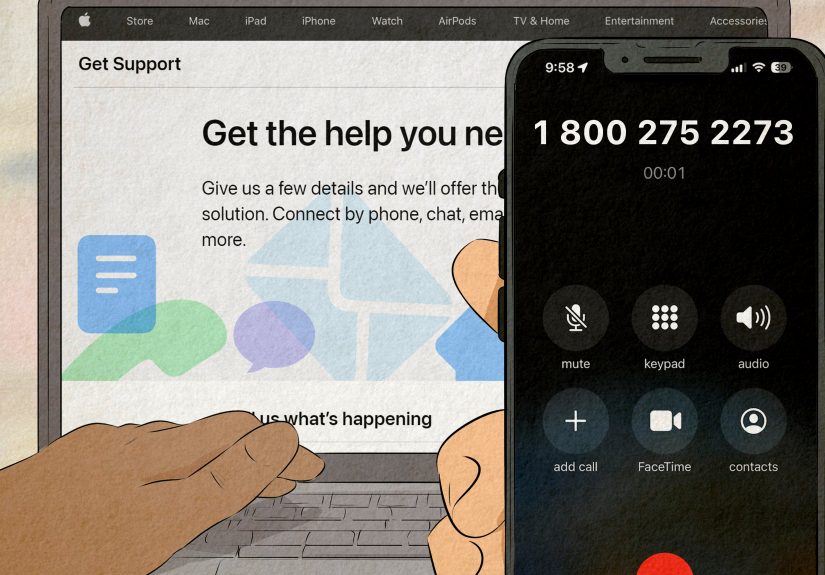
- Contact Apple Support if Wallet will not behave, the device settings look correct, and multiple cards or devices are affected in strange ways.
Do not just say, “Apple Pay isn’t working.” Give details. Tell them whether the issue happens in stores, online, or in apps; whether the card can be added; whether another card works; and whether the problem started after a replacement card, update, or new device. The better your description, the faster the fix.
Common Apple Pay Scenarios and What They Usually Mean
Apple Pay won’t let you add a card
This usually points to issuer approval, unsupported card type, missing device security, outdated software, or regional limitations.
Apple Pay works online but not in stores
Think merchant terminal, in-store contactless support, device positioning, or initiation/authentication problems.
Apple Pay works on your iPhone but not your Apple Watch
Check watch setup, wallet settings in the Watch app, software versions, and whether the card was added properly to the watch itself.
Apple Pay suddenly stopped after getting a new card
Your bank may need to refresh the wallet token, or you may need to remove and re-add the card.
Apple Pay fails only with one merchant
That usually points to the merchant’s checkout system, terminal configuration, or Apple Pay support at that specific location or website.
How to Avoid Apple Pay Problems in the Future
- Keep iOS, watchOS, and macOS updated.
- Make sure your preferred card is set as default.
- After a replacement card arrives, test Apple Pay before you need it in a crowded checkout line.
- Carry a backup card for travel, transit, or emergencies.
- Use your bank’s app to monitor locks, fraud alerts, and digital wallet settings.
In other words, treat Apple Pay like a super convenient sidekick, not the sole hero of your personal finance universe. Batman still had backup plans.
Real-World Experiences: What Apple Pay Problems Usually Feel Like
Most Apple Pay problems do not happen when you are calmly testing settings at home with a cup of coffee and plenty of battery. They happen when you are late, hungry, in a checkout line, or trying to look like a competent adult in front of strangers. That is part of what makes the issue feel bigger than it is. A failed Apple Pay transaction is rarely a disaster, but in the moment it feels like your phone has chosen public betrayal.
A very common experience is the coffee-shop failure. You walk in, order something overpriced but emotionally necessary, double-click the side button, and tap. Nothing happens. You tap again, a little more aggressively this time, as if the terminal responds to confidence. Still nothing. In many cases, this turns out to be the terminal, not the phone. The register may not actually have contactless enabled, or the reader may be slow, offline, or waiting for the cashier to finish another step. Users often assume Apple Pay broke, when the real problem is that the payment terminal has the personality of a fax machine.
Another classic scenario happens after getting a replacement card. Your physical card works, but Apple Pay suddenly doesn’t. That feels unfair because you did not change anything on purpose. But banks sometimes refresh or reissue the underlying card credentials, and your Wallet setup may need verification again. People are often surprised to learn that the digital version is still tied to the card issuer’s approval process. The fix can be as simple as re-adding the card, but until you know that, it feels like financial sorcery.
Travel adds another layer of chaos. You land somewhere new, rely on Apple Pay for convenience, and then run into a merchant that accepts contactless cards but not the form of wallet flow you expected. Or your bank flags the purchase because you are suddenly buying snacks three time zones away. In that moment, users tend to blame Apple Pay as a whole, even though the issue may be regional acceptance, issuer fraud controls, or the merchant’s own setup.
Then there is the online checkout experience. Apple Pay works beautifully on one site, then disappears completely on another. That can make people think something is wrong with Safari, Wallet, or their card. Often, it is simply the merchant. If the Apple Pay button is not there, the website may not support it for that browser, product type, or checkout flow. It is annoying, yes, but it is not always a bug on your side.
The biggest lesson from real-life Apple Pay issues is this: don’t panic, and don’t assume the first failure tells the whole story. Test another card. Test another merchant. Check whether the problem is only in-store, only online, or only on one device. Apple Pay problems usually look dramatic in public, but the actual fix is often ordinary. And if all else fails, keep a backup card nearby. Pride is useful, but not as useful as being able to pay for lunch.
Conclusion
If your Apple Pay is not working, the fix is usually hiding in plain sight. Check for an Apple-side outage, confirm your device and software meet the requirements, make sure your bank and exact card support Apple Pay, verify that the card itself is active, and double-check the merchant’s contactless setup. From there, review your default card, re-verify or re-add the card, and test another device or issuer if needed.
The key thing to remember is that Apple Pay failures are rarely random. They usually point to one specific weak link in the chain: device, card, merchant, or service status. Once you identify which one is misbehaving, the solution becomes much easier. So the next time Apple Pay refuses to cooperate, skip the panic. Use the checklist, keep a backup handy, and reclaim your checkout-line dignity.