Table of Contents >> Show >> Hide
- Quick Answer: How to Turn Off 5G on Samsung
- Why People Turn Off 5G on Samsung Phones
- How to Turn Off 5G on Samsung Galaxy S21
- How to Turn Off 5G on Samsung Galaxy S22
- How to Turn Off 5G on Samsung Galaxy S23
- What If the Network Mode Option Is Missing?
- Can You Switch to 3G Instead?
- Does Turning Off 5G Really Help Battery Life?
- When You Should Leave 5G On
- FAQ: Turning Off 5G on Samsung
- Real-World Experiences With Turning Off 5G on Samsung
- Final Thoughts
If your Samsung phone keeps clinging to a weak 5G signal like it is in a toxic relationship, you are not alone. Plenty of Galaxy S21, S22, and S23 owners want to switch back to 4G LTE for better battery life, steadier performance, or fewer “why is my phone suddenly acting like it lives in 2014?” moments.
The good news is that turning off 5G on Samsung is usually simple. The slightly annoying news is that “usually” does a lot of heavy lifting here. On some phones, the option is right where you expect it. On others, especially certain U.S. carrier models, the setting may be hidden, renamed, or mysteriously absent like a sock after laundry day.
This guide walks through exactly how to turn off 5G on Samsung Galaxy S21, S22, and S23 phones, what to do if the setting is missing, and when switching to LTE actually makes sense. If you want the short version: you are looking for the Network mode setting, and you want to pick an option that does not include 5G.
Quick Answer: How to Turn Off 5G on Samsung
For many Samsung Galaxy phones, including the S21, S22, and S23, the steps look like this:
- Open Settings.
- Tap Connections.
- Tap Mobile networks.
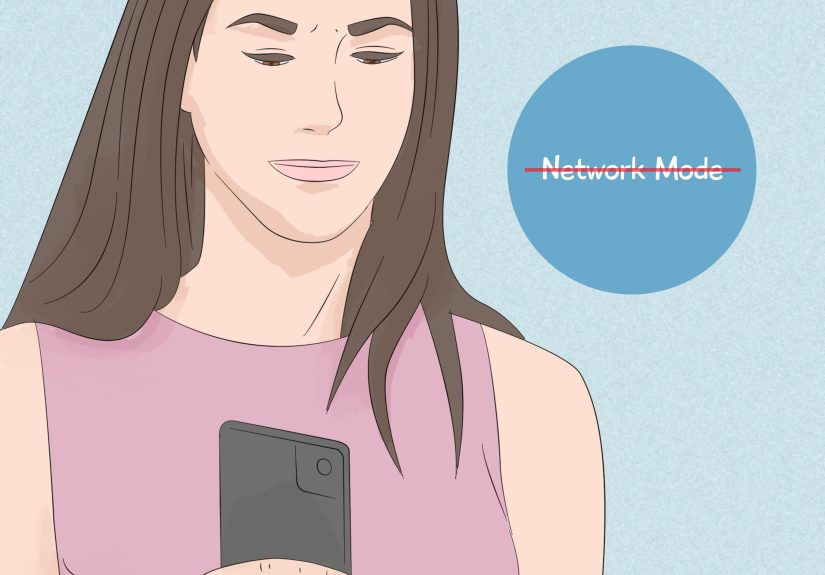
- Tap Network mode.
- Select an option without 5G, such as LTE/3G/2G (auto connect), LTE preferred, or another non-5G option.
If your phone shows Allow 5G service instead of Network mode, just switch that off. Either way, the goal is the same: keep the phone on LTE or another non-5G network mode.
Why People Turn Off 5G on Samsung Phones
5G sounds fantastic on paper, and when it works well, it really can be. Faster downloads, lower latency, smoother streaming, happier speed tests, bragging rights at the coffee shop. But real-world phone use is less glamorous. Many Samsung users turn off 5G for three practical reasons.
1. Better Battery Life
When your phone keeps hunting for a flaky 5G signal, it can burn through battery faster than you would expect. If you are in an area where 5G coverage is weak, inconsistent, or more “technically available” than actually useful, switching to LTE can help your battery calm down and behave like a civilized device.
2. More Stable Speeds
Not every 5G connection is better than LTE. In some neighborhoods, offices, highways, and rural areas, LTE is simply more reliable. If your phone keeps bouncing between 5G and LTE, webpages may stall, calls may act weird, and apps may feel slower than they should.
3. Less Network Drama While Traveling
Travelers often switch off 5G in places where the signal is patchy. That is especially useful if you are commuting through dead zones, driving across mixed coverage areas, or staying somewhere that has strong LTE but unreliable 5G. Sometimes older tech is not old; it is just dependable.
How to Turn Off 5G on Samsung Galaxy S21
If you have a Samsung Galaxy S21, Galaxy S21+, or Galaxy S21 Ultra, the process is often straightforward.
- Go to Settings.
- Tap Connections.
- Select Mobile networks.
- Tap Network mode.
- Choose LTE/3G/2G (auto connect) or another option that leaves 5G out of the party.
On many S21 models, this setting is available as expected. If you bought your phone through a U.S. carrier, however, the menu may look different. The phone might show fewer network choices, or no network mode option at all. That is not you doing something wrong. That is your carrier being “helpful.”
How to Turn Off 5G on Samsung Galaxy S22
The Samsung Galaxy S22 family follows the same general path:
- Open Settings.
- Tap Connections.
- Tap Mobile networks.
- Select Network mode.
- Pick an LTE-based option instead of one that includes 5G.
On unlocked S22 phones, this is often easy. On carrier-locked models, it can be less predictable. Some people see the option immediately. Others dig through menus like they are in an escape room designed by a telecom company. If the setting is missing, skip ahead to the troubleshooting section below.
How to Turn Off 5G on Samsung Galaxy S23
For the Galaxy S23, S23+, and S23 Ultra, the steps are still usually the same:
- Launch Settings.
- Tap Connections.
- Open Mobile networks.
- Tap Network mode.
- Choose a non-5G option such as LTE/3G/2G (auto connect).
That is the clean, tidy version. In reality, some Galaxy S23 owners in the U.S. report that the Network mode setting does not appear at all, particularly on certain carrier versions. So yes, two people can own the “same” Samsung phone and have different menus. Samsung did not forget how menus work; carriers sometimes customize them.
What If the Network Mode Option Is Missing?
This is the part that drives users a little bananas. If you cannot find Network mode, try these practical fixes.
Check for a Simpler Toggle
Some Samsung phones use a direct Allow 5G service toggle instead of a longer list of network modes. If you see that, turn it off and call it a win.
Update Your Phone
Go to Settings > Software update > Download and install. Menu behavior can change with carrier firmware and One UI updates. A software update may restore or relocate the setting.
Restart the Phone
Simple? Yes. Useless? Not always. Restarting can refresh network registration and sometimes clears temporary weirdness after an update or SIM change.
Reset Network Settings
If your phone is behaving strangely, try Settings > General management > Reset > Reset network settings. This will remove saved Wi-Fi and Bluetooth connections, so do not do it five minutes before an airport boarding announcement.
Check Whether Your Carrier Hides the Option
Some U.S. carrier models, especially locked devices, may hide manual 5G controls. In that case, the setting may not be available in the normal Samsung menu at all. That is frustrating, but it is common enough that it should not surprise you if you own a carrier-branded phone.
Be Careful With Third-Party Workarounds
You may see forum posts recommending band-selection apps, hidden dialer menus, or other unofficial tricks. Some users say those work. Others say they stop working after updates or vary by carrier. If your phone is your main device, be cautious. The safest long-term solution is still to use the built-in setting if it is available or contact your carrier for an official answer.
Can You Switch to 3G Instead?
In the United States, this is mostly a nostalgia project, not a practical plan. Major carriers have retired their 3G networks, so LTE is the realistic fallback on modern Samsung phones. That is why the best move is usually choosing an option centered on LTE, not hunting for some ancient 3G-only mode like it is a hidden level in a retro game.
Does Turning Off 5G Really Help Battery Life?
In many cases, yes. If your phone lives in a spot where 5G is strong and stable, the difference may be modest. But if your device keeps bouncing between 5G and LTE all day, switching to LTE can absolutely make the phone feel more efficient.
Here is a practical example. Imagine you commute through a downtown area with strong 5G, then work in a building with spotty indoor coverage, then ride home through mixed signal zones. Your Samsung phone may spend the entire day jumping between network types. That constant switching can drain battery and create mini connection hiccups. Turning off 5G for a few days is a good experiment. If your battery improves and your connection feels steadier, there is your answer.
When You Should Leave 5G On
Turning off 5G is not always the smart move. Keep it enabled if:
- You live in an area with strong, consistent 5G coverage.
- You often use hotspot data, cloud gaming, or large downloads.
- You stream lots of high-resolution video on mobile data.
- You are not seeing unusual battery drain or connection issues.
In other words, do not turn off 5G just because the internet loves a tweak. Turn it off when it solves a real problem.
FAQ: Turning Off 5G on Samsung
Will turning off 5G make my phone slower?
Potentially, yes, but not always in a way you will notice. For messaging, social media, browsing, maps, music, and everyday apps, LTE is often plenty fast.
Will calls still work on LTE?
Yes, on modern U.S. networks, voice service typically relies on LTE and related voice-over-LTE technologies. You are not sending your phone into the Stone Age by using LTE.
Is the process the same on every Samsung phone?
No. The basic Samsung path is similar, but exact menu names and available options can vary by model, carrier, and software version.
Why does my friend’s Galaxy S23 have the setting, but mine does not?
Because Samsung phones are often customized by carriers. Two S23 phones can have different network menus depending on whether they are unlocked, carrier-locked, or running different firmware.
Real-World Experiences With Turning Off 5G on Samsung
One of the most common experiences Galaxy users describe is simple frustration: the phone says 5G, but the actual experience feels worse than LTE. Pages hang for a second before loading. Music pauses at the worst possible moment. Video calls freeze just long enough to make you look like you are giving a dramatic side-eye. In those situations, switching to LTE often feels less like a downgrade and more like restoring order to the universe.
Commuters especially notice the difference. A person riding the train with a Galaxy S21 might see the phone jump between 5G and LTE every few minutes as towers and congestion change. The icon in the status bar keeps changing, and so does performance. After turning off 5G, many users report that the phone feels more predictable. Maybe peak speed tests look less flashy, but day-to-day browsing, messaging, and streaming feel smoother because the connection stops bouncing around so much.
Office workers have another common story. A Galaxy S22 can show a 5G signal near a window, then become flaky at a desk deeper inside the building. The phone may stubbornly try to hold onto 5G even when LTE would be more stable. Once users switch the device to LTE, battery drain often improves during the workday because the phone is no longer constantly hunting for a better 5G signal while sitting beside a stapler and a sad desk plant.
Travelers also run into this. Someone driving through suburban and rural areas with a Galaxy S23 may discover that 5G coverage exists in theory, but not in a way that helps navigation, music streaming, or quick searches. In mixed coverage areas, LTE can feel less glamorous but more trustworthy. That matters when you are trying to find gas, confirm a hotel booking, or text someone that you are definitely not lost, just “taking the scenic route.”
Another real-world experience is confusion when the setting is missing. Users read one guide, open Mobile networks, and then stare at the screen because Network mode is nowhere to be found. That is especially common on some U.S. carrier models. It makes people think they missed a step, but often the issue is not user error. It is software customization. Once users realize that, the troubleshooting process makes more sense: check for updates, reset network settings, look for a differently named toggle, and ask the carrier if needed.
Overall, the shared experience is pretty consistent. People usually do not disable 5G because they hate new technology. They do it because they want their phones to be boring in the best possible way: steady signal, reliable calls, reasonable battery life, and zero drama. And honestly, that is a noble goal for any smartphone.
Final Thoughts
If you want to turn off 5G on a Samsung Galaxy S21, S22, or S23, start with Settings > Connections > Mobile networks > Network mode and select an option that does not include 5G. For many users, that is all it takes.
If the setting is missing, do not panic and do not assume your phone is broken. U.S. carrier versions sometimes hide the option, move it, or limit your choices. In that case, update the phone, restart it, reset network settings if needed, and look for an LTE or 5G service toggle. The best setting is the one that gives you a stable connection and a battery that survives the day without begging for a charger by lunchtime.