Table of Contents >> Show >> Hide
- What You’re Actually Building
- Materials and Tools
- Step 1: Create the “Moving Portrait” Clip
- Step 2: Choose Your Build Style
- Step 3: Set Up the Screen to Loop Like Magic
- Step 4: Build the Frame (The Part That Makes It Look “Real”)
- Step 5: Hide Power Cables and Keep Things Safe
- Step 6: Make It Look Like It Belongs in the Grand Staircase
- Troubleshooting: Common Issues (and the Fixes)
- Conclusion: Your Portrait Is Ready to Misbehave
- Experiences: What It’s Like to Build and Live With a “Moving Portrait” Frame
In the Harry Potter movies, the portraits don’t just hang there looking prettythey blink, smirk,
and occasionally judge your life choices. The good news: you can recreate that “moving portrait” effect at home
without enrolling at Hogwarts (or learning Latin spells that accidentally summon your neighbor’s cat).
This guide walks you through three build stylesfrom “I have an old tablet and a dream” to “I own a Raspberry Pi
and I’m not afraid to use it.” You’ll learn how to make the animation look believable, how to mount the screen cleanly,
and how to hide the modern-world evidence (cables) so the final piece feels like wizard decor, not a tech demo.
What You’re Actually Building
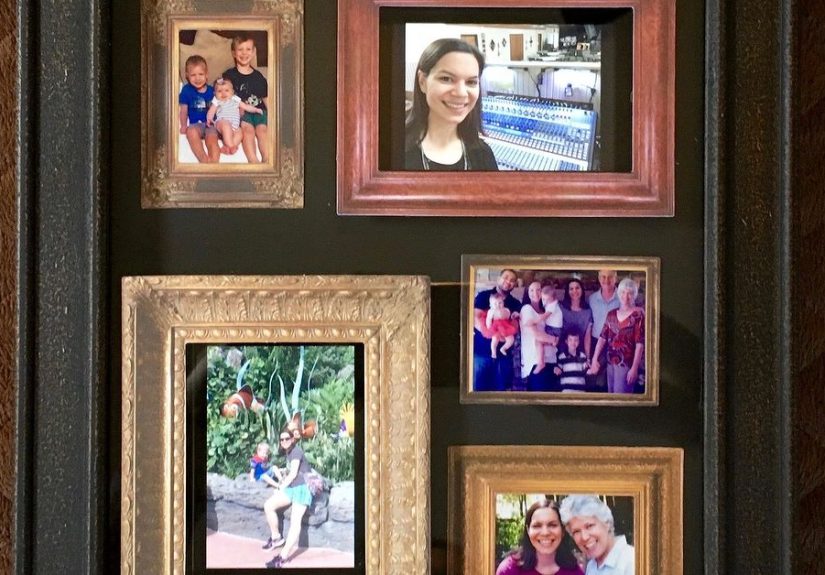
A shadow box picture frame that holds a small screen playing a looping video
(or cinemagraph/GIF) behind a mat opening. From the front, it reads as “portrait.” From two feet away, it reads as
“portrait… wait, did it just wink at me?”
Materials and Tools
Frame + Mounting Supplies
- Shadow box frame (deep enough for your device; 1.5–2.5 inches is a sweet spot)
- Mat board or cardstock (for the “portrait window”)
- Foam board (for spacers and internal supports)
- Ruler, pencil, craft knife + cutting mat
- Double-sided tape, Velcro strips, or removable mounting strips
- Optional: anti-glare acrylic or matte film (helps reduce reflections)
The Screen (Choose One)
- Option A: An old phone or tablet (Android or iPad) you can keep plugged in
- Option B: A digital photo frame that supports video playback (not all do)
- Option C: A small HDMI display + Raspberry Pi (most customizable)
Optional “Make It Look Like Hogwarts” Extras
- Gold Rub ’n Buff or metallic wax, dark wax for aging, or acrylic paint for distressing
- Printed “Wizarding World” style nameplates (DIY labels)
- Mini LED strip (warm white) behind the mat for a soft glow
Step 1: Create the “Moving Portrait” Clip
The secret sauce isn’t the screenit’s the footage. A convincing moving portrait frame DIY uses
motion that feels subtle, human, and loop-friendly.
What to Film (Ideas That Loop Well)
- A slow smile or smirk
- A blink + tiny head tilt
- Looking left, then back to camera
- A slow sip of tea (highly magical, surprisingly relatable)
- A dramatic eyebrow raise (bonus points if you can do both eyebrows separately)
How to Film It So It Looks “Portrait-Real”
- Lock your camera: Use a tripod or prop the phone so the background doesn’t jitter.
- Use soft light: Window light or a lamp bounced off a wall keeps the look “painting-like.”
- Keep it short: 3–8 seconds is ideal. Long loops start to feel like a music video.
- Leave headroom: Give yourself extra space so you can crop to match the frame opening.
Edit for a Seamless Loop
Your goal is to make the first and last frames feel like the same moment. Trim the clip, then:
- Pick the loop point: Find two similar frames (face angle + expression) and cut between them.
- Use a tiny crossfade: A 4–10 frame dissolve can hide the seam.
- Color-grade lightly: Slightly lower saturation and contrast can give a more “portrait” vibe.
- Export in a friendly format: MP4 (H.264) is the safest bet for tablets and many digital frames.
Want the “Painting With One Moving Part” Look?
Make a cinemagraph: most of the image stays still, while one part loops (blink, candle flame,
hair movement). This looks incredibly wizardy because it mimics the way film portraits “feel” like paintings.
You can create cinemagraphs in common video editors by freezing a frame and masking motion over it.
Step 2: Choose Your Build Style
Pick the option that matches your patience level, budget, and how much you enjoy saying,
“It’s fine, I’ll just reroute the cable again.”
| Build Style | Best For | Pros | Watch Outs |
|---|---|---|---|
| Old tablet/phone | Fast, affordable builds | Big screen, easy looping apps | Notifications, screen sleep, cable hiding |
| Digital photo frame | Simple setup | Made to display media, usually wall-mountable | Some frames limit video length or formats |
| Raspberry Pi + display | Most “custom” and seamless | Auto-boot loops, kiosk mode, sensor options | More setup time, more parts |
Step 3: Set Up the Screen to Loop Like Magic
Option A: Old Tablet or Phone (Easiest + Most Common)
- Factory reset (optional but helpful): Removes clutter, boosts stability.
- Disable auto-lock/sleep: Set the display to stay on while charging.
- Turn off notifications: Nothing breaks immersion like a “LOW MILK” reminder on a haunted portrait.
- Use a looping player:
- For a single moving portrait: use a video player that supports “repeat one.”
- For a gallery wall effect: use a digital frame/slideshow app that can shuffle and repeat.
- Lock it to one app: Use Guided Access (iPad) or Screen Pinning/Kiosk features (Android) to prevent accidental exits.
- Brightness check: Set it bright enough to see, but not so bright it looks like a billboard.
Pro tip: If you want multiple portraits in the same frame (Grand Staircase vibes), load several
short loops and set the app to rotate them. It looks like the portraits are “changing places” without needing
multiple screens.
Option B: Digital Photo Frame (Clean and Gift-Friendly)
- Confirm video support: Some popular frames focus on still photos; others handle MP4 video well.
- Check limits: Many frames cap video length (e.g., 15–30 seconds) or require specific resolutions.
- Load your media: Use the method your frame supports (USB, SD card, or app upload).
- Set loop mode: Look for “repeat,” “loop,” or “slideshow” settings.
Option C: Raspberry Pi + Small Display (Most Seamless Looping)
If you want a frame that boots up and loops automaticallyno tapping, no apps, no surprisesthis is the power-user path.
A Raspberry Pi can be configured as a dedicated video looper (think “mini museum exhibit,” but for your face).
- Choose your Pi: A Pi 3/4/5 works great, but even smaller models can handle simple loops depending on resolution.
- Pick a display: HDMI is easiest; size depends on your frame opening.
- Install a looping setup: Use a purpose-built video looper approach or a lightweight player configured to repeat on boot.
- Test stability: Let it loop for an hour before you seal the frame (future-you will be grateful).
Step 4: Build the Frame (The Part That Makes It Look “Real”)
The goal is to make the screen disappear into the frame. A shadow box helps because it gives you depth to hide the device,
padding to prevent rattling, and space to route power.
Measure Twice, Cut Once (Because Foam Board Remembers Everything)
- Measure the visible screen area: Not the device sizethe actual part you want showing.
- Choose your opening size: Slightly smaller than the screen, so the mat hides bezels and edges.
- Cut a mat window: Use a ruler + sharp blade. Swap blades often for clean edges.
- Make spacers: Cut foam board strips to create a snug “tray” for your device inside the shadow box.
Assemble the “Portrait Sandwich”
- Front layer: Frame + glass/acrylic (or skip glass if glare is brutal).
- Mat layer: Your cut window (this hides the modern edges).
- Spacer layer: Foam board walls that create depth and hold the device.
- Device layer: Tablet/phone/digital frame screen facing forward, centered behind the window.
- Back layer: Foam board backing + frame back panel.
Mounting tips: Use Velcro or removable strips so you can access the device later. If you hot-glue it forever,
the universe will immediately decide you need to update the video.
Step 5: Hide Power Cables and Keep Things Safe
Power Routing That Doesn’t Ruin the Illusion
- Right-angle USB cable: Helps the frame sit flatter against the wall.
- Cut a cable channel: A shallow groove in foam board can hide the wire inside the frame.
- Back exit hole: If your shadow box has a backing panel, drill/cut a neat hole for the cable.
Heat + Battery Safety (Unsexy But Important)
- If using a phone/tablet: Keep it plugged in with good ventilation; don’t trap it in a sealed, insulated box.
- Avoid swollen batteries: If a device battery is damaged or bulging, don’t use it in an enclosed project.
- Brightness and heat: Lower brightness reduces heat and extends device life.
Step 6: Make It Look Like It Belongs in the Grand Staircase
This is where your project goes from “cool gadget” to “I’m pretty sure this is enchanted.”
Easy Wizard Styling Ideas
- Age the frame: Dry-brush black or dark wax into corners, then highlight edges with metallic wax.
- Add a nameplate: Print a tiny label with a faux antique font (bonus: “Sir Blinks-a-Lot”).
- Use a painted mat: A warm cream, parchment, or muted gold mat reads more “old portrait.”
- Curate the footage: Slower motion + warmer tones look more cinematic and less “security camera.”
Troubleshooting: Common Issues (and the Fixes)
“My loop is obviously looping.”
Shorten the clip and pick a calmer moment. A blink loop is easier than a full head turn. Add a tiny crossfade at the seam.
“There’s glare and I can see my own face.”
Try anti-glare acrylic, a matte screen protector, or remove the front glass entirely. Also angle the frame away from direct lights.
“The screen doesn’t fill the window (black bars!).”
Edit the video to match your screen’s aspect ratio (often 16:9). Crop the clip so the subject remains centered.
“My tablet keeps dimming or showing notifications.”
Disable auto-dimming and notifications, and use kiosk/screen-pinning features so it stays in the playback app.
Conclusion: Your Portrait Is Ready to Misbehave
A Harry Potter–style “moving” picture frame is one of those rare DIY projects that hits three sweet spots at once:
it’s nostalgic, surprisingly achievable, and guaranteed to get reactions.
Whether you go with an old tablet, a video-capable digital photo frame, or a Raspberry Pi setup, the magic comes from
thoughtful footage, a clean mat opening, and cable hiding that would make a stage magician proud.
The best part? Once you’ve built one, you can swap the video anytimeseasonal portraits, party guests, pets doing suspicious
wizard thingswhatever your household’s “moving portrait” budget demands.
Experiences: What It’s Like to Build and Live With a “Moving Portrait” Frame
If you’ve never built a piece of “functional decor” before, this project has a very specific emotional arc, and it usually goes
something like: confidence → mild confusion → sudden obsession with millimeters → victory. The early steps feel easy because
filming a short clip is funeveryone’s trying to perfect that subtle smirk or dramatic blink. Then you hit the moment where you realize
the “portrait window” needs to be just a hair smaller than the screen, otherwise the bezel shows and the illusion collapses. That’s when
you become the kind of person who debates foam board thickness like it’s a major life decision.
The loop is another surprisingly personal journey. Most people start with a clip that’s too long or too busywaving, turning, laughing
and it looks cool, but not “portrait cool.” It reads like a video in a frame (still impressive!) rather than a magical painting.
The builds that feel most authentic usually use motion that’s almost shy: a blink, a tiny head tilt, a slow smile that fades back into calm.
Once you see the difference, you can’t unsee it. You’ll start trimming videos down to five seconds and feeling like a film editor,
except your audience is a decorative frame that refuses to loop cleanly unless you bribe it with a crossfade.
The physical assembly has its own set of “classic moments.” You test-fit everything and it looks perfectuntil you add the backing and
realize the charging cable now has nowhere to go. This is normal. It’s practically a rite of passage. People who build these frames often
end up using a right-angle cable, carving a tiny channel into foam board, or shifting the device a few millimeters so the cable exits cleanly.
That small, invisible detail is what makes the final piece feel polished, especially if you plan to hang it on a wall where cables are the enemy.
Once it’s running, the day-to-day “living with it” experience is honestly delightful. A moving portrait frame adds a subtle sense of motion to a room,
like a candle flicker or aquarium light, and guests notice it in the best way: a double-take, then a grin. If you place it in a hallway or near stairs,
it creates that “Grand Staircase” vibe where something seems alive even when you’re not paying attention. And if you rotate multiple short clips,
it becomes a conversation piece that keeps paying rentespecially during parties, birthdays, or Halloween setups.
The most satisfying upgrades tend to be the simplest. Adding a slightly warmer color grade makes the portrait feel less like a bright screen and more like
a painted scene. Swapping glossy glass for anti-glare acrylic can instantly level-up realism. And distressing the framejust a little dark wax in corners,
just a little metallic highlight on edgescan make a thrift-store shadow box look like it came from a castle with a suspiciously large portrait budget.
The project rewards tiny improvements, which is a nice way of saying: yes, you will probably build a second one.
Finally, the best “experience tip” is to plan for easy access. Even if you’re confident you’ll never change the video, you will.
Someone will ask, “Can we do one with the dog?” and suddenly you’re filming a corgi doing a noble blink. Use removable mounting
strips, leave a way to open the back, and treat your first version like a prototype. In true wizard fashion, the portrait will evolve.