Table of Contents >> Show >> Hide
- Why Disney Plus and Fire TV Are a Good Match
- What You Need Before You Start
- How to Get Disney Plus on Fire TV
- How to Sign In to Disney Plus on Fire TV
- How to Move Disney+ to the Front of Your Fire TV Home Screen
- What to Do If Disney Plus Does Not Show Up on Fire TV
- How to Fix Disney Plus Not Working on Fire TV
- Can You Watch Disney Plus in 4K on Fire TV?
- Should You Subscribe Through Fire TV or Somewhere Else?
- Common Mistakes to Avoid
- Everyday Experiences With Disney Plus on Fire TV
- Final Thoughts
If your couch is ready, your snacks are ready, and your TV is still acting like Disney+ is some kind of mythic creature, take a deep breath. Getting Disney Plus on Fire TV is usually quick, painless, and far less dramatic than a Marvel season finale. In most cases, you just need a compatible Fire TV device, a Disney+ account, a stable internet connection, and about five minutes of attention before your remote starts earning its keep.
This guide walks you through exactly how to get Disney Plus on Fire TV, how to sign in, how to fix common problems, and how to make the whole setup feel smooth instead of mildly annoying. Whether you are using a Fire TV Stick, Fire TV Cube, or a television with Fire TV built in, the steps are similar enough that you do not need a map, a wizard, or a second remote that has mysteriously vanished into the sofa.
Why Disney Plus and Fire TV Are a Good Match
Fire TV is one of the easiest ways to turn an ordinary TV into a streaming machine. Disney+ fits right into that setup because the app is available through the Amazon Appstore, which means you do not have to sideload anything, hunt through shady corners of the internet, or perform technology yoga. You search, install, sign in, and start watching.
That simplicity matters because Disney+ is the kind of streaming service people often use across the whole household. One person wants Star Wars, another wants Pixar, another wants a National Geographic documentary, and someone much smaller wants the same animated movie for the eighteenth time this week. Fire TV makes it easy to keep Disney+ in regular rotation, especially if you move the app to the front row of your home screen after installing it.
What You Need Before You Start
Before you install Disney Plus on Fire TV, make sure you have the basics covered:
- A compatible Fire TV device or Fire TV smart television
- An Amazon account signed in on the device
- A Disney+ subscription or account login
- A reliable Wi-Fi connection
- A TV and HDMI setup that works properly if you are using a streaming stick
It also helps to check that your Fire TV software is up to date. Most devices handle updates automatically, but when streaming apps misbehave, outdated software is often the sneaky little gremlin behind the curtain.
How to Get Disney Plus on Fire TV
Method 1: Install Disney+ Directly on Your Fire TV
- Turn on your Fire TV and go to the home screen.
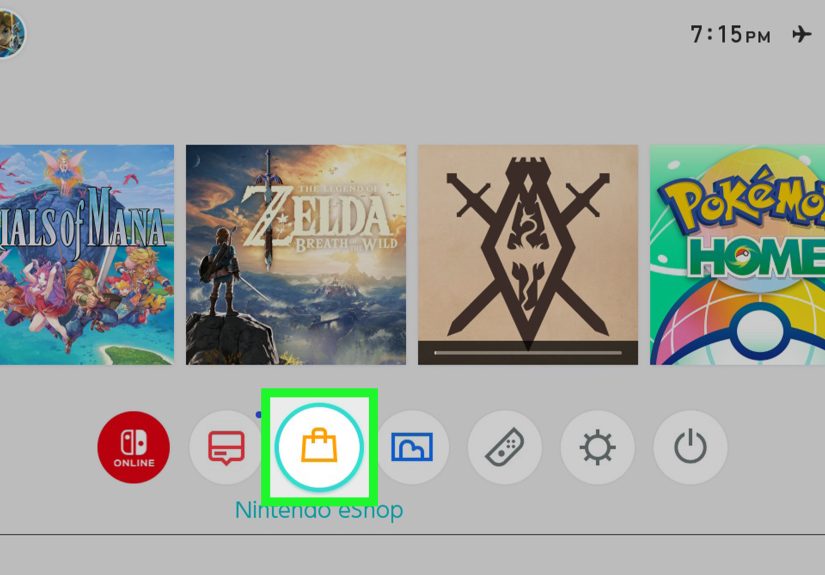
- Open Find or use the Search option.
- Type Disney+ using the on-screen keyboard, or speak into the Alexa remote.
- Select the official Disney+ app from the search results.
- Choose Get, Download, or the install button shown on your screen.
- Wait for the app to download and install.
- Open the app once installation is complete.
That is the core process. If everything goes normally, Disney+ will appear in your apps list and be ready to launch. This is the easiest way to install it because you are handling everything on one screen, with one remote, and ideally only one moment of mild impatience.
Method 2: Use Alexa Voice Search
If typing on a TV with a remote makes you question your life choices, use voice search instead. Press and hold the Alexa button on your Fire TV remote and say something like:
- “Find Disney Plus”
- “Open Disney Plus”
- “Download Disney Plus”
Voice search can speed things up, especially if you have a newer Fire TV interface or you simply do not feel like navigating letter by letter as if it were 2007.
How to Sign In to Disney Plus on Fire TV
Once the app is installed, open Disney+ and sign in with the email address and password linked to your Disney+ subscription. In some cases, the app may give you an on-screen activation or login flow that connects your TV to your account on another device. If that happens, just follow the instructions shown on the screen.
If you already subscribe, logging in is usually faster than ordering takeout. If you do not have an account yet, you can create one first and then return to the Fire TV app to sign in. Some users prefer signing up on a phone or laptop because entering payment information on a television is about as elegant as writing an essay with a toaster.
How to Move Disney+ to the Front of Your Fire TV Home Screen
After installing Disney+, do yourself a favor and make it easier to find. If you watch it often, pinning or moving it closer to the front of your Fire TV apps row can save time every day.
- Highlight the Disney+ app on your Fire TV.
- Press the menu button on your remote.
- Select the option to move the app.
- Place it near the front of your app row.
This may sound like a tiny detail, but it improves the user experience a lot. The fewer clicks between you and a movie night, the better.
What to Do If Disney Plus Does Not Show Up on Fire TV
If you search for Disney+ and it does not appear, do not panic. The most common causes are compatibility issues, software that needs updating, account region issues, or temporary app store glitches.
Check Device Compatibility
Older hardware can be picky. If your Fire TV device is very old, it may not support the latest Disney+ app requirements. In practical terms, if your device has not seen a software update in ages and behaves like it resents modern streaming, compatibility may be the issue.
Update Fire TV Software
Go to your Fire TV settings and check for software updates. This is one of the smartest early fixes because app installation problems often disappear once the device catches up.
Restart the Device
Yes, this advice is older than streaming itself, but it works. Restart your Fire TV from the settings menu or unplug it briefly and plug it back in. A restart can refresh the system and fix minor install or loading problems.
Check Your Internet Connection
If your Fire TV is connected to a weak or unstable network, the app store may load slowly, fail to download, or hang during installation. Try restarting your modem and router, or move the Fire TV closer to the Wi-Fi source if possible.
How to Fix Disney Plus Not Working on Fire TV
Sometimes the app installs just fine but refuses to behave. Maybe it freezes. Maybe it buffers endlessly. Maybe it acts as if the loading spinner is the real star of the show. Here are the most useful fixes.
1. Fully Close and Reopen the App
If Disney+ is stuck on a splash screen or spinning wheel, close it and relaunch it. A surprising number of streaming issues are solved by this simple step.
2. Clear Cache and Data
On Fire TV, clearing an app’s cache can help if Disney+ is crashing, buffering strangely, or refusing to load properly. Clearing data is the stronger reset option, though it may sign you out and remove stored app preferences.
This is a good fix if the app worked before and suddenly became moody for no obvious reason.
3. Update the Disney+ App
Streaming apps age badly when they are not updated. If Disney+ is outdated, playback or login issues may appear. Check whether an app update is available through the Appstore.
4. Reinstall Disney+
If the app is corrupted or deeply confused, uninstalling and reinstalling it can be faster than guessing what went wrong. Remove the app, restart the device, then download Disney+ again from the Appstore.
5. Verify Your Login Details
If you cannot sign in, double-check the email address and password connected to your Disney+ account. Many login problems are simply account mismatches. It is amazing how often “wrong password” turns out to be “I used a different email three years ago and forgot.”
6. Test Other Streaming Apps
If Disney+ is the only app failing, the problem is probably app-specific. If every app struggles, the issue may be your Fire TV, network connection, or a broader system problem.
Can You Watch Disney Plus in 4K on Fire TV?
Yes, you can watch Disney+ in 4K on compatible Fire TV hardware, provided you also have a 4K television, appropriate bandwidth, and content that is actually available in 4K. Not every title streams in the same format, so your device and the specific movie or show both matter.
If you are aiming for the best picture quality, make sure your Fire TV model supports 4K playback and that your TV and HDMI setup do not create a bottleneck. Nothing ruins a premium streaming experience quite like discovering your “epic cinematic setup” is being limited by one aging cable and wishful thinking.
Should You Subscribe Through Fire TV or Somewhere Else?
For many people, the easiest path is to create or manage the account on a phone or computer, then log in on Fire TV. That approach gives you a bigger keyboard, easier password management, and less chance of making a billing mistake while pecking through menus on your television.
That said, if your Fire TV offers a direct sign-up flow and you prefer doing everything from the couch, it can still work well. The best method is the one that gets you signed in with the least amount of friction.
Common Mistakes to Avoid
- Downloading the app and forgetting to move it somewhere easy to find
- Assuming any playback issue must be Disney’s fault when your Wi-Fi is actually struggling
- Ignoring Fire TV software updates for months
- Using the wrong Disney+ login credentials
- Expecting 4K playback on hardware or TVs that do not support it
- Rebooting your patience before rebooting the device
Everyday Experiences With Disney Plus on Fire TV
Using Disney+ on Fire TV tends to be one of those setups people stop thinking about once it works, and that is usually a compliment. In real life, the best streaming experience is not the one with the fanciest marketing line. It is the one that lets you sit down, press a button, and get into a movie without opening three menus and accidentally launching a workout app.
For families, Fire TV and Disney+ can be especially convenient because the content library is broad enough to cover very different moods in the same house. A parent can start the evening with a documentary, switch to a Marvel movie later, and still hand the remote to a kid who immediately demands animation and exactly zero patience. Profiles help keep that experience organized, so one person’s superhero binge does not take over everyone else’s recommendations.
There is also something nice about how Fire TV fits older televisions into modern streaming life. Plenty of people do not need a brand-new smart TV. They just need one decent streaming stick, a stable internet connection, and an app lineup that includes the services they actually use. In that kind of setup, Disney+ often becomes one of the most-used apps because it works for movie nights, weekend background viewing, holiday classics, and those evenings when the household cannot agree on anything except that everyone likes Pixar.
The voice control angle is underrated too. Saying “Open Disney Plus” sounds like a tiny convenience until you have typed with a remote a few dozen times. Then it feels like civilization. It is especially helpful when you are helping relatives set up a TV, because voice commands can reduce the learning curve. Instead of explaining six navigation steps, you can just show them one button and one phrase.
Of course, the experience is not always perfect. Sometimes the app takes a little too long to load. Sometimes buffering shows up right when the story gets good, which feels deeply personal even though it is usually just your Wi-Fi being dramatic. And sometimes the hardest part is not installation at all, but remembering which email address was used for the Disney+ account in the first place. These are normal streaming-world problems, and most are fixable with a restart, an update, or a quick login reset.
What stands out most is that once Disney+ is installed properly on Fire TV, it tends to fade into the background in the best way. You stop troubleshooting and start watching. That is what most people want from technology: less ceremony, more entertainment. You should not need a technical support montage just to watch a movie. You should need a blanket, a snack, and maybe an argument about what to watch first.
Final Thoughts
If you are wondering how to get Disney Plus on Fire TV, the short version is refreshingly simple: search for the official Disney+ app in the Amazon Appstore, install it, sign in, and start streaming. If something goes wrong, the best fixes are usually straightforward too: restart the device, update Fire TV software, clear the app cache, reinstall the app, and make sure your account and Wi-Fi connection are behaving.
Once everything is working, Fire TV is a comfortable home for Disney+. It is easy to access, easy to organize, and easy to use for solo viewing, family watch nights, and those accidental “just one episode” sessions that mysteriously become three. Technology cannot solve every problem in life, but it can at least help you reach The Mandalorian faster.