Table of Contents >> Show >> Hide
- What Is Spotify Cache, Exactly?
- Why Clear Spotify Cache?
- Will Clearing Spotify Cache Delete Anything Important?
- How to Clear Spotify Cache on Android
- How to Clear Spotify Cache on iPhone
- How to Clear Spotify Cache on Desktop
- Spotify Cache vs. Downloads: Know the Difference
- When Clearing Cache Actually Helps
- When You Should Try More Than Clearing Cache
- How Often Should You Clear Spotify Cache?
- Common Mistakes to Avoid
- Final Thoughts
- Real-World Experiences With Clearing Spotify Cache
Spotify is wonderful right up until it starts behaving like a roommate who “temporarily” stores a few things in your closet and somehow takes over the whole apartment. One day your music streams perfectly. The next day the app feels sluggish, album art loads like it’s traveling by carrier pigeon, and your phone storage looks suspiciously full. In many cases, the culprit is cached data.
If you have been wondering how to clear Spotify’s cache on Android, iPhone, and desktop, you are in the right place. This guide explains what Spotify cache is, why it matters, how to delete it safely, and when clearing cache can actually fix common Spotify problems. We will also cover what happens to downloads, playlists, and settings, so you do not tap the wrong button and accidentally send your offline music into the void.
What Is Spotify Cache, Exactly?
Spotify cache is temporary data the app stores on your device to help music, podcasts, album art, and other content load faster. Think of it as Spotify keeping little shortcuts around so it does not have to fetch everything from scratch every time you open a playlist, search for a song, or replay an episode.
That sounds useful, because it is. Cache can improve performance, reduce buffering, and make the app feel faster. But like leftovers in the back of the fridge, temporary files can pile up. Over time, Spotify cache can consume a surprising amount of storage space, especially if you stream often, browse a lot of content, or use the app across multiple playlists and podcasts every day.
Why Clear Spotify Cache?
There are two big reasons people clear Spotify cache: to reclaim storage and to troubleshoot app issues.
1. Free up storage space
If your phone or computer is nearly full, Spotify cache may be part of the problem. Clearing cache removes temporary files that the app can rebuild later. This can be a quick way to recover space without deleting your account, your playlists, or your saved music library.
2. Fix weird Spotify behavior
Sometimes cached files get outdated or corrupted. That can lead to glitches like slow loading, playback hiccups, crashing, missing artwork, syncing issues, or songs refusing to start. Clearing cache gives Spotify a cleaner slate. It is not magic, but it is often one of the easiest first fixes.
Will Clearing Spotify Cache Delete Anything Important?
Usually, no. Clearing Spotify cache does not delete your account, playlists, liked songs, followed artists, or library data stored in your account. That information lives on Spotify’s servers and comes back when you sign in.
However, there is one important catch: cache is not the same thing as downloads, but some storage-related options live near each other. If you tap the wrong button and remove downloads, your offline tracks and podcasts will be deleted from the device and will need to be downloaded again. So yes, read the labels before tapping like you are defusing a tiny Swedish bomb.
How to Clear Spotify Cache on Android
Android gives you two practical ways to clear Spotify cache: inside the Spotify app and through your phone’s app settings. The in-app method is the easiest. The Android system method is useful if Spotify is acting up and you want a more device-level cleanup.
Method 1: Clear cache inside the Spotify app
- Open Spotify.
- Tap your profile picture or the Settings gear.
- Go to Settings and privacy.
- Scroll to Storage.
- Tap Clear cache.
- Confirm the action if prompted.
This method removes Spotify’s temporary files without affecting your account. It is the best first step if you simply want to free up space or fix minor app oddities.
Method 2: Clear Spotify cache through Android settings
- Open your phone’s Settings.
- Tap Apps or Apps & notifications.
- Find and select Spotify.
- Tap Storage & cache.
- Tap Clear cache.
This can be especially helpful if Spotify freezes, pauses, or feels unstable. Just be careful not to tap Clear storage or Clear data unless you actually want a more complete reset. That stronger option can sign you out and remove more local app data.
How to Clear Spotify Cache on iPhone
On iPhone, Spotify makes cache clearing fairly simple inside the app. That is good news, because nobody wants to go spelunking through iOS menus unless absolutely necessary.
Method 1: Clear cache inside the Spotify app on iPhone
- Open Spotify.
- Tap your profile picture or the Settings icon.
- Open Settings and privacy.
- Tap Storage.
- Tap Clear cache.
- Confirm if asked.
That removes temporary Spotify files while keeping your playlists and account intact.
What if Spotify is still acting weird on iPhone?
If clearing cache does not solve the issue, you may need a stronger reset. On iPhone, that often means deleting or offloading the app and reinstalling it. Offloading removes the app itself while preserving certain local documents, while a full delete is a more complete wipe. Either way, downloaded offline content will need to be downloaded again afterward.
If you go that route, make sure you know your login details before uninstalling. Future You will appreciate the foresight.
How to Clear Spotify Cache on Desktop
If you use Spotify on Windows or Mac, cache can build up there too. Desktop cache may not be as obvious as phone storage, but it can still take up a noticeable amount of space and sometimes contribute to performance issues.
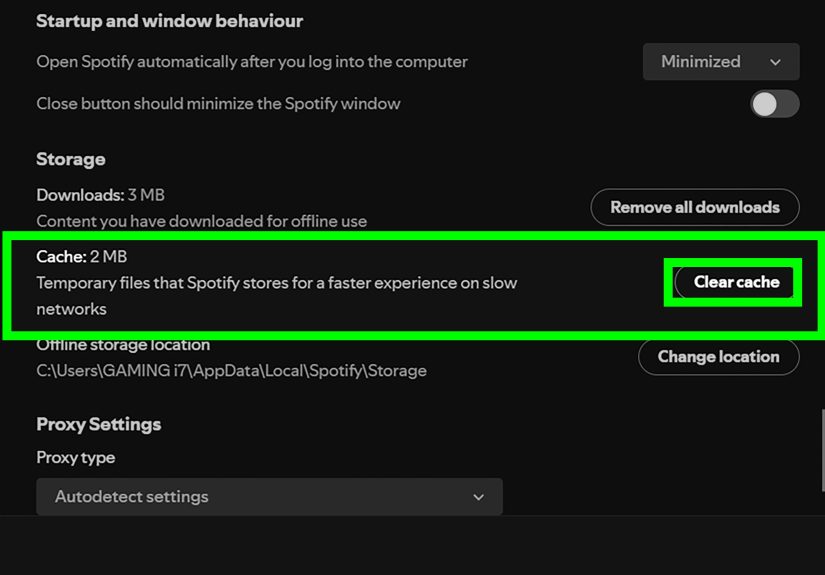
Clear Spotify cache in the desktop app
- Open the Spotify desktop app.
- Click your profile picture or account menu.
- Select Settings.
- Scroll to the Storage section.
- Click Clear cache.
- Confirm the action if prompted.
That is usually all you need. Spotify will rebuild fresh temporary files over time as you continue listening.
What about the Spotify web player?
If you use Spotify in a browser instead of the desktop app, there is no in-app Spotify cache button. In that case, you would clear your browser cache and cookies through Chrome, Safari, Edge, or whichever browser you use. That is different from clearing the cache in the Spotify desktop app, but it can help with loading or playback issues in the web player.
Spotify Cache vs. Downloads: Know the Difference
This is where many users get tripped up. Spotify cache stores temporary files to improve speed. Downloads are full offline files stored intentionally so you can listen without an internet connection.
Here is the practical difference:
- Clear cache = removes temporary files, usually safe, no effect on playlists in your account.
- Remove downloads = deletes offline music and podcasts stored on the device, which must be downloaded again later.
If you are trying to save the most storage space possible, removing downloads will free up more room than clearing cache alone. But it also means no offline listening until you re-download content. So choose based on what you actually need: a quick cleanup or a full storage diet.
When Clearing Cache Actually Helps
Clearing Spotify cache is worth trying when:
- The app is slow to open or navigate
- Songs buffer or refuse to start
- Album artwork is missing or loads incorrectly
- Spotify keeps crashing or pausing
- Your device storage is uncomfortably full
- Downloads or recently played content seem stuck
It is a low-risk troubleshooting step, which is why so many support guides recommend it early in the process. It does not solve every Spotify problem, but it is often the fastest first move before you try reinstalling the app.
When You Should Try More Than Clearing Cache
If clearing cache does not work, move through the next logical fixes:
Update Spotify
An outdated app can cause playback bugs, account syncing issues, or weird interface behavior. Always check for updates in the App Store, Google Play, or Spotify desktop app channels.
Restart your device
Yes, it is the oldest tech support advice on the planet, but it still works often enough to deserve respect. A restart can clear temporary system issues that are not Spotify’s fault.
Log out and log back in
This can refresh account sync issues, especially if playlists, listening history, or devices are not updating properly.
Reinstall Spotify
If the app is badly broken, a clean reinstall may help more than cache clearing alone. Just remember that downloaded content will be removed and must be downloaded again.
How Often Should You Clear Spotify Cache?
There is no perfect schedule. Most people do not need to clear Spotify cache regularly. It is more of an as-needed maintenance step than a weekly ritual.
You might want to clear it when:
- Your storage is running low
- The app starts feeling slower than usual
- You notice glitches after an update
- You stream a lot and cache has grown unusually large
If everything is working well, there is no prize for aggressively deleting cache every three days. Let Spotify keep some of its shortcuts. It is trying its best.
Common Mistakes to Avoid
Confusing cache with account data
Clearing cache does not erase your Spotify library, playlists, or Premium subscription.
Tapping “Remove downloads” by accident
This is the classic “well, that escalated quickly” move. Read the storage menu carefully.
Using device-level data reset too soon
On Android, Clear storage or Clear data is more aggressive than Clear cache. Try the lighter fix first.
Ignoring app updates
Sometimes the problem is not stale cache at all. It is just an outdated app version arguing with your operating system.
Final Thoughts
If Spotify is hogging storage or acting like it drank three espressos and forgot how to function, clearing cache is one of the easiest and safest fixes you can try. On Android, iPhone, and desktop, the process is straightforward once you know where the Storage settings live. In most cases, you can clear Spotify cache in under a minute, reclaim some space, and give the app a fresh start without harming your playlists or account.
The key is knowing what you are deleting. Cache is temporary and disposable. Downloads are intentional and useful. Mix them up, and your carefully curated offline gym playlist may disappear right before leg day, which feels deeply unfair on several levels.
For most users, the best approach is simple: clear cache first, test Spotify again, then move on to updates or a reinstall only if needed. That gives you the fastest fix with the least disruption.
Real-World Experiences With Clearing Spotify Cache
In real life, clearing Spotify’s cache is rarely something people think about until their device starts throwing passive-aggressive storage warnings. It usually begins with a tiny inconvenience. Maybe Spotify takes a second longer to open. Maybe a playlist stutters on a good Wi-Fi connection. Maybe the app feels oddly heavy, like it is dragging around a backpack full of old album covers and half-remembered podcast intros. Then one day you check your storage and realize Spotify has quietly claimed a bigger footprint than expected.
Android users often notice the issue first because Android makes app storage easier to inspect. It is common to open the app settings and find that Spotify has accumulated a large amount of cache from everyday use. People who stream for hours during commutes, workouts, study sessions, or workdays can build up a lot of temporary data without realizing it. For many of them, tapping Clear cache feels like opening a crowded closet and finally finding the floor again. The app usually keeps working normally, and the phone suddenly has more breathing room.
iPhone users tend to have a slightly different experience. Because iOS storage management feels more tightly controlled, many users assume Spotify’s storage is mostly just downloads. Then they open Spotify’s storage menu and discover that cached data has been piling up in the background. Clearing it often feels satisfying because it solves two frustrations at once: the app may behave more smoothly, and the user gets back a useful chunk of storage without deleting photos, messages, or apps they care about more. That is a small modern victory worth celebrating.
Desktop users usually do not think about Spotify cache until the app becomes sluggish, search feels delayed, or local storage starts looking suspiciously crowded. On a computer with plenty of space, cache buildup can go unnoticed for a long time. But on smaller SSDs or shared work machines, every gigabyte matters. Clearing desktop cache can make Spotify feel cleaner and more responsive, especially after long periods of heavy use. It is not always dramatic, but it can be one of those tiny maintenance tasks that makes technology feel less annoying.
Another common experience is using cache clearing as the first move in troubleshooting. Someone has a playback issue, the app keeps pausing, album art does not load, or songs refuse to start. Before going through the hassle of reinstalling Spotify, logging out everywhere, or resetting device settings, clearing cache offers a low-drama option. It takes less than a minute, does not usually mess with account data, and often solves the kind of temporary weirdness users describe as, “I do not know what is wrong, but Spotify is being very Spotify today.”
There is also a learning curve. Many users do not initially understand the difference between cache and downloads. The first time they see both options in the storage area, it is easy to assume they are basically the same thing. Then comes the cautious pause, followed by a quick search, followed by relief when they learn that clearing cache does not destroy their playlists or account. That little moment of clarity matters. Once people understand the difference, they feel much more confident managing Spotify storage without fear of deleting something important.
Overall, the experience of clearing Spotify’s cache is less about technical complexity and more about regaining control. It is one small action that can free space, reduce friction, and make a familiar app feel normal again. In a world where apps quietly accumulate data like squirrels preparing for winter, that is surprisingly empowering.