Table of Contents >> Show >> Hide
- Why Add a Secondary Email to LinkedIn?
- Before You Start: A Quick Pre-Flight Checklist
- How to Add a Secondary Email on LinkedIn (Desktop)
- How to Add a Secondary Email on LinkedIn (Mobile App: iOS & Android)
- How to Make Your New Email the Primary Email (Optional, but Smart)
- How to Remove an Old Email Address (Don’t Rage-Delete First)
- Troubleshooting: When Adding a Secondary Email Gets Annoying
- Privacy & Security Tips After You Add a Second Email
- FAQ: Quick Answers People Google at 2:00 AM
- Wrap-Up
- Extra: of Real-World Experience & “Wish I’d Known This” Tips
LinkedIn is a lot like a gym membership: you don’t think about it for months… until you really, really need it. Adding a secondary email address is the easiest “future you” favor you can do in under five minutesespecially if your current login is a work email that could disappear the moment you change jobs.
In this guide, you’ll learn how to add a second email to LinkedIn on desktop and the mobile app, verify it properly, optionally set it as your primary email, and troubleshoot the common “Where is my verification email?” spiral.
Why Add a Secondary Email to LinkedIn?
A secondary email (also called an additional email) is your backup key. If your primary email becomes inaccessibleor starts bouncing LinkedIn can still reach you for password resets and account security messages. It also helps you avoid accidentally creating duplicate accounts when someone invites you through a different email than the one on your profile.
Real-life scenarios where a second email saves the day
- You leave a job and your company shuts off your inbox faster than you can say “exit interview.”
- You change email providers (or retire an old address) and forget which sites you used it for.
- You miss important security alerts because your primary email is filtering LinkedIn messages.
- You use LinkedIn products (like Sales Navigator) and want a specific email for licensing or access.
Before You Start: A Quick Pre-Flight Checklist
Skim this list now and you’ll avoid 90% of email-related headaches later.
What you’ll need
- Access to the new email inbox you’re adding (you must confirm it).
- Your LinkedIn password (LinkedIn usually asks you to re-enter it for security).
- Access to your current primary email or your LinkedIn app for a security prompt (sometimes required).
Best practice
Add one personal email you’ll keep long-term (Gmail/Outlook/iCloudyour choice). If your primary email is a work address, keep it, but don’t let it be your only lifeline.
How to Add a Secondary Email on LinkedIn (Desktop)
On desktop, LinkedIn tucks email settings under Sign in & security. The labels may vary slightly by region or UI updates, but the pathway is consistent.
Step-by-step (desktop web)
- Log in to LinkedIn in your browser.
- Click the Me icon (your profile photo) near the top of the page.
- Select Settings & Privacy.
- In the left navigation, click Sign in & security.
- Under Account access, click Email addresses.
- Click Add email address.
- Enter the new email address and, when prompted, your LinkedIn password, then click Submit.
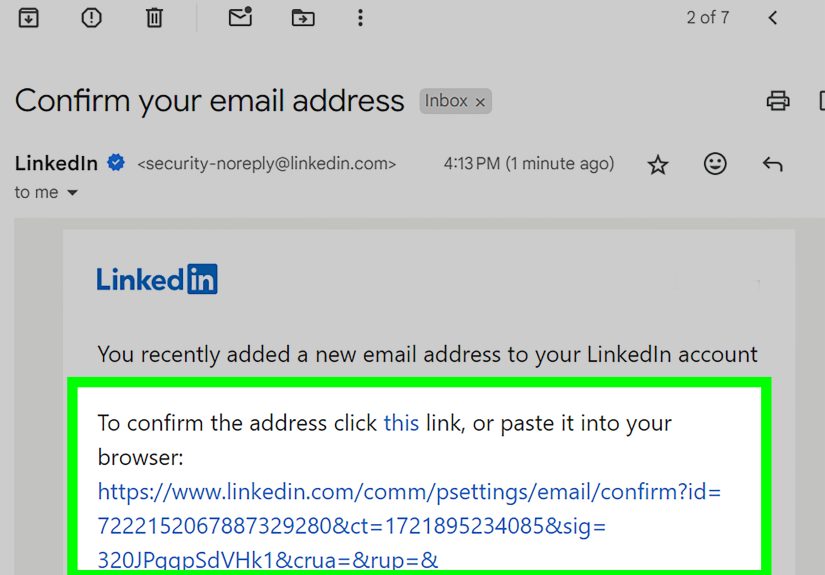
- Check your new email inbox for a confirmation message from LinkedIn and follow the prompts to verify the address.
What to expect after you add it
- LinkedIn may require an extra security steplike a code sent to your primary email or an approval prompt in the LinkedIn app. This is normal and meant to stop account takeovers.
- You might see an option to Make primary next to the newly confirmed email.
- In some cases, LinkedIn displays a toggle beside a confirmed email for product access/licensing (for example, certain LinkedIn products may rely on the email being “active” without forcing a password reset).
How to Add a Secondary Email on LinkedIn (Mobile App: iOS & Android)
The mobile steps are similar, just compressed into a smaller screenkind of like reading a contract on your phone: technically possible, emotionally questionable.
Step-by-step (LinkedIn app)
- Open the LinkedIn app and make sure you’re signed in.
- Tap your profile photo.
- Tap Settings.
- Tap Sign in & security.
- Under Account access, tap Email addresses.
- Tap Add email address.
- Enter the new email address, then confirm by entering your LinkedIn password when prompted.
- Open the verification email LinkedIn sends to your new inbox and confirm the address.
Mobile tip
If the verification email opens in an in-app browser and the confirmation page looks weird, open your email in your regular mail app and try again. When in doubt, copying the link into your default browser can also help.
How to Make Your New Email the Primary Email (Optional, but Smart)
Your primary email is typically the main address for account communications and sign-in recovery. If you’re switching away from a work email, making your personal email primary is often the safest move.
Desktop
- Go to Settings & Privacy → Sign in & security → Email addresses.
- Make sure your new email shows as confirmed/verified.
- Click Make primary next to the email you want as primary.
- Confirm with your LinkedIn password if prompted.
Mobile
- Go to Settings → Sign in & security → Email addresses.
- Tap Make primary under the confirmed email you want to use.
Important: LinkedIn generally requires the primary email to be a verified address. If it’s not verified yet, verify firstthen promote.
How to Remove an Old Email Address (Don’t Rage-Delete First)
Removing an email is easy, but timing matters. If you remove the wrong email before your new one is verified, you could lock yourself out or make recovery harder.
Safer sequence
- Add the new email.
- Verify it.
- (Optional) Make it primary.
- Remove the old email you no longer control.
In the Email addresses list, you’ll usually see a Remove option beside addresses that can be deleted. LinkedIn may require your password to confirm removal.
Troubleshooting: When Adding a Secondary Email Gets Annoying
Problem: “I didn’t receive the verification email.”
This is the most common issue, and it’s usually not personalyour inbox is just playing hard to get.
- Check spam/junk, plus Gmail’s Social/Promotions tabs if you use Gmail.
- Resend verification from the Email addresses page if the option appears.
- Add LinkedIn as a trusted sender (safe sender list). Some providers aggressively filter automated emails, especially security codes.
- Wait a few minutes and try againsometimes providers delay automated messages.
Problem: “LinkedIn says my email bounced.”
A “bounced” email usually means the provider rejected delivery (invalid address, mailbox full, blocked domain, etc.). If it keeps bouncing, add a different valid email and remove the bounced one to keep your account healthy.
Problem: “LinkedIn wants a code from my primary email, but I can’t access it.”
If you still have at least one other verified method on your account (another email or phone number), LinkedIn may let you choose where to receive a verification code. If you have no access to any associated email, you’ll need to use LinkedIn’s account recovery flow to regain access.
Problem: “The app is glitchy and the confirmation won’t stick.”
If LinkedIn is acting up, try the classic tech support trilogy: log out and back in, update the app, and try desktop (desktop often behaves better for security changes). Clearing cache or reinstalling the app can also fix stubborn issues.
Privacy & Security Tips After You Add a Second Email
Adding a secondary email is about accessbut privacy matters too. LinkedIn lets you control who can see your email address and whether connections can download it in data exports. If you want your email to stay private (and you enjoy peace), adjust visibility settings.
Recommended security upgrades (high impact, low effort)
- Turn on two-step verification (2FA) so losing one inbox doesn’t become a full-blown crisis.
- Keep at least two verified contact methods (two emails or email + phone number).
- Use a stable personal email as primary if your work email could change.
Visibility tip
If your goal is “LinkedIn networking” and not “invite random cold emails into my life,” set your email visibility to Only visible to me or 1st-degree connections depending on how reachable you want to be.
FAQ: Quick Answers People Google at 2:00 AM
Can I have more than two email addresses on LinkedIn?
LinkedIn allows you to add additional email addresses to your account. In practice, most people keep it simple: one personal + one work.
Do I need to verify the new email?
Yes. Verification is required so LinkedIn knows you control the inbox. It also helps ensure password reset links can reach you.
Will adding a secondary email change what shows on my public profile?
Not automatically. Email visibility is controlled in privacy/visibility settings. You can keep your email hidden even if it’s your primary login.
Can I add an email that’s already used on another LinkedIn account?
Usually, no. If an email is tied to a different account, LinkedIn may prevent it from being added until it’s removed from the other account (or the account is recovered/closed). If you can’t access the old account, you’ll likely need to go through account recovery.
Wrap-Up
Adding a secondary email to LinkedIn is one of those tiny tasks with a huge payoff: fewer login nightmares, smoother job transitions, and a backup plan when an inbox goes missing in action.
The golden rule: Add → Verify → (Optional) Make primary → Remove old. Do it in that order and you’ll be fine. Do it out of order and you might invent brand-new vocabulary.
Extra: of Real-World Experience & “Wish I’d Known This” Tips
If you’ve never lost access to a work email, congratulationsyou’ve either had a very stable career or you’re reading this from your first job and still think HR is your friend (they can be! just… not in charge of your email access decisions). The most common LinkedIn email horror story goes like this: someone uses a company email as their only LinkedIn login for years, gets laid off or switches jobs, and suddenly can’t reset their password because the reset link is going to an inbox they no longer own. Adding a secondary email is how you avoid that plot twist.
Another surprisingly common situation: you created your LinkedIn account in 2012 with an email address you barely remember. That address still “works” in LinkedIn settingsuntil it doesn’t. Then you’re stuck trying to verify changes through an inbox that’s either deleted, locked, or buried under a mountain of “confirm your newsletter subscription” messages from a decade ago. A secondary email gives you a modern, accessible channel that you actually check.
Here’s a practical tip that feels obvious only after you learn it the hard way: when you add a new email, verify it immediately. Don’t tell yourself, “I’ll click that verification link later.” “Later” is how you end up on a Tuesday night staring at your screen whispering, “Why won’t LinkedIn just trust me?” Verification is also what makes the address usable for important stuff like password resets and security alerts.
If you use Gmail, treat the Promotions tab like a mischievous sock drawerthings go there and disappear. Search your inbox for “LinkedIn” and check spam/junk before you resend the verification email five times. If you’re in a corporate email environment, your IT filters may be strict; adding linkedin.com to safe senders can make the difference between instant delivery and “your code will arrive sometime between now and the heat death of the universe.”
Finally, consider how you want to be contacted. Some professionals like their email visible to connections; others prefer messaging only. Adding a second email doesn’t automatically expose it, but it’s a great moment to review your visibility settings and keep your inbox from becoming a magnet for low-effort pitches. Think of it as installing a second door to your house while also checking the curtains. More access for you; not necessarily more access for everyone else.