Table of Contents >> Show >> Hide
- What Does Discord Server Ownership Mean?
- Before You Transfer Discord Server Ownership
- How to Transfer Discord Server Ownership on PC
- How to Transfer Discord Server Ownership on Mobile
- Why You Might Not See “Transfer Ownership”
- Can You Transfer Discord Ownership If the Owner Is Inactive?
- What Happens After Ownership Is Transferred?
- Best Practices for a Smooth Discord Ownership Handoff
- Common Mistakes to Avoid
- Example: A Clean Ownership Transfer
- Experience-Based Tips for Transferring Discord Server Ownership
- Conclusion
There comes a time in every Discord server owner’s life when the crown starts feeling less like royal jewelry and more like a very loud alarm bell. Maybe your gaming clan has outgrown your schedule. Maybe your study server is now run by three moderators who actually remember to pin announcements. Maybe you created a server for “just five friends,” blinked, and somehow became mayor of a digital city with bots, rules, channels, and a member who keeps asking where the memes go.
Whatever the reason, learning how to transfer Discord server ownership is simplebut it is also serious. Server ownership is not the same as giving someone an admin role. The owner has the highest level of control over the server, and once the transfer is complete, the new owner becomes the person with final authority. You may still remain in the server, but your power depends on the roles and permissions you have afterward.
This guide explains how to transfer ownership on Discord using both PC and mobile, what to check before handing over the server, why the transfer option might not appear, and what to do if the current owner is inactive. Think of it as passing the keys to the clubhousewithout accidentally locking yourself in the broom closet.
What Does Discord Server Ownership Mean?
A Discord server owner is the account that ultimately controls the server. Administrators can manage many things, including channels, roles, moderation tools, and members, but the owner sits at the very top of the permission structure. The owner cannot be kicked or banned by regular moderators, and some settings are reserved for the owner or depend on owner-level authority.
In many servers, the owner is marked by a small crown icon. However, that crown may disappear if the server has an administrator role displayed separately in the member list. So, if you do not see the crown, it does not always mean there is no owner. It may simply mean the server’s role display settings are hiding the royal sparkle.
Ownership vs. Administrator Permissions
Giving someone Administrator permission is powerful, but it is not the same as transferring ownership. An admin can manage most server settings, but the owner remains the final authority. When you transfer ownership, the recipient becomes the official server owner, and you step down from that position. That distinction matters if the server has a large community, important brand presence, monetization features, private staff systems, or long-term community plans.
Before You Transfer Discord Server Ownership
Before you click the big transfer button, pause for a few minutes. Discord makes the process straightforward, but the decision deserves a checklist. The best server handoffs feel boring, organized, and drama-free. The worst ones feel like someone threw the server into a washing machine with the settings on “chaos.”
1. Choose the Right New Owner
The new owner should be someone you trust completely. They should understand the server’s purpose, rules, culture, moderation style, and member expectations. If your community is a gaming server, they should know the event schedule and staff structure. If it is a business or creator community, they should understand brand tone, customer support expectations, and privacy boundaries.
Ask yourself: Does this person communicate clearly? Do they handle conflict calmly? Are they active enough to lead? Do they know how permissions work? A good owner does not need to be online 24/7, but they should not vanish every time someone asks a moderation question.
2. Confirm the Person Is Already a Server Member
You can only transfer ownership to someone who is in the server. If the person is not a member yet, invite them first. After they join, make sure you are choosing the correct account. Discord usernames and display names can look similar, so double-check the user profile before confirming.
3. Review Roles and Permissions
After the transfer, your own access depends on your roles. If you still need to help manage the community, ask the new owner to keep you in an appropriate admin, moderator, advisor, or founder role. Do this before the transfer, not afterward when you are politely tapping on the glass from outside the control room.
4. Enable and Save Multi-Factor Authentication
If you use multi-factor authentication, Discord may ask for your MFA code during the transfer. Make sure your authentication method works before starting. Also save your backup codes somewhere secure. Nothing ruins a clean handoff like realizing your authenticator app lives on a phone currently resting in a taxi three neighborhoods away.
5. Tell Your Staff Team
For active communities, announce the transition to moderators and key members. You do not need a dramatic speech with orchestral music, but a short message helps prevent confusion. Let people know who the new owner is, when the change is happening, and whether moderation rules or server direction will stay the same.
How to Transfer Discord Server Ownership on PC
The PC method works in the Discord desktop app and in Discord through a web browser. The interface may change slightly over time, but the basic path is the same: go to server settings, open the members list, select the member, and confirm the ownership transfer.
Step 1: Open Discord on Desktop or Browser
Launch the Discord desktop app on Windows or Mac, or open Discord in your browser. Log in to the account that currently owns the server. This part is important: admins cannot transfer ownership unless they are the actual owner. Administrator permission is not enough.
Step 2: Select the Server
Look at the left side of Discord and click the server you want to transfer. Make sure you are in the correct server. If you manage several communities with similar icons, take a second to check the server name. Accidentally transferring the wrong server is the kind of mistake that makes coffee taste like regret.
Step 3: Open Server Settings
Click the server name near the top-left corner. A dropdown menu will appear. Choose Server Settings. This opens the control panel where you can manage roles, members, moderation settings, integrations, and other server tools.
Step 4: Go to Members
Inside Server Settings, find and click Members. This page shows the server member list. You can search for the person by name if the server is large. Use the search box rather than scrolling through hundreds or thousands of members like you are looking for one sock in a laundry mountain.
Step 5: Choose the New Owner
Find the member who should receive ownership. Depending on the interface, you may right-click their name or click the three-dot menu next to their profile in the members list. Look for the option labeled Transfer Ownership.
Step 6: Confirm the Transfer
Discord will show a confirmation window. Read it carefully. You will usually need to acknowledge the transfer by turning on a confirmation toggle or checking a confirmation box. Then click Transfer Ownership. If your account has MFA enabled, enter the required code when prompted.
Step 7: Check the Result
After the transfer, the selected member becomes the new server owner. You remain in the server unless you leave or are removed, but your permissions now depend on your assigned roles. If you planned to stay as an admin or advisor, confirm that your role is still set correctly.
How to Transfer Discord Server Ownership on Mobile
The mobile process works on iPhone, iPad, and Android. The screen is smaller, so the menus may feel a little more tucked away. The good news is that the steps are still simple once you know where to tap.
Step 1: Open the Discord Mobile App
Open Discord on your phone or tablet and log in to the account that owns the server. Go to the server you want to transfer. If you are using multiple accounts, confirm you are signed in as the owner.
Step 2: Open Server Settings
Tap the server name or the menu area at the top of the server. Then tap Settings, usually shown with a gear icon. This opens the server settings page.
Step 3: Tap Members
Scroll through the settings menu until you find Members. Tap it to open the server member list. If the server has many members, use search to find the person quickly.
Step 4: Select the Member
Tap the member who should become the new owner. A profile or member management screen should appear. Look for Transfer Ownership. If you do not see the option, check the troubleshooting section below.
Step 5: Confirm Ownership Transfer
Discord will display a confirmation screen. Read the warning, confirm that you understand the transfer, and tap Transfer. If MFA is enabled on your account, enter your authentication code when Discord asks for it.
Step 6: Verify the Handoff
After the process finishes, the new owner controls the server. Your account stays in the server, but you are no longer the owner. Ask the new owner to confirm their access and review your role if you still need moderation or management permissions.
Why You Might Not See “Transfer Ownership”
If the Transfer Ownership option is missing, do not panic. Discord is not necessarily broken. Most of the time, one of a few common issues is responsible.
You Are Not the Current Owner
The most common reason is simple: your account is not the server owner. Even if you have Administrator permission, you cannot transfer ownership unless you own the server. Admins are powerful, but they cannot crown a new monarch.
The Person Is Not a Member
The recipient must already be inside the server. If you are trying to transfer ownership to someone outside the community, invite them first. Once they join, return to the members list and try again.
You Are Looking in the Wrong Menu
On desktop, the option appears from the member’s menu in Server Settings > Members. On mobile, it appears after selecting a member from the server’s member settings. If you are looking at a regular chat profile card, you may not see the same management options.
Your App Needs an Update
If the interface looks different or options are missing, update the Discord app. Mobile apps especially can lag behind if automatic updates are disabled. After updating, restart the app and check again.
MFA or Security Checks Are Blocking You
If Discord asks for an MFA code, you need access to your authentication method. Use your passkey, authenticator app, SMS method if available, or backup code depending on how your account is configured. If you cannot complete the security check, resolve account access first before attempting the transfer.
Can You Transfer Discord Ownership If the Owner Is Inactive?
If the current owner is available, the cleanest method is always for them to transfer ownership directly. But sometimes the owner disappears, loses access, or stops using Discord. In that case, a server member may be able to request a server ownership transfer through Discord Support, but only if the server meets specific requirements.
Discord’s support-based ownership transfer process is not a shortcut for taking over a server. It is designed for situations where the owner is inactive and the community needs responsible management. Generally, the requestor must be active, have administrator or moderator permissions, and provide accurate server and user information. The server also needs to meet eligibility requirements, including member count and ownership inactivity conditions.
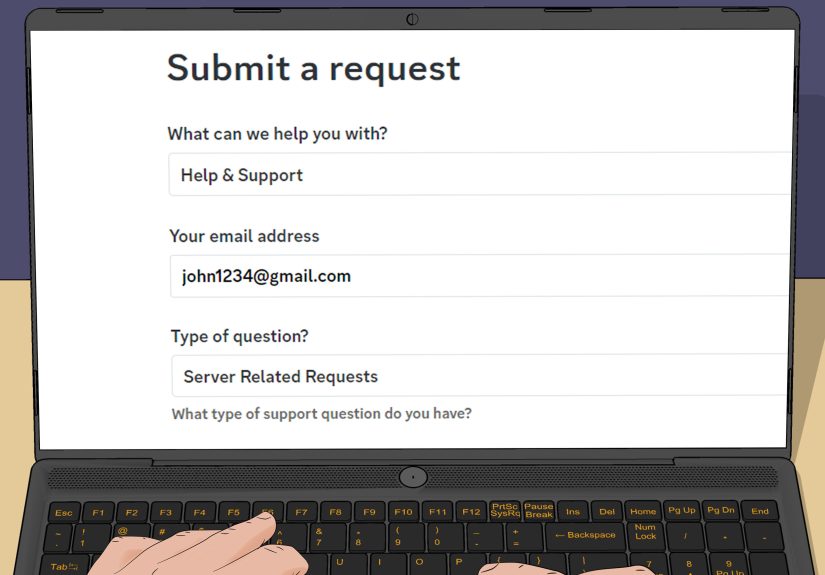
Information You May Need for a Support Request
If you submit a server ownership transfer request, prepare the server name, server ID, inactive owner’s username, inactive owner’s user ID, new owner’s username, and new owner’s user ID. To copy IDs, you usually need to enable Developer Mode in Discord. Accuracy matters. A wrong ID can delay the request or lead to denial.
Partnered, Verified, Community, and Monetized Servers
Server type matters. A Community server is not automatically a Partnered or Verified server. Partnered or Verified servers may have different handling, and monetized servers can face restrictions in support-based transfer requests. If your server has public visibility, subscriptions, partnerships, verification, or business-related features, review everything carefully before filing a request.
What Happens After Ownership Is Transferred?
Once ownership changes, the new owner has final control. They can manage server settings, roles, channels, moderation systems, and long-term direction. The former owner stays in the server unless they leave or are removed, but they no longer have ownership-level authority.
Channels, roles, bots, messages, categories, emojis, and general server structure do not disappear just because ownership changes. The server continues existing under the new owner. However, integrations, staff expectations, moderation workflows, and external accounts connected to the community may need review.
Does the Old Owner Keep Admin Powers?
Only if their roles allow it. If you transfer ownership and your account has no admin role, you may lose management access. Before transferring, decide whether you should remain as a founder, advisor, admin, moderator, or regular member.
Can Discord Reverse the Transfer?
Treat the answer as no for practical purposes. Discord warns that once a server has been transferred, Support is not able to simply transfer it back. That is why the confirmation screen exists. Do not transfer ownership as a joke, a test, a dare, or because someone promised to “give it right back, bro.” Digital crowns are not party hats.
Best Practices for a Smooth Discord Ownership Handoff
Create a Transition Plan
For small friend servers, a transition plan can be as simple as “Alex owns it now because Alex organizes game night.” For larger communities, write a short plan. Include who owns the server, who manages moderation, who handles announcements, who manages bots, and who can edit major roles.
Audit Important Roles
Review Administrator, Manage Server, Manage Roles, Ban Members, Kick Members, Manage Channels, and Manage Webhooks permissions. Remove old staff roles that are no longer needed. A server handoff is a perfect time to clean up dusty permission stacks from 2021 that no one understands anymore.
Check Bot Ownership and Dashboards
Many moderation and utility bots have external dashboards. The Discord server owner may not automatically control every bot dashboard account. If a bot was added or configured by the previous owner, make sure the new owner or trusted staff can access the bot’s settings. This is especially important for automod, reaction roles, logging, welcome messages, ticket systems, and leveling bots.
Review Rules and Safety Settings
Before the handoff, review the rules channel, onboarding flow, verification levels, automod settings, and moderation logs. If the new owner inherits a messy rulebook, they may spend their first week asking why “Rule 6” refers to a channel that no longer exists.
Announce the Change Clearly
A simple announcement prevents rumors. For example: “Hey everyone, ownership of the server has been transferred to Jordan. The rules, staff team, and community focus are staying the same. Please contact Jordan or the mod team if you need help.” Short, calm, and clear beats mysterious silence every time.
Common Mistakes to Avoid
Transferring Ownership Too Quickly
Do not transfer ownership during an argument, raid, burnout moment, or late-night “I’m deleting everything” mood. Sleep on it if possible. A server that took years to build deserves more than a three-second decision made while angry at a notification.
Choosing Popularity Over Reliability
The funniest member is not always the best owner. The most active chatter is not always the best leader. Choose someone reliable, calm, secure, and organized. Ownership is less about being the loudest person in chat and more about making sure the community does not catch fire.
Forgetting Account Security
If the new owner has weak account security, the entire server becomes vulnerable. Encourage the new owner to enable MFA, use a strong password, save backup codes, and avoid suspicious links. A compromised owner account can create serious problems for any community.
Ignoring External Assets
Some Discord servers are tied to websites, social media accounts, Patreon pages, game clans, Twitch channels, YouTube communities, or business brands. Transferring Discord ownership does not automatically transfer those external assets. Make a separate checklist for anything outside Discord.
Example: A Clean Ownership Transfer
Imagine you own a Discord server for a Minecraft community with 2,000 members. You are starting a new job and can no longer manage events, moderation, and plugin announcements. Your head moderator, Taylor, has been active for two years, understands the rules, and already manages most community operations.
A smart transfer would look like this: first, you talk with Taylor privately and confirm they are willing to take ownership. Next, you review admin roles, bot dashboard access, announcement channels, and server rules. Then you notify the staff team. After that, you transfer ownership through Server Settings > Members. Finally, Taylor posts a short community announcement and confirms that your founder role remains in place.
That is a smooth handoff. No confusion. No panic. No “who owns the server now?” messages every twelve seconds.
Experience-Based Tips for Transferring Discord Server Ownership
After watching how Discord communities operate, one lesson stands out: the technical transfer is easy, but the human transfer needs care. Clicking Transfer Ownership takes less than a minute. Preparing people for the change can take days or weeks, especially if the server has active moderators, loyal members, scheduled events, or a strong identity.
One practical experience is that server members usually care less about who owns the server and more about whether the community still feels stable. If the new owner suddenly changes every channel name, rewrites all the rules, removes familiar moderators, and announces a “new era” with seventeen fire emojis, people may get nervous. A better approach is gradual. Keep the familiar structure in place at first. Let the new owner introduce improvements after they understand member expectations.
Another important experience is to document the boring stuff. Boring documentation is secretly heroic. Write down what each bot does, which roles are important, where moderation logs go, how appeals are handled, who can post announcements, and what to do during raids or spam attacks. Without documentation, the new owner inherits a machine with many buttons and no labels. That is how someone accidentally turns off welcome messages while trying to fix reaction roles.
It also helps to run a “practice conversation” before the actual transfer. Ask the new owner how they would handle common problems: a moderator dispute, a spam raid, a member accusing staff of bias, a bot going offline, or a channel getting too heated. These conversations reveal whether the person thinks like a caretaker or a dictator with a Wi-Fi connection. A good owner listens, asks questions, and makes decisions based on the server’s long-term health.
For mobile users, the biggest experience-based tip is patience. Mobile menus can be compact, and the transfer option may not be obvious at first glance. If you are managing a serious server, consider doing the final handoff on PC if possible. The desktop interface gives you more space to review members, roles, and settings. Mobile works perfectly well, but PC reduces the chance of tapping the wrong thing while your thumb behaves like it has its own ambitious business plan.
Security is another lesson that deserves a giant neon sign. Before transferring ownership, make sure both accounts are secure. The current owner should be able to complete MFA prompts, and the new owner should have strong account protection. A server is only as safe as the account holding the keys. If the new owner uses the same password everywhere or clicks every “free Nitro” link, pause the transfer and have a security talk first.
Finally, remember that leadership changes are emotional. Some founders feel strange after transferring ownership, even when it is the right decision. That is normal. A Discord server can represent years of friendships, events, jokes, late-night conversations, and community building. Passing it to someone else does not erase your contribution. It simply means the community gets a better chance to keep growing under someone who has the time and energy to lead it well.
Conclusion
Learning how to transfer Discord server ownership on mobile and PC is straightforward: open server settings, go to members, select the new owner, choose the transfer option, and confirm the change. The bigger task is making sure the decision is thoughtful. Choose a trustworthy new owner, review roles and permissions, secure both accounts, prepare staff, and communicate the change clearly.
Ownership transfer is best used when it protects the future of the community. Maybe you are stepping back, changing roles, handing control to a more active leader, or preventing a server from going unmanaged. Done carefully, the process keeps your Discord server healthy, organized, and ready for its next chapter. The crown may move, but the community can keep thriving.
Note: Always review Discord’s latest in-app prompts before confirming a transfer, because interface labels and security checks may change over time.