Table of Contents >> Show >> Hide
- What “encrypted email” really means on iPhone or iPad
- Option 1: Use Apple Mail with S/MIME on iPhone or iPad
- Why Apple Mail encryption is useful but not always easy
- Option 2: Use a secure email app for a much easier experience
- What about Gmail or Outlook on iPhone or iPad?
- Common mistakes people make when trying to encrypt email on Apple devices
- Best practices for sending encrypted email on iPhone or iPad
- So, what is the best way to send an encrypted email on iPhone or iPad?
- What it’s actually like to use encrypted email on iPhone or iPad
- Conclusion
If you have ever stared at your iPhone or iPad while trying to send a sensitive email and thought, “Surely there is a button for this,” welcome to the club. Most people assume email encryption on Apple devices is as simple as turning on a magical privacy switch and riding off into the sunset. In reality, it is more like assembling a tiny digital vault with certificates, keys, settings, and one stubborn lock icon that may or may not cooperate.
The good news is that sending an encrypted email on iPhone or iPad is absolutely possible. The slightly less glamorous news is that there are different kinds of email security, and they are not all equal. Some methods protect messages only while they are moving across the internet. Others protect the contents so only the intended recipient can read them. And some features sound secure but are really more like a polite velvet rope than a steel bank door.
This guide breaks it all down in plain English. You will learn how encrypted email works on Apple devices, how to use Apple Mail with S/MIME, when Gmail and Outlook make sense, and why secure email apps can be much easier for normal humans who would rather not spend their afternoon collecting certificates like rare trading cards.
What “encrypted email” really means on iPhone or iPad
Before you start tapping around in Settings, it helps to understand the three most common levels of email security.
1. Encryption in transit
This is the most common kind. Services like Gmail often use TLS to protect your message while it travels between mail servers. That is good and useful, but it is not the same as end-to-end encryption. Your message is protected in transit, but providers may still be able to access it on their systems depending on how the service works.
2. Message encryption with S/MIME
This is the built-in path for Apple Mail on iPhone and iPad. S/MIME uses certificates and public-key cryptography to encrypt a message so only the intended recipient can decrypt it. It is powerful, professional, and beloved by organizations that enjoy phrases like “certificate authority” and “global address list.” It is also the main native option in Apple Mail.
3. End-to-end encrypted email services
This is the easier route for many users. Services such as Proton Mail and Tuta are designed around privacy from the start. Messages between users on the same platform are typically end-to-end encrypted automatically. When sending outside that ecosystem, they often offer password-protected or other secure methods that are much simpler than configuring S/MIME by hand.
So if your goal is to send a private email from your iPhone or iPad, the first question is not “Can Apple do this?” The real question is “Which method fits my situation without making me question all my life choices?”
Option 1: Use Apple Mail with S/MIME on iPhone or iPad
If you want to use the built-in Mail app, S/MIME is the standard route. Apple supports it on iPhone and iPad, but there is a catch: you need an S/MIME certificate for your own email account, and you also need the recipient’s public certificate before you can send them an encrypted message.
What you need before you begin
- An email account configured in the Mail app
- An S/MIME certificate for your account from a certificate authority or your organization
- The recipient’s public certificate
- A little patience and, ideally, a snack
This setup is especially common in business or school environments, particularly with Exchange accounts. In those cases, the recipient’s certificate may be discoverable automatically inside the same organization, which makes life much easier.
How to enable encryption by default in Apple Mail
- Open Settings.
- Tap Mail, then Accounts.
- Select the account you want to use.
- Tap Account, then Advanced.
- Turn on Encrypt by Default.
Once this is enabled, Apple Mail will try to encrypt new messages from that account. When replying or forwarding, the message usually follows the encryption state of the original email rather than your default setting. In other words, your phone is trying to be consistent, not dramatic.
How to know whether a message will be encrypted
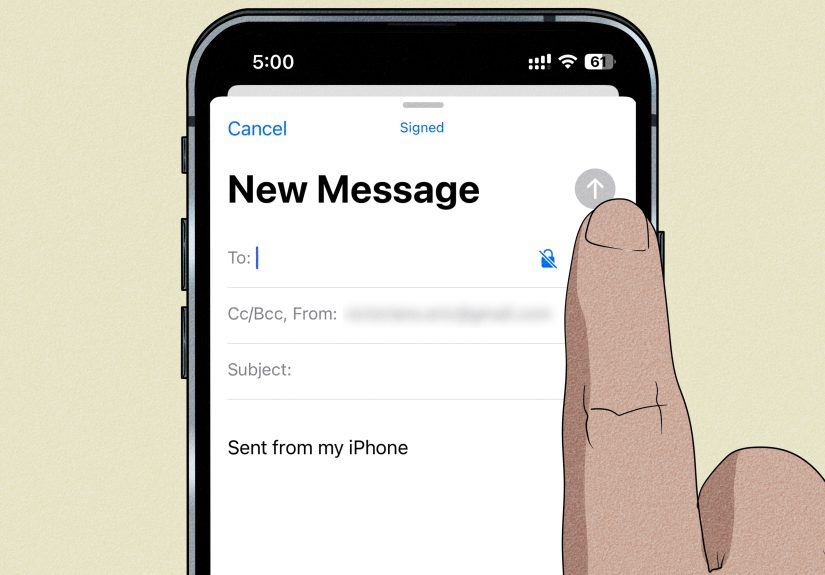
When composing a message, look for the lock icon in the address field. A locked icon generally means Mail has what it needs to encrypt the message for that recipient. If you are inside the same Exchange environment, iPhone or iPad may be able to find the recipient’s certificate automatically through the organization directory.
How to trust a recipient’s certificate manually
If the recipient is outside your organization, things get a little more hands-on. Apple’s process usually works like this:
- Receive a digitally signed message from the intended recipient.
- Tap the sender’s address in that signed message.
- If needed, tap View Certificate.
- Tap Install to trust the certificate.
- Tap Done to complete the process.
Once your device associates that certificate with the recipient’s email address, you can send them encrypted messages. Until then, you may see warning indicators such as an untrusted signature or a lock that refuses to look confident.
Why Apple Mail encryption is useful but not always easy
Apple Mail with S/MIME is great when you work in a managed environment, especially one that already handles certificate distribution. It is a strong option for business, healthcare, legal, and enterprise communication where S/MIME is already part of the workflow.
But for personal users, it can feel like trying to open a jar with oven mitts on. You need certificates, the recipient needs certificates, and everybody needs to cooperate. Also, iCloud Mail itself is not end-to-end encrypted by default simply because email has to interoperate with the wider email system. So while Apple gives you a native S/MIME option, it does not turn everyday iCloud Mail into a magical privacy bubble all on its own.
Option 2: Use a secure email app for a much easier experience
If you want less setup and more actual sending, a dedicated secure email provider may be the better answer on iPhone or iPad.
Using Proton Mail on iPhone or iPad
Proton Mail is one of the easiest ways to send encrypted email from an Apple device. Emails sent between Proton users are typically end-to-end encrypted automatically. When sending to someone outside Proton, you can use a password-protected message or PGP if the recipient supports it.
That means you can open the app, compose a message, choose a secure option for an outside recipient, and move on with your day instead of conducting a certificate archaeology expedition. Proton also shows lock indicators so you can see the encryption status of a message.
Using Tuta on iPhone or iPad
Tuta takes a similarly simple approach. Messages between Tuta users are encrypted automatically. If you email someone using Gmail, Outlook, or another outside provider, Tuta can prompt you to create a shared password. The recipient gets a notification and uses that password to open and reply securely.
For users who care about privacy but do not want a graduate course in S/MIME, this is refreshingly practical. It is basically the difference between assembling a bicycle from spare parts and just riding one.
What about Gmail or Outlook on iPhone or iPad?
Gmail
If you use the Gmail app on iPhone or iPad, your messages are usually protected with TLS in transit. That is helpful, but it is not the same as end-to-end encryption. Gmail also offers Confidential Mode, which lets you set expiration dates, revoke access, and require a passcode in some cases. That can be useful for access control, but it should not be confused with full end-to-end encryption.
For Google Workspace users, there are stronger enterprise options such as S/MIME and client-side encryption. Those are generally organizational features, not the everyday experience most personal Gmail users get by default.
Outlook
Outlook for iOS supports S/MIME for supported accounts. In the app, S/MIME can be turned on per account through the security settings. If your provider or account type does not support it, the security option may not appear. That makes Outlook a reasonable choice for business users already working in Microsoft 365, especially in organizations with managed certificates and admin support.
Common mistakes people make when trying to encrypt email on Apple devices
Confusing secure-looking features with true end-to-end encryption
A passcode, expiration timer, or “confidential” label can help, but those features are not always the same as cryptographic end-to-end protection. Think of them as extra locks on the front door, not a secret underground bunker.
Ignoring metadata
Even when the message body is encrypted, some metadata may still be visible depending on the system. That can include sender, recipient, date, and sometimes subject-line information. So yes, your email body may be protected, but a subject like “Here Are My Tax Documents and Definitely Not My Password” is still not a brilliant idea.
Assuming Apple Mail works the same as secure email apps
Apple Mail can absolutely send encrypted email, but it relies on S/MIME and certificates. Secure email apps are usually designed to make encryption easier for normal users and often automate much more of the process.
Best practices for sending encrypted email on iPhone or iPad
- Use Apple Mail with S/MIME if you are in a work or school environment that already supports certificates.
- Use a secure email provider if you want simpler end-to-end protection for personal use.
- Avoid putting highly sensitive details in the subject line.
- Use strong account passwords and two-factor authentication.
- Verify the recipient address carefully before sending.
- Keep your iPhone or iPad updated so you benefit from current security fixes.
- Share any password for secure external messages through a separate channel, such as a secure messaging app or an in-person conversation.
So, what is the best way to send an encrypted email on iPhone or iPad?
If you are in a corporate environment, the best answer is often Apple Mail or Outlook with S/MIME. It is standards-based, works well with managed systems, and fits organizations that already use certificates.
If you are an individual who wants the easiest practical solution, the best answer is often a secure email app like Proton Mail or Tuta. These services remove much of the complexity and make it far more realistic to send protected messages without calling your IT department, your cousin who “knows computers,” and possibly a priest.
In other words, the best method is the one you will actually use correctly. Perfect security that nobody can set up is just a very expensive way to send plain email by accident.
What it’s actually like to use encrypted email on iPhone or iPad
The first time I tried to send an encrypted email on an iPhone, I expected the process to feel modern and elegant. You know, very Apple. Maybe a shiny toggle, a tiny reassuring lock, and a calm sense that privacy had arrived. Instead, it felt like I had wandered into a secret administrative annex of the internet where everything was named after acronyms and everyone expected me to know what a certificate chain was before breakfast.
At first, Apple Mail with S/MIME felt impressive but a little ceremonial. You do not just send the message. You prepare for the message. You collect the right certificate. You make sure the recipient has one too. You check whether the signature is trusted. You watch the lock icon like it is a weather forecast for your dignity. When it works, it feels fantastic. When it does not, it feels like your phone is politely telling you that privacy is available only to people who have finished the paperwork.
That said, there is something satisfying about getting it right. Once the certificates are installed and the recipient is properly recognized, sending an encrypted email through Apple Mail feels clean and professional. It is especially nice in business settings where everything is already arranged behind the scenes. In that environment, encrypted email can feel almost invisible, which is exactly how good security should feel. Not dramatic. Not flashy. Just quietly effective.
The experience changes a lot when you use a privacy-focused mail app. With services like Proton Mail or Tuta, the whole process feels more like modern software and less like applying for diplomatic clearance. Compose the message, choose your recipient, add a password if needed for an outside address, and send it. That is the kind of workflow regular people can actually live with. It respects the fact that most of us want better privacy without becoming part-time cryptography interns.
There is also a psychological difference. When encryption is hard, people avoid it until the message is extremely sensitive. When encryption is easy, people use it more naturally. That matters. Privacy habits are built on convenience as much as concern. If every secure message feels like a tax audit, most people will quietly go back to normal email and hope for the best.
Another thing you notice quickly is that secure email changes how you write. You become more careful with subject lines. You double-check addresses. You stop tossing sensitive details into casual messages just because it is convenient. In a strange way, encrypted email can make you a better communicator because it forces intention. You are no longer firing off digital postcards into the void. You are sending a sealed envelope.
My overall experience is this: encrypted email on iPhone or iPad is absolutely worth learning, but the best method depends on who you are. If your organization already uses certificates, Apple Mail can be a solid, professional tool. If you just want practical privacy without the ceremony, a dedicated encrypted email app is usually the smoother choice. Either way, once you start using secure email correctly, going back to sending sensitive information in plain text feels a little like mailing your credit card number on a glitter-covered postcard. Technically possible, emotionally unsettling, and not something I would recommend.
Conclusion
Sending an encrypted email on iPhone or iPad is not a myth, and it is not reserved for spies in movies who wear earpieces and never blink. Apple Mail supports S/MIME for users who need standards-based encryption, especially in professional environments. Meanwhile, secure email apps make end-to-end protection much more approachable for everyday people. The smartest move is to choose the method that matches your setup, your recipient, and your tolerance for technical friction.
If your goal is real privacy, do not settle for a feature that merely looks secure. Use the right tool, verify your settings, and send sensitive messages like they actually matter, because they do.