Table of Contents >> Show >> Hide
- What Does It Mean to Pin a Post on Facebook?
- Where Can You Pin a Post on Facebook?
- How to Pin a Post on a Facebook Page
- How to Pin a Post in a Facebook Group
- How to Pin a Post on a Personal Facebook Profile
- How to Unpin or Replace a Pinned Post
- Best Types of Posts to Pin on Facebook
- Tips to Make Your Pinned Post Actually Work
- Common Reasons You Cannot Pin a Post on Facebook
- Example Scenarios
- Mistakes to Avoid
- Final Thoughts
- Real-World Experiences With Pinning Posts on Facebook
Facebook moves fast. One minute your brilliant announcement is front and center; five minutes later, it is buried under birthday memes, dog photos, and a cousin’s extremely passionate opinion about air fryers. That is exactly why the pinned post feature matters. If you want an important update to stay visible, pinning a post on Facebook is one of the simplest tricks in the social media playbook.
Whether you run a business Page, manage a lively Facebook Group, or are trying to keep a key message from vanishing into the algorithm abyss, this guide walks you through how to pin a post on Facebook step by step. We will also cover what to do if you cannot find the option, when to use a pinned post, and how to make sure the post you pin actually deserves the spotlight.
What Does It Mean to Pin a Post on Facebook?
A pinned Facebook post stays at or near the top of the relevant section so visitors are more likely to see it first. Think of it as putting a sticky note on your digital front door. Instead of hoping people scroll far enough to find your best update, you place it where it is hard to miss.
This is especially useful for:
- Important announcements
- Sales, promotions, or limited-time offers
- Event details and registration links
- Group rules or welcome posts
- Contact information and business hours
- Lead magnets, featured products, or FAQs
In plain English: if a post answers the question, “What do I most want visitors to notice right now?” it is probably a strong candidate for pinning.
Where Can You Pin a Post on Facebook?
This is where Facebook gets a little delightfully chaotic. Not every Facebook surface works the same way, and menu names can differ slightly.
Facebook Pages
Pages commonly allow admins or editors to pin posts and feature content at the top. This is the most straightforward place to use pinned posts.
Facebook Groups
Groups usually let admins or moderators pin content in the Featured area or mark a post as an announcement. The wording depends on the interface, but the idea is the same: keep the post visible.
Personal Profiles
Here is the important nuance: some users report seeing a Pin post option on personal or professional-mode profiles, while Meta’s current official help documentation focuses more clearly on pinning reels on profiles rather than standard feed posts. So if you see the option on your profile, great. If you do not, you are not losing your mind and your phone has not betrayed you; the feature may not be available for that specific account setup.
How to Pin a Post on a Facebook Page
If you manage a business Page, creator Page, brand Page, or organization Page, this is the version you will probably use most often.
On Desktop
- Log in to Facebook.
- Switch into the Page you manage if needed.
- Open your Page.
- Find the post you want to keep at the top.
- Click the three-dot menu in the top-right corner of the post.
- Select Pin post, Pin to top, or a similar option.
Once pinned, the post should appear in the top area of your Page, often inside or near the Featured section. A small pin indicator usually appears so visitors know the content was intentionally highlighted.
On Mobile
- Open the Facebook app.
- Go to your Page and make sure you are acting as the Page if Facebook prompts you to switch.
- Scroll to the post you want to highlight.
- Tap the three-dot menu on that post.
- Tap Pin post or the closest matching option.
If your Page uses the newer Page experience, you may also manage pinned content through the Featured panel rather than only from the individual post menu. Same mission, slightly different hallway.
How to Pin a Post in a Facebook Group
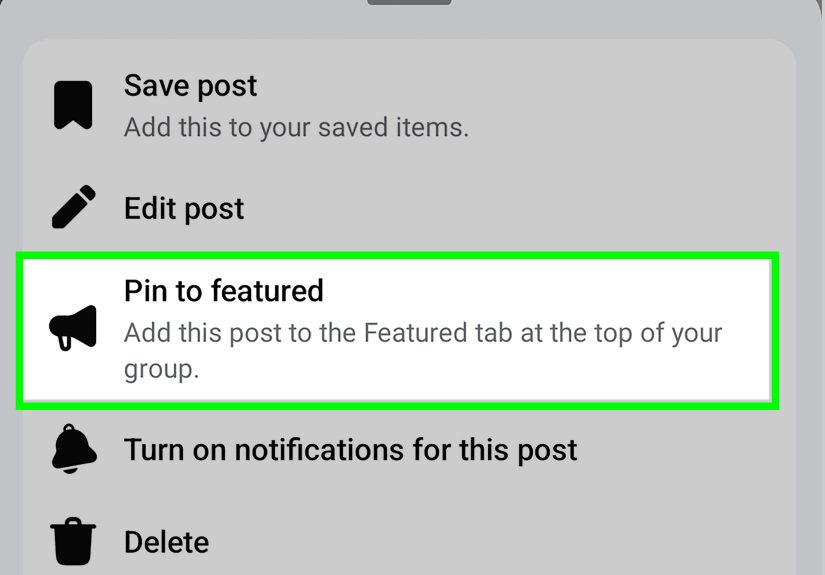
Facebook Groups are a little different because they often use labels like Pin to Featured or Mark as announcement. If you are an admin or moderator, here is the general process.
On Desktop
- Open Facebook and go to your Group.
- Find the post you want members to see first.
- Click the three-dot menu on the post.
- Choose Pin to Featured, Mark as announcement, or similar.
That post will then appear in the Group’s highlighted area. In many Group layouts, you can feature more than one item and even rearrange them.
On Mobile
- Open the Facebook app.
- Go to the Group you manage.
- Locate the post you want to highlight.
- Tap the three-dot menu.
- Select Pin to Featured or Mark as announcement.
If you do not see the option, double-check that you are an admin or moderator. Regular members generally cannot pin posts for the whole Group.
How to Pin a Post on a Personal Facebook Profile
This is the part where Facebook likes to keep everyone humble. On some profiles, especially those using professional tools or certain app versions, you may see a Pin post option when tapping the three-dot menu on your own post. On others, you may not.
So the best step-by-step process is:
- Go to your profile.
- Find a post you created.
- Tap or click the three-dot menu.
- Look for Pin post.
If you see it, tap it and you are done. If you do not, your current profile setup likely does not support standard post pinning. In that case, Facebook may still let you pin reels or feature other profile content instead.
How to Unpin or Replace a Pinned Post
Eventually, even your most dazzling update gets old. Maybe the sale ended. Maybe the event happened. Maybe the “holiday hours” post is now confusing people in July. Time to unpin.
- Go to the pinned post.
- Open the three-dot menu.
- Select Unpin post, Remove from Featured, or Remove announcement.
On many Pages, pinning a new post automatically replaces the old pinned one. In Groups, you may be able to keep multiple featured items, depending on the interface.
Best Types of Posts to Pin on Facebook
Just because you can pin a post does not mean every post deserves that penthouse suite. The best pinned Facebook posts are clear, timely, and useful.
1. Welcome Posts
Perfect for Groups and community Pages. A welcome post can explain what the space is about, how people should participate, and where to find key resources.
2. Promotions and Offers
If you are running a sale, giveaway, or seasonal campaign, pinning keeps it visible for new visitors who may not scroll through older updates.
3. Events and Deadlines
Event pages are great, but a pinned post with the date, location, and registration link adds extra visibility. It is the online equivalent of taping a giant neon note to the fridge.
4. Frequently Asked Questions
If people keep asking the same things, create one strong FAQ post and pin it. Your comment section will thank you.
5. Contact Information or Business Hours
This works well for local businesses, service providers, and public-facing organizations. If your audience often needs your hours, phone number, or booking link, pin it.
Tips to Make Your Pinned Post Actually Work
A pinned post is premium real estate. Treat it like the front window of a store, not a random junk drawer.
Write a Clear Hook
The first line should tell people why they should care. Skip vague intros and get to the point fast.
Add a Strong Call to Action
Tell visitors exactly what to do next: shop now, register, read more, join, comment, message, or download.
Use Visuals
Posts with a strong image, branded graphic, or short video tend to catch more attention than a plain block of text.
Keep It Current
Nothing says “we might be asleep at the wheel” like a pinned post from six months ago promoting last year’s special. Update it when the message changes.
Match Visitor Intent
Ask what a new visitor wants to know first. If your pinned post answers that question, you are doing it right.
Common Reasons You Cannot Pin a Post on Facebook
If the pin option is missing, there is usually a practical reason. Annoying, yes. Mysterious, not always.
- You are on the wrong surface: You may be trying to pin on a personal profile that does not support it.
- You do not have permission: On Pages and Groups, you often need to be an admin, editor, or moderator.
- The interface changed: Facebook may label the feature as Pin to Featured or Mark as announcement.
- You are not switched into the Page: Some Page tools only appear when you are acting as the Page.
- Your app is outdated: Updating the Facebook app can restore missing options.
- The post type is unsupported in that context: Some surfaces allow only specific content to be featured.
Example Scenarios
Small Business Example
A bakery pins a post announcing Easter pre-orders, pickup deadlines, and a link to the menu. New visitors instantly see what is available, which means fewer confused messages and more orders.
Facebook Group Example
A parenting Group pins a post with rules, common resources, and a “start here” checklist. That helps reduce repetitive questions and keeps the community from turning into pure chaos with emojis.
Creator Example
A coach or creator pins a post that introduces their services, shares a free guide, and explains how followers can contact them. It acts like a mini landing page right inside Facebook.
Mistakes to Avoid
- Pinning a post that is already outdated
- Using a headline that is too vague
- Forgetting to include a link or call to action
- Leaving important details buried in the comments
- Choosing a post that matters to you but not to visitors
The best pinned post is not just important. It is instantly useful.
Final Thoughts
Learning how to pin a post on Facebook is not difficult, but using the feature well can make a surprisingly big difference. A good pinned post keeps your most important message visible, improves navigation, and helps visitors know what to do next without playing detective.
If you manage a Facebook Page, pinning should be part of your regular content routine. If you run a Group, featured posts can keep members informed and save you from answering the same question 47 times. And if your profile happens to support post pinning, lucky you; that top spot is powerful.
In other words, do not let your best post disappear into the Facebook void. Give it a pin, give it a purpose, and let it earn its keep.
Real-World Experiences With Pinning Posts on Facebook
In real-world use, pinning a post on Facebook often feels less like a flashy marketing tactic and more like basic digital housekeeping. People rarely notice a well-pinned post in the dramatic, cinematic way social media gurus promise. What actually happens is simpler and more valuable: fewer lost visitors, fewer repeated questions, and fewer “Wait, where is the link?” messages at 10:43 p.m.
For small business owners, one of the most common experiences is discovering that a pinned post quietly does more work than several regular posts combined. A restaurant might pin updated hours, holiday reservations, or a weekend special. Customers who visit the Page for the first time do not need to dig through old content like archaeologists. They see the key information immediately. That saves time for both the business and the customer, which is not glamorous, but it is wonderfully effective.
Group admins tend to have a similar realization. In active Groups, useful information gets buried fast. A welcome post, rules post, or monthly thread can vanish under a landslide of fresh discussions. Once that same post is pinned or added to Featured, the Group suddenly feels more organized. New members know where to start. Returning members know where to check for updates. The admin gets fewer repetitive questions, which is always a win for human patience.
Creators and coaches often use pinned posts as a lightweight introduction tool. Instead of assuming every visitor already understands who they are and what they offer, they pin a post that explains the basics: who they help, what kind of content they share, and where to go next. In practice, this creates a smoother first impression. It is a little like straightening your front porch before guests arrive. People may not compliment the porch, but they notice when it is a mess.
There is also the very human experience of pinning the wrong post. Maybe it is outdated. Maybe it links to an expired offer. Maybe it still says “Join us this Thursday” and Thursday was two Thursdays ago. Almost everyone who manages a Page long enough learns this lesson once. The takeaway is simple: a pinned post is not a set-it-and-forget-it feature. It works best when reviewed regularly.
Another common experience is noticing that wording changes matter. A pinned post with a clear headline, short explanation, and direct call to action usually performs better than a long, rambling paragraph. Facebook visitors are not reading with a cup of tea and unlimited patience. They are scanning quickly. The posts that work best tend to say, in effect, “Here is the thing, here is why it matters, and here is what to do next.”
So the biggest lesson from real Facebook use is this: pinning a post is simple, but its real power comes from clarity. When the right message is pinned at the right time, your Page or Group feels easier to understand, more professional, and more useful. And on the internet, useful is undefeated.