Table of Contents >> Show >> Hide
- What Is Steam Overlay, Exactly?
- Why Disable Steam Overlay?
- How to Disable Steam Overlay Globally
- How to Disable Steam Overlay for Just One Game
- How to Check Whether Steam Overlay Is Really Off
- What You Lose When You Turn Off Steam Overlay
- Steam Overlay Still Causing Problems? Try These Next
- Common Mistakes When Disabling Steam Overlay
- Is It Better to Disable Steam Overlay Permanently?
- Mac Notes: How Steam Overlay Disabling Works on macOS
- Real-World Experiences With Disabling Steam Overlay
- Final Thoughts
If Steam Overlay keeps popping up when you are trying to clutch a boss fight, line up a headshot, or just enjoy five peaceful minutes without a browser panel hovering over your game like an overcaffeinated assistant, you are not alone. Plenty of PC gamers turn it off for one simple reason: they want fewer interruptions, fewer conflicts, and a smoother gaming experience.
The good news is that disabling Steam Overlay is easy. The even better news is that you can do it in just a few clicks, either across your entire Steam library or only for one troublesome game. No weird hacks. No mysterious command lines. No ritual sacrifice to the PC gaming gods.
In this guide, you will learn exactly how to disable Steam Overlay for good, when it makes sense to turn it off, what features you lose by doing so, and what to try next if your game is still lagging, stuttering, or acting like it personally resents your graphics card. This article also covers common mistakes, practical examples, and real-world experiences from gamers who disable the overlay to fix performance or compatibility issues.
What Is Steam Overlay, Exactly?
Steam Overlay is the in-game interface that appears when you press the default shortcut, usually Shift + Tab. It lets you access Steam features without leaving your game. Depending on your setup, that can include chatting with friends, opening guides, checking achievements, using the browser, seeing notes, opening the performance panel, and pinning certain windows over gameplay.
That sounds useful, and sometimes it is. But usefulness and “please stop ruining my fullscreen game” do not always live in harmony.
For some players, Steam Overlay is convenient. For others, it is one more layer sitting between the game and the system, which can lead to stutters, crashes, launch problems, shortcut conflicts, or random pop-ups at exactly the worst moment. If you have ever opened the overlay by accident while sprinting through a multiplayer match, you already know the pain.
Why Disable Steam Overlay?
There are several good reasons to turn off Steam Overlay, and none of them require a dramatic monologue.
1. You want better performance
On lower-end systems, older gaming laptops, or already-demanding games, overlays can add extra overhead. Even if the difference is small, that tiny hit can matter when your frame rate is hanging on by a thread and your GPU is already sweating.
2. A game is crashing, freezing, or refusing to behave
Some games simply do not get along with overlays. That includes Steam Overlay, but also Discord Overlay, Xbox Game Bar, GeForce Experience overlays, Radeon overlays, and other tools trying to sit on top of the game at the same time. Disabling Steam Overlay is often one of the first troubleshooting steps because it is fast, safe, and reversible.
3. You keep opening it by accident
Shift + Tab is easy to hit unintentionally, especially in games with lots of keyboard commands. If your fingers regularly summon Steam when you are trying to survive, the overlay stops feeling helpful and starts feeling like a jump scare.
4. You want a cleaner, distraction-free game session
Some players just want the game and nothing else. No notes panel. No browser. No social layer. No achievement pop-up telling you that you have successfully walked forward for twelve seconds. Turning the overlay off keeps things simple.
How to Disable Steam Overlay Globally
If you want to disable Steam Overlay for all games in your library, this is the quickest method.
- Open the Steam desktop client.
- Click Steam in the top-left corner.
- Select Settings. On some Mac setups or older interface references, this may appear as Preferences.
- In the left sidebar, click In Game or In-Game.
- Find the option labeled Enable the Steam Overlay while in-game.
- Uncheck that box.
- Click OK or simply close the settings window if Steam saves automatically on your version.
That is it. Once the setting is off, pressing Shift + Tab in supported games should no longer open the Steam Overlay.
If your goal is to disable Steam Overlay for good, this global method is the cleanest choice because it affects your whole Steam library in one move.
How to Disable Steam Overlay for Just One Game
Maybe you do not hate Steam Overlay. Maybe you just hate it in one game. That is fair. Some games work perfectly with it, while others act like the overlay personally offended them.
If you only want to disable Steam Overlay for a specific title, follow these steps:
- Open Steam.
- Go to your Library.
- Right-click the game you want to change.
- Choose Properties.
- Stay on the General tab.
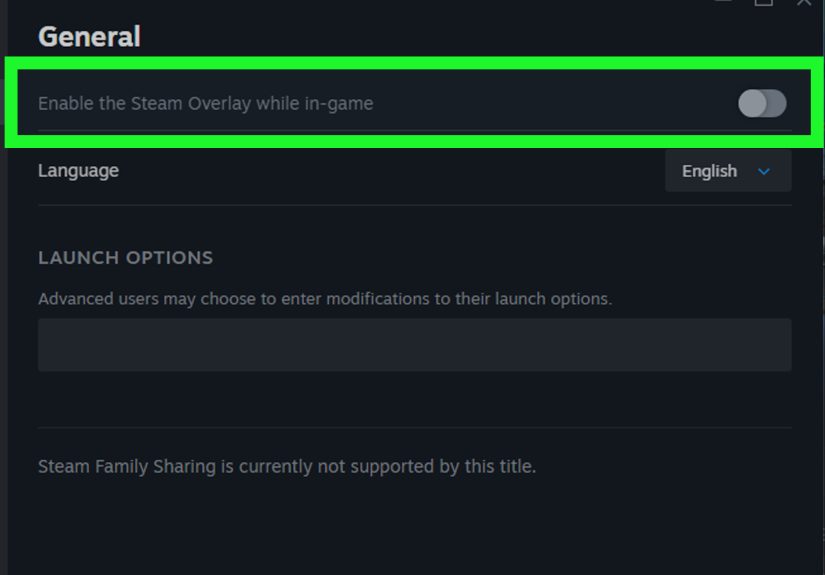
- Look for Enable the Steam Overlay while in-game.
- Uncheck it for that game only.
This method is useful when one title keeps flickering, crashing, or stuttering, but the rest of your library is fine. It is the gaming equivalent of muting one loud person at the party instead of shutting down the whole event.
How to Check Whether Steam Overlay Is Really Off
After disabling the overlay, launch a Steam game and press Shift + Tab. If nothing opens, the overlay is off.
You can also watch for signs that it is still active:
- Achievement or friend notification pop-ups appearing in-game
- Pinned overlay panels still showing on screen
- Steam browser or chat windows opening over gameplay
- Remote Play Together prompts still working through the in-game interface
If any of those are still appearing, double-check whether you disabled the global setting, the per-game setting, or both.
What You Lose When You Turn Off Steam Overlay
Before you disable Steam Overlay and ride triumphantly into the sunset, you should know what stops working with it.
When the overlay is turned off, you may lose access to:
- In-game Steam chat and friend tools
- The Steam browser while gaming
- Some achievement and screenshot conveniences
- Overlay-based notes and pinning features
- Certain Steam Controller and Remote Play related functions that depend on the overlay
- Quick access to some community tools while playing
That does not mean your game will stop launching. It just means the extra Steam layer disappears. For many players, that is a feature, not a bug.
Steam Overlay Still Causing Problems? Try These Next
If you disabled Steam Overlay and your game still runs poorly, the overlay may not be the only culprit. Modern gaming PCs can have multiple overlays stacked at once, all trying to be helpful like seven cooks in one kitchen.
Turn off other overlays
Check for these common extras:
- Xbox Game Bar
- Discord Overlay
- NVIDIA GeForce Experience Overlay
- AMD Radeon Overlay
- MSI Afterburner or RivaTuner OSD tools
- Third-party launcher overlays
If multiple overlays are active, they can conflict with each other or eat up system resources. Disabling Steam Overlay helps, but it is not magical if three other overlays are still doing cartwheels in the background.
Close unnecessary background apps
Browsers, RGB software, recording tools, system monitors, and chat apps can also drag down performance. Use Task Manager on Windows to spot resource-hungry apps before launching your game.
Update Steam and your graphics drivers
Steam gets client updates regularly, and overlay fixes do show up in patch notes. Keeping Steam, Windows, and your GPU driver current can solve weird behavior that looks like an overlay issue but is really an update problem.
Verify game files
If a specific title is crashing or acting broken, verify the game files through Steam. Corrupted files can cause issues that feel like overlay conflicts even when the overlay is innocent for once.
Try borderless and fullscreen settings
Some overlay and compatibility problems are tied to how a game handles display modes. If you keep running into black screens, flickering, or strange alt-tab behavior, test borderless windowed mode versus exclusive fullscreen.
Common Mistakes When Disabling Steam Overlay
Turning it off for one game and expecting it to disappear everywhere
The per-game option only affects that title. If another game still opens the overlay, that is normal.
Turning off Steam Overlay but forgetting Xbox Game Bar or Discord
If your real problem is overlay overload, turning off only Steam might not fix much.
Assuming every pop-up is from Steam
Sometimes what looks like Steam Overlay is actually an NVIDIA, AMD, Xbox, Discord, or launcher notification. If the pop-up uses a different shortcut, icon, or design, investigate the other suspects.
Forgetting why you turned it off
A month later, you may try to use Remote Play Together, controller tools, or pinned notes and wonder why nothing works. Future you will appreciate a sticky note. Or at least a strong memory and a little humility.
Is It Better to Disable Steam Overlay Permanently?
That depends on how you use Steam.
If you mainly play single-player games, never use the Steam browser, never chat in-game, and do not care about overlay notes or pinned windows, disabling Steam Overlay permanently makes a lot of sense. You remove one possible source of friction and keep your gaming setup lean.
If you regularly use Steam’s social features, Remote Play tools, controller overlay options, or pinned guides, you may prefer leaving it on and only disabling it for games that misbehave.
In other words, the best setting is the one that causes the fewest headaches.
Mac Notes: How Steam Overlay Disabling Works on macOS
The overall process on Mac is basically the same. Open Steam, go to the Steam menu, open Settings or Preferences, and find the In Game section. Then uncheck Enable the Steam Overlay while in-game.
If you are gaming on a Mac, disabling the overlay can still be worth trying when a game behaves oddly, especially after a client update or when you notice interface hiccups. The Steam client has had overlay-related fixes for macOS in past updates, which is another reason to keep the client current.
Real-World Experiences With Disabling Steam Overlay
In real-world use, disabling Steam Overlay often feels less dramatic than people expect, but more helpful than they assume. It usually does not turn a struggling laptop into a monster gaming rig overnight. What it can do is remove one unnecessary layer and make a problematic game behave a little more normally. And in PC gaming, “a little more normal” is sometimes the difference between playable and rage-installing solitaire.
One common experience is with older or lower-powered systems. A player launches a game that should run decently, but the frame rate stutters whenever notifications appear, the screen flickers after alt-tabbing, or the system feels sluggish for no obvious reason. They disable Steam Overlay, restart the game, and suddenly the random hiccups are gone. Not every frame rate issue disappears, but the session becomes smoother and more predictable.
Another frequent experience happens with one specific game rather than the entire Steam library. A player notices that most games run fine, but one title freezes when Shift + Tab is pressed, flickers during startup, or crashes after a popup appears. Instead of disabling Steam Overlay everywhere, they switch it off only for that game. That targeted fix often works because the problem is not Steam itself. It is the game’s compatibility with overlay behavior.
Some gamers disable the overlay simply because they are tired of accidental shortcuts. This is especially common in fast-paced games where Shift is used constantly. Nothing breaks. Nothing dramatic explodes. They just stop pulling up an interface in the middle of combat and finally get to lose matches for more respectable reasons.
There is also the “too many overlays” experience. A player has Steam Overlay, Xbox Game Bar, Discord Overlay, GeForce Experience, and maybe a performance monitor all active at once. The result is a mess of hotkeys, pop-ups, and background hooks. Disabling Steam Overlay may not solve everything by itself, but it often becomes the first clean-up step that helps identify which tool is actually causing the trouble.
Then there are users who turn it off and forget about it completely. For them, the overlay was never essential. They do not use in-game chat, they do not browse guides while playing, and they would rather check achievements later than sacrifice performance now. Their experience is simple: the game launches, the game plays, and Steam stays politely in the background where it belongs.
Of course, some players later realize they miss overlay-based features like pinned notes, Remote Play prompts, or easy access to community guides. That is the tradeoff. Still, even for those users, disabling Steam Overlay for troubleshooting is often worth it because it quickly tells you whether the overlay is the issue. If turning it off fixes the problem, you have your answer. If not, you move on to the next suspect with one fewer variable in the way.
Final Thoughts
If you want to disable Steam Overlay for good, the easiest path is to turn it off globally in Steam’s In-Game settings. If the problem only appears in one title, use the per-game Properties option instead. Either way, the fix is quick, beginner-friendly, and easy to reverse later.
Steam Overlay is not inherently bad. In fact, it can be genuinely useful. But if it is causing lag, conflicts, accidental pop-ups, or general gaming annoyance, there is no prize for keeping it enabled. Your PC, your settings, your rules.
And honestly, if turning off one tiny checkbox gets your game to stop acting possessed, that is a beautiful thing.