Table of Contents >> Show >> Hide
- Before You Start: Homepage vs. Startup Page vs. New Tab Page
- Easy Way 1: Change the Home Button Page in Microsoft Edge
- Easy Way 2: Change What Opens When Microsoft Edge Starts
- How to Customize the Microsoft Edge New Tab Page
- Why Your Microsoft Edge Homepage Might Not Change
- How to Reset Microsoft Edge Settings if Things Get Weird
- Best Homepage Ideas for Microsoft Edge
- Tips for a Better Microsoft Edge Homepage Setup
- Microsoft Edge on Mobile: A Quick Note
- Frequently Asked Questions About Changing Your Homepage in Microsoft Edge
- Personal Experience: What Actually Works Best When Setting an Edge Homepage
- Conclusion
Changing your homepage in Microsoft Edge sounds like one of those tiny browser chores you will “do later,” right after organizing your downloads folder and finally deleting that mysterious file named final-final-v3-real-final.docx. But a well-set homepage can save time every single day. Whether you want Edge to open your favorite news site, your company dashboard, Gmail, Google, Bing, Microsoft Start, or a blank-ish new tab page that does not scream for attention, the process is simple once you know where Microsoft hides the settings.
Here is the important part: in Microsoft Edge, “homepage” can mean two slightly different things. First, it can mean the page that opens when you click the Home button. Second, it can mean the page or pages that open automatically when Edge starts. Many people change one and wonder why the other did not follow along. That is not you after today. You are about to become the calm, confident browser whisperer of your household.
This guide explains two easy ways to change your homepage in Microsoft Edge, including how to set a custom Home button URL and how to choose what opens when the browser starts. The steps apply to the modern Microsoft Edge browser on Windows and are very similar on macOS. Menu wording may look slightly different depending on your version of Edge, device, or whether your browser is managed by a work or school organization.
Before You Start: Homepage vs. Startup Page vs. New Tab Page
Before we click anything, let’s clear up the browser vocabulary. Microsoft Edge uses several related settings, and they are easy to mix up.
What Is the Homepage in Microsoft Edge?
The homepage is the page that opens when you click the Home button on the toolbar. If the Home button is not visible, Edge lets you turn it on. You can set that button to open the default new tab page or a specific website URL.
What Is the Startup Page?
The startup page is what opens automatically when you launch Microsoft Edge. You can set Edge to open a new tab page, continue where you left off, or open one or more specific pages. This is the setting you want if you expect a website to appear every time you start Edge.
What Is the New Tab Page?
The new tab page appears when you press Ctrl + T or click the plus button to open a new tab. Edge’s new tab page can show a search box, quick links, background images, news, weather, and other content. You can customize its layout, but changing the homepage does not always replace every new tab with your chosen website.
In plain English: the Home button, browser startup behavior, and new tab page are related, but they are not identical triplets. They are more like cousins who all showed up wearing the same hoodie.
Easy Way 1: Change the Home Button Page in Microsoft Edge
This method changes what opens when you click the Home button in Microsoft Edge. It is perfect if you like starting from a familiar page whenever you need a reset during browsing. For example, you might set the Home button to open Google, Bing, Outlook, Yahoo, your school portal, your company intranet, or a personal dashboard.
Step-by-Step: Set a Custom Homepage for the Home Button
- Open Microsoft Edge.
- Click the three-dot menu in the upper-right corner of the browser window. This menu is officially called Settings and more.
- Select Settings.
- In the left sidebar, choose Start, home, and new tabs.
- Find the Home button section.
- Turn on Show home button on the toolbar.
- Choose Enter URL or the option that lets you type a specific page address.
- Enter the website you want, such as https://www.google.com, https://www.bing.com, or another trusted URL.
- Click Save if Edge shows a save option. In some versions, the setting is saved automatically.
After you complete these steps, look near the top-left area of the Edge toolbar. You should see a small Home icon. Click it, and Edge should open the page you selected. Congratulations: your browser now has a front door instead of a confusing hallway.
Example: Set Google as Your Microsoft Edge Homepage
If you want the Home button to open Google, go to Settings > Start, home, and new tabs, enable the Home button, choose the custom URL option, and enter https://www.google.com. Now, whenever you click the Home button, Edge will take you to Google.
You can use the same process for almost any website. Just make sure you type the full address correctly. A missing letter can send you into the internet wilderness, where odd-looking search pages and suspicious “download now” buttons like to live.
When Should You Use This Method?
Use the Home button method if you do not necessarily want Edge to open that page every time it starts, but you do want quick access to it while browsing. This setup works well for people who jump between many tabs and occasionally want to return to a familiar starting point.
For example, a student might set the Home button to a learning platform. A remote worker might set it to a project management dashboard. A casual user might set it to a search engine or email inbox. The Home button is your browser’s “take me back to civilization” button.
Easy Way 2: Change What Opens When Microsoft Edge Starts
The second method changes Edge’s startup behavior. This is the setting most people actually want when they say, “I want to change my homepage.” If you want Edge to automatically open a specific website when you launch the browser, use this method.
Step-by-Step: Set Startup Pages in Microsoft Edge
- Open Microsoft Edge.
- Click the three-dot menu in the upper-right corner.
- Select Settings.
- Choose Start, home, and new tabs from the left sidebar.
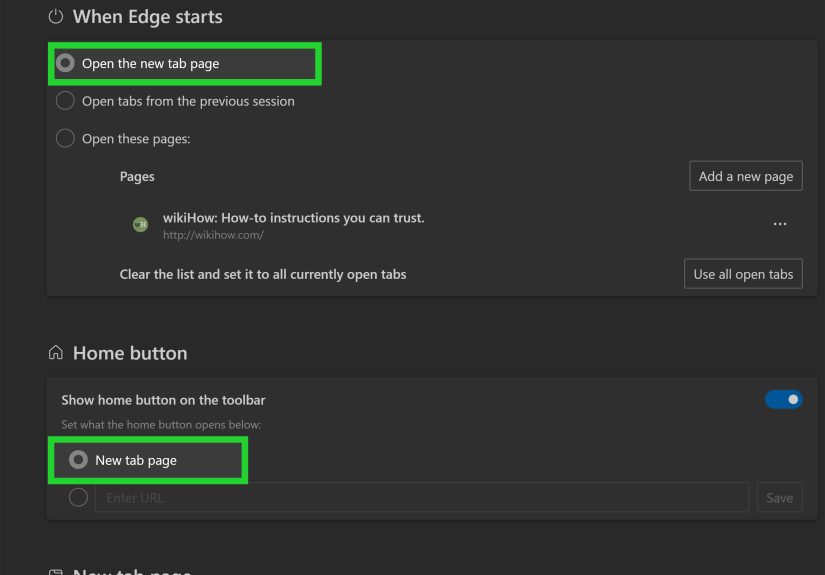
- Find the section labeled When Edge starts.
- Select Open these pages.
- Click Add a new page.
- Enter the URL you want Edge to open at startup.
- Click Add.
The next time you fully close and reopen Microsoft Edge, your chosen website should appear automatically. If it does not, check whether Edge was still running in the background or whether a work or school policy is controlling startup settings.
Example: Open Multiple Pages When Edge Starts
One helpful feature in Microsoft Edge is the ability to open more than one page at startup. For instance, you could make Edge open your email, calendar, and company dashboard every morning. To do this, choose Open these pages and add each URL one by one.
A simple work setup might look like this:
- Email inbox
- Calendar
- Project management tool
- Company intranet
This can turn your morning routine from “where did I put that link?” into “everything is ready before the coffee cools.” That is browser productivity with a tiny cape.
Startup Options You May See in Edge
Microsoft Edge usually provides three main startup choices:
- Open the new tab page: Edge starts with its default new tab layout.
- Open tabs from the previous session: Edge reopens the tabs you were using last time.
- Open these pages: Edge opens the specific website or websites you choose.
If you share a computer, be careful with the “continue where you left off” option. It can be convenient, but it can also reopen personal tabs when someone else launches the browser. Nobody needs their recipe research, tax forms, and “best ergonomic chair for lower back pain” tabs making a surprise guest appearance.
How to Customize the Microsoft Edge New Tab Page
Changing your homepage does not always change the new tab page. If your real goal is to make new tabs less busy, you can customize the new tab page separately.
Open a new tab in Edge and look for the gear icon or page settings button near the upper-right area of the new tab page. From there, you can adjust layout, quick links, background, and content feed settings. Depending on your version of Edge, you may see layout options such as focused, inspirational, or informational. You may also be able to show or hide news and other content.
This is useful if you like Edge’s new tab page but want it calmer. Think of it as turning down the volume on a page that sometimes behaves like a digital bulletin board at a very enthusiastic airport.
Why Your Microsoft Edge Homepage Might Not Change
If you followed the steps and your homepage still refuses to cooperate, do not panic. Browsers can be dramatic, but most problems have simple explanations.
Your Work or School May Manage Edge Settings
If you use a company or school computer, an administrator may control your browser homepage, startup page, or new tab page. In that case, you might see a message saying your browser is managed by your organization. You may not be able to change certain settings unless your IT department allows it.
You Changed the Home Button, Not the Startup Page
This is the most common mix-up. If you changed the Home button URL, your selected page opens only when you click the Home button. It will not automatically appear when Edge starts unless you also change the startup settings.
You Entered the Wrong URL
Check the web address carefully. Use a complete URL such as https://www.example.com. A small typo can prevent the page from opening correctly or send you somewhere you did not intend to go.
An Extension May Be Interfering
Some browser extensions can change startup pages, redirect new tabs, or modify search settings. If your homepage keeps changing on its own, review your extensions. In Edge, go to the three-dot menu, choose Extensions, and disable anything unfamiliar or unnecessary.
Malware or Adware Could Be Changing Browser Settings
If Edge keeps opening strange pages, pop-ups, or unknown search engines, run a security scan with trusted antivirus software. Also remove suspicious extensions and reset Edge settings if needed. A homepage should feel helpful, not like it was chosen by a raccoon with Wi-Fi.
How to Reset Microsoft Edge Settings if Things Get Weird
If your homepage settings are messy and you want a fresh start, Microsoft Edge includes a reset option. Open Settings, choose Reset settings, and select the option to restore settings to their default values. This can reset startup pages, new tab behavior, search engine settings, and pinned tabs. It usually does not delete favorites, history, or saved passwords, but you should still read the on-screen explanation before confirming.
Resetting Edge is helpful when unwanted changes keep coming back or when too many extensions have modified the browser. After the reset, you can return to Start, home, and new tabs and set your preferred homepage again.
Best Homepage Ideas for Microsoft Edge
Not sure what to use as your homepage? Choose something you open frequently and trust. A good homepage should help you start faster, not distract you before your first useful click.
Search Engine Homepage
Many users set their homepage to a search engine such as Bing or Google. This is simple, fast, and practical. If your browsing usually begins with a search, this setup makes sense.
Email Homepage
If you check email often, set your homepage to Outlook, Gmail, Yahoo Mail, or your work email portal. This can be convenient, but consider privacy if you share your device.
Productivity Dashboard
For work, a project dashboard, calendar, CRM, or task manager can be a smart startup page. It puts your priorities in front of you before you fall into the “just checking one thing” internet tunnel.
News or Weather Page
If you like beginning the day with headlines or weather, choose a reliable news or forecast page. Just be careful: a news homepage can become a productivity trap if every headline is designed to steal your next 14 minutes.
Blank or Minimal Page
Some people prefer a clean new tab page or minimalist start page. This can reduce distractions and make Edge feel faster and calmer.
Tips for a Better Microsoft Edge Homepage Setup
To get the most out of your Edge homepage, keep your setup intentional. Do not add ten startup pages unless you truly need all ten. Opening too many pages can slow your browser and clutter your workspace before you even begin.
Use trusted websites only. Avoid setting your homepage to unknown search portals, coupon pages, or websites that ask for unnecessary permissions. If a site looks suspicious, do not make it your browser’s welcome mat.
Also, review your homepage every few months. Your routine changes, and your browser should keep up. A homepage that made sense last year may not be useful today. Digital clutter is still clutter, even if it does not require a storage bin.
Microsoft Edge on Mobile: A Quick Note
If you use Microsoft Edge on a phone or tablet, the steps are different. In the Edge mobile app, open the menu, go to Settings, and look for homepage or general settings. You may be able to choose the default new tab page or set a specific page, depending on your device and app version.
Because mobile apps update frequently, the exact wording can change. If you cannot find the setting, update Edge from the App Store or Google Play Store and check the settings menu again.
Frequently Asked Questions About Changing Your Homepage in Microsoft Edge
Can I Set Any Website as My Microsoft Edge Homepage?
Yes, you can set most websites as your Home button page or startup page. Use the full URL and choose a site you trust. Some work or school devices may restrict this setting.
Why Does Edge Open a Different Page When I Start It?
You may have changed the Home button page instead of the startup page. Go to Settings > Start, home, and new tabs and adjust the When Edge starts section.
Can I Make Edge Open More Than One Homepage?
You can make Edge open multiple startup pages. Select Open these pages under startup settings and add each website separately.
Can I Change the New Tab Page to My Own Website?
Edge lets you customize the new tab page, but replacing it completely with a custom URL may require an extension or organization policy. For most users, the easiest built-in option is to set a custom startup page or Home button URL.
Does Changing the Homepage Change My Search Engine?
No. Homepage and search engine settings are separate. You can set your homepage to one website and your address bar search engine to another.
Personal Experience: What Actually Works Best When Setting an Edge Homepage
After helping many everyday users clean up their browser settings, one pattern becomes very obvious: most people do not really want a “homepage” in the old-school sense. They want Edge to open to the page that helps them start their day with less friction. That is a small difference, but it matters.
For example, a user might say, “I want Google as my homepage,” but what they really mean is, “Every time I open Edge, I want Google to appear.” If they only change the Home button setting, nothing changes at startup. They reopen Edge, see the same old new tab page, and assume the setting is broken. It is not broken. It is just a different setting hiding under a very similar name. Browser terminology: the only place where “home” can mean three rooms and a garage.
In practice, the best setup for most people is to change both settings. Set the Home button to your favorite search engine or dashboard, then set the startup page to whatever you need first each day. If you work from a browser, that might be email, calendar, and a project board. If you use Edge casually, one clean search page may be enough. The goal is not to impress anyone with a complicated startup ritual. The goal is to make the first click easier.
Another lesson: fewer startup pages are usually better. It is tempting to add email, social media, news, shopping, cloud storage, weather, calendar, and three dashboards. But when Edge launches with a parade of tabs, your attention gets split immediately. A browser should not feel like someone dumped a junk drawer onto your desk. Start with one to three pages. If you need more, add them later.
I also recommend avoiding overly busy pages as your first screen of the day. News feeds, content widgets, and recommendation-heavy pages can be useful, but they can also pull you away from what you intended to do. If you open Edge to check one document and end up reading about celebrity kitchen remodels, the homepage has won and your to-do list is quietly weeping in the corner.
For work computers, remember that managed settings can override personal preferences. If your Edge homepage keeps reverting, it may not be your fault. Company IT teams often set default startup pages, intranet portals, security pages, or approved new tab experiences. In that situation, you can still customize what is available to you, but some options may be locked.
Finally, treat your homepage like a small productivity tool. It should reflect your real routine. If your morning always starts with email, use email. If you research all day, use a search engine. If you manage tasks, use your task board. A good homepage does not need to be fancy. It just needs to get you where you were already going, preferably without making you dodge pop-ups, feeds, and digital confetti along the way.
Conclusion
Changing your homepage in Microsoft Edge is easy once you understand the two main options. If you want a page to open when you click the Home button, enable the Home button and enter your preferred URL under Start, home, and new tabs. If you want a website to open automatically when Edge starts, change the When Edge starts setting and choose Open these pages.
The smartest setup depends on how you browse. Some users want a simple search page. Others need email, calendars, dashboards, or work tools ready at launch. Whatever you choose, keep it useful, clean, and intentional. Your browser homepage should be a helpful starting line, not a carnival entrance with eleven blinking signs.