Table of Contents >> Show >> Hide
- Your iPad Can Multitask Better Than Most People Realize
- Your iPad Is a Surprisingly Good Paper Killer
- Your iPad Can Turn Handwriting Into Something Useful
- Your iPad Can Read the World Around You
- Your iPad Can Automate Repetitive Tasks
- Your iPad Can Work With Your Other Apple Devices Like a Team Player
- Your iPad Can Be a Collaboration Board, Notebook, and Creative Space
- Your iPad Can Be More Accessible, Custom, and Helpful Than You Think
- What Using These iPad Features Actually Feels Like
- Conclusion
If you still think your iPad is mostly a very expensive rectangle for Netflix, email, and the occasional “I swear I’m going to get organized this week” note, it is time for a friendly intervention. Modern iPads can do far more than stream shows and collect fingerprint art. They can help you multitask, scan paperwork, replace sticky notes, work alongside your Mac, handle quick creative tasks, and even automate little chores that quietly steal your time.
That is what makes the iPad so interesting. It sits in a weirdly useful middle ground between a phone and a laptop. It is lighter than a notebook, faster to wake up than most computers, and flexible enough to become a sketchbook, reading device, mini office, portable second screen, or kitchen sidekick in about ten seconds flat. In other words, it is the overachiever of the Apple family.
Of course, not every feature is available on every model. Some capabilities depend on your iPad generation, accessories like Apple Pencil or an external keyboard, and the version of iPadOS you are running. Still, even without the fanciest hardware, there are plenty of cool and useful things your iPad can do right now.
Your iPad Can Multitask Better Than Most People Realize
One of the most overlooked iPad features is multitasking. A lot of people open one app, use it, close it, then open another, as if they are politely standing in line at the digital DMV. The iPad can do much better than that.
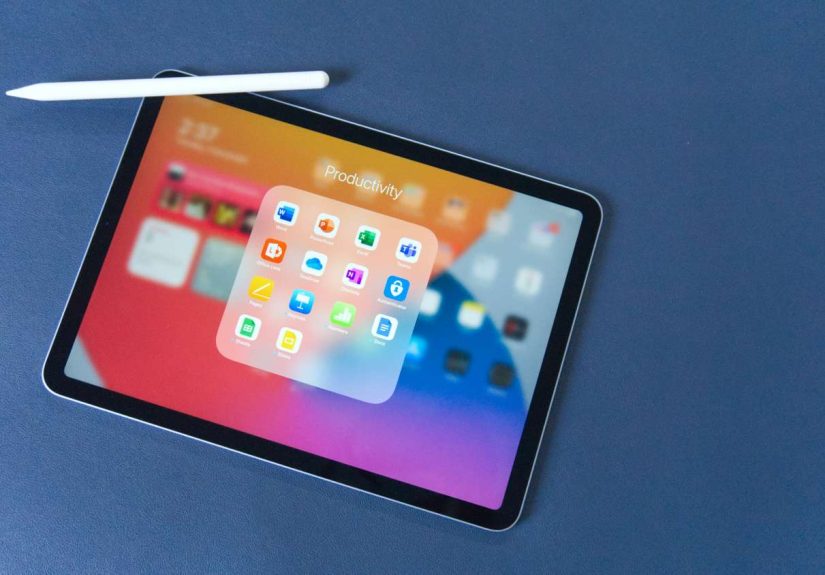
With iPad multitasking tools, you can work with multiple apps, move between windows, and in supported cases use Stage Manager for a more desktop-style setup. That means you can research in Safari while writing in Notes, compare a PDF in Files against a draft in Pages, or keep Messages nearby while editing a presentation. For anyone juggling school, work, or a side hustle, this alone makes the iPad feel dramatically more capable.
Drag and drop is another little trick that feels minor until you start using it every day. You can drag text, images, files, or links from one app into another. Need to move a photo from Safari into a note? Drag it. Want to drop a PDF from Files into an email? Drag it. Want to feel oddly powerful while doing something boring? Also drag it.
If you use an external display and have a supported model, the iPad becomes even more flexible. Suddenly, your tablet is not just a tablet. It is a portable workstation that can spread apps across a bigger screen and give you room to breathe.
Why this matters in real life
Multitasking on the iPad is not just a flashy demo feature. It is what turns the device from a consumption gadget into a useful productivity tool. The moment you stop treating it like a giant phone, it starts earning its keep.
Your iPad Is a Surprisingly Good Paper Killer
If your kitchen counter, desk, or random chair is currently buried under forms, receipts, school papers, and mystery documents that look important enough to keep but not important enough to understand, the iPad can help. One of the coolest and most useful things your iPad can do is scan documents directly into Notes or Files.
This is one of those features that sounds boring until you need it. Then it becomes magical. You can point the camera at a document, capture it, save it as a neat digital copy, and mark it up without hunting for a scanner from 2009 that only works when the moon is in the correct phase.
Once scanned, documents can be stored, organized, shared, signed, or annotated. If you use Apple Pencil, the process feels especially natural. You can circle details in a contract, highlight lines in a lease, sign a form, or jot comments on a PDF like the kind of organized adult who definitely has a filing system and not a panic drawer.
Quick Note makes this even better. You can create a note from almost anywhere, save a link, grab a thought, or stash a reference without breaking your flow. It is perfect for those moments when you are reading an article, planning a trip, or researching a product and suddenly remember three other things you need to note before they evaporate from your brain.
Your iPad Can Turn Handwriting Into Something Useful
People love the Apple Pencil for drawing, but one of its most practical talents is making handwriting useful again. With Scribble, you can write in text fields by hand and have your writing converted into typed text. That means you can handwrite a search, jot a message, or fill out a form without switching mental gears from pen mode to keyboard mode.
For students, meeting-heavy professionals, and chronic note-takers, this is huge. It makes the iPad feel more flexible than a laptop because it adapts to how you think in the moment. Type when you want speed. Handwrite when you want freedom. Sketch when words fail you. The device just keeps up.
And if you attach an external keyboard, the iPad gets even more serious. Keyboard shortcuts can speed up navigation, editing, app switching, screenshots, and note management. The result is a device that still feels touch-friendly but starts behaving more like a lightweight computer.
This blend of typing, handwriting, and shortcut-based control is one reason so many people use an iPad for classes, planning, brainstorming, and travel. It does not force you into one way of working. It gives you options, which is often the difference between a device you own and a device you actually use.
Your iPad Can Read the World Around You
Live Text is one of the smartest iPad features because it solves annoying little problems instantly. Point your camera at printed text, or open a photo that contains text, and your iPad can recognize it. You can copy it, translate it, look it up, call a phone number, visit a website, or save the information somewhere else.
This means a flyer can become a calendar reminder. A phone number on a sign can become a contact. A page from a book can become a quote in your notes. A menu in another language can become slightly less intimidating. Your camera stops being just a camera and starts acting like a research assistant that never complains.
For travel, school, shopping, and everyday life, this is ridiculously handy. You can grab tracking numbers from boxes, copy Wi-Fi passwords from cards, save recipe text from a cookbook page, or pull details out of screenshots you forgot to organize. Live Text is the kind of feature that quietly removes friction, which is often the best kind of technology.
Your iPad Can Automate Repetitive Tasks
If you have ever repeated the same digital steps over and over, such as opening a playlist, starting a timer, launching a work app, checking the weather, and texting someone that you are on the way, the Shortcuts app is your new favorite rabbit hole. Shortcuts lets you automate actions so they happen with a tap, a voice command, or a trigger.
You can build simple shortcuts, like opening your reading apps together, or more advanced ones, like creating a morning routine that checks your calendar, launches music, and pulls directions to your next appointment. It is a small feature with big payoff because it reduces the number of tiny decisions and taps that clutter your day.
On supported iPads, newer intelligent features add even more flexibility. Writing tools, summarization features, and smart assistance inside certain apps can speed up drafting, organizing, and communication. The key here is not to treat those tools like magic wands. They are better used as helpers that speed up busywork while you stay in charge of the thinking.
The best use case
The best iPad automation is not the flashy one. It is the one that saves you thirty seconds five times a day. That is where the device starts feeling less like a gadget and more like a quietly competent assistant.
Your iPad Can Work With Your Other Apple Devices Like a Team Player
One of the most useful things your iPad can do is stop acting like a separate island. If you also use an iPhone or Mac, the iPad becomes part of a larger system that is genuinely convenient.
With Sidecar, you can use your iPad as a second display for your Mac. This is fantastic for writing, editing, research, and creative work. Keep your main project on the Mac screen and place notes, reference images, chat apps, or tool palettes on the iPad. It is the desk equivalent of suddenly finding an extra countertop while cooking.
Universal Control is another crowd-pleaser. It lets you move a cursor between your Mac and iPad and use one keyboard and trackpad across both devices. You can drag items between them, work fluidly, and pretend you absolutely intended to look that efficient all along.
The iPad can also handle calls and texts through your iPhone in the right setup, which is deeply useful when your phone is in another room, in a bag, or mysteriously under the couch cushion where all modern technology eventually goes to reflect on its choices.
Your iPad Can Be a Collaboration Board, Notebook, and Creative Space
For brainstorming and visual planning, the iPad shines. Apps like Freeform make it easy to sketch ideas, collect links, add images, and collaborate with others on a shared board. This is especially useful for planning trips, organizing home projects, mapping out content ideas, or building presentation concepts without forcing everything into rigid document boxes.
Even Apple Notes has become more capable than many people expect. You can tag notes, create checklists, add tables, attach files, scan documents, and organize information in a way that feels quick rather than fussy. That matters because the best productivity tools are the ones you will actually open.
For creative tasks, the iPad is also a low-friction launchpad. Whether you are marking up a mood board, sketching a room layout, planning a garden bed, editing photos, or doodling while pretending to think, the combination of touch input and Pencil support makes the experience feel direct and natural.
Your iPad Can Be More Accessible, Custom, and Helpful Than You Think
Another reason the iPad is so useful is that it can be shaped around your needs. Widgets, Lock Screen controls, and a customizable Control Center make it easier to surface the tools you use most. Instead of digging through icons like you are on a digital treasure hunt, you can set up your iPad to feel more personal and efficient.
Accessibility features are also a big part of the story. The iPad can help by reading text aloud, enlarging what the camera sees, improving visibility, supporting captions, and making the device easier to control in different ways. These features are not just for edge cases. They often improve everyday usability for anyone who wants less strain and more clarity.
That is part of the iPad’s real charm. It can be a straightforward tablet, but it can also become a more readable, more flexible, more supportive device depending on how you set it up.
What Using These iPad Features Actually Feels Like
Here is the part that spec sheets and feature lists never explain very well: the coolest things your iPad can do usually do not feel dramatic in the moment. They feel relieving. They feel like less friction. They feel like your day gets smoother in a dozen tiny ways.
Maybe you start the morning by opening your calendar, to-do list, and email in a multitasking layout while coffee is still doing its important and sacred work. Maybe you drag a link into a note, jot a few thoughts with Apple Pencil, then turn your handwriting into text because your future self deserves mercy. Maybe you scan a signed form instead of printing, signing, rescanning, and questioning every life choice that led to that task.
Later, while planning dinner, you use Live Text to copy ingredients from a photo, drop them into Reminders, and head to the store with a list that does not live on the back of an envelope. At some point you use the iPad as a second screen next to a Mac, and suddenly your cramped workflow feels spacious. Then at night, the same device becomes a reading screen, a sketchpad, a message window, or a quick catch-all for ideas you will pretend are brilliant in the morning.
That is the real iPad experience at its best. It is not one giant “wow” moment. It is a chain of small conveniences that add up. The device gets out of your way quickly, which is why people who truly use their iPads tend to sound a little evangelical about them.
And there is something else worth noting: the iPad rewards curiosity. The more you explore it, the more useful it becomes. A person who only streams video on an iPad will think it is nice. A person who learns multitasking, Notes scanning, keyboard shortcuts, Sidecar, Shortcuts, and Apple Pencil features will think it is indispensable.
It is also one of the few devices that can meet you in different moods. Feeling productive? Great, it can behave like a light workstation. Feeling creative? Perfect, it becomes a canvas and a notebook. Feeling tired? It can quietly turn into a reader, a streaming screen, or a simple place to browse recipes, save ideas, and reply to messages from the couch without opening a full laptop.
That flexibility is why the iPad keeps finding its way into more parts of daily life. It helps students manage class notes, travelers keep documents organized, parents handle forms and schedules, remote workers extend their desk setup, and creators sketch or annotate on the fly. It is a device that becomes more useful the closer it gets to real life, because real life is messy, mixed, and rarely limited to one app at a time.
So if your iPad has been sitting around mostly opening social apps and playing videos, there is good news: it probably has more to offer. A lot more. Learn a few core tricks, add a workflow or two, and that sleek slab on your desk starts acting less like a luxury toy and more like the Swiss Army knife of personal tech.
Conclusion
The coolest and most useful things your iPad can do are not just flashy tricks. They are practical features that make work easier, life less cluttered, and creative tasks more natural. From multitasking and document scanning to Live Text, Sidecar, Quick Note, Apple Pencil input, automation, and accessibility tools, the iPad has evolved into a surprisingly versatile device.
If you have been underusing yours, the fix is simple: pick two or three features and start there. Try scanning documents into Notes. Learn one multitasking layout. Set up one shortcut. Use Live Text once. Small changes lead to big results. Before long, your iPad stops being the thing you occasionally use and starts becoming the device you reach for first.