Table of Contents >> Show >> Hide
- First, Know What Kind of Surface Go You Have
- Start With the Fastest Wins
- Free Up Storage Like It Actually Matters, Because It Does
- Reduce the Background Load
- Tune Windows for Performance
- Security and Health Checks Matter More Than People Think
- Fix Problem Apps Instead of Blaming the Whole Tablet
- When a Reset Is the Right Move
- Realistic Expectations: Optimization Has Limits
- Final Thoughts
- Experience-Based Insights: What Optimizing a Surface Go Feels Like in Real Life
- SEO Tags
If your Surface Go has started moving like it is emotionally processing every click, you are not alone. Microsoft’s compact 2-in-1 is portable, practical, and surprisingly capable for light work, but it can also feel sluggish when storage is crowded, startup apps pile up, browser tabs multiply like rabbits, or the hardware is a lower-end configuration. The good news is that you usually do not need magic software, registry roulette, or a dramatic speech to your tablet. You need a smarter setup.
This guide explains how to optimize your Surface Go for real-world speed. That means faster boot times, smoother browsing, less random stuttering, and fewer moments where you tap something and wonder whether the screen froze or just got shy. These tips work especially well on older Surface Go models, but they also help newer versions stay snappy for longer.
First, Know What Kind of Surface Go You Have
Before you start optimizing, it helps to be honest about your hardware. Surface Go models are not all created equal. Some versions ship with 4GB of RAM and 64GB of eMMC storage, while others come with 8GB of RAM and 128GB SSD storage. That difference matters more than the marketing photos ever admitted.
If you have a 4GB/64GB model, your device can still handle web browsing, Office work, streaming, email, note-taking, and light multitasking. But it is more likely to slow down when you keep too many tabs open, install large apps, or let the internal storage get too full. Think of it like trying to host a dinner party in a studio apartment. It can be done, but not if everyone brings luggage.
The 8GB/128GB versions are far more comfortable for everyday use. They usually boot faster, multitask better, and feel less stressed when Windows updates arrive. So your optimization plan should match your model. A base Surface Go needs efficiency. A better-equipped one just needs discipline.
Start With the Fastest Wins
1. Restart Your Surface Go More Often Than You Think
Yes, this sounds boring. No, it is not fake advice. A proper restart clears background processes, temporary memory clutter, and small app issues that build up over time. If you mostly close the Type Cover, tap sleep, and keep rolling for days, your Surface Go may be carrying around digital leftovers it no longer needs.
Make restarting part of your routine once or twice a week, especially if your tablet feels slower than usual after long browsing sessions or Windows updates.
2. Install Windows, Surface, and Firmware Updates
Surface devices depend heavily on driver and firmware updates. Open the Surface app, check support status, and then run Windows Update. Performance problems are sometimes caused by outdated drivers, buggy firmware, or unfinished updates quietly waiting in the background. If your Surface Go feels weirdly laggy after a few months of neglect, this should be one of your first stops.
3. Trim Startup Apps
Open Settings > Apps > Startup or use Task Manager’s Startup apps section. Then disable anything you do not need launching at sign-in. Chat apps, launchers, cloud tools, printer utilities, music apps, and “helpful” assistants often pile onto startup like they pay rent.
Be selective. Keep security tools and anything essential to your workflow. But if Spotify, Teams, Discord, Zoom, Adobe updater, and three mystery helpers all wake up at boot, your Surface Go will feel slower before you even open a browser.
Free Up Storage Like It Actually Matters, Because It Does
On Surface Go devices, storage pressure is one of the biggest causes of slow performance. And on 64GB models, Windows itself already takes a meaningful chunk of that space. If your tablet is nearly full, performance can dip, updates may struggle, and the entire experience starts feeling sticky.
4. Turn On Storage Sense
Go to Settings > System > Storage and turn on Storage Sense. This built-in tool can automatically remove temporary files, clear out trash you forgot about, and reduce clutter without making you manually hunt through random folders like a digital archaeologist.
Set it to run regularly. That way, your Surface Go cleans itself up before the mess becomes a performance problem.
5. Remove Temporary Files Manually
Still in Storage settings, review Temporary files. Old update files, cached data, downloads, and recycle bin leftovers can consume precious space. Review the categories carefully, make sure you are not deleting anything you need, and clear what makes sense.
This is especially helpful after large Windows updates, when your device may be hanging onto extra baggage long after the flight landed.
6. Uninstall Apps You Do Not Use
Head to Settings > Apps > Installed apps and sort by size. If your Surface Go is storing large apps you have not opened in months, remove them. Casual game launchers, duplicate media tools, trial software, and “I might need this someday” apps often cost more in space and background activity than they return in value.
A smart rule: if an app is large, rarely used, and easy to reinstall later, it is a good candidate to go.
7. Use OneDrive Files On-Demand or a microSD Card
If you store lots of documents, images, or videos locally, move cold files off your main drive. OneDrive Files On-Demand is especially helpful on Surface Go because it lets you keep cloud files visible in File Explorer without storing full copies on the device. You still see your files, but they stop crowding your internal storage.
A microSD card can also help for documents, photos, and media libraries. It will not turn your Surface Go into a workstation monster, but it can free up internal space so Windows and your active apps have more breathing room.
Reduce the Background Load
8. Stop Treating Tabs Like Collectibles
Surface Go performance often suffers because of browser overload, not because Windows suddenly forgot how to Windows. If you keep 25 tabs open across multiple windows, plus streaming music, plus web apps, plus shopping tabs from three days ago that are “important,” your tablet is doing its best and filing a silent complaint.
On lighter hardware, browser discipline matters. Use tab groups, bookmark what you are not actively reading, and close the digital museum exhibit.
9. Use Microsoft Edge’s Performance Features
Edge includes features like Sleeping Tabs and Energy Saver that are genuinely useful on a Surface Go. Sleeping Tabs reduce memory and CPU use by putting inactive tabs to sleep, and Energy Saver can reduce browser resource usage when you are unplugged.
For many Surface Go users, switching from “everything stays alive forever” to “inactive tabs take a nap” produces a noticeable improvement in responsiveness.
10. Keep Sync Tools and Background Apps Under Control
Cloud storage apps, messaging apps, widgets, and background utilities can quietly consume resources all day. You do not need to turn your Surface Go into a monastic cave, but you should reduce background activity to what you actually use.
If you only need one cloud sync tool, run one. If you do not need five messaging apps at startup, do not give them the keys. Less background noise usually means better foreground speed.
Tune Windows for Performance
11. Reduce Visual Effects
Windows animations and visual flourishes look nice, but on entry-level hardware they can make the system feel slower than it really is. Search for Adjust the appearance and performance of Windows, then choose Adjust for best performance, or manually keep only the effects you care about.
You are not betraying design. You are choosing responsiveness over window glitter.
12. Change Power Mode When You Need Speed
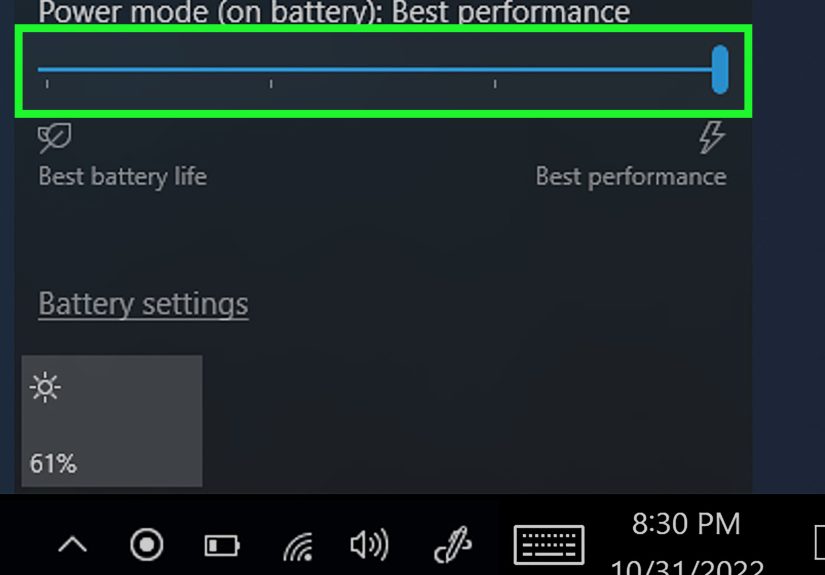
Go to Settings > System > Power & battery and change the power mode. When plugged in and doing heavier work, use a mode geared toward better performance. When you are mobile and trying to stretch battery life, switch back to a more efficient setting.
This is a simple tweak, but it matters. A Surface Go in battery-saving mode can feel much more restrained than the same device on a performance-oriented setting.
13. Use Energy Recommendations and Sensible Battery Habits
Battery settings in Windows can help manage screen brightness, sleep timing, and other energy-related behaviors. On a small tablet, that translates into less wasted power and more predictable performance. Also, keeping the battery healthier over time helps the device age a little more gracefully. No tablet beats physics forever, but you do not need to make its life harder.
Security and Health Checks Matter More Than People Think
14. Run a Malware Scan
If your Surface Go suddenly became slow for no obvious reason, run a quick scan in Windows Security. Malware, unwanted software, and badly behaved browser junk can eat CPU time, disk activity, and memory. Even if nothing dramatic is wrong, checking removes one major suspect from the case.
15. Check Device Performance & Health
Windows Security also includes a Device performance & health section. It can flag issues related to storage, battery, apps, or system health. That makes it a good place to look when performance is off but you cannot quite explain why.
Think of it as the built-in “Why are you like this?” panel for your PC.
Fix Problem Apps Instead of Blaming the Whole Tablet
Sometimes the problem is not your Surface Go. It is one misbehaving app. If a specific app constantly hangs, runs hot, or feels much slower than everything else, try repairing or resetting it through Settings > Apps > Installed apps > Advanced options if that option is available.
This is useful for apps with corrupted settings or bloated local caches. It is also a good reminder that not every slowdown deserves a full-device panic.
When a Reset Is the Right Move
If your Surface Go is still painfully slow after updates, cleanup, startup trimming, and app review, consider using Reset this PC with the Keep my files option. This reinstalls Windows while preserving personal files, though it removes apps and settings changes.
It is not step one. It is step “I have tried the sensible fixes and this tablet still behaves like it is loading the internet through a toaster.” For long-neglected systems, though, a reset can make a dramatic difference.
Realistic Expectations: Optimization Has Limits
Here is the honest part. If you own a Surface Go with 4GB RAM and 64GB eMMC storage, optimization can make the device noticeably better, but it cannot transform it into a high-end laptop. You can improve responsiveness, reduce lag, shorten boot times, and make everyday tasks smoother. What you cannot do is force budget hardware to behave like a premium workstation.
That is why the smartest Surface Go strategy is part cleanup, part restraint, and part workflow design. Use lighter apps when possible. Prefer web versions for tools you only use occasionally. Keep storage under control. Avoid leaving everything open all the time. And if you are buying a used Surface Go, aim for an 8GB/128GB model whenever possible.
Final Thoughts
The best way to optimize your Surface Go is not with flashy “booster” software or mysterious tuning tricks. It is with a handful of boring, effective decisions that work together: keep the device updated, free storage aggressively, reduce startup clutter, manage browser tabs, turn down visual extras, and match your habits to your hardware.
Do that, and your Surface Go can go from “Why is this opening so slowly?” to “Okay, that is actually pretty usable.” On a device this compact, that is not just a win. That is a lifestyle upgrade.
Experience-Based Insights: What Optimizing a Surface Go Feels Like in Real Life
In real-world use, the biggest difference after optimizing a Surface Go is not usually one dramatic benchmark jump. It is the way small annoyances stop stacking up. A student using a Surface Go for class notes, web research, and Microsoft Word may notice that the tablet wakes faster, launches apps with less hesitation, and no longer stumbles every time five lecture tabs, a PDF, and Spotify are open at once. It is not suddenly a powerhouse, but it stops feeling like every task needs a pep talk.
For remote workers, optimization often changes the day-to-day experience more than expected. A cluttered Surface Go can struggle with Teams, Outlook, a browser, and a few documents all at the same time. After trimming startup apps, turning on Storage Sense, and reducing browser tab load, the same device often feels more predictable. Meetings open faster, switching between apps is smoother, and the fanless design feels less like a compromise and more like a quiet little machine that knows its job.
Travelers and commuters tend to feel the improvement in battery and responsiveness together. Using Edge’s performance settings, controlling background sync, and picking the right power mode can make a Surface Go feel less drained by lunchtime. That matters on trains, in airports, or in classrooms where outlets seem to exist only in myths and campus brochures. The optimized device feels less frantic and more focused.
Parents who use a Surface Go as a shared family device also tend to notice a different kind of benefit: fewer weird slowdowns caused by app clutter. A tablet used for homework, YouTube, recipes, web shopping, and printing school forms can become a digital junk drawer pretty quickly. Cleaning out unused apps, moving photos and videos off the internal drive, and reducing startup clutter often makes the device feel more stable for everyone, even if nobody in the house can explain what “Storage Sense” actually does.
One of the most common experiences people report after optimization is psychological, not just technical. The device feels trustworthy again. You click something and expect it to open instead of preparing emotionally for a delay. That matters. A slow device creates hesitation. A smoother one encourages use.
There is also a valuable lesson in what does not change. Optimization improves the experience most when your expectations are aligned with the Surface Go’s design. It is excellent for writing, streaming, browsing, email, note-taking, light office work, and portable productivity. It is not built for heavy video editing, giant spreadsheets, or serious multitasking with demanding desktop apps. Users who accept that usually end up happier, because they are optimizing for the tablet’s strengths instead of punishing it for not being a different machine.
So the real experience of optimizing a Surface Go is simple: less waiting, less clutter, fewer random hiccups, and a device that feels more cooperative. It will not become magical. But it can absolutely become pleasant. And for a small Windows tablet, pleasant is a very underrated superpower.