Table of Contents >> Show >> Hide
- Quick reality check: What “finding someone’s location” actually means on iPhone
- Method 1 (Best Overall): Use Find My to see someone’s real-time location
- Method 2 (Fastest): Request or share location in iMessage
- Method 3 (Great for families): Use Family Sharing + Location Sharing
- Method 4 (Best for trips): Use Check In to share location updates automatically
- Method 5 (Different goal): Find a lost iPhone vs. find a person
- Troubleshooting: Why you can’t see their location (and how to fix it)
- Privacy and safety: How to stop sharing (and how to protect yourself)
- FAQ: The questions people ask (usually while stressed)
- Real-World Experiences: What people learn after using iPhone location sharing
- Conclusion: The safest (and smartest) way to find someone’s location on iPhone
- SEO Tags
Want to know where someone is on an iPhone? Totally fairas long as you’re doing it the right way. The iPhone can show a person’s location in a few built-in, Apple-approved ways, but they all have one thing in common: the other person has to share their location with you (or be part of a family setup where location sharing is enabled).
If you’re hoping for a “secret” method… yeah, no. Besides being a privacy nightmare, it’s often illegal, and it’s the kind of thing that turns you into the villain in a true-crime podcast. This guide focuses on consent-based location sharing using Apple’s tools like Find My, Messages, Family Sharing, and Check In.
Quick reality check: What “finding someone’s location” actually means on iPhone
On iPhone, you can only see someone’s real-time location if one of these is true:
- They shared their location with you in the Find My app.
- They shared their location with you in an iMessage conversation (either live sharing or a one-time pin).
- You’re in a Family Sharing group and location sharing is enabled (and they’ve chosen to share).
- They started a Check In to keep you updated for a trip or arrival.
That’s the deal. If you want location access, the healthiest “hack” is still: ask nicely. Bonus: it works on every iOS version.
Method 1 (Best Overall): Use Find My to see someone’s real-time location
Find My is Apple’s main hub for location sharing. It’s built for real-time tracking, directions, alerts, and “are you still at the coffee shop or did you teleport?” moments.
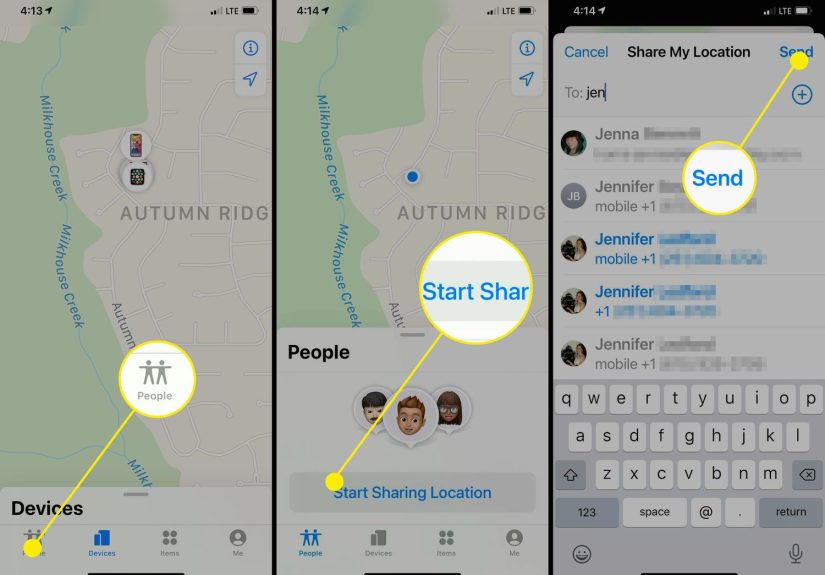
Step A: Have them share their location with you
- They open Find My on their iPhone.
- They tap Me and turn on Share My Location (if it’s off).
- They go to People > tap Add > choose Share My Location.
- They select you as the contact, then choose duration:
- One hour (for quick meetups)
- Until end of day (for events/travel)
- Indefinitely (for family/partners/roommates)
Step B: View their location on your iPhone
- Open Find My on your iPhone.
- Tap People.
- Select their name to see their location on the map.
Step C: Use the “actually helpful” features (not just the dot on the map)
- Get directions: tap their location and open directions in Maps.
- Contact options: call, message, or FaceTime directly (great for “Where are you parked?”).
- Location notifications (geofencing): get alerts when they arrive or leave a place (useful for kids getting home, elderly family, or coordinating carpools).
Example: You’re meeting a friend at a huge outdoor festival. Instead of playing “Marco Polo” with battery-draining phone calls, they share location for one hour. You walk straight to them like a GPS-powered superherowithout the cape (unless you’re into that).
Method 2 (Fastest): Request or share location in iMessage
Messages is perfect when you need location sharing right now, inside a conversation you’re already having. You can either share a live location (updates as you move) or send a pinned location (a snapshot).
Option A: Ask for someone’s location (they must approve)
- Open Messages and go to a 1:1 conversation.
- Tap the + (or Add) button.
- Tap Location > choose Request.
- They receive the request and can choose to share (or decline).
Option B: They share their live location with you
- In the conversation, tap + > Location.
- Tap Share (live updating).
- Choose duration (one hour, until end of day, or indefinitely).
Option C: They send a pinned location (one-time snapshot)
A pinned location is like saying, “I’m here,” not “I’m moving and you can watch me do it.” It’s ideal for restaurants, pickup points, trailheads, and “meet me at this exact entrance.”
Example: Someone says, “I’m outside.” You reply, “Outside where?” They send a pinned location. Suddenly, “outside” becomes a real place instead of a philosophical concept.
Method 3 (Great for families): Use Family Sharing + Location Sharing
If you’re coordinating a householdparents, kids, caregivers, spousesFamily Sharing can make location sharing easier. Once the family group is set up and location sharing is enabled, family members can appear in Find My automatically (but location still depends on each person choosing to share).
How it works (in human terms)
- You create a Family Sharing group in iPhone Settings.
- You enable Location Sharing.
- Family members can share their location with each other through Find My.
Why families like this setup
- Less friction: everyone is already grouped together.
- Device help: if someone loses their iPhone, a family member can help locate it in Find My.
- Safety: parents can coordinate pickups, arrivals, and routes (again: with consent and clear family rules).
Pro tip: If your family uses multiple Apple devices, confirm which device is set as the location source (“Use This iPhone as My Location”) so location doesn’t jump between an iPad at home and an iPhone in the real world.
Method 4 (Best for trips): Use Check In to share location updates automatically
Apple’s Check In is designed for safety and peace of mind. It’s not “track me forever,” it’s “make sure I arrive safely.” The sender starts a Check In, and the recipient gets notified when they arrive. If the Check In doesn’t complete as expected, the recipient may be able to view helpful details like location, battery level, and signal.
When Check In is the perfect move
- Late-night rideshare or solo drive
- First date (especially if you’re meeting somewhere new)
- Hiking, running, cycling, or travel in low-coverage areas
- Kids commuting home
Example: Your friend is driving home in a storm. They start a Check In set to “When I arrive.” You’re not watching a dot crawl across the map for an houryou’re just reassured when they get home safely. It’s the “low-drama” version of location sharing, and we love that for everyone.
Method 5 (Different goal): Find a lost iPhone vs. find a person
Sometimes people say “I want to find someone’s location,” but what they really mean is: “I want to find their phone (or my phone that they borrowed).”
For a missing device, Find My is still the answerbut you’ll typically see devices tied to your Apple Account (and, in some family setups, family devices). This is more “locate the iPhone” than “track a person.” If your goal is safety for a person, stick to Find My People, Messages, Family Sharing, or Check In.
Troubleshooting: Why you can’t see their location (and how to fix it)
If Find My or Messages shows “No Location Found” or “Location Not Available,” it’s usually one of these common issuesnot a conspiracy (though it can feel personal).
1) They aren’t sharing with you (or they stopped)
- Ask them to open Find My > People and confirm you’re listed.
- In Find My > Me, they should confirm Share My Location is on.
2) Location Services are off (globally or for Find My)
- On their iPhone: Settings > Privacy & Security > Location Services.
- If Location Services are off, location sharing won’t workperiod.
3) They’re offline (or in a dead zone)
No cellular, no Wi-Fi, no location update. If they’re underground, in airplane mode, or in a rural coverage black hole, the location may not refresh until they reconnect.
4) Their iPhone is low on battery or powered off
Location can become stale quickly when a device is dying. If you see an old timestamp, that’s often the reason.
5) Time/date settings or iOS glitches
It happens. Quick fixes include toggling Location Services off/on, restarting the iPhone, and making sure the device is updated to the latest iOS version.
Privacy and safety: How to stop sharing (and how to protect yourself)
Location sharing is powerful, which means it should be easy to control. Apple gives users multiple ways to stop sharing or review who has access.
Stop sharing with one person (Find My)
- Open Find My > People.
- Select the person.
- Tap Stop Sharing My Location.
Hide your location from everyone (Find My)
- Open Find My > Me.
- Turn off Share My Location.
Turn off Location Services (the “nuclear option”)
Turning off Location Services stops most location features across the phone. It can also break things you actually like (Maps, weather, photo geotags, “find my parked car,” etc.). Use it when you need a true privacy pause.
Use Safety Check if you’re worried about unwanted access
If you suspect someone has access to your location or accounts, iPhone includes Safety Check (available on iOS 16 and later). It helps you review and revoke access from people, apps, and devices. It’s designed for real-world scenariosbreakups, boundary issues, or situations where you need to lock things down quickly.
FAQ: The questions people ask (usually while stressed)
Can I find someone’s location on iPhone without them knowing?
Not using legitimate Apple features. Apple’s location sharing is permission-based by design. If you’re trying to track someone secretly, stop and reconsiderthere are serious ethical and legal consequences. If you’re worried about someone’s safety, use appropriate steps like contacting them directly, checking in with mutual contacts, or contacting local authorities in an emergency.
Does “Share My Location” show my exact address?
It can show a very accurate position on the map, especially with Precise Location enabled. That’s why it’s best to share with people you trust, and to use time-limited sharing when you don’t need it long-term.
What’s better: Find My vs. Messages location sharing?
- Find My: best for ongoing sharing, alerts, and family coordination.
- Messages: best for quick sharing inside a chat (live or pinned).
Why does it say “No Location Found” for one person but not others?
That usually means the issue is on their device/account settings (sharing turned off, Location Services off, offline), not yours.
Real-World Experiences: What people learn after using iPhone location sharing
The official steps are easy. The real challenge is everything that happens around the stepstiming, expectations, and that one friend who treats location sharing like it’s a courtroom deposition. Here are a few common experiences (based on typical everyday scenarios) that can save you time and awkwardness.
1) The “We’re sharing… but it’s not updating” moment
A lot of people think location sharing is a magical live feed that updates every second forever. In practice, if someone’s phone loses signal in a parking garage, drops to 1% battery, or switches to airplane mode, you’ll see the dreaded stale timestamp. The fix is usually boring (reconnect, recharge, restart), but the lesson is valuable: location sharing is only as good as the phone’s connection and power. If you’re coordinating something importantlike pickup after a concerthave a backup plan (a specific meetup spot or time), not just “I’ll watch your dot.”
2) The “I didn’t mean to share indefinitely” surprise
People often tap “Indefinitely” because it sounds convenient in the moment. Then three months later they realize their cousin’s roommate’s dog walker can still see them at Target. (Okay, that’s exaggeratedbut you get it.) The best habit is to treat location sharing like lending someone a hoodie: great when you meant to, weird when you forgot. Use one-hour or end-of-day sharing for casual plans, and reserve indefinite sharing for trusted relationships where it genuinely helps.
3) Parents and teens: make rules before you turn it on
Family Sharing can be incredibly helpful, but it can also become a source of conflict if expectations aren’t clear. The best outcomes usually happen when families agree on simple ground rules: location sharing is for safety and logistics (rides, arrivals, emergencies), not for constant “why are you at that house?” interrogations. When everyone knows the purpose, the feature feels supportive instead of invasive.
4) Check In is the “quiet hero” feature
Many people don’t want ongoing trackingbut they do want reassurance during a specific trip. That’s where Check In shines. It feels less like surveillance and more like a safety handshake: “I’m heading home; if something goes sideways, you’ll know.” Folks who start using Check In often report it reduces anxiety for both sides, especially for late-night travel, long drives, and solo activities. It’s one of those features you don’t think you need… until the first time it genuinely helps.
5) The biggest “win” is fewer misunderstandings
The underrated benefit of iPhone location sharing is communication, not coordinates. You spend less time on “Where are you?” and more time on “Cool, see you in five.” Used respectfully, it can reduce stress, prevent missed connections, and make busy lives easier to coordinate. Used carelessly, it can cause friction. The difference isn’t the iPhoneit’s the boundaries.
Conclusion: The safest (and smartest) way to find someone’s location on iPhone
If you want to find someone’s location on iPhone, the best path is simple: use Apple’s built-in sharing tools, and get permission. For most people, Find My is the best all-around option, Messages is the fastest for quick sharing, Family Sharing is great for households, and Check In is perfect for trips and safety.
And if you’re on the other sideworried someone can see your location when they shouldn’treview your sharing settings, use Safety Check, and take back control. Your location is yours. Full stop.