Table of Contents >> Show >> Hide
- What Is My AI on Snapchat?
- Can You Really Change the Gender of My AI on Snapchat?
- How to Change the Gender of My AI on Snapchat
- How to Customize My AI Beyond Gender
- Why You Might Not See the Gender Option
- Troubleshooting: My AI Avatar Will Not Change
- Does Changing My AI’s Gender Change Its Personality?
- Privacy Tips Before You Personalize My AI
- For Parents: What to Know About My AI
- Best Ideas for Naming Your Customized My AI
- Common Mistakes to Avoid
- Experience-Based Tips: What It Feels Like to Change My AI’s Gender on Snapchat
- Conclusion
- SEO Tags
Note: Snapchat updates its menus often, so the exact wording on your phone may vary slightly. The core process is the same: open My AI, go to its profile or avatar settings, customize the avatar’s appearance, and save your changes.
Snapchat’s My AI is not just a chatbot sitting in your Chat tab like a tiny digital roommate who never pays rent. It is also customizable, which means you can change how it looks, what it is called, and how personal it feels when you chat with it. One of the most common questions users ask is simple: “How do I change the gender of My AI on Snapchat?”
The short answer is that Snapchat does not always present this as a formal “gender” switch in every app version. Instead, you usually change the gender presentation of My AI through its avatar settings. That means adjusting the avatar’s base appearance, hair, facial features, outfit, style, and other Bitmoji-like details until it looks the way you want.
This easy guide explains how to change Snapchat My AI gender, how to customize My AI’s avatar, what to do if the option does not show up, and how to make the chatbot feel more personal without getting lost in menus. Let’s get your AI a makeover before it starts recommending dinner in the same outfit forever.
What Is My AI on Snapchat?
My AI is Snapchat’s built-in chatbot. It appears in the Chat section and can answer questions, suggest ideas, help plan activities, recommend gifts, play casual conversation games, and respond when mentioned in certain chats. It is designed to feel like a friendly helper inside Snapchat rather than a separate app you have to open.
Because My AI lives inside Snapchat, customization is part of the experience. Users can make the chatbot feel less generic by changing its name, profile look, Bitmoji-style avatar, outfit, and in some cases its personality-style bio. For many users, changing the avatar’s gender presentation is the first thing they want to do because the default look may not match the vibe they want.
Can You Really Change the Gender of My AI on Snapchat?
Yes, you can change how My AI’s avatar presents itself, but it is important to understand the wording. Snapchat’s official customization path focuses on editing the avatar and outfit. Some versions of the app may show avatar choices that feel like gender options, while others simply allow you to adjust facial features, hairstyle, body presentation, clothing, and accessories.
In other words, you may not always see a button labeled “Gender.” Instead, you may see options such as “Avatar,” “Avatar Settings,” “Customize,” or “Outfit.” From there, you can create a more masculine, feminine, neutral, playful, stylish, or completely chaotic-but-cute My AI avatar. Snapchat gives you enough visual tools to create the look you want, even if the label changes from update to update.
How to Change the Gender of My AI on Snapchat
Follow these steps to change the appearance or gender presentation of your Snapchat My AI avatar:
Step 1: Open Snapchat
Launch the Snapchat app on your iPhone or Android device. Make sure you are signed in to the account where My AI appears. If Snapchat has been acting strange, update the app first. A dusty app version can hide features like a dragon guarding a treasure chest.
Step 2: Go to the Chat Tab
Swipe right from the Camera screen or tap the Chat icon at the bottom of the screen. This opens your conversation list. My AI usually appears near the top of your chats, especially if it is pinned.
Step 3: Open My AI
Tap the My AI conversation. You can also press and hold My AI from the Chat list on some app versions to access extra settings. If you do not see My AI right away, use Snapchat’s search bar and type “My AI.”
Step 4: Open the My AI Profile
Tap My AI’s profile image, Bitmoji header, or name at the top of the chat. This should take you to the Friendship Profile for My AI. Think of this as the control room for your AI buddy’s appearance.
Step 5: Tap Avatar, Customize, or Avatar Settings
Look for an option labeled “Avatar,” “Customize,” “Avatar Settings,” or something similar. Snapchat’s menus may vary depending on your device, region, and app version. Once you find the avatar editor, tap it.
Step 6: Choose the Avatar Style You Want
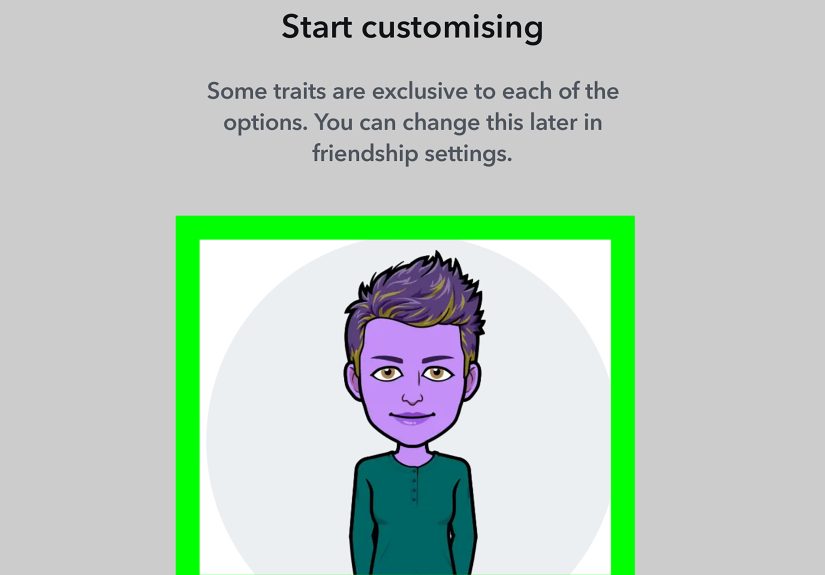
If Snapchat shows gender-style avatar options, choose the one that matches the look you want for My AI. If it does not show a direct gender option, use the appearance tools to adjust the avatar manually. You can usually change features such as hairstyle, hair color, facial structure, eyes, eyelashes, eyebrows, skin tone, facial hair, and other details.
Step 7: Pick an Outfit
After setting the avatar’s appearance, choose an outfit. Clothing can strongly influence how your My AI presents itself. A hoodie says “casual helper.” A sharp jacket says “AI with calendar discipline.” A wild outfit says “I answer homework questions and attend digital music festivals.” Choose accordingly.
Step 8: Tap Save
Do not forget to save. This is the tiny but mighty step that separates successful customization from staring at the screen wondering why your AI still looks exactly the same. After saving, return to the chat and check the updated avatar.
How to Customize My AI Beyond Gender
Changing My AI’s gender presentation is only part of the fun. Snapchat also lets you personalize other details so the chatbot feels more like your own digital sidekick.
Change My AI’s Name
You can rename My AI to something more personal. Open the My AI profile, tap the name, and enter a new one. For example, you might name it “Nova,” “Alex,” “Bestie Bot,” “Professor Snap,” or “The Council of One.” A good name can make the chatbot feel less like a default feature and more like a character you actually want to talk to.
Change the Outfit
Outfits are a fast way to change the personality of My AI’s appearance. You can make it sporty, elegant, casual, futuristic, cozy, or dramatic enough to look like it is about to drop a surprise album.
Change Hair and Facial Features
If you want My AI to appear more feminine, masculine, androgynous, or stylized, focus on hair, eyebrows, eyelashes, facial hair, jawline, and accessories. Small visual details can make a big difference.
Use a Bio If Available
Some Snapchat users may see options to add or edit a bio for My AI. If available, this can help shape the chatbot’s personality. For example, you might give it a friendly, funny, study-focused, fashion-loving, or travel-planning vibe. Availability can depend on the app version and Snapchat features available to your account.
Why You Might Not See the Gender Option
If you are trying to change Snapchat AI gender and cannot find a direct gender button, do not panic. You are probably not cursed by the algorithm. There are several normal reasons this can happen.
Your App Version May Be Different
Snapchat regularly tests and updates features. One user may see “Avatar Settings,” while another sees “Customize.” A third user may only see appearance and outfit tools. The feature is still there, but the path may look slightly different.
The Option May Be Inside Avatar Editing
Some users expect a separate “Gender” setting in the main My AI profile. In many cases, the option is tucked inside the avatar editor or replaced by visual customization tools. Look for avatar-related menus first.
Your Region or Account May Have Limited Features
Snapchat features can roll out gradually. If your friend has an option you do not see, it may be due to region, device type, account status, or app version.
Your App Needs an Update
Go to the App Store or Google Play Store and check for updates. After updating, close Snapchat completely and reopen it. If the menu still does not appear, restart your phone. Yes, “turn it off and on again” is old advice, but it has survived because it works suspiciously often.
Troubleshooting: My AI Avatar Will Not Change
If you changed My AI’s appearance but nothing happened, try these fixes:
Check Your Internet Connection
Avatar changes may not save properly if your connection is weak. Switch between Wi-Fi and mobile data, then try again.
Force Close Snapchat
Close the app completely and reopen it. Sometimes the change is saved but does not display immediately.
Clear Snapchat Cache
Open Snapchat Settings, scroll to the cache option, and clear it if available. This can help refresh stuck visuals without deleting your account or memories.
Update the App
Install the latest Snapchat version. Customization features can behave differently on older builds.
Try Again Later
Sometimes Snapchat features temporarily glitch. If the avatar editor freezes, refuses to save, or loads forever, wait a bit and try again.
Does Changing My AI’s Gender Change Its Personality?
Changing the avatar does not automatically change the chatbot’s actual intelligence, memory, or response style. The visual appearance and the chatbot’s behavior are separate. A different hairstyle will not suddenly make My AI better at algebra, although we can all dream.
However, appearance can change how the chatbot feels to you. A friendly avatar, a better name, and a style you enjoy can make conversations feel more natural. If Snapchat gives you a bio or personality option, that may have more influence on how My AI responds than changing the avatar alone.
Privacy Tips Before You Personalize My AI
My AI is fun, but it is still an AI chatbot inside a social media app. You should avoid sharing confidential or sensitive information, including passwords, private addresses, personal documents, financial details, or anything you would not want stored or reviewed for product improvement.
Snapchat stores content shared with My AI until you delete it. You can delete recent messages by long-pressing them in the chat. You can also clear past My AI data from Snapchat settings. On iPhone, this is usually found under privacy or data controls. On Android, it may appear under account actions. Snapchat notes that deletion from servers may take time.
If location access is enabled for Snapchat, My AI may use that information for location-based suggestions, such as nearby places. If you do not want that, turn off Snapchat’s location permission in your phone settings and clear My AI data afterward to reduce cached location-related information.
For Parents: What to Know About My AI
If a teen uses Snapchat, parents should understand that My AI is designed for conversation and can respond to many types of questions. Snapchat provides Family Center tools that may allow parents to limit a teen’s access to My AI. When enabled, the setting can prevent My AI from replying to the teen’s messages.
Parents should also explain that AI chatbots are not real friends, doctors, lawyers, therapists, or guaranteed fact-checkers. My AI can be useful for light questions and creative ideas, but important advice should come from trusted people and reliable sources.
Best Ideas for Naming Your Customized My AI
Once you change the gender presentation or avatar style, a new name can complete the look. Here are some fun ideas:
- Nova: Great for a futuristic, space-inspired AI.
- Alex: A flexible name that works for many gender presentations.
- Luna: Friendly, soft, and a little mysterious.
- Max: Simple, confident, and easy to remember.
- Pixel: Perfect for a techy, playful avatar.
- Sage: Good for a calm, advice-giving chatbot.
- Ziggy: Best for users who want their AI to feel quirky and fun.
Common Mistakes to Avoid
Looking Only for a “Gender” Button
The biggest mistake is expecting every Snapchat version to show the same label. If you do not see “Gender,” look for “Avatar,” “Customize,” or “Avatar Settings.”
Forgetting to Save
Always tap “Save” after changing the avatar or outfit. Otherwise, Snapchat may politely ignore your hard work like a cat ignoring a new toy.
Assuming Avatar Changes Affect AI Accuracy
A new look does not make My AI more accurate. Always double-check important answers, especially anything related to health, finance, school assignments, legal issues, news, or safety.
Sharing Too Much Personal Information
Personalization is fine. Oversharing is not. Keep sensitive details out of My AI conversations.
Experience-Based Tips: What It Feels Like to Change My AI’s Gender on Snapchat
Changing My AI’s gender presentation on Snapchat is less like flipping a serious account setting and more like designing a tiny character for your Chat screen. The experience can be surprisingly entertaining because Snapchat’s avatar system gives you room to experiment. You may start with a simple goal, like “I want My AI to look more feminine,” and ten minutes later you are debating whether your chatbot needs purple hair, a denim jacket, and the emotional energy of a pop star’s assistant.
One practical experience many users notice is that the menu names are not always obvious. You might expect to tap “Settings” and instantly see “Gender,” but Snapchat often hides the real action under avatar customization. The best approach is to think visually. Instead of asking, “Where is the gender button?” ask, “Where can I edit the avatar?” Once you reach the avatar editor, the process becomes much easier.
Another useful tip is to change the outfit after changing the avatar. Many people adjust hair, face, and skin tone first, then forget that clothing can completely change the final impression. A simple outfit can make My AI look casual and friendly. A more polished outfit can make it feel like a productivity assistant. A loud, colorful outfit can make it feel like your AI has three iced coffees and a group chat to manage.
It also helps to rename My AI after changing its look. The default name is functional, but not exactly bursting with personality. If you give the avatar a new visual style but keep the name “My AI,” the customization may feel unfinished. A name like Nova, Alex, Luna, Max, or Sage can make the chatbot feel more consistent. This does not change the technology behind the chatbot, but it does change the way you experience the conversation.
From a user-experience perspective, the best part is that the change is not permanent. You can go back and edit the avatar again. That makes it easy to test different looks without pressure. Want a masculine avatar today and a more androgynous one next week? No problem. Want to dress your AI like a cozy study partner during exam season and a vacation planner during summer? Also fair. Snapchat customization is built for playful changes, not one-time decisions carved into stone.
The only frustrating part is that app updates can move things around. If you are following a guide and your screen looks slightly different, do not assume you are doing it wrong. Look for similar words and icons. The path usually still leads to the same place: My AI profile, avatar settings, appearance, outfit, and save.
Overall, changing the gender of My AI on Snapchat is really about making the chatbot feel more personal. It is a small customization, but it can make the Chat tab feel more fun. And honestly, if we are going to have AI assistants in our apps, they might as well have a decent outfit.
Conclusion
Changing the gender of My AI on Snapchat is easy once you know where to look. Open My AI, go to its profile, enter the avatar customization area, adjust the avatar’s appearance, choose an outfit, and save your changes. Depending on your app version, you may see a direct gender-style option or you may need to create the look manually through avatar features.
The key is to treat “gender” as part of the avatar’s visual presentation. You can adjust hairstyle, facial features, clothing, accessories, and name to create a My AI that feels right for your Snapchat experience. Just remember that visual customization does not change the chatbot’s accuracy, privacy rules, or limitations. Have fun with the makeover, but keep sensitive information private and double-check important answers.