Table of Contents >> Show >> Hide
- Why use net user instead of the GUI?
- Quick primer: What net user can do
- Basic reconnaissance
- Create, rename, and remove users
- Enable, disable, and expire accounts
- Control when and where users can sign in
- Add useful metadata
- Passwords: set, reset, and policy
- Make someone an administrator (or not)
- Working with domains
- Built-in Administrator account: handle with care
- Real-world examples (copy & paste)
- Troubleshooting and gotchas
- Security best practices (without being a killjoy)
- Conclusion
- Field Notes: of Hard-Won Experience
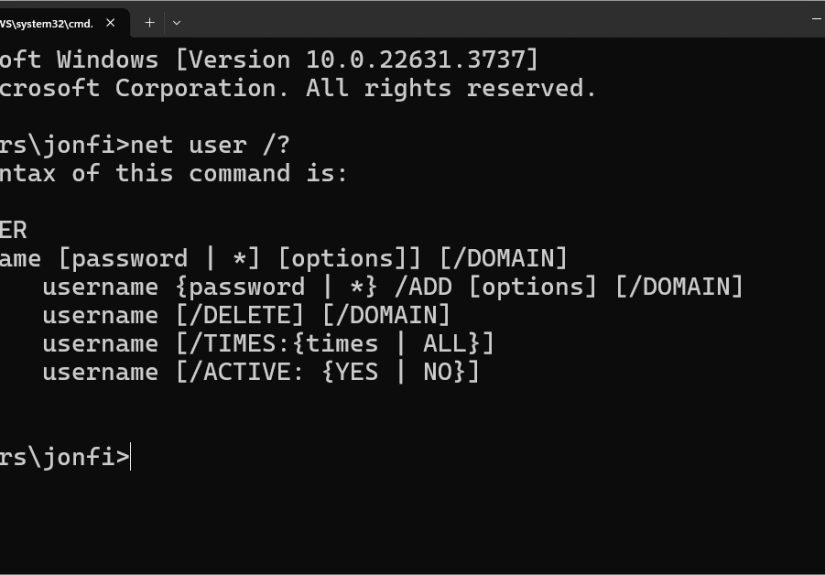
Short version: Windows gives you a trusty Swiss Army knife for user management called net user. It’s fast, built-in, andwhen used with caredownright delightful. In this guide, we’ll show you how to use it to add, remove, tweak, and tame local (and even domain) accounts like a pro, with real-world tips, gotchas, and plenty of copy-paste-ready examples.
Why use net user instead of the GUI?
Because sometimes you just need things done now. The command line is predictable, scriptable, and remote-friendly. Whether you’re on a jump box, fixing a lab machine, or documenting repeatable processes, net user keeps you productive without hunting through nested menus.
Quick primer: What net user can do
- Create and delete local users
- Set passwords (including secure, prompt-to-enter mode)
- Enable/disable accounts
- Set logon time windows and allowed workstations
- Add metadata like full name and comments
- Target a domain controller using
/domain(when joined)
Pro tip: Pair it with net localgroup to grant or remove group memberships (like Administrators) and with net accounts to view or adjust password policy.
Basic reconnaissance
List all local users
You’ll see built-in accounts (like Administrator), your own user, service accounts (e.g., WDAGUtilityAccount on systems with Windows Defender Application Guard), and any users you’ve added.
Inspect a specific user
This prints account details: when the password was last set, whether the account is active, allowed logon times, and more.
Create, rename, and remove users
Create a local user (with or without a password prompt)
Passwords with spaces or special characters? Quotes are your friend: net user "Jules Verne" "Submarine #Nautilus!" /add
Delete a user
Deleting removes the account, not the user profile folder. If you also need to reclaim disk space, clean up the profile (after backing up any data).
Enable, disable, and expire accounts
Disable an account (without deleting it)
Great for seasonal workers or staged accounts. Re-enable with /active:yes.
Set (or remove) account expiration
Important: Account expiration is not the same as password expiration. To control password aging policy, use net accounts (global) or modern PowerShell cmdlets (per user).
Control when and where users can sign in
Limit logon times
Restrict allowed workstations
Use /workstations:* (or omit the list) to allow logon from any machine.
Add useful metadata
These show up in account properties and can help IT or HR keep things tidy.
Passwords: set, reset, and policy
Set or change a password
For local standards, align with your org’s password policy. If you’re managing many machines, consider PowerShell (Set-LocalUser) or centralized tooling.
Stop a user from changing their own password
Require a password
About “password never expires”
There isn’t a per-user net user switch for “password never expires.” That’s typically set via local or domain policy (e.g., net accounts /maxpwage:UNLIMITED for a blanket setting) or via PowerShell per user. Keep this distinction in mind when you see tutorialsmany conflate account expiration with password expiration.
Make someone an administrator (or not)
net user doesn’t assign group memberships. Use net localgroup:
For domain accounts, run the same commands on the target machine (or use Group Policy, Intune, or your RMM to handle at scale).
Working with domains
If the PC is joined to an Active Directory domain, add /domain to target the domain controller:
That said, modern AD management is smoother with PowerShell’s ActiveDirectory module (New-ADUser, Set-ADUser, etc.). Use net user for quick checks, break-glass moments, or when PowerShell isn’t available.
Built-in Administrator account: handle with care
The built-in Administrator account is disabled by default on modern Windows. If you must use it for recovery or offline servicing:
If you enable it, assign a strong password immediately and consider renaming it. Don’t leave it enabled on production endpoints.
Real-world examples (copy & paste)
1) Create a “Visitor” account for a quick demo kiosk
2) Onboarding a contractor with a time-boxed account
3) Promote a user to local admin for app installs, then revert
Troubleshooting and gotchas
- “Access is denied.” You’re not in an elevated prompt. Open Windows Terminal or Command Prompt as Administrator.
- Account vs password expiry.
/expiresis for the account; password aging is policy-driven. - Quoting matters. If a username or password contains spaces (or special characters), wrap it in quotes.
- Local vs domain. Without
/domain, you’re changing local accounts on that machine. - OOBE expectations. On current Windows 11 builds, Microsoft increasingly requires a Microsoft account during setup; creating a local account often happens after installation.
Security best practices (without being a killjoy)
- Prefer unique, strong passphrases; avoid reuse. Consider enabling “password never expires” only for non-interactive service accounts with compensating controls.
- Use standard accounts for everyday work; elevate only when necessary.
- Disable or time-box dormant accounts; log and review changes regularly.
- Script repeatable operations; store commands in version control or a runbook.
- When in doubt, test in a VM snapshot first. Command lines are unforgiving poets.
Conclusion
net user is one of Windows’ most underrated power tools. With a handful of switches, you can onboard users, cordon off risk, and keep endpoints consistentwithout clicking through a dozen windows. Pair it with net localgroup and a sensible password policy, and you’ve got a clean, auditable workflow for user management.
SEO Wrap-Up for Publishers
sapo: The net user command is the quickest way to manage Windows accounts from the command line. This in-depth guide shows how to create users, set passwords, limit logon times, restrict workstations, and assign admin rights with net localgroup. Packed with copy-paste examples, security tips, and real-world troubleshooting, it’s the practical how-to you’ll bookmark for daily use.
Field Notes: of Hard-Won Experience
1) “We’ll just make them admin for a minute.” Famous last words. The quickest way to accumulate risk is to grant local admin and forget to revoke it. My pattern is: issue a time-boxed ticket, run net localgroup Administrators USER /add, set a calendar reminder (or better, an automation) for the removal, and paste the exact rollback command in the ticket: net localgroup Administrators USER /delete. If the app truly needs admin, push a packaging fix or file virtualization solution rather than leaving the back door open.
2) Service accounts need adult supervision. People often create a “service” user for a scheduled task, set a never-expiring password, and call it a day. That’s okay ifand only ifyou set logon restrictions. Use /workstations to limit where that account can sign in, and set /times to practical windows. Combine with a denial of interactive logon via local security policy. If you have to rotate the password, consider a password vault with an API so your scripts can fetch secrets at runtime.
3) Onboarding at speed. When onboarding waves of interns or contractors, a small CSV plus a batch script makes all the difference. Parse rows and run net user NAME * /add /fullname:"Full Name" /comment:"Role", then a net localgroup call for the right group. Add /expires to align with contract end dates. You’ll be amazed how many cleanup headaches disappear when accounts naturally age out.
4) The “my account vanished” surprise. Users sometimes claim their account “disappeared” when only the profile is borked or the account got disabled. net user USER tells the truth quicklyIs it active? When was the last logon? If you suspect a corrupted profile, create a new account, copy necessary data from C:UsersOldName, and keep moving.
5) Offline and recovery scenarios. In repair sessions, enabling the built-in Administrator account can save the day: net user Administrator /active:yes. But it’s a loaded toolset a strong password, fix the issue, then disable it again. If you can, rename the account before you disable it; it’s one more speed bump for opportunistic attacks.
6) Logs or it didn’t happen. When you’re doing user ops via CLI, logging matters. Prefix your commands in a script with echo lines that print what’s about to happen, and redirect output to a dated file. If something goes sideways, those breadcrumbs are gold during post-mortems and audits.
7) Policy alignment beats one-offs. I used to “fix” password policies per machine in emergencies (net accounts tweaks). The better pattern is to keep temporary changes in scripts with clear comments and a corresponding rollback, then commit the long-term rule in Group Policy, Intune, or Local Security Policy. Your future self will thank you.
8) The human side. CLI magic is fun, but always communicate. If you’re disabling an account (/active:no) for security triage, tell support and the manager. Nothing tanks trust like users locked out without context.
9) Guardrails for juniors. If you’re mentoring new admins, give them a lab VM snapshot and a laminated “Do / Don’t” card: Do quote strings, do confirm the target machine, do use * to prompt for passwords; don’t leave Administrator enabled, don’t confuse /expires with password policy, and don’t paste commands you don’t understand.
10) Final sanity check. Before you hit Enter on anything destructive, re-read the line out loud. It sounds silly, but it has saved me more than once from deleting the wrong account or promoting the wrong user. Command lines are powerfultreat them with the same respect you give production databases.