Table of Contents >> Show >> Hide
- Why Bother With Google Assistant on an iPhone?
- Step 1: Install and Set Up Google Assistant (or Gemini) on Your iPhone
- Step 2: Make Google Assistant as Fast to Launch as Siri With Shortcuts
- Step 3: Make Google Assistant Actually Useful Once It Opens
- Privacy, Battery, and Limitations You Should Know
- Troubleshooting: When “Hey Siri, OK Google” Refuses to Cooperate
- Google Assistant vs. Gemini vs. Siri: What’s Actually Happening?
- Real-World Experiences: What It’s Like to Live With Google Assistant on an iPhone
- Conclusion
If you’ve ever yelled “Hey Siri” at your iPhone and thought, “You know who would actually understand this question? Google,” you’re not alone. The good news: you don’t have to switch to Android to enjoy Google’s smarter search brain and better smart-home support. With a few clever iOS tricks, you can launch Google Assistant (and its successor, Gemini) on your iPhone almost as fast as you launch Sirisometimes in a single phrase or a quick tap on the back of your phone.
In this guide, we’ll walk through how to install Google Assistant (or Gemini), connect it to Siri Shortcuts, use Back Tap and widgets for instant access, and keep everything running smoothly without turning your home screen into a science project.
Why Bother With Google Assistant on an iPhone?
Siri has gotten better over the years, but Google’s assistant has long been strong at what iPhone users care about most: fast search, better understanding of natural language, and deep integration with Google’s ecosystemGmail, Google Calendar, Maps, YouTube, Nest devices, and more.
Even as Google transitions many features from “Google Assistant” to its newer AI assistant, Gemini, the idea is the same: you want Google’s brain in Apple’s hardware. The latest Gemini widgets on iOS and iPadOS make that easier than ever by putting Google’s AI tools right on your lock screen or home screen.
The only catch? On iPhone, Siri is still the default system assistant. You can’t fully replace Siri, but you can set things up so that getting to Google Assistant or Gemini is nearly as quick.
Step 1: Install and Set Up Google Assistant (or Gemini) on Your iPhone
First, make sure you actually have something for Siri to launch:
- Open the App Store on your iPhone.
- Search for Google Assistant or Gemini and download the app from Google LLC.
- Open the app and sign in with your Google account.
- Grant the requested permissions (microphone, notifications, sometimes location) so it can actually respond when you talk to it.
Double-check permissions
If Google Assistant or Gemini seems deaf or slow to respond, open Settings > Privacy & Security > Microphone and make sure the app has access. You can also tweak location permission under Settings > Privacy & Security > Location Services.
Remember: on iPhone, Google’s assistant doesn’t listen for a hotword (“Hey Google”) in the background the way Siri does. Instead, Siri, Shortcuts, widgets, or tapping the app is what wakes it up.
Step 2: Make Google Assistant as Fast to Launch as Siri With Shortcuts
The secret weapon here is Siri Shortcuts. Shortcuts let Siri launch apps or run actions with a phrase or tap. Google leans into this by exposing an “Assistant” action you can trigger from Shortcuts.
Option A: Use “Hey Siri, OK Google” (or any phrase you like)
Many guides still reference the classic “Hey Siri, OK Google” shortcut because the flow is simple: you use Siri to open Assistant, then talk to Google. Here’s how to set it up:
- Open the Google Assistant (or Gemini) app.
- Look for a prompt like “Add ‘OK Google’ to Siri” or a Siri Shortcuts section in the app’s settings.
- Tap Add to Siri.
- When prompted, record the phrase you want“OK Google,” “Ask Google,” or even “Launch Assistant.”
- Tap Done.
Now you can say something like:
“Hey Siri, OK Google.”
Siri hands off to the shortcut, which opens Google Assistant. After a beat, Assistant starts listening so you can ask your real question. Some users report that occasionally they still have to say “Hey Google” or tap the mic once the app opens, depending on iOS versions and app updates, so don’t panic if you see the app but it doesn’t immediately start recording.
Option B: Use Back Tap to Trigger Assistant Without Saying a Word
If you don’t feel like talking to your phone in publicor if you just want a quiet way to fire up Google’s assistantBack Tap is your friend. Back Tap is an iOS accessibility feature that lets you assign actions when you double- or triple-tap the back of your iPhone.
- Open Shortcuts on your iPhone.
- Create a new shortcut using the Assistant action (or let the Assistant app create one for you, then customize it).
- Name it something like “Launch Google Assistant”.
- Now go to Settings > Accessibility > Touch > Back Tap.
- Choose Double Tap or Triple Tap.
- Scroll down to the Shortcuts section and select your Assistant shortcut.
From now on, a quick double- or triple-tap on the back of your phone will launch Google Assistant or Gemini, even from the lock screen (assuming you’ve allowed it). It’s a surprisingly natural gesturelike knocking on your phone to wake Google up.
Option C: Add Gemini or Assistant Widgets to Your Home or Lock Screen
With Google’s newer Gemini app, you can put widgets directly on your lock screen or home screen for ultra-fast access. These widgets can start a voice conversation, open text chat, or even jump into taking a photo for analysis.
- Press and hold on your iPhone’s home screen until the icons jiggle.
- Tap the “+” button in the top corner.
- Search for Gemini (or Assistant, if available).
- Choose a widget stylevoice, text, or a multi-function widgetand tap Add Widget.
- Drag it where you want, then tap Done.
On the lock screen, the process is similar via Settings > Wallpaper > Customize. When you’re done, you’ll be able to swipe in, tap the widget, and instantly talk to Google’s AI without digging around in your app drawer.
Step 3: Make Google Assistant Actually Useful Once It Opens
Launch speed is only half the story. The point is to make Google Assistant or Gemini feel like an everyday tool, not a party trick. Here are some practical things to try:
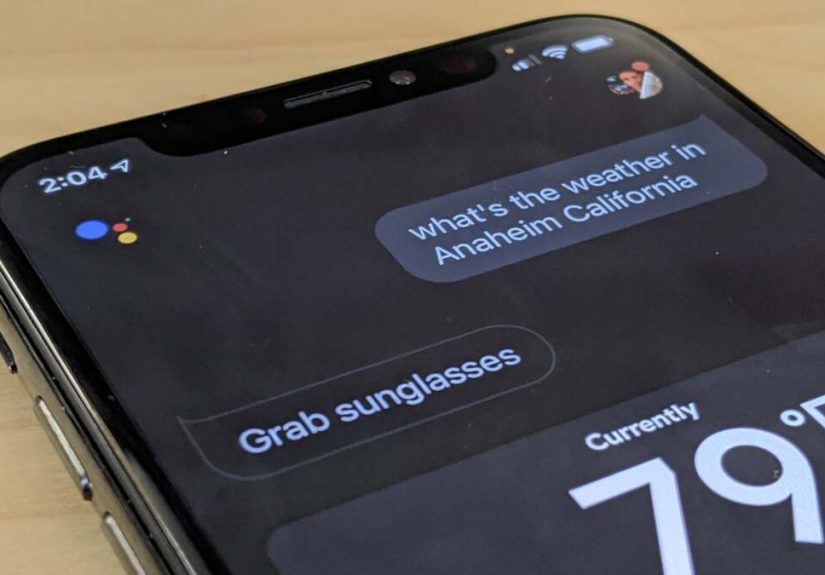
- Search and Q&A: Ask follow-up questions and complex queries (“Compare the iPhone 16 camera to the Pixel,” “Explain this news story like I’m five”). Google’s voice search has long excelled at understanding natural language and context.
- Navigation: “Navigate to the nearest Costco in Google Maps,” “Avoid toll roads on the way home.”
- Smart home control: Use Assistant to run routines or control devices that don’t support HomeKit but do support Google Home, like certain smart plugs, bulbs, and switches.
- Calendar & email: “What’s on my Google Calendar tomorrow?” or “Show me emails from my boss in Gmail.”
- Media & entertainment: “Play lo-fi beats on YouTube Music,” “Play this playlist on Spotify.”
The more you use it, the more sense it makes to keep Google’s assistant just a tap, double-tap, or “Hey Siri” away.
Privacy, Battery, and Limitations You Should Know
Before you wire your digital life together, it’s worth understanding the trade-offs:
- You can’t fully replace Siri. iOS doesn’t allow you to swap out Siri as the system-level voice assistant. That means long-pressing the side button or saying “Hey Siri” will always start Siri firstyou’re simply using Siri as a launcher for Google.
- Two assistants means two data policies. Siri requests live mostly in Apple’s walled garden; Google Assistant / Gemini requests are tied to your Google account. You can review and delete your Assistant activity from your Google account dashboard or from within the app itself.
- Always-on listening is still Siri’s job. Google’s assistant on iPhone doesn’t constantly listen for its wake word in the background, so battery impact is mostly tied to how often you actively open and use it.
- Some features are Android-only. Deep system integrations (like replacing Bixby on Samsung phones or controlling every notification) are reserved for Android.
Troubleshooting: When “Hey Siri, OK Google” Refuses to Cooperate
If your shiny shortcut suddenly stops working or feels flaky, run through this quick checklist:
- Check Siri settings. Go to Settings > Siri & Search and make sure “Listen for ‘Hey Siri’” (or “Listen for ‘Siri’” on newer versions) is enabled and that Siri is allowed on the lock screen.
- Confirm the shortcut still exists. Open Shortcuts, find the Assistant or Gemini shortcut, and make sure it’s not disabled, deleted, or referencing an old version of the app.
- Make the phrase simple. Reddit users who tinker with Shortcuts often recommend short names like “Ask Google” or “Open Assistant” to reduce misfires.
- Accept that sometimes you’ll need one more tap. On some setups, Assistant or Gemini may open but not start listening until you tap the microphone icon or say “Hey Google” again. Annoying? Yes. Deal-breaking? Usually not.
Google Assistant vs. Gemini vs. Siri: What’s Actually Happening?
Google has been gradually shifting from the classic “Google Assistant” brand toward Gemini, its more advanced AI assistant that can handle text, images, and more complex tasks. On Android, Gemini is replacing Assistant as the default on many devices, and even on iPhone, Google is pushing Gemini widgets and apps to compete with Siri and other AI tools.
For you as an iPhone user, the practical takeaway is simple:
- If you see Google Assistant in the App Store, you can still use it with Siri Shortcuts and Back Tap.
- If Google rebrands your app to Gemini, the same Shortcuts and widget tricks still applythe name changes, but the workflow is nearly identical.
- Siri remains the gatekeeper on iOS, but it doesn’t have to be the one actually answering your questions.
Real-World Experiences: What It’s Like to Live With Google Assistant on an iPhone
So what does this setup feel like day to day? Let’s walk through a few realistic scenarios to give you a sense of how well it works in the real world.
Morning: One Phone, Two Brains
Picture this: your alarm goes off on your iPhone. You mumble “Siri, stop,” because that’s still Siri’s territory. A few minutes later, while you’re trying not to doomscroll through email, you grab the phone and double-tap the back to launch Gemini. In a couple of seconds, you’re asking:
“Give me a quick summary of the biggest tech stories today.”
Instead of manually checking five apps, Google’s assistant condenses the news for you. If you use Google Calendar, you can follow that with “What’s on my schedule?” and get a combined view of your day, even though you’re on an iPhone.
Commute and errands: Maps, traffic, and quick answers
Driving is where this combo really shines. You start navigation in Apple Maps or CarPlay, but maybe you prefer Google’s traffic routing for some trips. A quick “Hey Siri, ask Google for directions to the nearest Costco” pops open Assistant, which launches Google Maps with a route ready to go.
Stuck in traffic? Use the same shortcut to ask Gemini something usefullike a quick explanation of a financial headline, a restaurant recommendation near your destination, or a reminder of what time the store closes. Because Google’s assistant leans heavily on its search engine, it often feels faster and more flexible than Siri for this kind of free-form question.
At home: Making mixed ecosystems play nice
Many households end up with a mixed smart-home setup: some devices play nice with Apple’s HomeKit, while others only support Google Home. That’s where using Siri to open Assistant is surprisingly powerful. You might tell Siri:
“Hey Siri, Ask Google to turn on the living room lights.”
Siri passes the request to your Assistant shortcut, and Google talks to the lights that Siri can’t even see. It’s a small hack that saves you from opening multiple apps or arguing with which ecosystem is “better.”
Over time, this starts to feel natural: Siri is the doorman, Google is the concierge.
Travel: Using the best tools from both worlds
When you’re traveling, your iPhone is already loaded with boarding passes, Apple Wallet, and photos. Adding Google Assistant or Gemini on top gives you a travel researcher in your pocket. While you’re waiting in line at security, you can back-tap to open Assistant and say:
“Find the current carry-on rules for this airline.”
Later, walking around a new city, you might ask:
“Show me highly rated coffee shops within a 10-minute walk.”
You still use your iPhone’s camera and local apps, but Google handles discovery and search, which is what it does best. When you’re done, you just press the side button to call up Siri for a quick text or to toggle Do Not Disturb.
What you’ll likeand what might annoy you
After living with this setup for a while, most people notice a few patterns:
- Pros: You get Google’s stronger search, better integration with Google services, and more flexible AI tools without giving up iMessage, AirPods auto-switching, or Apple Watch features.
- Cons: Saying “Hey Siri, ask Google…” can feel a bit clunky, and occasional updates can break or change how Shortcuts behave until you tweak them again. Sometimes Assistant opens but waits for one more tap on the mic.
Still, for many iPhone users, the trade-off is worth it. Instead of choosing between Siri and Google, you let them share the same pocket and use whichever one is better for the job.
Conclusion
You can’t swap Siri out of your iPhone, but you can upgrade what happens after you say “Hey Siri.” With a bit of setupinstalling Google Assistant or Gemini, wiring up a Siri shortcut, assigning a Back Tap gesture, and maybe adding a widgetyou’ll be able to launch Google’s assistant almost as fast as Siri itself.
Whether you’re chasing better search, smarter smart-home control, or more powerful AI tools, this hybrid approach lets you enjoy the best of Google’s brain and Apple’s hardware in one device. Once you’ve lived with it for a while, going back to a single-assistant setup can feel strangely limiting.