Table of Contents >> Show >> Hide
- What You’ll Learn
- How to Turn on Mobile Data on iPhone
- How to Turn on Mobile Data on iPad (First: Can Your iPad Even Do That?)
- Cellular Settings That Matter (and Why They Sometimes Ruin Your Day)
- Mobile Data Not Working? Fixes That Actually Help
- 1) Confirm the basics (yes, really)
- 2) Do the “Airplane Mode reset”
- 3) Restart your iPhone or iPad
- 4) Check your SIM/eSIM and your active line
- 5) Make sure the device isn’t blocked by Screen Time restrictions
- 6) Update iOS/iPadOS (and don’t skip carrier settings updates)
- 7) Check Data Roaming (when you’re traveling)
- 8) Inspect APN settings (only if your carrier tells you to)
- 9) Reset Network Settings (powerful, but comes with a receipt)
- 10) Look for outages and account issues
- 11) When it might be hardware
- Quick FAQs
- Real-World Experiences: The Stuff That Makes You Google This at 2 A.M.
- Wrap-Up
Mobile data is the magical invisible juice that lets your iPhone work when Wi-Fi isn’t aroundon the road, in a store aisle comparing prices,
or while you’re “just stepping outside for a second” and somehow ending up three blocks away. On iPad, it’s either the same magic… or absolutely
impossible, depending on which iPad you own. (Yes, Apple really did make “Wi-Fi only” iPads. No, wishing harder won’t add antennas.)
This guide walks you through how to turn on cellular/mobile data on iPhone and iPad, what settings actually matter, and what to do when
your device acts like it has never heard of the internet. Steps can vary slightly by iOS/iPadOS version and carrier, but the overall path is consistent.
How to Turn on Mobile Data on iPhone
On iPhone, “mobile data” and “cellular data” mean the same thing. If it’s off, your iPhone will use Wi-Fi only for internet (and will stare at you
blankly when Wi-Fi disappears).
Method 1: Turn it on in Settings (most reliable)
- Open Settings.
- Tap Cellular (sometimes labeled Mobile Data in some regions).
- Turn on Cellular Data.
Method 2: Use Control Center (fastest when you’re in a hurry)
- Open Control Center (swipe down from the top-right on Face ID iPhones; swipe up on older models).
- Tap the Cellular Data button (it looks like an antenna with signal bars).
If the button is missing, dimmed, or refuses to cooperate, don’t panicwe’ll fix it in the troubleshooting section.
If you have Dual SIM (two lines), pick the line that uses data
On dual-SIM iPhones, cellular data can be assigned to one line at a time. If you’re accidentally using the line that has no data plan, your phone can
show great signal and still deliver zero internet. Sneaky.
- Go to Settings → Cellular.
- Tap Cellular Data.
- Select the line you want to use for data.
- If available, consider turning on Allow Cellular Data Switching (useful when one line has better coverage).
How to Turn on Mobile Data on iPad (First: Can Your iPad Even Do That?)
Here’s the critical truth: only iPads labeled “Wi-Fi + Cellular” can use mobile data. A Wi-Fi-only iPad has no cellular radio, no SIM/eSIM
support, and no setting that can “unlock” it. If your iPad doesn’t have cellular hardware, the closest workaround is a Personal Hotspot from your phone.
How to tell if your iPad supports cellular
- Go to Settings and look for Cellular Data (or Mobile Data) in the menu.
- Physically: many cellular iPads have a SIM tray (older models) or show eSIM options in settings.
- If you only see Wi-Fi settings and nothing about cellular, you likely have a Wi-Fi-only model.
Turn on cellular data on iPad (Wi-Fi + Cellular models)
- Open Settings.
- Tap Cellular Data.
- Turn on Cellular Data.
Set up a data plan (if cellular options exist but nothing works)
If you see the cellular menu but your iPad can’t get online, you may not have an active plan yet.
- Using eSIM: Go to Settings → Cellular Data and look for options like Add a New Plan, scanning a QR code,
or signing in through a carrier flow. - Using a physical SIM (if supported): Insert an activated SIM from your carrier, then check Settings → Cellular Data.
Some carriers let you add iPad data as an add-on to your existing phone plan; others treat it as its own line. If setup screens look different than you expect,
that’s usually a carrier thingnot you doing it wrong.
Cellular Settings That Matter (and Why They Sometimes Ruin Your Day)
Turning on cellular data is step one. Making it actually behave is step two. Here are the settings worth checking when things feel off.
Cellular Data Options / Data Modes
- 5G / LTE selection: If your carrier supports 5G, you may see choices like 5G On, 5G Auto, or LTE. If your data feels unstable, trying LTE temporarily can help isolate whether it’s a 5G coverage quirk.
- Low Data Mode: Great for saving data. Not great when you’re trying to download a giant video, sync a photo library, or update apps quickly.
Data Roaming (especially when traveling)
Traveling outside your carrier’s normal network? Data roaming may need to be enabled. The catch: roaming can cost extra depending on your plan, so this is a
“know your plan before you tap” situation.
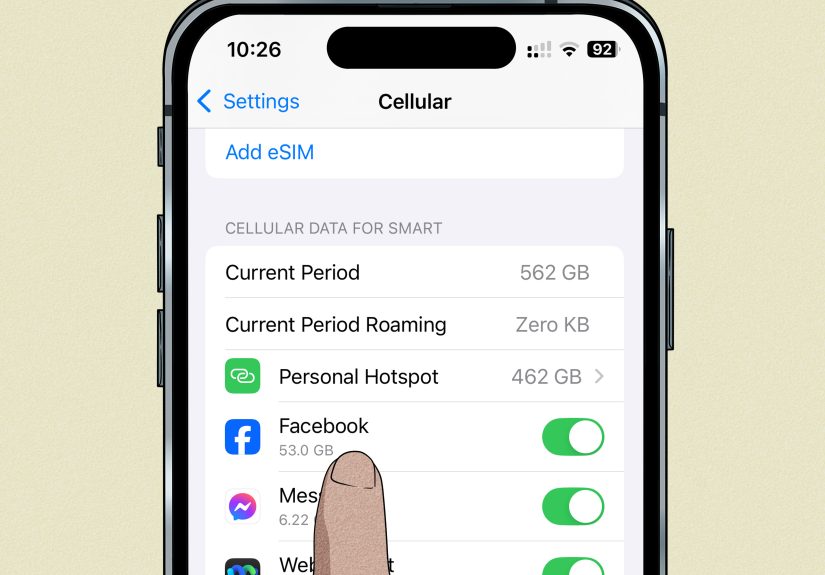
App-by-app cellular access
Your iPhone can allow cellular data for some apps and block it for others. If only one app “doesn’t work” on mobile data, it might be turned off in the app list.
- Go to Settings → Cellular.
- Scroll to the app list.
- Make sure the problem app is allowed to use cellular.
Wi-Fi Assist (iPhone)
Wi-Fi Assist can switch to cellular when Wi-Fi is weak. This can be helpful, or it can surprise you by using more data than expectedespecially in places with
“technically connected” Wi-Fi that’s actually unusable.
VPN profiles and security apps
A VPN or a security/filtering app can sometimes block traffic or misroute itmaking your phone look connected but behave like it’s grounded. If mobile data fails
only when a VPN is enabled, you’ve found a likely culprit.
Mobile Data Not Working? Fixes That Actually Help
If your iPhone/iPad shows signal but won’t load anything, or the Cellular Data toggle is weird, use this checklist in order. Start simple. Save the dramatic moves
for later. Your future self will thank you.
1) Confirm the basics (yes, really)
- Is Airplane Mode off?
- Is Cellular Data on?
- Do you have signal bars, or does it say SOS / No Service / Searching?
- Are you out of data, throttled, or paused by your carrier plan?
2) Do the “Airplane Mode reset”
- Turn Airplane Mode on for 10–15 seconds.
- Turn it off.
- Wait up to a minute for the network handshake to re-establish.
This is the tech equivalent of “turn it off and on again,” but with extra flair.
3) Restart your iPhone or iPad
Restarts clear temporary radio glitches, stuck network sessions, and weird background processes. If you haven’t restarted in weeks, your device may be quietly begging.
4) Check your SIM/eSIM and your active line
- Physical SIM: If you use one, remove and reinsert it (carefully). Dust and slightly unseated SIMs can cause big drama.
- eSIM: Make sure the line is enabled and selected for data if you have multiple lines.
- Dual SIM: Confirm the correct line is set for cellular data and that the line is active with your carrier.
5) Make sure the device isn’t blocked by Screen Time restrictions
If Cellular Data options are missing, greyed out, or can’t be changed, Screen Time restrictions may be locking them. This commonly happens on family devices,
kids’ phones, or “work” iPhones that someone configured once and then forgot about.
- Go to Settings → Screen Time.
- Tap Content & Privacy Restrictions (if enabled).
- Look for settings that restrict Cellular Data Changes or related network changes.
6) Update iOS/iPadOS (and don’t skip carrier settings updates)
Software updates can include modem and connectivity improvements. Carrier settings updates can also adjust how your phone connects to the network (especially after
plan changes, SIM swaps, or new network features).
- iOS/iPadOS update: Settings → General → Software Update
- Carrier settings update: Settings → General → About (if an update is available, you’ll typically get a prompt)
7) Check Data Roaming (when you’re traveling)
If you’re outside your normal coverage areaespecially internationallyyour phone may need Data Roaming enabled to use mobile data. If roaming is on
and you don’t want it, turning it off can stop surprise charges. The “right” setting depends on your trip and your plan.
8) Inspect APN settings (only if your carrier tells you to)
APN settings are basically the “routing instructions” your phone uses to access your carrier’s data network. Most iPhones configure this automatically. But on BYOD
setups, certain prepaid plans, or older configurations, your carrier may ask you to enter APN details manually.
Pro tip: only change APN settings using official carrier instructions. Random internet APNs are how you end up with a phone that can only load 2009-era webpages.
9) Reset Network Settings (powerful, but comes with a receipt)
If you’ve tried everything and mobile data still won’t work, a network reset often fixes corrupted network configurations. It also wipes saved Wi-Fi networks,
passwords, and some VPN/network preferencesso make sure you know your Wi-Fi password before you do this.
- Go to Settings → General.
- Tap Transfer or Reset iPhone (or similar on iPad).
- Tap Reset.
- Select Reset Network Settings.
10) Look for outages and account issues
Sometimes your phone is fine and the network is the one having a bad day. Check your carrier’s outage map/status page or app. Also confirm:
- Your account is in good standing (no suspended line, billing hold, or data block).
- Your plan includes data on that line (especially for tablets and secondary SIMs).
- You haven’t hit a high-speed data cap that triggers extreme throttling.
11) When it might be hardware
If you consistently see SOS / No Service in multiple locations, after updates and resets, you may be looking at a carrier provisioning problem or a
hardware issue (like a failing modem). At that point, contacting your carrier is the best next moveand if the carrier confirms your line is fine, Apple support is next.
Quick FAQs
Why don’t I see “Cellular” or “Mobile Data” in Settings?
On iPhone, you should almost always see itunless restrictions or device management profiles are limiting changes, or the SIM/eSIM line isn’t active.
On iPad, it usually means you have a Wi-Fi-only iPad (no cellular hardware), or you don’t have an active plan/line configured yet.
Will turning off Wi-Fi force my iPhone to use mobile data?
Yesif cellular data is on and your carrier connection is working. If turning off Wi-Fi makes everything stop loading, that’s a sign your mobile data connection
isn’t active or isn’t passing traffic.
Can my iPad use my iPhone’s data plan?
Not directly, unless your carrier supports adding the iPad as a line on the same account (or “shared data” setups). The universal workaround is enabling
Personal Hotspot on your iPhone and connecting your iPad to it.
Why does my phone show bars but no internet?
Bars measure signal strength, not data performance. You can have strong signal and still have no usable data due to plan issues, congestion, incorrect line selection,
APN/VPN problems, or temporary carrier outages.
Real-World Experiences: The Stuff That Makes You Google This at 2 A.M.
Let’s talk about what this looks like in real lifebecause “turn on Cellular Data” is the easy part. The tricky part is when you swear it’s on,
your phone swears it has signal, and the internet still refuses to attend the meeting.
One of the most common scenarios is the “parking lot problem.” You leave your house on Wi-Fi, everything’s perfect, and then you drive away and suddenly your iPhone
acts like the entire concept of the web was canceled. Usually, this is a quick fix: toggling Airplane Mode forces the phone to re-register with the network. But if it
keeps happening every time you leave Wi-Fi, it often points to something deeperlike an outdated carrier settings profile, a VPN app that’s misbehaving, or a dual-SIM
configuration where the wrong line is assigned for data.
Another classic: the “only one app is broken” mystery. Safari loads, Maps works, but your favorite social app spins forever. That’s when the app-by-app cellular
permissions matter. It’s surprisingly easy to accidentally disable cellular data for one app during a “data saving” phaseusually right before you really need that app
to work. The fix is simple (Settings → Cellular → scroll to the app list), but finding it feels like solving a puzzle designed by someone who loves hide-and-seek.
iPad owners often get a different flavor of frustration: “I turned on Cellular Data, but there’s no plan.” This happens a lot with Wi-Fi + Cellular iPads that were
bought secondhand or gifted. The settings exist, but the line isn’t activated. If you’re used to phones where the SIM just works, the iPad setup flow can feel oddly
formallike you’re applying for internet instead of turning it on. Once a plan is added (eSIM or physical SIM, depending on the model), the experience becomes
phone-like again.
Traveling adds its own chaos. People frequently land in a new country, see signal bars, and assume everything’s finethen nothing loads. Sometimes the fix is enabling
Data Roaming (because you’re roaming, shockingly). Other times it’s not a settings issue at all: the plan doesn’t include international data, or it requires a travel
pass add-on. The lesson here is painful but helpful: before you fly, check your carrier’s travel options. It’s cheaper than learning this in a taxi while your driver
confidently follows a route that “feels correct.”
Finally, there’s the nuclear option that feels scary but is often effective: Reset Network Settings. People avoid it because it sounds like it will erase their phone’s
personality. In reality, it mostly wipes saved Wi-Fi and network preferencesannoying, yes, but not catastrophic. When cellular data is stuck due to a corrupted
network configuration, that reset can be the moment your phone finally remembers its job is “connect to the internet,” not “pretend to.”
If you take one practical takeaway from all these stories, it’s this: most mobile data issues are not permanent. They’re usually a toggle, a line selection, an update,
or a plan hiccup. Start with the quick steps, work your way down, and save the big resets for when the easy fixes don’t stick. Your future selfand your data planwill
appreciate the calm, methodical approach.
Wrap-Up
Turning on mobile data is usually a three-tap job: Settings → Cellular → Cellular Data (or Settings → Cellular Data on iPad).
When it’s not that simple, the fixes are still manageable: toggle Airplane Mode, restart, check your SIM/eSIM and data line, update iOS and carrier settings, and
reset network settings if needed. And if your iPad is Wi-Fi only, don’t fight physicsuse a hotspot.
You’ve now got the “how,” the “why,” and the “what to do when it’s being weird.” Which, honestly, is most of modern tech.