Table of Contents >> Show >> Hide
- Before You Migrate: A Quick Pre-Flight Checklist
- The Fastest Method: Use Gmail’s “Import Mail and Contacts” Tool
- Keep New Yahoo Emails Coming to Gmail (After Import)
- Want ALL Yahoo Folders in Gmail? Use the IMAP Copy Method
- Move Your Yahoo Contacts to Gmail (So You’re Not Emailing “Hey… you.”)
- Keep Your Old Yahoo Address Working (Without Living There)
- SEO-Friendly FAQ: Quick Answers to Common Yahoo-to-Gmail Migration Questions
- Conclusion: A Smooth Switch (Without the Inbox Chaos)
- Real-World Migration Experiences (The Stuff People Don’t Tell You Until It’s Too Late)
Ready to break up with Yahoo Mail and move in with Gmail? No drama needed. This guide walks you through the cleanest ways to migrate your emails, contacts, and “wait, where did that message go?” momentswithout losing important mail or accidentally forwarding your entire life to the void.
We’ll cover the fastest built-in import method, the “I have folders and I’m not afraid to use them” IMAP method, and the pro tips that make the switch feel like an upgrade instead of a root canal. Bonus: we’ll also handle the awkward partkeeping your old Yahoo address working while you transition.
Before You Migrate: A Quick Pre-Flight Checklist
1) Decide what “migrate” means for you
Different people mean different things when they say “move to Gmail.” Pick your goal first, then choose the method that matches:
- Just want old emails and contacts in Gmail: Use Gmail’s built-in import tool.
- Want new Yahoo mail to keep showing up in Gmail: Import + enable Yahoo auto-forwarding.
- Need every folder (Sent, Archives, custom folders) preserved: Use an IMAP copy method (desktop email client).
- Need business-grade migration at scale: Consider Google Workspace migration tools.
2) Clean up Yahoo Mail (your future self will thank you)
Migration is the perfect time to stop dragging around 9,000 “BIG SALE!!!” emails from 2017. Before you move:
- Unsubscribe from newsletters you don’t read.
- Empty Spam and Trash (optional, but it speeds things up).
- Move any important messages out of odd places (some methods only grab Inbox).
- Download critical attachments you can’t risk losing.
3) Security check: passwords, 2-step verification, and app passwords
If you use two-step verification on Yahoo (or plan to), some apps and migration tools may require an app password instead of your normal login. Don’t worrythis is common and actually safer. Keep your Yahoo account access handy during migration, even if you plan to abandon it later.
The Fastest Method: Use Gmail’s “Import Mail and Contacts” Tool
This is the simplest “point Gmail at Yahoo and let it do its thing” approach. It’s ideal if you’re switching for personal use and mainly want your history and contacts inside Gmail.
Step-by-step: Import Yahoo Mail into Gmail (Web)
- Open Gmail in a browser (desktop works best).
- Click the gear icon → See all settings.
- Go to Accounts and Import.
- Find Import mail and contacts → click it.
- Enter your Yahoo email address and follow the prompts to sign in.
- Select what you want to import:
- Emails
- Contacts
- New mail (usually for a limited window)
- Click Start import and let the migration run.
What to expect (so you don’t panic-refresh for two hours)
- It can take time. Small inboxes might finish quickly; large inboxes can take hours or longer.
- Imported mail typically appears with a label in Gmail so you can find it easily.
- New mail forwarding is limited. Gmail’s import feature is designed as a transition toolnot a permanent syncing solution.
Important limitation: POP-based imports may only grab the Inbox
Some migrations rely on POP-style access, which often downloads only messages in your Yahoo Inbox. If you keep important emails filed into Yahoo folders, you may need the IMAP method below to capture everythingor temporarily move key messages into the Inbox before importing.
Pro tip: Use Gmail labels immediately
Once the import starts, set up a few labels like “From Yahoo,” “Receipts,” “Family,” and “Work Accounts”. Then create filters so forwarded or newly arriving mail doesn’t pile up into a single chaotic inbox tower of doom.
Keep New Yahoo Emails Coming to Gmail (After Import)
If you want Gmail to be your daily inbox, you need a plan for new Yahoo messagesespecially after the initial import window ends.
Option A: Turn on Yahoo auto-forwarding (best for most people)
Yahoo Mail can forward incoming messages to another address (like your new Gmail). When enabled, your new Yahoo mail will land in Gmail automaticallyno extra checking required.
- Open Yahoo Mail on the web.
- Go to Settings → Mailboxes.
- Select your primary mailbox.
- Find Auto-forwarding (or Forwarding), enter your Gmail address, and verify it.
- Confirm the verification email Yahoo sends to Gmail.
Heads-up: Some Yahoo features aren’t available in every region or account type, so if you don’t see forwarding, don’t assume you’re doing it wrong. (You’re not. Yahoo is just being Yahoo.)
Option B: Use the Gmail mobile app to read Yahoo via IMAP
Even if you’re switching, you may want occasional access to Yahoo without logging in separately. The Gmail app can add third-party accounts so you can read and send mail from Yahoo right inside the app.
This is especially useful if you’re in a “soft transition” phasewhere Yahoo still receives mail from old subscriptions, forgotten logins, or that one distant relative who refuses to update your email address out of principle.
Want ALL Yahoo Folders in Gmail? Use the IMAP Copy Method
If you have a carefully organized Yahoo Mail setupfolders for years, projects, receipts, travel, and “stuff I swear I’ll read someday”you’ll want an IMAP-based approach. IMAP supports full folder syncing, which POP often doesn’t.
The idea (simple): connect both accounts, then copy
You’ll add Yahoo (IMAP) and Gmail (IMAP) to a desktop email app (like Thunderbird or Outlook), then drag/copy messages from Yahoo folders into Gmail folders/labels.
Recommended tool: Mozilla Thunderbird (free, solid, widely used)
- Install Thunderbird on your computer.
- Add your Yahoo account (choose IMAP).
- Add your Gmail account (IMAP).
- Let folders fully sync (this can take a while for big inboxes).
- Create destination labels/folders in Gmail if you want structure.
- Copy messages folder-by-folder from Yahoo to Gmail.
Mail server settings you may need (Yahoo)
If your email app asks for manual settings, these are the typical Yahoo Mail values:
| Protocol | Server | Port | Security |
|---|---|---|---|
| IMAP (incoming) | imap.mail.yahoo.com | 993 | SSL |
| POP (incoming) | pop.mail.yahoo.com | 995 | SSL |
| SMTP (outgoing) | smtp.mail.yahoo.com | 465 or 587 | SSL/TLS |
Common snag: If Yahoo blocks the sign-in, generate a Yahoo app password and use that in your email client instead of your normal Yahoo password.
Why this method is worth it
- Preserves folder structure better than basic imports.
- Lets you migrate Sent mail and archived folders (often missed by POP imports).
- Gives you control: migrate only what you want, in the order you want.
Downside (because nothing is perfect)
- This can be slow for huge mailboxes.
- Copying lots of messages may temporarily trigger security checks.
- Attachments + years of mail = more Google storage usage.
Move Your Yahoo Contacts to Gmail (So You’re Not Emailing “Hey… you.”)
Contacts are the unsung heroes of a smooth migration. Moving them prevents bounced emails, awkward typos, and that moment you realize you never memorized your boss’s email address.
Option 1: Use Gmail import (if available)
If you chose “Import contacts” during Gmail’s import flow, you may already be done. Check Google Contacts to confirm.
Option 2: Export contacts from Yahoo, then import into Google Contacts
- In Yahoo Mail, open Contacts.
- Choose More options → Export.
- Export as CSV.
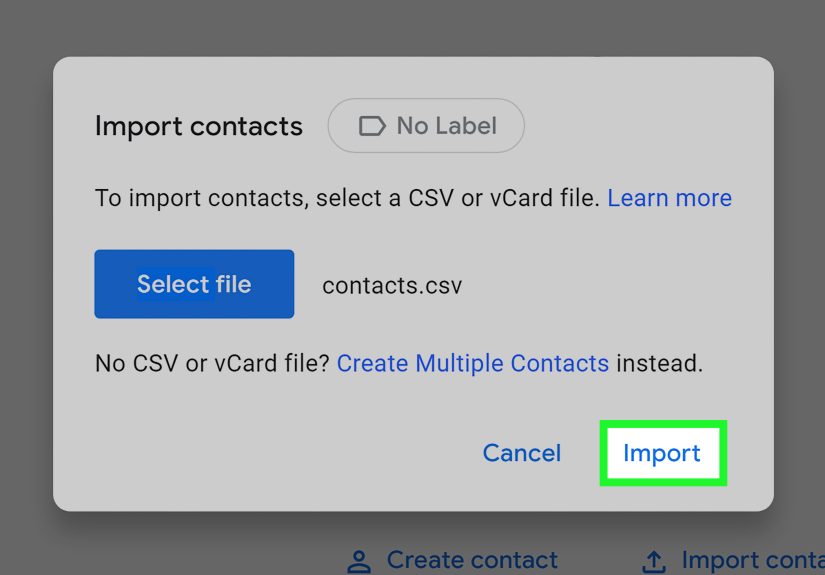
- Go to Google Contacts and import that CSV file.
Tip: After importing, do a quick scan for duplicates. Most contact systems are helpful, but they’re also the kind of “helpful” that gives you three versions of your cousin’s email and none of them are current.
Keep Your Old Yahoo Address Working (Without Living There)
Switching doesn’t have to be an all-or-nothing leap. The smoothest transitions let you receive Yahoo mail in Gmail and even reply from your Yahoo address while people gradually learn your new Gmail address exists.
Set up “Send mail as” in Gmail (reply from Yahoo)
- In Gmail: Settings → Accounts and Import.
- Find Send mail as → click Add another email address.
- Enter your Yahoo address and display name.
- Choose the SMTP option and enter Yahoo SMTP details.
- Verify ownership (Gmail will send a code to your Yahoo inbox).
Why this matters: During the transition, you can keep conversations consistent. People emailing your Yahoo address will see replies from that same addresswhile you still live your best Gmail life.
Add a friendly auto-reply in Yahoo
Set a short auto-reply like: “Hi! I’ve moved to Gmail. Please update my email to [email protected].” Keep it polite, short, and not passive-aggressive. (Even if you’re tempted.)
SEO-Friendly FAQ: Quick Answers to Common Yahoo-to-Gmail Migration Questions
Will I lose emails during migration?
If you use Gmail’s import tool, your Yahoo messages remain in Yahoo unless you delete them. Migration generally copies, it doesn’t erase.
How long does Gmail keep pulling new mail after import?
The built-in import experience is meant for switching, not permanent syncing. Plan to use forwarding (or another method) if Yahoo will still receive important mail later.
Why didn’t all my folders show up in Gmail?
If your migration relied on POP-style access, it may have only pulled Inbox. Use the IMAP copy method if you need folders like Sent, Archives, or custom folders transferred.
Do imported emails use my Google storage?
YesGmail storage is part of your overall Google account storage. If you’re importing years of attachments, keep an eye on your quota.
Should I delete my Yahoo account after switching?
Not immediately. Keep it active for a while so you can catch verification emails, account recovery links, and those last few services you forgot were tied to Yahoo.
Conclusion: A Smooth Switch (Without the Inbox Chaos)
Switching from Yahoo Mail to Gmail is easiest when you treat it like a two-part move: (1) migrate your past (emails + contacts), then (2) redirect your future (forwarding + sending as Yahoo until the world catches up).
For most people, Gmail’s import tool plus Yahoo auto-forwarding is the sweet spot: fast, low effort, and surprisingly painless. If you’re a folder power-user (respect), use an IMAP desktop method to bring over everything with fewer surprises. Either way, the goal is the same: one inbox you actually enjoy opening. Or at least don’t dread. Baby steps.
Real-World Migration Experiences (The Stuff People Don’t Tell You Until It’s Too Late)
Let’s talk about what the Yahoo-to-Gmail switch feels like in the wildwhere inboxes are messy, passwords are forgotten, and your aunt’s “FWD: FWD: FWD: Important!!!” emails don’t respect your new labeling system.
Experience #1: The “My inbox is emptydid I break the internet?” moment. A very common scenario is starting the Gmail import, then refreshing Gmail every 20 seconds like it’s a stock ticker. Imports can be slow, especially if your Yahoo account is older than your favorite hoodie. The trick is to look for progress indicators (or at least the imported label). Then walk away. Go drink water. Touch grass. Gmail will still be importing when you get back, and your refresh key deserves a break.
Experience #2: Folder heartbreak (a.k.a. “Where is my Sent mail?”) People who’ve organized Yahoo into folders for years often discover the “Inbox-only” reality of certain import methods. That’s when the IMAP copy approach becomes the hero. The first time you see all your Yahoo folders syncing in a desktop app, it feels like finding a missing sock… except it’s 12 years of receipts and you can finally prove you did return that blender.
Experience #3: The app password plot twist. Everything’s going great until Yahoo (politely, but firmly) says, “Nice try, robot.” If you have two-step verification enabled, some connections require an app password. The good news: once you generate it, things usually snap into place. The better news: you’re more secure. The slightly annoying news: you’ll probably do this at 11:47 p.m. while muttering, “I swear I’m good at computers.”
Experience #4: The “I didn’t realize how many accounts used my Yahoo email” scavenger hunt. This is the biggest surprise for many switchers. You’ll remember the obvious stuffbanking, shopping, socialbut then the weird ones appear: the old photo-sharing site, the gym membership portal, the flight rewards account you made once in 2019. The practical move is to keep Yahoo active for at least a few weeks, forward everything to Gmail, and update accounts gradually. Treat it like spring cleaning: a little each day beats trying to do it all in one weekend.
Experience #5: The identity transition (your name, your address, your sanity). People worry that switching email addresses will feel like changing phone numbers in 2006. But with Gmail’s “Send mail as” and Yahoo forwarding, you can transition gently. You’ll still receive messages sent to Yahoo, and you can reply as Yahoo while you update your address everywhere else. It’s the email equivalent of moving houses but keeping the old mail forwardedso your life doesn’t collapse just because someone still thinks you live at “yahoo dot com.”
Experience #6: The “Gmail is too powerful” phase. This one’s fun. After the migration, people discover Gmail’s filters, labels, search operators, and spam controlsand suddenly become inbox wizards. If you’ve lived in Yahoo for years, Gmail search can feel like upgrading from a flashlight to night vision goggles. The best experience is when you label everything, automate the boring stuff, and your inbox goes from “stormy ocean” to “calm lake.” (Or at least “less stormy ocean.”)
Experience #7: Storage reality check. Importing a decade of attachments can inflate your Google storage quickly. If your Yahoo account is basically a file cabinet with emails attached, plan ahead: delete obvious junk, move giant attachments to Drive intentionally, and keep an eye on your storage dashboard. The goal isn’t to hoard emails like a dragon hoards gold. The goal is to find things fast and keep your account healthy.
In short: the switch is rarely “click once and you’re done,” but it also doesn’t have to be painful. The smoothest migrations are the ones that combine a clean import, reliable forwarding, and a realistic transition periodso you end up in Gmail with your messages, your contacts, and your dignity intact.