Table of Contents >> Show >> Hide
- Quick Navigation
- Choose the Right Group Email Method
- Method 1: Send to Multiple Recipients (To/CC/BCC)
- Method 2: Create a Contact Label (Reusable “Email List”)
- Method 3: Use Google Groups (Mailing List or Shared Inbox)
- Method 4: Gmail Mail Merge (Personalized Bulk Emails)
- Best Practices (So People Don’t Hate Your Email)
- Troubleshooting & Common Issues
- FAQ
- Extra: Real-World Experiences & Lessons (500+ Words of Practical Wisdom)
- Conclusion
Sending a “group email” sounds simple… until you’ve accidentally exposed 73 strangers’ email addresses, triggered a reply-all avalanche, or watched Gmail politely tap the brakes because your message looked a little too “newsletter-y” for a personal inbox. The good news: Gmail can absolutely handle group emailingyou just have to pick the right method for what you’re trying to do.
This guide walks you through the best ways to send a group email in Gmail (from quick one-offs to reusable contact lists, Google Groups, and Gmail’s built-in mail merge). You’ll get step-by-step instructions, real-world examples, common mistakes to avoid, and the kind of practical tips that keep your message from landing in Spam City.
Quick Navigation
- Choose the Right Group Email Method
- Method 1: Send to Multiple Recipients (To/CC/BCC)
- Method 2: Create a Contact Label (Reusable “Email List”)
- Method 3: Use Google Groups (Mailing List or Shared Inbox)
- Method 4: Gmail Mail Merge (Personalized Bulk Emails)
- Best Practices (So People Don’t Hate Your Email)
- Troubleshooting & Common Issues
- FAQ
- Extra: Real-World Experiences & Lessons
- Conclusion + SEO Tags (JSON)
Choose the Right Group Email Method
“Group email” in Gmail can mean a few different things. Before you click Compose like it’s a reflex, match your goal to the tool. Here’s the simplest way to decide:
If you just need to email a handful of people once
Use To, CC, or BCC. This is fast, but it’s not a long-term system.
If you email the same people repeatedly
Create a Google Contacts label (think: a reusable list). Then you can type the label name in Gmail to auto-fill recipients.
If you want a single address that many people can email (and maybe multiple teammates can manage)
Use Google Groups. This is perfect for “support@…”, “pta@…”, “volunteers@…”, and other “one email to reach the team” setups.
If you want personalization at scale
Use Gmail Mail Merge for messages like “Hi Jamie,” instead of “Hello valued human.” It’s Gmail’s built-in option for sending the same message to many recipients with personalized fields.
Method 1: Send to Multiple Recipients (To/CC/BCC)
This is the quickest approach: you add multiple addresses to an email and hit send. It works great for small groups, but it can get messy if you don’t handle privacy correctly.
Step-by-step: send a group email the basic way
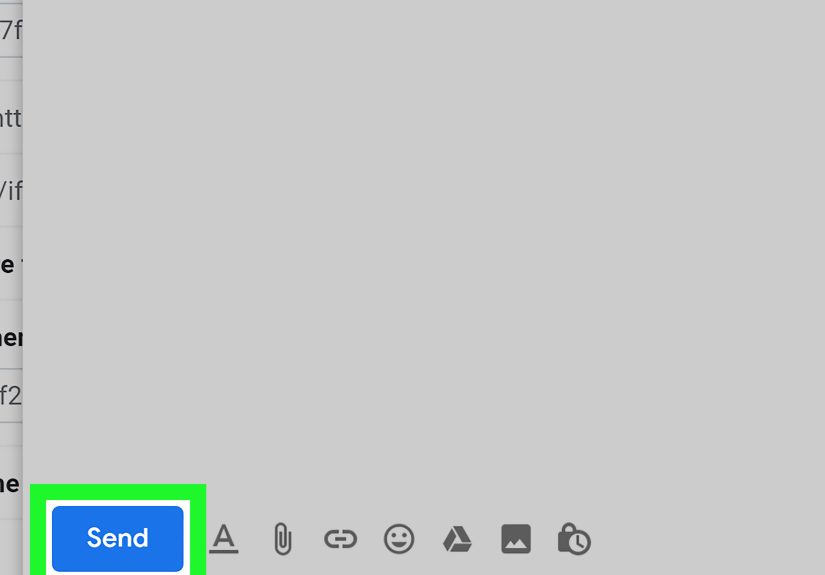
- Open Gmail and click Compose.
- Add recipients in To (primary recipients) and/or CC (people copied on the email).
- If you want to hide recipients from one another, click BCC and put addresses there instead.
- Add a clear subject line and write your message.
- Click Send.
When to use BCC (and when not to)
BCC (blind carbon copy) is your best friend when you’re emailing people who don’t know each otherlike club members, clients, or parents on a school trip. It protects privacy and reduces “reply-all” disasters.
But BCC isn’t magic. If you need a real group discussion where everyone can reply and see each other, BCC is the wrong tool. In that case, use a Google Group or another discussion format.
Example: A privacy-friendly announcement email
Pro tip: If you’re using only BCC recipients, many people add something like “Undisclosed recipients” in the To line (or simply put your own address in To) so the email doesn’t look blank up top.
Method 2: Create a Contact Label (Reusable “Email List”)
If you regularly email the same set of people, stop retyping addresses like it’s 2006. Gmail’s cleanest “distribution list” replacement is a label in Google Contacts. You build the list once, then reuse it anytime.
Step 1: Create a label in Google Contacts
- Open Google Contacts (in a browser).
- Select the contacts you want in your group.
- Choose Manage labels and click Create label.
- Name it something obvious (e.g., “Book Club,” “Soccer Parents,” “Team Alpha”).
Step 2: Add (or remove) people from your label
Labels are flexible: you can add a new member anytime (or remove someone who moved away, changed teams, or unfollowed the club drama). Keep your label updated so your emails don’t go to “that one address that bounces every time.”
Step 3: Send a group email to the label from Gmail
- In Gmail, click Compose.
- In the To, CC, or BCC field, start typing the label name.
- Select the label when it appears (Gmail will populate the recipients).
- Write your message and send.
Example labels that make life easier
- Neighborhood Watch (for safety updates and community events)
- Clients – Active (so you don’t email former clients by accident)
- Volunteers – Spring Fundraiser (seasonal lists are underrated)
- Family – Immediate (because your cousin’s roommate doesn’t need every update)
Important note about privacy
A label makes it easy to add many recipientsbut it doesn’t automatically hide them. If you’re emailing a label whose members shouldn’t see each other’s addresses, put the label in BCC.
Mobile reality check
Gmail and Contacts mobile apps can handle group emailing, but the experience may feel different than desktop. If typing a label name in the Gmail app doesn’t behave as expected, try composing on desktop or starting from the Contacts app where labels are managed more directly.
Method 3: Use Google Groups (Mailing List or Shared Inbox)
Google Groups is the “grown-up” option when you need a real group email addresssomething like [email protected] or [email protected]that forwards to multiple people. It’s also useful if a team needs to manage replies together.
Use cases where Google Groups wins
- One address → multiple people (everyone on the team receives messages)
- Role-based emails (like “treasurer@…” that changes hands over time)
- Shared management (owners/managers can add or remove members as needed)
Step-by-step: send an email to a Google Group
- Create a group in Google Groups and add members.
- Use the group email address in Gmail just like a normal recipient.
- Adjust group permissions (who can post, who can view, moderation) based on your needs.
Sending “from” the group address (optional, but powerful)
Sometimes you don’t just want to email the groupyou want your outgoing messages to show the group address as the sender. Google Groups supports this by letting you add the group as a “Send mail as” address in Gmail, which involves a verification step.
Heads-up: verification typically sends a confirmation code to the group, so group settings may need to allow that message through (and you’ll want to tighten settings back afterward).
Method 4: Gmail Mail Merge (Personalized Bulk Emails)
If you want to send a message to many people and still keep it personal (“Hi Taylor,” instead of “Hi everyone,”), Gmail Mail Merge is built for that. You can insert merge tags such as first name, last name, and email, and you can even pull recipients from a Google Sheet.
What mail merge is best for
- Invitations (“Hi Sam, you’re invited…”)
- Updates to clients or members where personalization improves engagement
- Small campaigns where you want a professional feel without a full email marketing platform
How to use Gmail mail merge (the practical version)
- In Gmail (desktop), click Compose.
- In the To line, click Use mail merge and turn it on.
- Write your email and type @ to insert merge tags (like @firstname).
- Either add recipients directly or choose Add from a spreadsheet and select a Google Sheet.
- Send a test to yourself first (seriouslyfuture you will be grateful).
Example: a mail-merge-friendly message
Know the limits (so Gmail doesn’t hit you with the “nope”)
Mail merge has its own sending caps that are designed to prevent abuse and protect deliverability. If you’re emailing huge lists or doing marketing at scale, consider a dedicated email platform instead of pushing Gmail to act like one.
Deliverability and compliance (aka: don’t get flagged as “that sender”)
If you’re sending high volumeespecially thousands of emails per dayGmail has stricter requirements around authentication and user-friendly practices like easy unsubscribes. Even if you’re not running a full marketing operation, it’s smart to adopt the spirit of these rules: send wanted email, keep lists clean, and make it easy to opt out.
Best Practices (So People Don’t Hate Your Email)
1) Pick a subject line that matches the content
“Important Update” is the email equivalent of “We need to talk.” Be specific: “Schedule Change for Saturday,” “Invoice Reminder – March,” “Welcome Packet + Next Steps.”
2) Use BCC when privacy matters
If recipients don’t already know each other, default to BCC. It’s polite, it’s safer, and it prevents accidental contact sharing.
3) Keep the first lines scannable
Assume your reader is checking email between classes, meetings, or errands. Put the key point up top, then details below.
4) Don’t attach giant files if you can help it
If a file is big, share it via a cloud link. It’s cleaner, more reliable, and less likely to bounce.
5) Test before you blast
Send a draft to yourself (and maybe one trusted friend/co-worker) first. Check: names, links, formatting, and whether your tone sounds like a human or a robot with a keyboard.
6) Respect inboxes
Group email is powerful. Use it with restraint. If you’re emailing more than people expect, consider a weekly digest or a dedicated announcement channel.
Troubleshooting & Common Issues
“My label name doesn’t show up when I type it in Gmail.”
- Make sure you created a Google Contacts label (not just a Gmail inbox labelthey’re different).
- Try typing the label name in the To field and pausing a moment for suggestions.
- If it still won’t appear, click the To field to open the contact picker and find the label there.
“Gmail says I reached a sending limit.”
Gmail enforces sending limits and recipient limits to reduce spam. If you hit a limit, the fix is usually time: wait for the restriction window to pass, reduce recipients per send, or switch to a more appropriate tool (like Google Groups or an email platform designed for bulk sends).
“People keep replying all.”
If reply-all chaos is a recurring theme, your setup is sending discussion-style emails to announcement-style groups. Use BCC for announcements, or use Google Groups with posting permissions that limit who can reply.
“I need a single team inbox, not just a list.”
Use Google Groups (or a shared inbox tool). A Contacts label is great for sendingbut it doesn’t manage incoming replies for a whole team in a structured way.
FAQ
Can I send a group email in Gmail without showing recipients?
Yesuse BCC for recipients, and put your own email (or “Undisclosed recipients”) in the To field.
What’s better: Google Contacts labels or Google Groups?
Labels are best for a personal list you email repeatedly. Google Groups is better when you need a real group address (and especially when membership or ownership changes over time).
Is Gmail mail merge available to everyone?
Not always. Mail merge availability can depend on account type and plan. If you don’t see it, you can still use labels + BCC, or use a spreadsheet-based approach with automation tools.
What if I’m emailing thousands of people?
At that point, you’re doing bulk email. Gmail may enforce stricter rules and you’ll likely get better results using a dedicated email marketing service built for deliverability, list management, and unsubscribes.
Extra: Real-World Experiences & Lessons (500+ Words of Practical Wisdom)
Most people don’t get into “group emailing” because it’s fun. They get into it because life happens: a volunteer coordinator inherits a list, a small business needs to update customers, or someone says, “Can you email everyone?” like “everyone” is a totally normal number of people to manage in one browser tab.
One of the most common patterns is the accidental overshare. It usually looks like this: someone copies a list of addresses into the To field, sends a perfectly reasonable message, and thenboomevery recipient can see every other recipient. Even when nobody complains, it’s still a privacy misstep. If you’re emailing a group where members didn’t explicitly sign up to share contact info, default to BCC. It’s the email equivalent of not shouting everyone’s phone number into a crowded room.
Another classic: the reply-all stampede. You send “Quick reminder: meeting at 4,” and someone replies all with “Thanks!” Then another replies all with “Got it!” Then someone replies all with “Please remove me from this thread,” which is always funny, because they’ve replied all… to the thread… requesting removal… from the thread. If this happens often, it’s not a people problem, it’s a tool problem. Announcements should use BCC or a group configured so only certain people can post.
Labels in Google Contacts are the unsung hero for repeat communication. The magic isn’t just that it saves timeit’s that it makes your list maintainable. If you add one new person to a label once, every future email is updated automatically. That’s real efficiency. The trick is naming: avoid vague labels like “Group 1” unless you enjoy mystery. Use names that match reality: “Clients – Active 2026,” “PTA – 8th Grade,” or “Volunteers – Spring Event.” Your future self will thank you.
Mail merge, on the other hand, is where people level up fastbecause personalization changes how your email feels. “Hi Jordan” reads like you meant it for Jordan. “Hi everyone” reads like you wrote it while balancing a coffee on your keyboard. But mail merge also punishes sloppy data. If your spreadsheet has “JORDAN!!!!” in the first-name column, that’s what’s going into your greeting. Clean your list before you send. A five-minute cleanup saves you from a week of awkward apologies.
Finally: watch your volume. Gmail is excellent, but it’s not a full email marketing platform. If you’re pushing huge sends, you’ll hit limits, trigger spam filters, or run into authentication requirements that are totally normal in the bulk-email world. The best real-world strategy is to match the tool to the job: Gmail for relationships and small-to-medium group communication, Google Groups for structured group addresses, and dedicated bulk tools when you’re truly operating at scale.
Conclusion
Sending a group email in Gmail is easy once you stop treating every situation the same. For quick messages, use To/CC/BCC. For repeat lists, build a Contacts label. For a real group address (or shared inbox behavior), use Google Groups. And when you want personalization at scale, Gmail mail merge is your friendjust keep an eye on limits and best practices.
If you remember one thing, make it this: group email isn’t one featureit’s a set of options. Pick the one that matches your goal, and your recipients will get useful messages instead of inbox chaos.
SEO Tags (JSON)