Table of Contents >> Show >> Hide
- Before You Print: The 60-Second Setup Check
- How to Print on Windows (Windows 10 & 11)
- Option 1: Print From Almost Any App (The Classic Way)
- Option 2: Print Directly From File Explorer (Great for PDFs & Images)
- Printing a Picture on Windows (Without Cropping Someone’s Head Off)
- Printing a PDF on Windows (The “Why Is It Shrunk?” Special)
- Add a Printer on Windows (When Your Computer Pretends It’s Never Met Your Printer)
- Check the Print Queue (Where Stuck Print Jobs Go to Hide)
- How to Print on Mac (macOS)
- Print Settings Explained (So You Don’t Guess and Hope)
- Troubleshooting: Fix the Most Common Printing Problems
- Pro Tips for Better Prints (and Fewer Regrets)
- Real-World Printing Experiences (The Part Where Printers Get Weird)
- Conclusion
Printing sounds like it should be simple: click Print, receive paper, feel accomplished.
And sometimes that happens! Other times, your printer decides it’s taking a personal day and communicates only in
blinking lights and cryptic error messages. Either way, this guide will help you print a document,
photo, or file on Windows and Mac, choose the
right settings, and fix the most common “why is this happening to me?” printer problems.
Along the way, you’ll learn what those print options actually mean (duplex? collate? “fit to printable area”?),
plus a few real-life tips to save paper, ink, and your sanity.
Before You Print: The 60-Second Setup Check
Do this quick checklist once, and you’ll avoid 80% of printing drama:
- Power & paper: Printer on, no “paper jam” warning, and paper is loaded the right way.
- Connection: USB firmly plugged in, or both your computer and printer are on the same Wi-Fi network.
- Right printer selected: Especially if you’ve printed to “Office LaserJet” from your couch… at home.
- Ink/toner check: If colors look washed out, you might be printing with the last molecules of cyan.
- Know your file type: Photos, PDFs, and web pages each have their own printing quirks.
How to Print on Windows (Windows 10 & 11)
Option 1: Print From Almost Any App (The Classic Way)
Most Windows apps follow the same pattern:
- Open the document, photo, web page, or PDF.
- Press Ctrl + P, or go to File > Print.
- Choose your printer (or “Microsoft Print to PDF” if you want a PDF instead of paper).
- Pick your settings (copies, pages, color, orientation, etc.).
- Click Print.
Example: Printing a 12-page report? Set Pages: 1–12, choose Double-sided
if available, and turn on Collate so your pages come out in order (instead of a chaotic paper lasagna).
Option 2: Print Directly From File Explorer (Great for PDFs & Images)
If you want to print without fully opening an app:
- Open File Explorer.
- Find the file (like a PDF, photo, or text document).
- Right-click the file and look for Print.
If you don’t see “Print,” the file may not have a default app set up for printing. Open it normally once,
choose your preferred app, and you’ll usually see the Print option next time.
Printing a Picture on Windows (Without Cropping Someone’s Head Off)
Photos can be trickier than documents because of sizing and borders. A good workflow:
- Open the photo in your Photos app (or another image viewer).
- Use Ctrl + P or the app’s Print option.
- Choose a layout/size (like 4×6, 5×7, letter, or full page).
- Look for options like Fit, Fill, or Scale.
Tip: If faces are getting chopped, choose a “fit” option (prints the whole image with margins).
If you’re getting tiny photos floating in a sea of white paper, choose a “fill” option (bigger photo, but may crop edges).
Printing a PDF on Windows (The “Why Is It Shrunk?” Special)
PDFs often print smaller than expected unless you pick the right sizing option:
- Actual size: Prints at true scale (best for forms, patterns, or documents that must match measurements).
- Fit / Fit to printable area: Scales the page to fit your paper (best for everyday printing).
- Shrink oversized pages: Helpful if the PDF page is bigger than your paper size.
If a PDF prints with missing text, weird blocks, or half the page blank, try printing from a dedicated PDF reader
and use the “print as image” style option when availablethis can bypass some rendering glitches.
Add a Printer on Windows (When Your Computer Pretends It’s Never Met Your Printer)
If you can’t select your printer because it’s not listed:
- Open Settings.
- Go to Bluetooth & devices > Printers & scanners.
- Choose Add device (or “Add a printer or scanner”).
- Select your printer when it appears and follow the prompts.
If the printer doesn’t show up, you may need to add it manually or install the manufacturer’s driver/software,
especially for advanced options like specific trays, true photo modes, or color controls.
Check the Print Queue (Where Stuck Print Jobs Go to Hide)
If nothing is printing, check the queue:
- Open Settings > Bluetooth & devices > Printers & scanners.
- Select your printer.
- Choose Open print queue.
- Cancel stuck jobs if needed, then try printing again.
How to Print on Mac (macOS)
The Fast Way: Print From Any App
On a Mac, printing is delightfully consistent:
- Open the document, image, PDF, or web page.
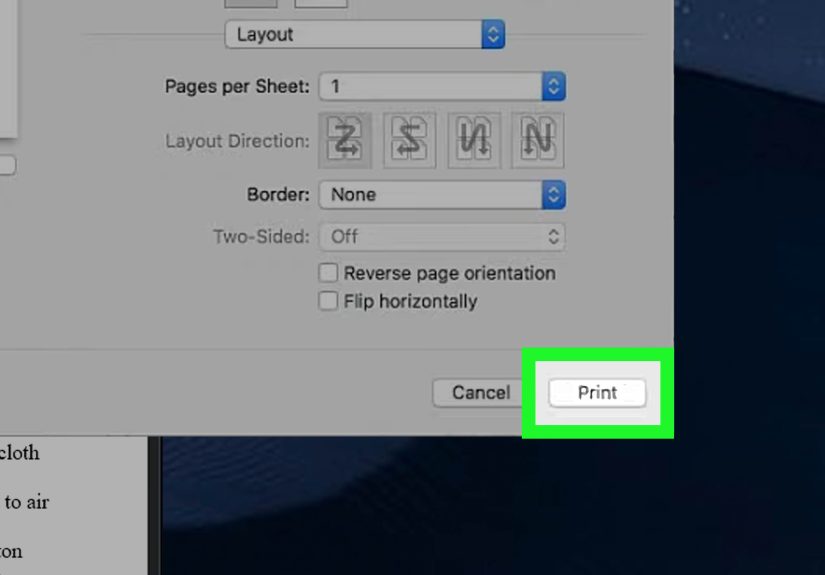
- Press Command (⌘) + P or choose File > Print.
- Select the correct printer.
- Choose settings like Copies, Pages, Two-Sided, and Paper Size.
- Click Print.
If you don’t see all the options, look for a “Show Details” style toggle in the print dialog.
macOS can be polite to a fault and may hide the good stuff until you ask nicely.
Add a Printer on Mac (AirPrint, Drivers, and Other Magical Creatures)
If your printer isn’t available in the print dialog, add it to your printer list:
- Open System Settings.
- Go to Printers & Scanners.
- Click Add Printer (or the plus button) and choose your printer.
Many printers work through AirPrint, meaning macOS can print without installing extra software.
If your printer doesn’t support AirPrint, install the latest printer software from the manufacturer for best compatibility and features.
Print Photos From the Photos App (Mac)
For clean photo layouts that don’t look like you printed them from a spreadsheet:
- Open Photos.
- Select one or more images.
- Choose File > Print.
- Select a format (standard sizes, contact sheet, or a custom layout).
- Adjust borders, size, and color settings if available, then print.
Tip: If a photo looks darker on paper than on your screen, try printing at a slightly higher brightness
(or use a “Photo” or “Best” quality mode if your printer offers it). Monitors are basically tiny lightboxes; paper is not.
Print PDFs on Mac (Preview vs. PDF Apps)
Many PDFs print beautifully from Preview, but if you need advanced controls (scaling rules, print troubleshooting,
or special rendering fixes), a dedicated PDF app can help.
Watch for PDF sizing options like Scale, Fit, or Actual size. If you’re printing a form that must match real-world measurements,
use “actual size” and confirm the correct paper size (Letter vs. A4 is the classic “why is everything off?” culprit).
Print Settings Explained (So You Don’t Guess and Hope)
Copies, Collate, and Page Ranges
- Copies: How many sets you want.
- Collate: Prints full sets in order (1–10, 1–10) instead of stacking same pages (1,1 then 2,2…).
- Pages: Print all pages or a range like 3–7.
Portrait vs. Landscape
If your spreadsheet prints like it’s wearing skinny jeans, switch to Landscape.
If your photo prints sideways like modern art, you may need to rotate the image before printingor adjust the orientation in the print dialog.
Two-Sided (Duplex) Printing
Two-sided saves paper and makes your document look instantly more “I have my life together.”
If your printer supports automatic duplexing, you’ll see a straightforward option. If not, you may see a manual prompt
that asks you to flip and reinsert pages. (Follow the instructions carefully unless you enjoy printing your second half upside down.)
Color vs. Black & White (Grayscale)
If your color prints are coming out grayscale, check:
- The print dialog for a “Black & White” or “Grayscale” toggle.
- Printer properties/preferences (Windows) or printer-specific settings (Mac) for color controls.
And yes, “Draft” mode can also make things look like they were printed in the year 1997. Use it for internal notes, not for your portfolio.
Scaling: Fit, Fill, Shrink, and Actual Size
Scaling settings decide whether your content prints the way you expect or becomes a tiny island in the middle of the page.
- Fit: Best for most cases; adjusts content to your paper’s printable area.
- Actual size: Best for forms, patterns, labels, and anything that must be precise.
- Shrink oversized pages: Best when a PDF was designed for larger paper than you’re using.
- Custom scale: Best for “make it 105% bigger because my eyes are tired.”
Paper Size, Trays, and Paper Type
Always match your print dialog to your actual paper. Printing on Letter while the app thinks it’s A4 can cause cut-off text,
weird margins, or mysterious scaling. If you have multiple trays, select the one that actually contains paper (this is not a philosophical question).
Troubleshooting: Fix the Most Common Printing Problems
Problem: The Printer Isn’t Showing Up
- Windows: Go to Settings > Printers & scanners > Add device. Confirm Wi-Fi is the same network.
- Mac: System Settings > Printers & Scanners > Add Printer. Try AirPrint first, then manufacturer software if needed.
- Both: Restart the printer and your computer. It’s basic, but it works more often than anyone wants to admit.
Problem: Printer Shows “Offline”
- Confirm the printer is awake (some printers nap harder than humans).
- Check cables or Wi-Fi connection.
- On Windows, confirm the correct printer is selected and consider setting it as the default if you’re frequently printing to it.
Problem: Print Jobs Stuck in the Queue
Stuck jobs can block everything behind them like a shopping cart parked sideways in a grocery aisle.
- Windows: Open the print queue and cancel stuck jobs, then try again.
- Mac: Open the printer queue and delete paused/stuck jobs, then retry.
Problem: Pages Are Cut Off or Too Small
- Confirm the correct paper size (Letter vs. A4).
- Use Fit to printable area for PDFs and web pages.
- Switch margins to “default” (extreme margins can shrink content unexpectedly).
Problem: Advanced Options Are Missing
Sometimes built-in drivers show fewer features (like color controls or paper types). Installing the manufacturer’s full driver/software package can unlock more settings.
Problem: Mac Printing Is a Mess (Time for the Big Reset)
If you’ve tried everything and your Mac still refuses to cooperate, resetting the printing system can clear corrupted printer queues and settings.
After the reset, you’ll need to add printers again.
Pro Tips for Better Prints (and Fewer Regrets)
- Print a test page (or one page) before printing 80 pages. Future You will be grateful.
- Use “Print to PDF” to save a shareable copy and avoid printing until you’re sure you need it.
- For photos, choose photo paper in your print settings when applicable. It affects ink usage and quality.
- For forms, use Actual Size and confirm the paper size for accurate alignment.
- For web pages, preview first and consider removing headers/footers if they clutter the page.
Real-World Printing Experiences (The Part Where Printers Get Weird)
If printing were always straightforward, this section wouldn’t exist. But here we arebonded by our shared experience
of asking, “Why is it printing that?” at least once in our lives.
One of the most common real-life scenarios is the “deadline print.” You finish a school paper, a work report,
or an application form, you hit Print, and suddenly your printer chooses that exact moment to rediscover its passion
for interpretive dance (a.k.a. making grinding noises and feeding paper halfway). The best move I’ve learned:
print one page first. Not because you don’t trust the printerbecause you do trust it… to be dramatic.
A single-page test confirms the right printer, the right orientation, and that the text isn’t being chopped off at the bottom.
Then there’s the “wrong printer” rite of passage. You’re at home, you select “Office Printer,” and you don’t realize
the mistake until you’re standing in a completely different building wondering why your document is on a tray you can’t access.
The fix is simple but life-changing: take five seconds in the print dialog to confirm the printer name every time.
It’s the printing version of checking you grabbed your phone before leaving the house.
Photo printing has its own set of adventures. People often assume “print a picture” means “press Print and it will look
like the screen.” But screens glow, paper doesn’t, and printers have opinions about borders. The best experience I’ve had with
photo printing is when I treated it like a mini project: choose the right paper size, use a “fit” option if cropping matters,
and print in a quality mode meant for photos. It takes a little longer, but the result looks intentionallike something you’d actually frame
instead of something you’d hide under a stack of mail.
PDFs, especially forms, are the sneakiest. I’ve seen perfectly filled forms print with misaligned fields simply because
the print dialog was scaling the page to “fit.” If a form needs precision, I always choose Actual Size
and confirm the paper size is correct. That one habit prevents the classic “my signature box moved three millimeters and now I look like I signed in the margin” problem.
Finally, there’s the emotional rollercoaster of a stuck print queue. You hit print, nothing happens, so you hit print again.
Then again. Then the printer wakes up and tries to print all three jobs at once like it’s speedrunning your patience.
The experience-based fix is: when a job won’t print, don’t keep sending more jobs. Open the print queue, cancel the stuck one,
and try again clean. It feels slower, but it’s actually faster than sorting through a stack of duplicate pages later.
The upside of all these experiences? Once you learn the patternsverify the printer, preview, choose scaling intentionally,
and manage the queueyou start printing like a calm, capable adult. Or at least like someone who can outsmart a printer on a good day.
Conclusion
Printing on Windows and Mac doesn’t have to be a mystery. Once your printer is added and working, the routine is simple:
open the file, use the print shortcut, pick the right printer, and choose settings that match what you’re printing
(documents, photos, PDFs, or web pages). When things go wrong, the fastest path is usually the least exciting one:
check the printer selection, confirm paper size and scaling, and clear stuck jobs in the print queue. Do that, and you’ll spend
less time fighting printersand more time enjoying the rare joy of a page that prints correctly on the first try.