Table of Contents >> Show >> Hide
- What Is Family Sharing, Exactly?
- Before You Leave Family Sharing, Read This First
- How to Leave Family Sharing on iPhone or iPad
- How to Leave Family Sharing on Mac
- What Happens After You Leave Family Sharing?
- What If You Don’t Want to Leave the Family Group Completely?
- Who Can Leave Family Sharing, and Who Can’t?
- Common Reasons People Leave Family Sharing
- Troubleshooting: Why Can’t You Leave Family Sharing?
- Best Practices Before and After Leaving
- Quick Summary: Fastest Way to Leave Family Sharing
- Real-World Experiences: What Leaving Family Sharing Actually Feels Like
- Conclusion
- SEO Tags
Leaving Apple Family Sharing sounds like one of those tasks that should take 10 seconds, one tap, and absolutely zero emotional fallout. In reality, it’s usually quick, but there are a few “surprise!” moments hiding behind the buttons. You might lose access to shared purchases, shared iCloud+ storage, Apple Music, or a bunch of subscriptions you forgot you were piggybacking on. In other words, leaving Family Sharing is easy. Cleaning up the aftermath is where the real plot twist lives.
This guide walks you through how to leave Family Sharing on iPhone, iPad, and Mac, what happens after you leave, and what to do if you only want to stop sharing purchases, payment methods, or location instead of blowing up the whole digital family dinner table. Whether you’re moving to your own Apple Account setup, changing regions, separating devices after a breakup, or just tired of seeing the family ecosystem behave like a clingy octopus, this guide will help you do it cleanly.
What Is Family Sharing, Exactly?
Apple Family Sharing lets up to six people share certain purchases, subscriptions, and features while still using separate Apple Accounts. That part is great. It means everyone can keep their own photos, messages, and recommendations, while sharing things like eligible App Store purchases, Apple Music family benefits, Apple TV+, Apple Arcade, iCloud+ storage, Screen Time settings for kids, and some Find My features.
But here’s the catch: once you’re inside a family group, certain account settings and services become tied to that group. So if you want to change your payment situation, switch regions, separate from a shared plan, or simply reclaim full control of your own setup, you may need to leave Family Sharing.
Before You Leave Family Sharing, Read This First
Before you tap anything, pause for one minute and do a quick reality check. Leaving a family group can affect more than apps and subscriptions. It can change storage, media access, approvals, location visibility, and purchase sharing. Translation: this is not the digital version of quietly slipping out the back door.
What you may lose immediately
- Access to family-shared subscriptions, such as Apple Music, Apple TV+, Apple Arcade, or shared iCloud+ storage
- Access to shared purchases you didn’t buy yourself
- Any family-based parental controls or Ask to Buy settings
- Some shared location conveniences connected to Family features
- Any sense of calm if you leave before checking what’s backed up
What usually stays yours
- Your personal Apple Account
- Your own purchases
- Your own photos, messages, contacts, and personal data
- Your personal subscriptions that were never shared by the family group
Two important rules to know
First, the family organizer cannot just leave as a regular member. If you are the organizer, stopping Family Sharing will generally disband the whole group. Second, if there is a child account under 13 in the group, that account usually cannot simply be removed. It must be transferred to another family group or handled through Apple’s child account process.
How to Leave Family Sharing on iPhone or iPad
If you’re using an iPhone or iPad, the process is usually very simple. Apple has made the path more direct in newer versions of iOS and iPadOS, so you don’t have to dig through six layers of mystery menus like it’s a treasure hunt designed by a raccoon.
Steps for iPhone and iPad
- Open Settings.
- Tap Family. If you don’t see it right away, tap your name first and look for Family or Family Sharing.
- Tap your name.
- Tap Stop Using Family Sharing.
- Confirm your choice.
Once you do this, your device will stop participating in the family group. If the family group shares purchases, subscriptions, or iCloud+ storage, those benefits may disappear right away. So if your backup was living happily in shared iCloud storage, this is the moment to make sure you have your own storage plan ready.
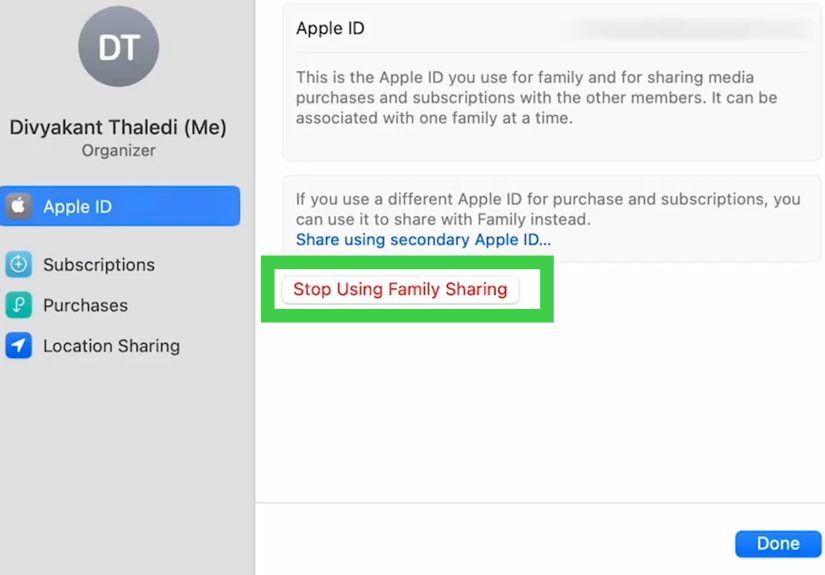
How to Leave Family Sharing on Mac
On a Mac, the steps are similarly quick, though the exact path depends a little on your version of macOS. Newer Macs use System Settings. Older ones may still reference System Preferences.
Steps for newer macOS versions
- Click the Apple menu.
- Open System Settings.
- Click Family.
- Click your name.
- Click Stop Using Family Sharing.
- Confirm.
On older Macs
If you’re on an older version of macOS, you may see System Preferences instead of System Settings. From there, look for Family Sharing, then your profile, and then the option to stop using it.
If you are the family organizer, stopping Family Sharing on Mac will typically shut down the group for everyone rather than removing only you.
What Happens After You Leave Family Sharing?
This is the part most people care about after the button has already been pressed. Once you leave Family Sharing, Apple does not dramatically throw confetti or ask whether you want closure. It simply changes access.
You lose family-shared subscriptions
If the organizer was sharing Apple Music, Apple TV+, Apple Arcade, iCloud+, or another eligible subscription, you may lose that access immediately unless you subscribe on your own. That means your music library may still exist, but your access to the shared plan does not.
You lose access to shared purchases you did not buy
Apps, books, TV shows, or movies purchased by someone else in the family may no longer be available to you. If you downloaded them through purchase sharing, leaving the family group cuts that connection.
Your storage situation can change fast
If you were using a shared iCloud+ storage plan, your account may need its own storage immediately. If your data exceeds the free limit, Apple may give you a short grace period in some cases, but don’t build your backup strategy on optimism and vibes. Check your storage before leaving.
You might need to set up payment and subscriptions again
Once you leave the family group, you may need to add your own payment method, resubscribe to services, or review purchase settings. This is especially important if your goal is independence from the organizer’s billing setup.
What If You Don’t Want to Leave the Family Group Completely?
Sometimes people search for how to leave Family Sharing when what they really want is something smaller and less dramatic. If your real issue is purchases, location, or storage, you may not need to leave at all.
Option 1: Stop Purchase Sharing only
If you want to stop sharing purchases but keep other family benefits, look for Purchase Sharing in Family settings. Turning off purchase sharing can separate your app and media purchases from the group without necessarily removing you from all other shared services.
Option 2: Stop sharing iCloud+ with family
If the problem is shared iCloud storage, the person sharing the iCloud+ plan can stop sharing it with the family. That may solve the issue without requiring anyone to leave the group completely.
Option 3: Stop location sharing separately
If your real concern is privacy, remember that Family Sharing and location sharing are not the same thing. Open Find My and stop sharing your location there if that’s the feature you want to change. Plenty of people go hunting through Family Sharing settings when the actual issue is simply that someone can still see where they are buying iced coffee at 9:12 a.m. on a Tuesday.
Who Can Leave Family Sharing, and Who Can’t?
Regular adult members
Adult members can generally leave the family group themselves from iPhone, iPad, or Mac.
The organizer
The organizer doesn’t leave in the same way a regular member does. If the organizer stops using Family Sharing, the group is generally disbanded for everyone.
Children under 13
A child account under 13 usually cannot simply leave the group. That account normally has to be transferred to another family group or handled through Apple’s approved child account process. If you’re managing a kid’s device, this is not the moment for improvisation.
Common Reasons People Leave Family Sharing
There are plenty of normal reasons to leave, and none of them require a dramatic soundtrack.
- You’ve grown into your own subscriptions and payment setup
- You’re changing your Apple Account country or region
- You no longer want purchases linked to a shared organizer
- You’re separating devices after marriage, divorce, or a roommate situation gone weird
- You want more privacy around location, purchases, or family controls
- You’re troubleshooting account conflicts and need a clean reset
Troubleshooting: Why Can’t You Leave Family Sharing?
You’re the organizer
If you’re the organizer, you may not see the same “leave” behavior as a regular family member. Instead, you’ll need to stop Family Sharing for the group.
You’re dealing with a child account
If the account belongs to a child under 13, Apple applies stricter rules. You may need to transfer the child to another family group before making bigger changes.
Your device software is outdated
If the menu path looks different or the Family option seems missing, update your device and check again. Apple changes menu labels often enough to keep screenshot writers employed.
You’re solving the wrong problem
If your real issue is shared photos, iMessages appearing on multiple devices, app purchase approvals, or Find My location sharing, leaving Family Sharing may be overkill. Review those settings separately first.
Best Practices Before and After Leaving
- Check your iCloud storage and buy your own plan if needed.
- Review your active subscriptions so you know what will disappear.
- Confirm your payment method is set up on your own Apple Account.
- Back up your device before making major account changes.
- Review Find My and location sharing settings separately.
- Make a list of key apps or media you may lose access to.
- If you need to join another family group, remember Apple limits how often you can do that in a year.
Quick Summary: Fastest Way to Leave Family Sharing
If you just want the short version, here it is:
- iPhone or iPad: Settings > Family > your name > Stop Using Family Sharing
- Mac: Apple menu > System Settings > Family > your name > Stop Using Family Sharing
That’s the quick route. The smarter route is doing it after checking storage, subscriptions, and purchases so nothing important disappears when you least expect it.
Real-World Experiences: What Leaving Family Sharing Actually Feels Like
In real life, people usually leave Family Sharing for practical reasons, not because they suddenly developed a passionate hatred of shared subscriptions. One common example is a college graduate who has been in the family group for years, gets a first full-time job, and wants to set up an independent Apple life. The leaving part is easy. The surprise comes later when Apple Music stops, shared app access vanishes, and they realize half the things on their phone were riding on someone else’s plan. It feels a bit like moving into your own apartment and discovering that dish soap, Wi-Fi, and toilet paper are not, in fact, magical household constants.
Another very common situation involves couples. Maybe one partner was the organizer, the other joined for convenience, and everything worked beautifully until the relationship changed. In those cases, leaving Family Sharing can be less about technology and more about boundaries. People often expect that leaving the family group will instantly stop every kind of connection between devices, but that is not always true. Shared location in Find My, synced data under the same Apple Account, shared albums, and device-specific settings may still need attention. The lesson many people learn is simple: leaving Family Sharing is one step in a larger cleanup, not the whole cleanup.
Parents also run into this when older teens become adults. The family setup that once made perfect sense starts to feel too restrictive. A young adult may want their own payment method, private subscriptions, and freedom from Ask to Buy requests that make them feel like they need permission to download a weather app. For families in that stage, the experience tends to go smoothly if everyone talks first. It gets messy when someone leaves suddenly and only then realizes the family was sharing iCloud+ storage, location, and purchase history in ways no one had fully mapped out.
There are also users who leave Family Sharing because they’re changing country or region settings on their Apple Account. For them, the experience is usually less emotional and more annoyingly administrative. They leave the family group, tidy up subscriptions, confirm their payment method, and then handle region changes. It’s not glamorous, but it’s common. The main frustration is that one small account change can trigger a chain reaction of little digital chores.
Then there’s the privacy crowd, and honestly, they have a point. Some people don’t want purchase history connected, some don’t want shared billing, and some definitely do not want accidental location visibility. Their experience is usually positive once they realize they can separate the problem into parts. Sometimes the right move is leaving Family Sharing. Sometimes the real fix is stopping location sharing, ending purchase sharing, or finally giving every adult their own Apple Account and payment method. In other words, the best experience usually comes from diagnosing the exact issue first. Family Sharing is useful, but when it no longer fits your life, leaving it can feel less like a breakup and more like finally labeling the cables behind your desk. Quietly satisfying, slightly overdue, and far less painful than expected.
Conclusion
How to leave Family Sharing is simple once you know where Apple hides the button. On iPhone and iPad, it lives in Settings under Family. On Mac, it’s in System Settings under Family. The bigger decision is not how to leave, but how to leave without losing access to the stuff you still need. Check your storage, subscriptions, purchases, and location settings first. If all you need is less sharing and more control, you might not need to leave the family group completely. But if independence is the goal, you can absolutely make a clean break without turning your Apple setup into a soap opera.