Table of Contents >> Show >> Hide
- What “profile colors” on Discord actually means
- Do you need Nitro to get profile colors on Discord?
- How to get profile colors on Discord on desktop
- How to get profile colors on Discord on mobile
- Why your Discord profile colors may not be showing correctly
- Profile colors vs app color themes: what is the difference?
- Best tips for choosing good Discord profile colors
- Should you use BetterDiscord for profile colors?
- Final thoughts
- Common User Experiences With Discord Profile Colors
Discord is one of those apps where people somehow spend five minutes joining a server and then fifty-five minutes trying to look cooler than everyone else in it. Totally understandable. A sharp avatar, a clean bio, and a profile card with colors that don’t look like they were chosen by a sleepy raccoon can make your account feel far more personal.
If you have been wondering how to get profile colors on Discord, the big answer is this: Discord profile colors come from the Profile Theme feature. On current versions of Discord, this is different from your app’s Appearance settings, and it is also different from role colors inside a server. In other words, if you expected one switch that magically turns your profile into a neon masterpiece, Discord has chosen the scenic route.
This guide explains exactly how to get profile colors on Discord on desktop and mobile, what you need before the option appears, why the feature sometimes seems “missing,” and how to make your colors look good instead of painfully loud.
What “profile colors” on Discord actually means
When most people say “profile colors” on Discord, they usually mean the color styling that appears on the profile card. Discord calls this Profile Theme. It lets you choose a Primary color and an Accent color for your profile card. Together, these colors help shape the background, border, and overall vibe of your card.
There are two main ways this can work:
- User Profile theme: your general profile appearance across Discord.
- Per-server Profile theme: a custom look for a specific server, which is great if you want one style for a gaming server and another for a study group where you pretend to be responsible.
That distinction matters because a lot of users open Discord’s Appearance tab, change the app theme, and then wonder why their profile still looks the same. That is because app theme colors and profile colors are not the same feature.
Do you need Nitro to get profile colors on Discord?
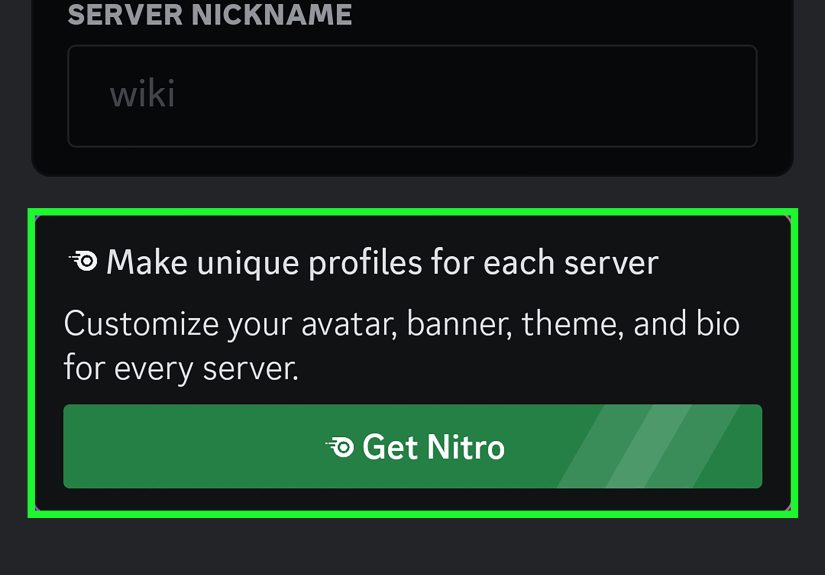
Yes. In practical terms, if you want to manually choose profile colors on Discord, you need Discord Nitro. Full Nitro is the subscription tier tied to profile customization features such as profile themes and per-server profiles.
That means if you are using Discord for free, you can still customize some parts of your account, but the actual Profile Theme color controls are not the same wide-open playground. If the feature is not visible on your account, the most likely explanation is simple: you do not have the required subscription, or you are looking in the wrong settings area.
Also important: Discord’s Nitro Basic is not the same as full Nitro. If you are paying for a cheaper tier and still cannot find profile theme colors, that is probably why. This is one of those classic subscription moments where the menu looks promising until the premium section politely locks the door.
How to get profile colors on Discord on desktop
If you are using Discord on desktop or in a browser, here is the usual path to profile colors.
Method 1: Change your main user profile colors
- Open Discord on your desktop app or browser.
- Click the gear icon near the bottom-left corner to open User Settings.
- Go to the Profiles tab.
- Find the Profile Theme section.
- Choose your Primary color.
- Choose your Accent color.
- Preview how the card looks.
- Click Save or Save Changes.
That is the core process. Once saved, your profile card should update with the new color combination. If you are going for a polished look, pair your profile colors with a banner or avatar that shares at least one matching tone. Random color choices can work, but they can also make your profile look like a vending machine exploded.
Method 2: Change per-server profile colors
Discord also lets Nitro users customize profile themes on a per-server basis. This is useful if you want different identities in different communities.
- Open Discord.
- Click User Settings.
- Open Profiles, then go to Per-server Profiles.
- Select the server you want to customize.
- Under Profile Theme, choose a Primary and Accent color.
- Save your changes.
You can also sometimes jump into this faster by clicking or right-clicking your avatar in a relevant server area and choosing the option to edit your per-server profile. That shortcut is handy when you already know exactly which server you want to style.
How to get profile colors on Discord on mobile
On mobile, the process is a little different, but not dramatically so. Discord hides enough menus to make the app feel like a scavenger hunt, but the profile color controls are still fairly easy to reach once you know where to tap.
Change your main profile colors on mobile
- Open the Discord app on your phone.
- Tap your avatar in the bottom-right area.
- Tap Edit Profile.
- Go to the profile settings area where your customization options appear.
- Find the Profile Theme section.
- Tap the Primary color box and pick your main color.
- Tap the Accent color box and pick your secondary color.
- Tap Save.
That should update your profile card on mobile. If it does not appear right away, close the profile view and reopen it. Sometimes Discord behaves like it heard you the first time but needs a second to emotionally process the request.
Change per-server profile colors on mobile
- Open the Discord mobile app.
- Tap your avatar and choose Edit Profile.
- Switch to the Per-server Profile option.
- Select the server you want from the dropdown menu.
- Under Profile Theme, choose the Primary and Accent colors.
- Tap Save in the top-right corner.
You can also reach this from inside a server by tapping your avatar on your mini profile card and selecting Edit Per-server Profile. That route is often quicker if you are already active in the server you want to customize.
Why your Discord profile colors may not be showing correctly
If you have already set your colors and the result looks wrong, muted, or suspiciously ordinary, one of these issues is usually the reason:
1. Sync profile themes is enabled
Discord has an Accessibility setting called Sync profile themes. When this is turned on, the app can make profile cards reflect your client theme instead of showing the full color effect you expected. So yes, Discord sometimes “helps” by hiding the exact thing you customized.
2. You changed the app theme, not the profile theme
This is extremely common. The Appearance tab changes how Discord itself looks. The Profiles or Edit Profile area changes how your profile card looks.
3. You are using Nitro Basic or no Nitro
If you do not have the right Nitro tier, the color controls for profile themes may not be available.
4. You are checking the wrong server profile
If you set a per-server theme, it only applies in that server context. Your global profile and your server-specific profile can look different.
5. The app needs a refresh
Sometimes reopening the profile, refreshing the client, or updating the app solves the problem.
Profile colors vs app color themes: what is the difference?
This topic gets confusing fast, so here is the clean version:
- Profile colors: these affect your profile card and are found under Profiles or Edit Profile.
- App color themes: these affect the Discord interface and are found under Appearance.
Discord now offers more colorful app theme options too, especially for Nitro users, but that does not automatically give your profile card the same look. Think of app themes as changing the room, while profile themes change your outfit. Both matter. One is just much harder to blame on bad lighting.
Best tips for choosing good Discord profile colors
Getting profile colors is only half the battle. Picking colors that actually look good is where the fun begins.
Match your avatar
If your avatar has strong blues, reds, or purples, use one of those as your primary or accent tone. This gives your profile a more unified, intentional design.
Use contrast wisely
A very dark primary color with a brighter accent often looks cleaner than two loud colors fighting for attention. Contrast creates clarity.
Think about the mood
Soft blue and gray can feel calm and polished. Purple and pink can feel playful. Black and red can feel dramatic. Neon green can feel like you are about to sell me an energy drink.
Keep server context in mind
A per-server profile is perfect for matching a community’s tone. For example, a cozy art server might suit earth tones, while a competitive gaming server might look better with bold, high-contrast colors.
Should you use BetterDiscord for profile colors?
Generally, no. If your goal is simply to get official profile colors on Discord, use Discord’s built-in profile theme tools. BetterDiscord and similar mods are unofficial, desktop-only, and aimed more at changing the app experience than giving you legitimate account-level profile themes.
They may appeal to heavy customizers, but they are not the cleanest answer for someone who just wants their Discord profile to look better on desktop and mobile. Official tools are easier, safer, and far less likely to turn a style upgrade into a troubleshooting hobby.
Final thoughts
If you want profile colors on Discord, the feature you are looking for is Profile Theme. On current Discord versions, you can set those colors from the Profiles area on desktop or from Edit Profile on mobile. If you want different colors for different communities, you can also use per-server profiles. The biggest catch is that meaningful profile color customization is tied to full Nitro.
The good news is that once you know where the setting lives, the process is quick. The even better news is that a good color combo can make your Discord account feel more polished in under a minute. That is a pretty solid return on investment for clicking two color boxes and pretending you are your own creative director.
Common User Experiences With Discord Profile Colors
One of the most common experiences people have with Discord profile colors is simple confusion at the beginning. They hear someone mention “profile colors,” open Discord, head straight to Appearance, change the app theme, and then stare at their unchanged profile card like Discord has personally betrayed them. This happens because Discord now has multiple layers of customization, and they sound similar enough to trip up almost everyone at least once.
Another very typical experience happens after someone subscribes to Nitro for the first time. Suddenly, customization options appear, and the first reaction is usually a mix of excitement and mild chaos. Users start trying color combinations they would never use anywhere else: electric purple with acid green, bright pink with black, icy blue with silver. Sometimes the result is amazing. Sometimes it looks like a sports drink label. Either way, it is part of the fun.
Mobile users often report a slightly different experience. The tools are there, but they can feel less obvious than on desktop. A lot of people do not immediately realize that the route usually starts with tapping their avatar and going into Edit Profile. Once they find it, though, the process feels easier than expected. The biggest annoyance on mobile is not changing the colors. It is remembering to tap Save before leaving the page.
Per-server profile colors also create a fun “oh, this is actually useful” moment. At first, it sounds like a cosmetic extra. Then people realize they can build different identities for different spaces. Maybe they use moody dark colors in a gaming server, soft neutrals in a professional community, and bright pastel colors in a friend group server. That flexibility makes Discord feel more personal and a little less one-size-fits-all.
There is also the classic experience of setting colors perfectly and then wondering why the card still looks off. In many cases, the culprit is a sync or display setting, or simply checking the wrong profile context. Once users figure that out, the feature suddenly feels much less mysterious. The overall pattern is pretty consistent: first confusion, then experimentation, then a surprising amount of pride over a well-designed profile card. It may be a small feature, but people genuinely enjoy it because it adds personality to a platform built around identity, communities, and being seen.