Table of Contents >> Show >> Hide
- What This Error Really Means
- The Fastest 2-Minute Troubleshooting Checklist
- Step-by-Step: How to Fix a “Something Went Wrong” Error
- 1. Refresh the Page or Retry the Action Once
- 2. Check Whether the Service Is Down
- 3. Sign Out and Back In
- 4. Clear Cache and Cookies
- 5. Use Incognito or Private Browsing Mode
- 6. Disable Browser Extensions
- 7. Turn Off VPN, Proxy, or Secure DNS Tools
- 8. Switch Networks
- 9. Restart the Device and the Router
- 10. Update the Browser, App, or Operating System
- 11. Reset Local App Data or Reinstall the App
- 12. Flush DNS if the Site Is Still Not Loading Correctly
- 13. Check Security Software and Scan for Malware
- 14. Contact Support with Useful Details
- Common Scenarios and the Most Likely Fix
- How to Prevent the Error from Coming Back
- Final Thoughts
- Real-World Experience: What This Error Usually Feels Like in Daily Life
- SEO Metadata
Few digital experiences are more irritating than clicking a button, waiting half a second, and getting smacked with the internet’s least helpful message: “Something went wrong, please try again.” Oh, really? Something? That narrows it down to only the entire known universe.
The good news is that this error usually is not as mysterious as it sounds. In most cases, it comes from one of a handful of predictable troublemakers: a stale browser cache, broken cookies, a bad extension, a temporary outage, a flaky network, a buggy app session, or security software that has decided your perfectly normal login is suspiciously exciting.
This guide breaks down what the error actually means, why it appears across websites and apps, and exactly how to fix it without turning your laptop into a stress ball. Whether you see the message in a browser, a mobile app, a desktop program, or an online dashboard, the troubleshooting flow is surprisingly similar.
What This Error Really Means
“Something went wrong” is a catch-all message. It is the software equivalent of a shrug. Instead of telling you the exact failure point, the site or app gives you a generic message because the system either cannot identify the issue in a user-friendly way or does not want to expose technical details.
That means the problem could be happening in several places:
- On the service side: the server is overloaded, down, or misbehaving.
- In your browser or app: cached files, cookies, or local data are corrupted.
- In your login session: your authentication token expired or got confused.
- On your network: DNS, VPN, proxy, or Wi-Fi issues are blocking clean communication.
- From a browser extension or security tool: ad blockers, privacy tools, antivirus filters, and secure DNS products can interfere with scripts or login popups.
That is why the fix is rarely one magic button. It is more like detective work, except your clues are cookies, extensions, and the occasional Wi-Fi router that needs a nap.
The Fastest 2-Minute Troubleshooting Checklist
If you do not want the long version yet, try these first:
- Refresh the page or close and reopen the app.
- Start a new session by signing out and back in.
- Open the site in an incognito or private window.
- Clear cache and cookies.
- Disable browser extensions temporarily.
- Turn off your VPN or proxy.
- Check the product’s status page for an outage.
- Restart your device.
- Try another browser, device, or network.
- Update or reinstall the app if the problem continues.
If the error disappears after any one of those, congratulations: you fixed it before the error had time to become part of your personality.
Step-by-Step: How to Fix a “Something Went Wrong” Error
1. Refresh the Page or Retry the Action Once
Start simple. A temporary hiccup during loading, login, form submission, or page rendering can trigger this message even when nothing is seriously broken. Refresh the page, restart the app, or repeat the action one time.
Important: do not click the same button ten times in a row like you are trying to wake up a stubborn elevator. If the action involves payments, uploads, or account changes, repeated attempts can create duplicates or lockouts.
2. Check Whether the Service Is Down
Before you dismantle your browser settings, check whether the problem is actually on the company’s side. Many popular services publish a live status page showing incidents, degraded performance, or authentication issues.
This is especially useful when the error appears suddenly and nothing about your setup has changed. If lots of people are seeing the same issue, your best fix may simply be patience. Not glamorous, but effective.
Clue that it is a service outage: the same error appears on multiple devices, multiple browsers, and multiple networks at the same time.
3. Sign Out and Back In
Many generic errors come from session problems. Your login token may have expired, your account state may not have refreshed, or your browser may be storing mismatched data from an old session.
Signing out and back in forces the app or website to create a clean authentication session. This is one of the easiest fixes for errors that appear right after login, during account switching, or while loading dashboards.
4. Clear Cache and Cookies
This is the classic fix because it works surprisingly often. Your browser stores cached files and cookies to make websites load faster and remember your preferences. Helpful in theory. In practice, those files can become outdated, corrupted, or incompatible with a newly updated site.
When that happens, the website may load old scripts, fail to validate your session, or get stuck in a half-broken state. Clearing the cache and cookies removes that stale baggage and forces the site to rebuild a clean local version.
Use this step when:
- the page loads strangely or partially
- buttons do nothing
- login loops keep happening
- the error appears in one browser but not another
After clearing data, reopen the page and sign in again if necessary.
5. Use Incognito or Private Browsing Mode
If you want a faster test before clearing everything, open the site in an incognito or private window. This gives you a cleaner environment with fewer stored cookies and often no active extensions.
If the site works there, you have learned something valuable: the problem is likely local to your browser profile, cached data, or extension setup. That narrows the hunt dramatically.
6. Disable Browser Extensions
Extensions are useful until they decide to become tiny digital chaos goblins. Ad blockers, script blockers, privacy tools, password managers, coupon extensions, antivirus browser add-ons, and security filters can all interfere with sign-in flows, embedded scripts, popups, and page rendering.
If the error appears during login, checkout, uploads, or dynamic page loading, disable extensions temporarily and try again. If that fixes the issue, re-enable extensions one by one until the culprit reveals itself like the villain in a low-budget mystery show.
7. Turn Off VPN, Proxy, or Secure DNS Tools
VPNs, proxies, and secure DNS tools can be excellent for privacy, but they sometimes cause websites and apps to distrust your connection. Some services flag shared VPN IP addresses, block certain regions, or fail when DNS routing changes unexpectedly.
Try turning off your VPN temporarily or switching to a normal network connection. If you use a custom DNS or web protection app, test the site without it. This is especially important for login-related errors and sites that rely on popups, redirects, or strict authentication rules.
8. Switch Networks
Your problem may not be the app at all. It may be the network. Try changing from Wi-Fi to mobile data, from office internet to home internet, or from one router to another. If the error vanishes after switching networks, your original connection may be blocking domains, mishandling DNS, or timing out requests.
This happens more often on restricted school, office, hotel, and public Wi-Fi networks than people realize.
9. Restart the Device and the Router
Yes, this advice is older than streaming services, but it still works. Restarting your computer, phone, tablet, or router can clear temporary glitches, memory issues, stalled processes, and network oddities. Many desktop and mobile app support teams still recommend this because it resets more background mess than people expect.
Think of it as the universal troubleshooting move: inelegant, slightly boring, and weirdly powerful.
10. Update the Browser, App, or Operating System
Outdated software can break compatibility with modern websites and services. An older browser may not support current scripts. An outdated app may contain a bug already fixed in a newer release. An old operating system can introduce certificate, networking, or security conflicts.
If you keep seeing the error on the same app or site, check for updates to:
- your browser
- the app itself
- your phone or computer operating system
Updating closes the gap between your device and the service you are trying to use.
11. Reset Local App Data or Reinstall the App
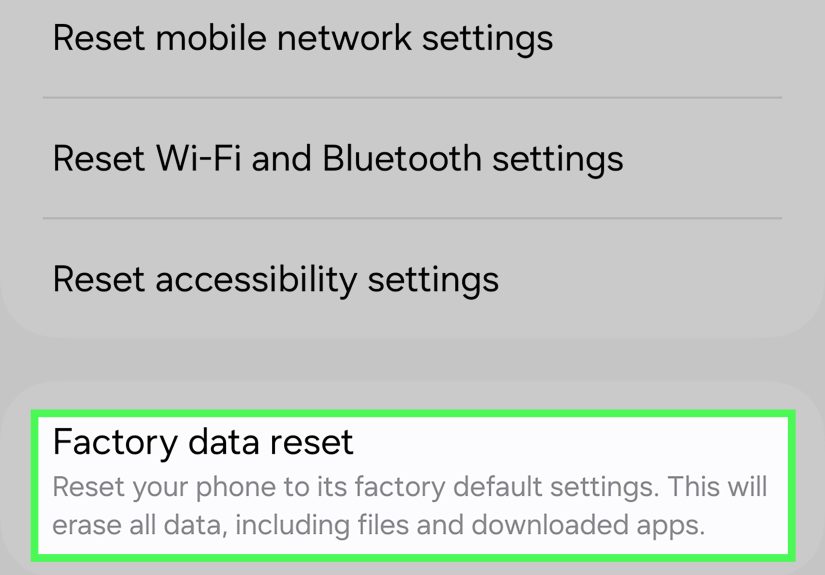
For desktop and mobile apps, clearing local app data or reinstalling can solve persistent problems that ordinary refreshing cannot. Over time, local configuration files, cached resources, and saved state information can become damaged.
If the error only happens in one app and not in the browser version of the same service, reinstalling is a smart move. On desktop apps, some platforms also offer options like reset local data, clear cache, or repair app. Those are often worth trying before a full reinstall.
12. Flush DNS if the Site Is Still Not Loading Correctly
Sometimes the site or service is fine, but your computer is hanging on to bad DNS information. Flushing DNS clears outdated address lookups and can help when a site fails to load, redirects strangely, or works on one device but not another.
This step is more technical than clearing cookies, but it is useful when the error feels network-related. If a website recently changed servers or your ISP is having routing issues, refreshing DNS can help your device find the correct destination again.
13. Check Security Software and Scan for Malware
Sometimes the thing “going wrong” is not the website. It is your own security stack. Antivirus suites, internet protection products, adware, and malicious browser add-ons can interrupt requests, modify browser settings, and block content behind the scenes.
If the error keeps returning, do three things:
- Run a full malware scan.
- Remove unfamiliar browser extensions and programs.
- Review security software settings or temporarily disable web protection to test.
If the problem disappears only when a security product is disabled, you may need to whitelist the site or change protection rules instead of abandoning the tool entirely.
14. Contact Support with Useful Details
If you have tried everything and the error still hangs around like an unwanted houseguest, contact support. But do not send a message that says, “It broke.” Support teams deserve better, and frankly, so do you.
Include:
- the exact wording of the error
- what you were doing when it appeared
- your browser, app version, and device
- whether it happens on other networks or browsers
- the time the error happened
- a screenshot if possible
The more precise you are, the faster someone can tell whether your account, network, or the service itself is at fault.
Common Scenarios and the Most Likely Fix
Error During Login
The most likely causes are expired session data, blocked login scripts, VPN interference, or a temporary authentication outage. Start with private browsing, extension checks, cache clearing, and status-page verification.
Error Only in One Browser
This almost always points to local browser data, extensions, or settings. Clear cache and cookies, disable extensions, and compare the result with another browser.
Error Only in the Mobile App
Try force-closing the app, restarting the phone, updating the app, and reinstalling it. If the website works but the app does not, the issue is probably app-specific rather than account-specific.
Error on Public or Office Wi-Fi
Switch networks. Some managed networks block scripts, CDNs, redirects, or third-party login providers. If the site works on mobile data, the network is your prime suspect.
Error That Appears Randomly
Intermittent errors often mean unstable connections, service-side incidents, overloaded devices, or extension conflicts. They feel spooky, but they are usually just inconsistent conditions rather than mysterious curses.
How to Prevent the Error from Coming Back
- Keep your browser, apps, and operating system updated.
- Remove extensions you do not actually use.
- Clear browser data occasionally if sites start acting weird.
- Restart your device now and then instead of treating sleep mode like immortality.
- Be cautious with aggressive privacy or web protection tools that block scripts by default.
- Use reliable networks for logins, uploads, and payments.
You do not need to live in fear of generic error messages. You just need a repeatable troubleshooting routine. Once you know the pattern, most of these problems become less “What fresh digital nonsense is this?” and more “Ah yes, cookies again.”
Final Thoughts
A “Something went wrong, please try again” error sounds vague because it is vague, but the fix usually is not. In most cases, the solution comes down to isolating whether the problem is the service, your session, your browser, your network, or your security setup.
Start with the fast wins: refresh, retry, private window, cache clear, extension check, and status page. Then move into bigger steps like network switching, DNS refresh, app reset, reinstall, and malware scanning if needed.
In other words, you do not need psychic powers to fix this error. You just need a calm process, a little patience, and the emotional strength not to click the same broken button fifteen times.
Real-World Experience: What This Error Usually Feels Like in Daily Life
If you have spent enough time online, you have probably seen this error in the exact moment you could least afford it. It pops up when you are logging in before a meeting, submitting a form with six tabs open, uploading a file that already took forever to prepare, or trying to check out before the item in your cart sells out. The message is generic, but the frustration is very specific.
One of the most common real-world patterns is this: everything worked yesterday, nothing obvious changed overnight, and then suddenly a website refuses to cooperate. You refresh once. Nothing. You try again. Still nothing. You start bargaining with your laptop like it is a moody barista. In many cases, the actual cause is boringly ordinary: old cookies, broken cache, or an extension that decided the website’s login script looked suspicious.
Another very common experience happens in work environments. A service works fine at home, but not at the office. Or it works on your phone, but not on your company laptop. That usually points to security layers, browser policies, restricted networks, or VPN settings. This is why people often think the website is broken when the real problem is that their environment is filtering part of the connection. The website and the network end up in a silent argument, and you are stuck in the middle with a useless error message.
Mobile apps create their own version of the headache. Sometimes the web version works perfectly while the app keeps throwing the same vague error every time you tap a button. That experience often comes down to stale local data, a half-finished update, or a session token that expired in the background. Closing the app rarely feels dramatic, but it solves more than people expect. Reinstalling the app feels even more annoying, yet it often clears the hidden junk that ordinary troubleshooting misses.
There is also the emotional side of the problem. Generic errors make people doubt themselves. Did I type the password wrong? Is my account blocked? Did I break something? Usually, the answer is no. Most of the time, you are not dealing with a catastrophic issue. You are dealing with a software system that failed to explain itself properly. Once you know that, troubleshooting becomes less stressful because you stop interpreting every error as a personal attack from the internet.
What experienced users learn over time is that the fastest path is not random clicking. It is pattern recognition. If private browsing works, think extensions or cookies. If another network works, think VPN or DNS. If the app fails but the browser works, think local app data. If everything fails everywhere, think outage. That mindset turns a vague error into a manageable checklist, and that is the real upgrade.