Table of Contents >> Show >> Hide
- Quick Answer: How to Delete a Spotify Playlist
- How to Delete a Playlist on Spotify on a Phone
- How to Delete a Playlist on Spotify on Desktop
- What Happens When You Delete a Spotify Playlist?
- How to Recover a Deleted Spotify Playlist
- Delete, Make Private, or Remove Download? Choose the Right Option
- Why You Might Not Be Able to Delete a Playlist
- Best Practices Before You Delete a Playlist
- Frequently Asked Questions
- Real-World Experiences With Deleting Spotify Playlists
- Final Thoughts
Spotify is wonderful until your library starts looking like a yard sale with a soundtrack. Maybe you made a “Gym Beast Mode” playlist in a burst of optimism. Maybe you created six versions of the same road-trip mix because commitment is hard and playlists are easy. Or maybe your music taste from eight months ago now feels like evidence in a trial. Whatever the reason, learning how to delete a playlist on Spotify is one of those tiny digital life skills that makes your library feel less chaotic and your brain feel slightly more adult.
This guide walks you through exactly how to delete a Spotify playlist on a phone or desktop, what happens after you delete it, how to get it back if you panic two minutes later, and what to do if you realize you did not actually want to delete it after all. We will also cover the difference between deleting a playlist, making it private, and removing downloads, because Spotify loves giving three different actions names that sound like they belong in the same family reunion.
Quick Answer: How to Delete a Spotify Playlist
If you are in a hurry, here is the short version.
On a phone
- Open Spotify.
- Tap Your Library.
- Open the playlist you want to remove.
- Tap the three-dot menu under the playlist title.
- Tap Delete playlist.
- Confirm the deletion.
On desktop
- Open the Spotify desktop app.
- Find the playlist in the left sidebar or open it first.
- Click the three-dot menu or right-click the playlist name.
- Select Delete or Delete playlist.
- Confirm the action if prompted.
That is the whole trick. Spotify does not make you solve a riddle, defeat a boss, or write an apology letter to your old playlist. It is just a menu action. The catch is understanding what “delete” actually does.
How to Delete a Playlist on Spotify on a Phone
If you mainly use Spotify on iPhone or Android, the mobile app is usually the fastest way to clean house. The exact appearance can vary a little depending on your device and app version, but the basic flow is the same.
- Open Spotify and go to Your Library. This is where your playlists, albums, podcasts, and other saved content live. Think of it as your digital closet. Some shelves are neat. Some have things stuffed in the back.
- Tap the playlist you want to delete. Make sure it is the correct one. This sounds obvious, yet many of us have confidently deleted the wrong thing while operating on autopilot.
- Tap the three-dot menu below the playlist title. On some phones the dots look horizontal; on others they may be vertical. Same idea, same mystery meatball menu.
- Choose “Delete playlist.” Spotify may ask you to confirm. Confirm it.
- Done. The playlist disappears from your library.
One important note: if you are looking at a playlist someone else created, you may not see the same delete option. In that case, Spotify usually gives you a way to remove it from Your Library instead. In plain English, you can stop following it, but you cannot erase another person’s playlist from existence like an angry wizard.
How to Delete a Playlist on Spotify on Desktop
If you use Spotify on a Windows PC or Mac, deleting a playlist is even easier because the desktop app gives you a couple of different routes.
Method 1: Delete from inside the playlist
- Open the Spotify desktop app.
- Click the playlist you want to delete.
- Click the three-dot menu under the playlist title.
- Choose Delete or Delete playlist.
- Confirm if Spotify asks.
Method 2: Right-click from the sidebar
- Open Spotify.
- Find the playlist in the left sidebar.
- Right-click the playlist name.
- Select Delete.
This right-click shortcut is great if you are doing a serious Spotify cleanup and you do not want to open each playlist first. It is the musical equivalent of decluttering a closet with a trash bag and a little too much confidence.
What Happens When You Delete a Spotify Playlist?
This is where people get nervous, and reasonably so. Spotify uses words like “delete,” “remove,” and “private” in ways that can make a simple cleanup feel oddly high stakes.
The playlist is removed from your library
Once deleted, that playlist no longer sits in your library waiting for a comeback tour. For everyday use, it is gone.
You can usually recover it for a while
Spotify lets users recover deleted playlists for up to 90 days through the account page. So if you delete the wrong playlist, regret your choices, and suddenly decide that your 2024 breakup mix was actually “historically significant,” there is still hope.
Deleting is not the same as removing downloads
This is a big one. If you only want to free up storage space, you do not need to delete the playlist itself. You can simply remove the downloaded copy from your device. The playlist stays in your library; only the offline files go away. That is the smarter move if you still want the playlist but not the storage bill.
Deleting is not the same as making a playlist private
If your real goal is privacy, deleting may be overkill. Spotify also lets you Make private. A private playlist is hidden from other users, and it is treated differently from a deleted one. So before you hit the big red button, ask yourself whether you want the playlist gone or just less social.
How to Recover a Deleted Spotify Playlist
Deleted the wrong playlist? Congratulations, you are now part of a very large club.
Here is how to fix it:
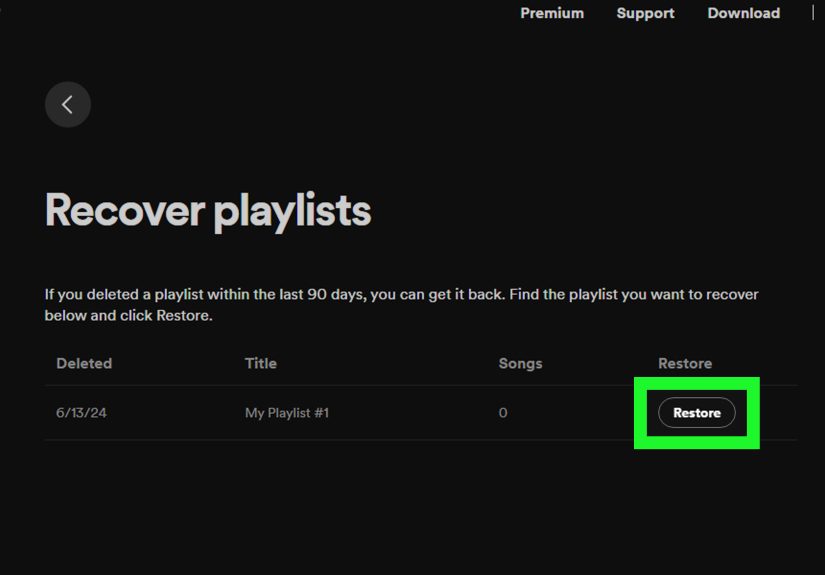
- Go to your Spotify account page in a browser.
- Log in to the correct account.
- Find the Recover playlists section.
- Locate the playlist you want back.
- Click Restore.
- Open Spotify again and look for the restored playlist near the bottom of your playlist collection.
If you are on desktop and you just deleted it seconds ago, Spotify may also let you undo the action with a keyboard shortcut. That can save time and spare you from a dramatic speech about how technology has betrayed you.
Delete, Make Private, or Remove Download? Choose the Right Option
A lot of people search for how to delete a playlist on Spotify when they actually mean one of these other actions.
Delete the playlist if:
- You truly do not want it in your library anymore.
- You created duplicates and want to clean them up.
- You are reorganizing your account and starting fresh.
Make the playlist private if:
- You still want the playlist, but you do not want others to access it.
- You are embarrassed by the title, the vibe, or the suspicious number of power ballads.
- You want to keep a work-in-progress playlist out of public view.
Remove the download if:
- Your phone storage is wheezing.
- You only want to clear offline files.
- You still listen to the playlist when you are online.
Choosing the right option matters because deleting is permanent enough to cause stress, while removing a download is mostly just housekeeping. One is spring cleaning. The other is accidentally throwing away your favorite hoodie.
Why You Might Not Be Able to Delete a Playlist
If the delete option is missing or the app acts weird, a few common problems are usually to blame.
1. It is not your playlist
If another person or Spotify created the playlist, you may be able to remove it from your library, but not fully delete it.
2. You are on the wrong account
This happens more than people like to admit. If the playlist seems missing, or recovery does not show it, double-check that you are logged into the right Spotify account.
3. Your app needs a refresh
Sometimes Spotify simply refuses to behave. Log out and back in, restart the app, or update it. If the app is acting haunted, that often clears things up.
4. A filter is hiding the playlist
On mobile, filters in Your Library can make content seem missing when it is really just hidden from the current view. Before assuming the playlist vanished into the void, clear any filters and search for it.
Best Practices Before You Delete a Playlist
Here is the grown-up advice nobody wants but everybody eventually needs.
Make a backup version first
If the playlist contains songs you may want later, copy those tracks into a new playlist before deleting the old one. This is especially useful for seasonal mixes, collaborative playlists, and giant collections that took months to build.
Rename instead of delete if you are undecided
Not sure whether you are done with it? Rename it something like “Archive,” “Old Mixes,” or “Do Not Judge Me.” Sometimes the best way to avoid regret is to delay it in an organized way.
Use private mode for personal playlists
If the problem is visibility rather than clutter, private mode is the safer move. It keeps the playlist available to you without turning it into public evidence.
Frequently Asked Questions
Can you delete a Spotify playlist on both iPhone and Android?
Yes. The steps are basically the same on both mobile platforms: open the playlist, tap the three-dot menu, and choose Delete playlist.
Can you delete a playlist on Spotify desktop?
Yes. You can do it from the playlist menu or by right-clicking the playlist name in the sidebar.
Can you recover a deleted Spotify playlist?
Usually, yes. Spotify generally allows recovery for up to 90 days through the account page.
Does deleting a playlist remove downloaded music from your device?
Yes, in practice the playlist is gone, so its downloaded copy is gone too. But if your goal is only to save storage, removing the download is the better and less dramatic option.
Is deleting a playlist the same as making it private?
No. Deleting removes it from your library. Making it private keeps it but limits access.
Real-World Experiences With Deleting Spotify Playlists
Deleting a Spotify playlist sounds like a tiny task, but people tend to attach a surprising amount of emotion to it. A playlist is not just a bunch of songs in a row. It is a time capsule with better bass.
One common experience is the “duplicate playlist spiral.” Someone starts with one clean, carefully organized playlist. Then they make a copy to edit. Then another copy for a party. Then a “final” version. Then a “real final” version. A month later, their library contains Road Trip, Road Trip 2, Road Trip New, Road Trip Actual Final, and one cursed playlist called Use This One. At that point, deleting a playlist on Spotify is less about technical knowledge and more about reclaiming self-respect.
Another common situation is the breakup playlist dilemma. People build hyper-specific playlists for seasons of life, relationships, moves, jobs, and weird emotional Tuesdays. Later, they open Spotify and feel like they are being haunted by their own curation. In those moments, deleting a playlist can feel weirdly satisfying. It is not just library cleanup. It is digital closure with a decent soundtrack.
Then there is the accidental-delete panic, which is practically a rite of passage. You tap the wrong option, the playlist disappears, and your heart immediately leaves your body. For about ten seconds, you are certain you have destroyed months of work and all evidence of your excellent taste in 2000s pop-rock. Then you remember recovery exists, breathe again, and promise yourself you will be more careful next time. You will not, of course, but it is nice to make the promise.
Desktop users often have a different experience. Because the Spotify desktop app makes playlist management faster, it is easier to clean up aggressively. You right-click, delete, right-click, delete, and suddenly you have the confidence of a person hosting a home makeover show. The danger is that speed makes mistakes easier too. A cleanup session that starts with “I will just remove a few old playlists” can end with “Why did I delete my best barbecue mix?”
Phone users, meanwhile, usually discover the delete feature when they are annoyed, distracted, or running out of storage. They are on a train, in a waiting room, or pretending to listen during a long conversation while quietly reorganizing their library. Mobile deletion is convenient, but it also invites rushed decisions. That is why many people end up learning the difference between Delete playlist, Make private, and Remove download the hard way.
In the end, the best experience is the balanced one. Delete the playlists you truly do not need. Keep the ones that still mean something. Make private the ones you are not ready to part with. And maybe give your future self a favor by naming playlists clearly instead of calling everything “vibes.” Spotify can help you manage music, but it cannot save you from your own filing system.
Final Thoughts
Knowing how to delete a playlist on Spotify on a phone or desktop is simple once you know where the menu lives. Open the playlist, find the three dots, and choose the delete option. The bigger question is whether deletion is really what you want. Sometimes it is. Sometimes making the playlist private or removing downloads is the smarter choice.
The good news is that Spotify gives you a safety net. If you delete a playlist and regret it, recovery is usually possible for a while. So go ahead and clean up your library. Retire the duplicates. Remove the playlists that no longer fit. Keep the ones that still feel like home. And maybe, just maybe, rename “New Mix Final v3” before it becomes a problem again.