Table of Contents >> Show >> Hide
- What Is Cache on iPhone, Exactly?
- When You Should Clear the Cache on iPhone
- What Happens After You Clear Cache?
- How to Clear Safari Cache on iPhone
- How to Clear Chrome Cache on iPhone
- How to Clear Firefox Cache on iPhone
- How to Clear Edge Cache on iPhone
- How to Clear Cache in the Google App on iPhone
- How to Clear App Cache on iPhone for Other Apps
- Will Clearing Cache Make Your iPhone Faster?
- Best Practices Before and After Clearing Cache
- Common Mistakes to Avoid
- Final Thoughts
- Real-World Experiences With Clearing Cache on iPhone
If your iPhone has started acting like it just rolled out of bed and forgot its coffee, a clogged cache might be part of the problem. Cached data is useful most of the time. It helps websites and apps load faster by storing bits of information locally. But when that temporary data gets old, corrupted, or just plain bulky, it can cause slow loading, weird formatting, login issues, and that deeply annoying feeling of “Why is this page still broken?”
The good news is that clearing the cache on iPhone is not hard. The less-good news is that there is no single giant “Make My Phone Behave” button. Safari handles cache one way, Chrome does it another way, and other apps like Firefox, Edge, and even the Google app have their own menus and quirks. In other words, clearing cache on an iPhone is less of a one-click miracle and more of a tiny housekeeping tour.
In this guide, you’ll learn how to clear the cache on iPhone in Safari, Chrome, Firefox, Edge, and other apps, plus what happens after you do it, what you should avoid deleting by accident, and when clearing cache is actually worth your time.
What Is Cache on iPhone, Exactly?
Cache is temporary data stored by your browser or apps so they can open faster the next time you use them. For example, Safari may save parts of a website’s images and layout. Chrome may hang onto cookies, site files, and cached images. Apps can also store temporary files to avoid downloading the same stuff over and over again.
That sounds helpful because it is. But cached data has a shelf life. Once it becomes outdated or bloated, it can create glitches instead of convenience. A page may refuse to refresh properly. A site may keep loading an old version. An app may seem larger than it should. And suddenly your phone is acting like it is carrying emotional baggage from websites you visited three months ago.
When You Should Clear the Cache on iPhone
You do not need to clear cache every day. In fact, doing it obsessively is a bit like vacuuming the driveway. It is technically possible, but probably not the best use of your afternoon.
Clearing cache makes sense when:
- Websites are loading incorrectly or showing outdated content
- You keep getting login or formatting errors
- Safari or another browser feels sluggish
- You want to remove cookies and browsing traces for privacy
- Your iPhone storage is getting tight
- An app seems buggy and you want to reset temporary data
What Happens After You Clear Cache?
Before you go on a deletion spree, know what to expect. Clearing cache can sign you out of some websites, erase certain site preferences, and make pages load a little slower the first time you revisit them. That is normal. Your browser is rebuilding fresh temporary data instead of relying on stale leftovers.
The upside is that many annoying website problems vanish after a proper cache clear. The downside is that your favorite shopping site may briefly forget you were halfway through comparing eight nearly identical desk lamps. Tragic, yes. Permanent, no.
How to Clear Safari Cache on iPhone
Safari is the default browser on iPhone, and it gives you a couple of ways to clear data depending on how aggressive you want to be.
Option 1: Clear Safari History, Cookies, and Cache
- Open Settings.
- Tap Apps.
- Select Safari.
- Scroll down and tap Clear History and Website Data.
- Choose the timeframe you want to clear.
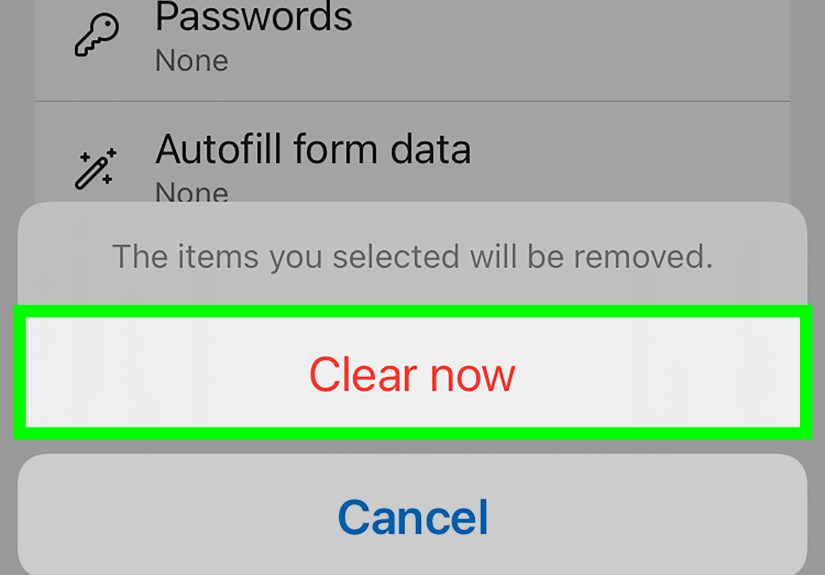
- Tap Clear History to confirm.
This is the fastest way to give Safari a clean slate. It removes browsing history, cookies, and cached website files. It is especially useful when pages are loading incorrectly or Safari feels messy in general.
Option 2: Clear Safari Cookies and Cache but Keep Your History
Maybe you want to fix a site without wiping your full browsing history. Totally fair. Here is the more surgical option:
- Open Settings.
- Tap Apps and choose Safari.
- Tap Advanced.
- Select Website Data.
- Tap Remove All Website Data.
- Confirm with Remove Now.
This is handy when you want to clear saved website data and tracking-related leftovers without erasing your entire history list.
Option 3: Remove Data for Just One Problem Site
If one website is acting cursed while everything else is fine, you do not have to nuke all of Safari from orbit. You can remove data for a specific site instead. In Safari, go to your browsing history, find the website, and remove only that entry or related data. This is a smart move when one stubborn page keeps looping, freezing, or showing the wrong version.
How to Clear Chrome Cache on iPhone
If Chrome is your browser of choice, the cache-clearing process happens inside the app rather than in the iPhone Settings menu.
- Open Chrome.
- Tap the More menu.
- Tap Delete Browsing Data.
- Select a Time Range.
- Tap Browsing Data.
- Select the data you want to remove, such as Cached Images and Files and Cookies, Site Data.
- Tap Confirm.
- Tap Delete Browsing Data.
Chrome gives you more control than Safari because you can choose the timeframe and the categories you want to delete. That means you can clear cached files without necessarily removing everything else, depending on what boxes you check.
If you only want to wipe cookies in Chrome, go to Settings > Privacy and Security > Delete Browsing Data, check Cookies, Site Data, uncheck the rest, and confirm.
How to Clear Firefox Cache on iPhone
Firefox for iPhone keeps its cleanup tools inside the app as well. The wording may be a little different, but the goal is the same: remove private browsing data that may be causing trouble.
- Open Firefox.
- Tap the menu button.
- Choose Settings.
- Under Privacy, tap Data Management.
- Select the data categories you want to clear, such as cache and cookies.
- Tap Clear Private Data.
- Confirm the action.
Firefox is a good option if you want to be more selective about what gets erased. If your issue is clearly tied to old page files, clearing cache alone may solve it. If the problem seems account-related, clearing cookies and site data may be the better move.
How to Clear Edge Cache on iPhone
Microsoft Edge on iPhone also lets you clear browsing data directly inside the app.
- Open Edge.
- Tap the menu.
- Go to Settings.
- Tap Privacy or Privacy and security.
- Choose Clear browsing data.
- Select the types of data you want to delete.
- Tap Clear.
Edge has one extra feature some people will love: you can set it to clear browsing data automatically when you exit the browser. If privacy is a priority, or you share your device with a partner, a kid, or a very opinionated roommate, that feature is worth a look.
How to Clear Cache in the Google App on iPhone
The Google app is not the same thing as Chrome. That means clearing Chrome’s cache does not automatically remove the Google app’s on-device search history.
To clear Google app history on iPhone:
- Open the Google app.
- Tap your profile picture.
- Go to Settings.
- Tap Privacy & Safety.
- Select Clear app history and confirm.
You can also delete individual recent searches from the search bar or use Google account controls to manage saved activity. This is helpful when the app keeps suggesting old searches you would rather not see again, especially the ones from your 2 a.m. rabbit hole about whether raccoons can open jars.
How to Clear App Cache on iPhone for Other Apps
Here is the part many iPhone users find mildly annoying: iOS does not offer one universal cache-clearing button for every app. Some apps include their own clear-cache option inside their settings, but many do not.
If an app does not provide a built-in cleanup tool, you usually have three practical choices:
1. Offload the App
Go to Settings > General > iPhone Storage, tap the app, and choose Offload App. This removes the app itself while keeping its documents and data. It can free storage without fully wiping your content.
2. Delete and Reinstall the App
This is the closest thing to a hard reset for many third-party apps. Deleting the app removes its stored data from your device. Reinstalling it gives you a fresh copy. Just be sure you know your login details first unless you enjoy the adrenaline rush of password recovery.
3. Use the App’s Own Storage Settings
Some apps, especially streaming, social, or messaging apps, include options like Clear Cache, Reset Temporary Files, or Download Management inside the app itself. If you suspect one specific app is eating storage, check its settings before deleting it.
Will Clearing Cache Make Your iPhone Faster?
Sometimes, yes. Always, no.
Clearing cache can improve performance when the issue is tied to bloated website data, outdated files, or a browser that has gotten too comfortable hoarding temporary content. It can also free up some storage. But it is not a magic speed button for every iPhone problem.
If your phone is slow because of low storage, too many background tasks, an aging battery, or an old iOS version, clearing cache may help only a little. Think of it as maintenance, not a miracle.
Best Practices Before and After Clearing Cache
- Know your passwords before clearing cookies and site data
- Use targeted clearing when only one site or app is broken
- Clear cache before deleting an app if you are troubleshooting
- Restart your iPhone afterward if the issue persists
- Check iPhone Storage regularly if space is tight
- Update iOS and your apps if problems keep returning
Common Mistakes to Avoid
One mistake is clearing everything when only one website is the problem. Another is assuming app cache and browser cache are the same thing. They are not. A third is forgetting that cookies often store login sessions, which means clearing them can sign you out.
Also, do not assume you need to clear cache constantly to keep your iPhone healthy. If your phone is working fine, leave the temporary files alone and let them do their little temporary-file jobs in peace.
Final Thoughts
Learning how to clear the cache on iPhone is one of those small tech skills that pays off far more often than you would think. Whether Safari is refusing to cooperate, Chrome is hanging onto weird page behavior, or a third-party app is chewing through storage like it pays rent, clearing cached data is often the easiest first fix.
The trick is knowing where to clear it. Safari uses the iPhone Settings app. Chrome, Firefox, Edge, and the Google app handle cleanup inside their own menus. Other apps may need to be offloaded, reset, or reinstalled. Once you know the right path, the process is quick, practical, and a lot less mysterious.
So the next time your iPhone acts haunted, do not panic. It might not be broken. It might just be holding onto too much old internet.
Real-World Experiences With Clearing Cache on iPhone
One of the most common experiences people have is with Safari refusing to load a page correctly after a website redesign. A bank login page may keep showing the old layout, a shopping cart may not update, or a news site may load half the text and none of the images. In many of these cases, clearing Safari’s website data fixes the issue almost immediately. The browser stops relying on outdated local files and finally pulls a fresh version of the page. It feels suspiciously like magic, except the trick is just deleting old clutter.
Chrome users often run into a slightly different problem. The browser may technically load a site, but the formatting is all over the place. Buttons overlap, images vanish, or the page acts like it is stuck in a weird in-between state. Users who clear only cached images and files often report that the page goes back to normal without requiring a full browser reset. That is one reason Chrome’s selective deletion tools are genuinely useful. You do not always need the digital equivalent of flipping the whole table.
Another frequent experience involves privacy rather than performance. Someone borrows your iPhone for a minute, and suddenly you remember that your browser history is a complete documentary series about your interests, shopping habits, and highly specific questions. Clearing cache and cookies can help remove saved sessions and traces of recent web activity. For people who use a shared device, or just prefer a little less digital residue, this can bring peace of mind along with a cleaner browser.
There are also storage-related cases where clearing cache helps more than expected. An iPhone that is nearly full may not seem dramatically improved after deleting a few photos or old messages, but clearing browser data and offloading bloated apps can create breathing room surprisingly fast. It is not unusual for users to discover that browsers, social apps, or media-heavy apps have accumulated a large amount of temporary data over time. Once cleared, the phone often feels less cramped and a little more responsive.
Then there is the classic troubleshooting scenario: an app keeps freezing, crashing, or behaving strangely after an update. Many users first assume the update itself is broken. Sometimes it is, but sometimes the issue comes from old cached files colliding with the new version of the app. Offloading or reinstalling the app often resolves the problem because it forces the app to rebuild fresh local data. It is a simple fix, but one that people tend to discover only after trying several more dramatic options first.
Perhaps the biggest lesson from real-life use is that clearing cache works best when it is targeted. People get the best results when they match the cleanup method to the actual problem. Broken website in Safari? Clear Safari data. Weird Chrome behavior? Delete Chrome browsing data. App acting unstable? Offload or reinstall. That approach saves time, avoids unnecessary sign-outs, and keeps the rest of your phone from getting dragged into an issue it did not cause.