Table of Contents >> Show >> Hide
- What “Cache” Means (and Why Edge Keeps Hoarding It)
- Cache vs. Cookies vs. History (Don’t Nuke the Wrong Thing)
- Fastest Method: Keyboard Shortcut (PC & Mac)
- How to Clear the Cache in Microsoft Edge on Windows (PC)
- How to Clear the Cache in Microsoft Edge on macOS (Mac)
- How to Clear the Cache in Microsoft Edge on Mobile (Android & iPhone)
- Advanced Options: Clear Cache for One Site (Not Your Whole Life)
- Pro Move: Automatically Clear Cache Every Time You Close Edge
- What If Edge Won’t Open? (Windows Troubleshooting Shortcut)
- When Should You Clear the Cache?
- Quick Checklist: Best Practices for Clearing Edge Cache
- Conclusion
- Real-World Experiences & Tips (500-ish Words of “Been There, Clicked That” Energy)
If your favorite website suddenly looks like it got dressed in the dark (broken layout), refuses to load, or keeps serving yesterday’s version like a stubborn diner, there’s a good chance your Microsoft Edge cache is the culprit. The cache is Edge’s “speed scrapbook”it saves copies of images, scripts, and other files so pages load faster next time. Helpful… until it isn’t.
In this guide, you’ll learn exactly how to clear the cache in Microsoft Edge on Windows PC, Mac, and mobile (iPhone/iPad and Android). We’ll also cover what clearing cache actually does, what not to delete if you hate re-logging into everything, and a few pro-level tricks when Edge is misbehaving.
What “Cache” Means (and Why Edge Keeps Hoarding It)
Your browser cache stores temporary website filesthink logos, images, CSS styles, and JavaScriptso Edge doesn’t have to download the same stuff every single visit. That can make browsing feel snappier and save bandwidth. But cache files can get outdated or corrupted, which may cause:
- Pages loading incorrectly (missing images, weird fonts, broken menus)
- Sites stuck on old versions (you updated something, but Edge didn’t get the memo)
- Login loops or endless redirects (often cache + cookies drama)
- Slow performance or high storage use over time
Clearing cache forces Edge to fetch fresh files from the internet. It’s the browser equivalent of: “Okay, forget everything you think you know, and try again.”
Cache vs. Cookies vs. History (Don’t Nuke the Wrong Thing)
When Edge says “Clear browsing data,” it offers a buffet of deletions. Here’s the quick translation:
- Cached images and files: Temporary site files. Clearing this usually won’t sign you out.
- Cookies and other site data: Login/session data and preferences. Clearing this often signs you out.
- Browsing history: The list of pages you visited. Clearing it doesn’t usually fix display problems by itself.
If your goal is “fix a broken site,” start with Cached images and files. If your goal is “privacy clean-up,” you might also clear cookies and history. (Just be ready to type passwords like it’s 2009.)
Fastest Method: Keyboard Shortcut (PC & Mac)
If you remember only one thing from this article, make it this: you can jump straight to the Clear Browsing Data screen in Edge with a shortcut.
| Device | Shortcut to Open “Clear browsing data” | Bonus: Force Refresh a Page |
|---|---|---|
| Windows PC | Ctrl + Shift + Delete | Ctrl + F5 (hard refresh) |
| Mac | Command + Shift + Delete | Command + Shift + R (hard refresh) |
The shortcut opens the same clearing panel you’d find in Settingsjust faster, like taking the express lane past all the “Maybe I’ll tidy bookmarks someday” options.
How to Clear the Cache in Microsoft Edge on Windows (PC)
On Windows, clearing the cache is straightforward and takes about as long as microwaving a burrito (but with fewer regrets).
Method 1: Clear Cache from Edge Settings
- Open Microsoft Edge.
- Click the three dots (Settings and more) in the top-right corner.
- Select Settings.
- Go to Privacy, search, and services.
- Under Clear browsing data, select Choose what to clear.
- Set Time range (try Last 24 hours first; use All time if you’re going full detox).
- Check Cached images and files.
- (Optional) Check Cookies and other site data if the site is still acting possessed.
- Click Clear now.
Method 2: Use the One-Line “Type This” Shortcut
If you like shortcuts that feel mildly hacker-ish (without actually hacking), type this into the address bar: edge://settings/clearBrowserData
You’ll land directly on the clearing page. Pick your time range, select Cached images and files, then hit Clear now.
What Time Range Should You Choose?
- Last hour: Great for “this site broke five minutes ago” moments.
- Last 24 hours: A solid default for performance hiccups.
- All time: Use when problems persist or storage is ballooning.
How to Clear the Cache in Microsoft Edge on macOS (Mac)
The Mac steps are nearly identical to Windowsbecause Edge is Chromium-based and tries to keep things consistent. (One of the few times “same-y” is a blessing.)
Method 1: Clear Cache from Settings
- Open Microsoft Edge on your Mac.
- Click the three dots in the top-right corner.
- Select Settings.
- Click Privacy, search, and services.
- Find Clear browsing data and choose Choose what to clear.
- Select a Time range.
- Check Cached images and files.
- Click Clear now.
Method 2: Keyboard Shortcut (Mac)
Press Command + Shift + Delete to open the “Clear browsing data” dialog instantly. Then choose Cached images and files and confirm.
Mac Tip: Try a Hard Refresh Before You Clear Everything
If one specific page is acting weird, you might not need a full cache purge. Try a hard refresh first: Command + Shift + R. This forces Edge to reload the page and bypass some cached content.
How to Clear the Cache in Microsoft Edge on Mobile (Android & iPhone)
Mobile Edge caches files toosometimes a lot. If Edge feels slow, pages look wrong, or your phone storage is mysteriously shrinking, clearing the cache is a good move.
Android: Clear Cache in Edge
- Open the Edge app.
- Tap the menu (three dots), usually at the bottom or top depending on your layout.
- Select Settings.
- Tap Privacy and security.
- Select Clear browsing data.
- Choose your Time range.
- Check Cached images and files.
- Tap Clear now (or Clear data) and confirm.
iPhone & iPad: Clear Cache in Edge (iOS/iPadOS)
- Open the Edge app.
- Tap the menu (three dots).
- Tap Settings.
- Go to Privacy and security.
- Select Clear browsing data.
- Choose a Time range (many people pick All time for a deep clean).
- Check Cached images and files.
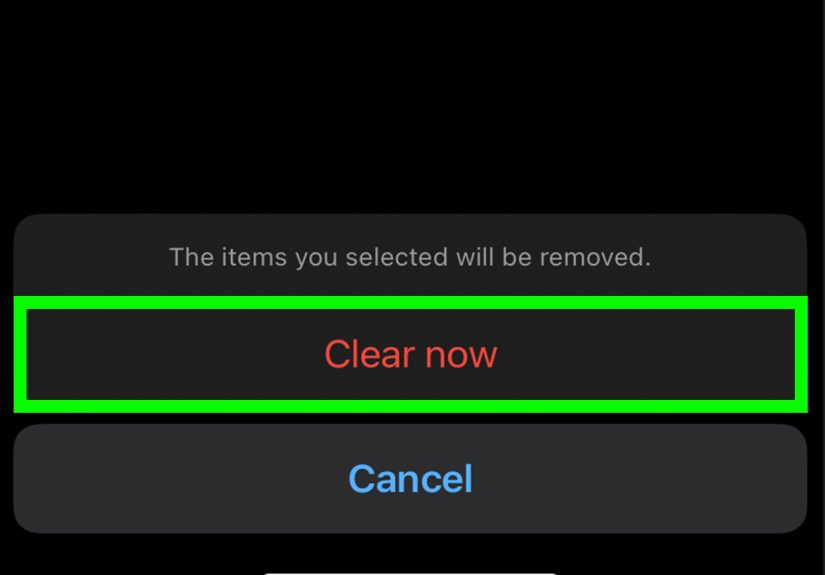
- Tap Clear now and confirm.
Mobile warning: If you also select cookies/site data, you may get logged out of apps and websites. If you’re clearing cache to fix display issues, start with cached files only.
Advanced Options: Clear Cache for One Site (Not Your Whole Life)
Sometimes only one site is being dramatic. In that case, you can remove site-specific data instead of clearing everything. The exact labels can vary by Edge version, but the general path looks like this:
- Open Edge Settings.
- Go to Cookies and site permissions.
- Look for options like Manage and delete cookies and site data or See all cookies and site data.
- Search for the website domain and remove stored data for that site.
This approach is great when you want to keep most sites “warm” (cached) but need one problem child to behave.
Pro Move: Automatically Clear Cache Every Time You Close Edge
If you love a fresh startor you share a computer and prefer your browser to leave no crumbsEdge can clear selected data when you exit. You can enable it here:
- Open Settings in Edge.
- Go to Privacy, search, and services.
- Find Choose what to clear every time you close the browser.
- Toggle on the data types you want removed (including cache).
This is excellent for privacy and troubleshooting, but it can slow down first loads after reopening Edge because you’re starting from a “cold cache.” Think of it as choosing between “clean kitchen” and “instant snacks.” Both are valid lifestyles.
What If Edge Won’t Open? (Windows Troubleshooting Shortcut)
If Edge is crashing or refusing to start, you still have options. On Windows, one common fallback is to clear cache files from the Edge profile folder. This is more technical and should be used carefully:
- Close Edge completely.
- Open Run (Windows key + R).
- Navigate to a cache folder such as:
%localappdata%MicrosoftEdgeUser DataDefaultCache - Delete the contents inside the Cache folder (not the whole “User Data” folder).
If that sounds like “too much adventure,” start with Safe Mode-ish troubleshooting: disable extensions, update Edge, and try again. But it’s good to know the manual route exists when the normal UI route is unavailable.
When Should You Clear the Cache?
You don’t need to clear cache daily. In fact, clearing it too often can make browsing slower because Edge has to re-download everything. A healthy cadence is “as needed,” especially when:
- A site is showing outdated content
- Web apps glitch or wonky UI won’t load correctly
- You see repeated errors after updates or changes
- You’re troubleshooting performance issues
- You’re freeing up storage on mobile
Quick Checklist: Best Practices for Clearing Edge Cache
- Start small: Clear cached files for the last 24 hours before going “All time.”
- Don’t clear passwords unless you mean it: That one hurts.
- Restart Edge after clearing: Especially if you’re troubleshooting a broken site.
- Try hard refresh first: It’s faster than a full clear for a single-page issue.
- Use site-specific removal: When only one domain is acting up.
Conclusion
Clearing the cache in Microsoft Edge is one of the simplest ways to fix weird website behavior, improve performance, and reclaim a bit of storageespecially on mobile. Whether you’re on a Windows PC, a Mac, or your phone, the steps are essentially the same: head to Clear browsing data, select Cached images and files, and confirm.
Start with cache-only if you want to avoid logouts, use the keyboard shortcut when you’re in a hurry, and consider the “clear on close” option if you prefer a browser that cleans up after itself like a polite houseguest.
Real-World Experiences & Tips (500-ish Words of “Been There, Clicked That” Energy)
Let’s talk about what happens in the wild, where browsers meet realitycorporate portals, streaming sites, online shopping carts, and that one web app that always breaks five minutes before a deadline.
A very common scenario: you log into a site and it keeps showing the old version of the page. You refresh. Nothing. You refresh harder. Still nothing. This is often cache doing its job a little too enthusiastically. Edge saved last week’s styling and scripts, so it keeps serving the “greatest hits” even though the website has moved on. Clearing Cached images and files is usually enough to force a clean downloadlike telling Edge, “Stop quoting the past. We’re doing new things now.”
Another classic: the “buttons don’t work” mystery. You click “Submit,” and it just stares back. Or a menu opens halfway and freezes, like it forgot its lines. This can happen when a cached JavaScript file doesn’t match the server’s current version. A hard refresh (Ctrl+F5 on Windows or Cmd+Shift+R on Mac) can fix it fast, because it reloads the page more aggressively. If the problem persists across pages, a cache clear is the next best move.
On mobile, the experience is often storage-related. You open iPhone storage settings and Edge is suddenly hugelike it’s been secretly renting a storage unit. Mobile browsers can accumulate cached images and media previews over time. Clearing cache can free up space and sometimes smooth out scrolling and loading. The first visit after clearing might feel a tiny bit slower (Edge is rebuilding its cache), but it often pays off by eliminating corrupted leftovers.
Then there’s the privacy angle. Some people clear cache regularly because they use shared devices, or because they simply don’t want a browser remembering every little thing. If that’s you, the “clear on close” option is your best friend. Just be selective: clearing cookies every time can mean constant logins. A balanced setup is to clear cache on exit but keep cookies (or only clear cookies occasionally). That way you get a tidy browser without turning your life into a password re-entry marathon.
And yessometimes clearing cache becomes part of the unofficial tech support script. “Have you tried clearing your cache?” is basically the modern version of “Have you tried turning it off and on again?” It’s not magic, but it fixes a surprising number of issues because it resets the browser’s local assumptions about what the web looks like.
Bottom line: if Edge feels off, don’t immediately go scorched-earth on everything. Try a hard refresh, then cache-only clearing, then cookies if needed. You’ll fix the issue faster, keep your saved logins, and feel like a responsible digital adultright up until the next site update.