Table of Contents >> Show >> Hide
- Before You Cancel: Figure Out Who Bills You
- What Happens When You Cancel Spotify Premium?
- How to Cancel Spotify Premium (If You Pay Spotify Directly)
- How to Cancel Spotify Premium on iPhone or iPad (If You Subscribed Through Apple)
- How to Cancel Spotify Premium on Android (If You Subscribed Through Google Play)
- How to Cancel Spotify Premium If You Pay Through a Partner (Carrier/Bundle)
- Troubleshooting: Common Cancellation Problems (and Fixes)
- Alternatives to Canceling (If You’re Not 100% Sure)
- Cancel Spotify Premium vs Delete Your Spotify Account
- FAQ: Quick Answers People Actually Want
- Real-World Experiences: What Canceling Spotify Premium Actually Feels Like (and What I’d Do Differently)
So you’re thinking about canceling Spotify Premium. Maybe you’re trimming subscriptions, maybe you’re “taking a break,”
or maybe Spotify auto-played one too many “Songs You Absolutely Didn’t Ask For.” Whatever your reason, canceling is
straightforward once you know where you’re billed.
Here’s the big secret: there isn’t one “Cancel Premium” button that works for everyone. Spotify subscriptions can be billed
directly by Spotify, through Apple, through Google Play, or through a partner (like a phone carrier or bundle). Your cancellation
steps depend on the billing pathkind of like choosing the right checkout line at the grocery store.
Before You Cancel: Figure Out Who Bills You
This is the make-or-break step. If you try to cancel in the wrong place, you’ll feel like you’re stuck in a customer-support
escape room.
How to check your Spotify billing source (fast)
- Open a web browser (phone or computer) and log in to your Spotify account.
- Go to your Account / Plan area (look for “Your plan” or “Manage plan”).
- Check what it says under payment or plan management. Common clues:
- Billed by Spotify (credit card, PayPal, etc.)
- Billed through Apple (App Store subscription)
- Billed through Google Play
- Billed through a partner (carrier/bundle) with partner details listed
Once you know the billing source, use the matching section below. (Yes, this guide is choosing-your-own-adventure, but with fewer dragons and more billing portals.)
What Happens When You Cancel Spotify Premium?
In most cases, canceling stops the next renewal, and your Premium benefits remain active until your next billing date. After that,
your account switches to the free (ad-supported) version.
- You keep your account and playlists. Your saved music and playlists stay.
- Offline downloads stop working. Downloaded songs become unavailable once you’re on free.
- Premium-only perks end. Think ad-free listening, unlimited skips (on mobile), and offline mode.
- Family/Duo impact: If you’re the plan manager, your members lose Premium when the plan ends.
Important note about free trials
If you cancel during a zero-priced trial, some accounts may switch to free immediately rather than staying Premium through the “next billing date.”
Translation: if your plan is currently costing $0, cancellation can be instant. That’s not Spotify being meanthat’s the trial doing what it does.
How to Cancel Spotify Premium (If You Pay Spotify Directly)
If your plan is billed directly through Spotify, you typically cancel on Spotify’s account page in a web browser (not from the mobile app).
Step-by-step: Cancel on a computer (Windows/Mac)
- Open a browser and log in to your Spotify account.
- Go to Account.
- Find Manage your plan or Your plan.
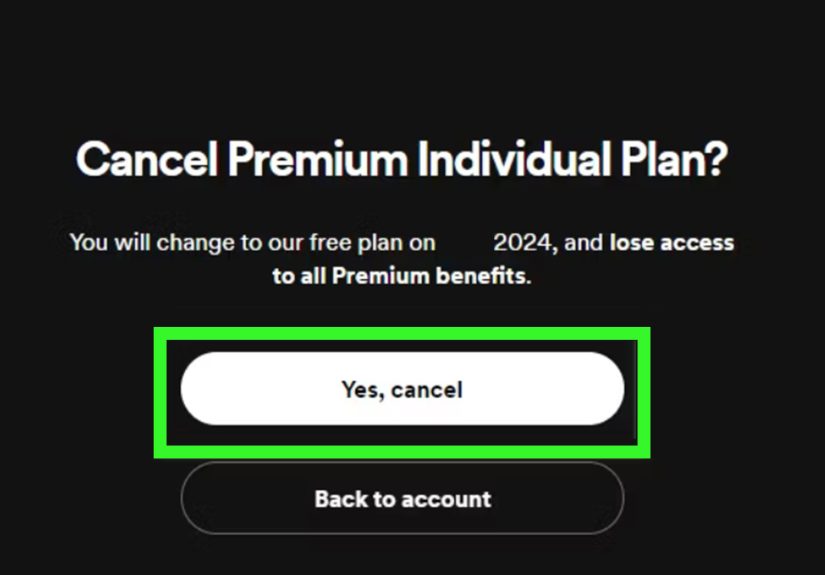
- Select Cancel subscription (or Cancel Premium).
- Spotify may ask why you’re leaving (the “breakup survey”). Pick an option and continue.
- Confirm cancellation until you see a confirmation message.
Step-by-step: Cancel on a phone (iPhone/Android) using a browser
- Open Safari/Chrome (or any browser).
- Log in to your Spotify account page.
- Tap Manage plan / Your plan.
- Tap Cancel subscription and follow prompts to confirm.
Pro tip: Take a quick screenshot of the cancellation confirmation page (and/or confirmation email).
It’s the digital equivalent of keeping a receiptboring, but deeply satisfying when you need it.
How to Cancel Spotify Premium on iPhone or iPad (If You Subscribed Through Apple)
If you started Premium through Apple’s in-app subscription system, Spotify can’t fully manage the cancellation for youApple does.
You cancel it in your Apple ID subscriptions.
Option A: Cancel on iPhone/iPad (Settings app)
- Open Settings.
- Tap your name (Apple Account) at the top.
- Tap Subscriptions.
- Select Spotify.
- Tap Cancel Subscription and confirm.
Option B: Cancel on a Mac
Apple has a few routes depending on macOS version, but the concept is consistent: go to your Apple account subscription management,
find Spotify, then cancel.
Heads-up: If you don’t see Spotify listed, you may be signed into the wrong Apple ID. (It happens. “Work Apple ID” vs “Personal Apple ID” is a modern horror story.)
How to Cancel Spotify Premium on Android (If You Subscribed Through Google Play)
If Google Play handles your Spotify billing, you cancel through Google Play subscriptions.
Cancel in the Google Play Store app
- Open the Google Play Store.
- Tap your profile icon.
- Tap Payments & subscriptions > Subscriptions.
- Select Spotify.
- Tap Cancel subscription and follow the prompts.
Bonus: Consider “pause” instead of cancel (when available)
Google Play may offer a Pause payments option for certain subscriptions. If you’re not quitting foreverjust hiding from your budget spreadsheet for a bitpausing can be a nice middle ground.
How to Cancel Spotify Premium If You Pay Through a Partner (Carrier/Bundle)
Partner-billed plans are common when Premium is included with a phone plan, internet plan, device bundle, or a subscription marketplace.
In these cases, the partner manages billing, and cancellation happens in the partner’s account portal.
Example: Verizon (+play and perks)
Verizon customers may manage streaming subscriptions through Verizon tools (for example, +play subscription management or plan perks).
The exact steps vary by what you activated, but generally you’ll sign into Verizon, find your subscriptions/perks management area,
and unsubscribe there.
General partner-cancel checklist
- Open Spotify in a browser and check Account > Plan to confirm the partner name.
- Log in to your partner’s website/app (carrier or bundle manager).
- Find the section for Subscriptions, Add-ons, Perks, or Streaming services.
- Locate Spotify and choose Cancel / Remove / Unsubscribe.
- Confirm and save proof (email/screenshot).
If Spotify shows a partner manages your plan and you’re “canceled but still charged,” that usually means the partner subscription is still active.
In that case, the fix is almost always: cancel with the partner directly (not Spotify).
Troubleshooting: Common Cancellation Problems (and Fixes)
“I canceled, but I still got charged.”
- Check the timing: If you canceled after a renewal processed, you’ll typically keep Premium until the end of that cycle and shouldn’t be charged again.
- Confirm billing source: If your plan is partner-billed, you must cancel with the partner.
- Look for a confirmation: If you didn’t see a confirmation page or email, try again and confirm your account is correct.
“I can’t find the Cancel button.”
- You may be logged into the wrong Spotify account (common if you have multiple emails, Apple login, Google login, or Facebook login).
- Your subscription may be managed by Apple/Google/partner, which means Spotify won’t show a direct cancel button.
- If Apple shows no Cancel button, it may already be canceled and showing an expiration message instead.
“Premium isn’t working, but I’m paying.”
- Log out of Spotify and log back in to refresh account status.
- Confirm you’re using the same account that’s being billed.
- Check your plan page to verify Premium is active and not paused/expired.
Alternatives to Canceling (If You’re Not 100% Sure)
Canceling is totally fine. But if you’re canceling for cost or convenience, you might have other options that keep the music flowing:
1) Switch to a cheaper plan
- Student: If eligible, it can reduce the monthly cost significantly.
- Duo: Great for two people at one address.
- Family: Best value if multiple people use Spotify under one household.
2) Move to a partner deal
Sometimes carriers and bundles offer discounts or include Premium. If you currently pay Spotify directly and want a partner plan,
you often need to cancel first, wait until your account switches to free, and then activate through the partner.
It’s a little annoying, but it prevents billing overlap.
3) Keep the account, drop the autopilot
Spotify Free still gives you access to your library and playlists. If you mainly listen casually and don’t mind ads, downgrading can be a painless “budget win.”
Cancel Spotify Premium vs Delete Your Spotify Account
Canceling Premium simply downgrades you to Spotify Free. Deleting your account is the “scorched earth” optionplaylists, saved music,
and profile data can be removed as part of closure. If your goal is “stop paying,” canceling is usually all you need.
FAQ: Quick Answers People Actually Want
Can I cancel Spotify Premium anytime?
Yes. You can cancel whenever you want. Most users keep Premium access until the next billing date, then downgrade to free.
Do I get a refund?
Refunds depend on where you subscribed and the specific circumstances. Many subscriptions are non-refundable for the current billing period,
but Apple/Google/partners have their own policies and request processes. If you think you were billed in error, start by confirming the billing source.
Will I lose my playlists if I cancel?
No. Your playlists and saved songs stay with your account. You’ll lose Premium features (like offline downloads), not your library.
Can I re-subscribe later?
Absolutely. You can rejoin Premium at any time. Just note that some trial offers are for new/eligible users only, and you may not qualify again right away.
Real-World Experiences: What Canceling Spotify Premium Actually Feels Like (and What I’d Do Differently)
Let’s talk about the part no one puts in the neat, perfect bullet list: the human side of canceling. Because “Go to Account > Cancel”
sounds easy… until you’re staring at three different logins, two app stores, and one subscription you swear you didn’t sign up for.
First experience: the classic “wrong account” situation. A friend tried to cancel and insisted Spotify was “hiding the button.”
Turns out they had two Spotify accountsone made years ago with an email, and another created later using “Sign in with Apple.”
The paid plan was on Account A, but they were logged into Account B. Once we logged into the right one (and yes, that required trying a couple of emails),
the cancel option appeared like magic. Lesson: if the plan page doesn’t show what you expect, you might be in the wrong account, not the wrong universe.
Second experience: Apple billing is its own ecosystem. People often cancel Spotify on the Spotify website, feel accomplished,
then get billed againbecause Apple is still charging them. When someone subscribes through the App Store, Apple is basically the cashier, the receipt printer,
and the manager who has to approve the return. Spotify can’t stop Apple from renewing it; only you can cancel it in your Apple subscriptions.
The fix is boring but effective: open Settings, find Subscriptions, cancel there, and screenshot the “expires on” date like you’re collecting evidence for a true-crime podcast.
Third experience: the “I canceled but still have Premium” panic. People cancel, then see Premium features still active, and assume
it “didn’t work.” In most cases, it worked perfectlyyour plan simply stays active until the end of the billing period. That’s actually a good thing:
you paid for the month, you get the month. The key is to look for the line that says something like “Your plan will change on [date].”
If you see a future date, you’re done. Go enjoy ad-free listening while it lasts. Think of it as a graceful goodbye tour.
Fourth experience: partner bundles are sneakynot maliciously, just structurally. A carrier perk or marketplace subscription can live
inside a completely different dashboard than your normal phone bill. People cancel Spotify and forget the carrier add-on exists, so the charge continues,
or the perk remains active and re-attaches later. My best advice: wherever you cancel, also check for a confirmation email and a subscription status page that shows
the expiration date. Two pieces of proof beats one, and it’s way easier than trying to remember what you clicked three weeks ago.
Finally, the best practical move I’ve seen: set a calendar reminder for the day after your billing date. Not for Spotifyjust for you.
It should say: “Check if Spotify is now Free.” Open the app, confirm ads show up (congrats?), and verify no new charge posted. If something looks off,
you’ll catch it quickly while the trail is still warm.
Canceling Spotify Premium doesn’t have to be stressful. Most of the friction comes from one thing: not knowing who bills you. Once you identify the billing source,
the rest is just clicking buttons… and resisting the temptation to stay because your Discover Weekly “gets you.”