Table of Contents >> Show >> Hide
- Quick Cheat Sheet: Which Method Should You Use?
- Before You Start: 60 Seconds That Can Save 60 Minutes
- 1) Transfer Videos with a USB Cable (MTP): The Fast, No-Nonsense Option
- 2) Transfer Wirelessly with Quick Share (Android ↔ Windows): “No Cable, Still Fast”
- 3) Transfer Using Phone Link / Link to Windows: Smooth If You’re Already in Windows Land
- 4) Transfer via Cloud Storage (Google Drive, OneDrive, Dropbox): The “Backup While You Transfer” Move
- Extra Tips for Cleaner Transfers (and Less Chaos)
- Real-World Experiences (): What People Actually Run Into
- Conclusion: Pick the Method That Matches Your Video Life
- SEO Tags
Your Android phone is basically a tiny Hollywood studio now. It shoots 4K, slow-mo, “cinematic mode,” and
accidental 37-minute videos of your pocket. But when it’s time to edit, back up, or free up storage,
those videos need to move to your PCwithout turning your life into a tech support documentary.
Below are four reliable, beginner-friendly ways to transfer videos from an Android phone to a Windows PC.
Each method has a sweet spot: some are best for huge files, some for convenience, and some for “I forgot my USB
cable again” situations. I’ll also include practical tips (and a few real-world “this is what actually happens”
scenarios) so you can pick the fastest path with the fewest tears.
Quick Cheat Sheet: Which Method Should You Use?
- Need fastest for large videos (1–20GB)? Use USB cable (MTP).
- Want wireless + fast + modern? Use Quick Share (Android ↔ Windows).
- Already living in the Microsoft ecosystem? Use Phone Link / Link to Windows.
- Want automatic backup and access anywhere? Use Cloud storage (Drive/OneDrive/Dropbox).
Before You Start: 60 Seconds That Can Save 60 Minutes
These tiny checks prevent most transfer failures (and most “why is my PC ignoring my phone?” moments):
- Unlock your phone during setup. Many PCs can’t detect a locked device.
- Use a data-capable cable. Some cables only charge (yes, it’s rude).
- Know where the video is stored. Most camera videos live in DCIM or Movies, but apps like WhatsApp, Instagram, and TikTok may store exports in their own folders.
- Expect big file sizes. A 5-minute 4K video can be multiple gigabytes. Plan for speed accordingly.
- Playback tip: If your video transfers but won’t play on Windows, it may be encoded in HEVC/H.265. The file is usually fineyour PC may just need the right codec.
1) Transfer Videos with a USB Cable (MTP): The Fast, No-Nonsense Option
If you’re moving large videosthink vacation footage, a whole event, or anything you filmed in 4KUSB is the
most reliable and usually the fastest. It also doesn’t depend on Wi-Fi strength, cloud upload speeds,
or whether your neighbor just started streaming eight devices at once.
How it works
When you plug your Android into your PC, your phone can connect in different USB modes. For file transfers,
you want File Transfer (often shown as MTP). Once that’s enabled, your phone shows up in
File Explorer like a media device, and you can drag-and-drop videos to your computer.
Step-by-step: File Explorer drag-and-drop
- Connect your Android to your PC using a USB data cable.
- Unlock your phone. If prompted, approve access.
- On your phone, open the USB notification and select File Transfer (or MTP).
- On your PC, open File Explorer → look for your phone under “This PC.”
- Common locations:
- Internal storage → DCIM → Camera (most camera videos)
- Internal storage → Movies (some camera apps and editors)
- Pictures (occasionally, depending on app)
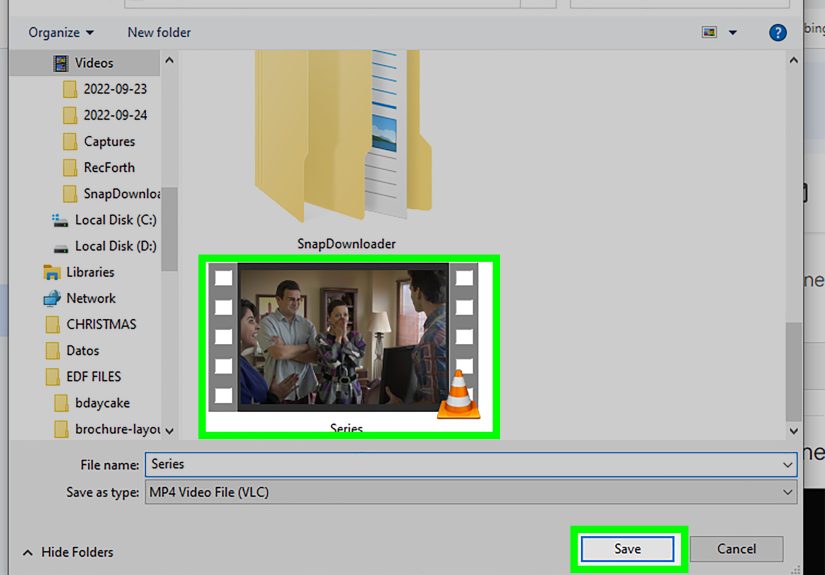
- Select videos and copy them to a folder on your PC (e.g., Videos → Phone Imports).
Bonus: Use the Windows Photos app “Import”
If you prefer a guided experience, Windows can import media using the Photos app. This is handy when you want
Windows to scan your phone and pull in new videos without you hunting through folders.
- Connect phone via USB and unlock it.
- Open Photos on your PC.
- Select Import → choose your connected device → follow prompts.
When USB is the best choice
- You’re transferring lots of videos or very large files.
- You want maximum reliability and minimal setup.
- Your Wi-Fi is slow, crowded, or moody.
Common USB hiccups (and quick fixes)
- Phone charges but doesn’t show up: Switch USB mode to File Transfer/MTP, and try another cable/port.
- You can’t find the video: In the video app, open the clip and use Share → Save to device or Export, then check DCIM/Movies.
- Transfer is slow: Use a USB 3 port/cable if possible, and copy fewer files at once (especially if your phone is older).
2) Transfer Wirelessly with Quick Share (Android ↔ Windows): “No Cable, Still Fast”
If you want a modern wireless method that feels like AirDrop (but for Android/Windows), Quick Share is your friend.
It’s designed to move files like videos and photos between Android devices and Windows PCs with a straightforward
send/receive flowno emailing yourself, no cloud upload required.
What you’ll need
- A Windows PC with the Quick Share app installed
- Quick Share available on your Android device (many Android 6+ devices support it)
- Wi-Fi and Bluetooth enabled (often used for discovery and transfer)
Step-by-step: Send videos from Android to PC
- Install and open Quick Share on your Windows PC.
- Sign in (if prompted) and set your visibility/receiving preferences.
- On your Android phone, open the video in Gallery/Photos (or your file manager).
- Tap Share → choose Quick Share.
- Select your PC from the list of nearby devices.
- On the PC, accept the transfer and choose a save location if prompted.
Why Quick Share is great for video transfers
- Wireless convenience without cloud uploads.
- Often faster than Bluetooth for big videos (because it can use Wi-Fi for the actual transfer).
- Good privacy controls: you choose who can see your device, and transfers require acceptance.
Pro tip: Samsung users have an extra advantage
If you have a Samsung Galaxy device, you may also see Samsung’s Quick Share options on Windows (especially if you’re
using compatible Samsung apps/PC setups). It’s still the same goal: fast, simple sharing to your computer.
3) Transfer Using Phone Link / Link to Windows: Smooth If You’re Already in Windows Land
Phone Link (on PC) and Link to Windows (on Android) are Microsoft’s way of making your phone and PC behave like
roommates who actually get along. Besides notifications and messages, many setups can share photos anddepending on
features available on your device/Windows versiontransfer files from your phone to your PC directly from the
Android share menu.
Best for
- People who want a built-in Windows-friendly workflow
- Regular transfers (like weekly imports) without plugging in
- Those who already use Microsoft accounts and Windows 10/11
Set it up (once)
- On your PC, open Phone Link (Windows app).
- On your Android phone, install/open Link to Windows (often preinstalled on some devices).
- Follow the pairing steps (usually QR code + permissions).
Transfer videos from Android to PC (typical flow)
- On Android, find the video you want to send.
- Tap Share.
- Select Link to Windows / Send to PC (wording can vary by device and app version).
- Choose your paired PC and send.
- On the PC, watch for a prompt/notification and confirm save location if needed.
Why this method can feel “effortless”
Once paired, it becomes a repeatable habit: Share → Send to PC → done. If you transfer short clips frequently
(social videos, quick work recordings, school projects), this is the workflow that saves the most mental energy.
Heads-up for large files
For very large 4K videos, USB or Quick Share is often faster and less finicky. Phone Link is fantastic for everyday
convenience, but bulk transfers may still be happier over a cable.
4) Transfer via Cloud Storage (Google Drive, OneDrive, Dropbox): The “Backup While You Transfer” Move
Cloud storage is the best option when you want two wins at once: get the videos onto your PC and keep a backup
in case your phone takes an ill-timed swim. It’s also the easiest route when your PC isn’t nearbyupload now,
download later.
How it works
You upload the video(s) from your Android to a cloud service using the mobile app, then open that same service on
your PC (browser or desktop app) and download the files.
Step-by-step (works similarly across services)
- On Android, open your cloud app (Drive/OneDrive/Dropbox).
- Tap Upload (or “+”) and select the video(s) from your Gallery/Files app.
- Wait for the upload to finish (use Wi-Fi if the files are big).
- On your PC, sign in to the same account.
- Download the videos to your desired folder (or let the desktop sync app do it automatically).
When cloud storage is the best choice
- You want a backup of your videos.
- You transfer across multiple PCs (work laptop + home desktop).
- You’re sending videos to a collaborator or family member anyway.
Cloud reality check (so you’re not surprised)
- Upload speed matters. If your internet upload is slow, a 5GB video can take a while.
- Storage limits apply. Free tiers fill up quickly with video.
- Organization pays off. Create a folder like Phone Videos / 2026 / January to keep your future self from yelling at your past self.
Extra Tips for Cleaner Transfers (and Less Chaos)
Name your imports like a sane person
Many phones produce filenames like VID_20260110_041233.mp4. Not terrible, but not helpful either.
After transferring, consider renaming by event:
2026-01-10_Bangkok_Rooftop.mp4.
Keep an “Incoming” folder on your PC
Pick one place where all phone video transfers land (for example: Videos → Incoming → Android).
Once everything is safely copied, you can sort it into projects, archives, or editing folders.
If videos won’t play on your PC
This is usually a codec issue, not a transfer issue. The file may be encoded in HEVC/H.265 (common on modern phones).
You can try a different media player, install the needed codecs, or convert the file for easier playback/editing.
Real-World Experiences (): What People Actually Run Into
Let’s be honest: “transfer videos from Android to PC” sounds simple until you do it on a Tuesday night when your
phone is at 9% battery and your cable is “somewhere.” Here are common real-world scenarios and how these four
methods play out when life is life.
Scenario 1: The giant 4K video
Someone records a 12-minute 4K video at a birthday party. The file is huge. They try cloud upload first because it
seems easy… and then the upload crawls. Forty-five minutes later, they’re still watching a progress bar inch forward
like it’s hiking across the desert. This is where USB wins. Plug in, select File Transfer (MTP), and copy the file
straight to the PC. If you’re doing big video regularly, the “old-school cable method” isn’t oldit’s efficient.
Scenario 2: “My phone is connected, but my PC acts like it’s not.”
This is classic. The phone is charging, so you assume the cable is finebut Windows doesn’t show the device.
Nine times out of ten, it’s the USB mode. Android often defaults to “charging only,” and you have to tap the USB
notification and choose File Transfer. The other common culprit is the cable itself: some cables are built for power,
not data. Swapping cables feels too simple to be the answer… until it absolutely is.
Scenario 3: The “I just need this one clip, right now” moment
You filmed a quick video for work or school and need it on your PC immediatelyno rummaging through folders, no
detective work. Quick Share shines here. You open the clip, tap Share, pick your PC, accept, and you’re done.
It’s the closest thing to “just beam it over” without involving the cloud. The only time it gets annoying is if your
visibility settings are too strict, or if Bluetooth/Wi-Fi is toggled off and the devices can’t find each other.
Scenario 4: The “I want it on my PC and backed up” mindset
If you’re transferring videos because your phone is full (or because you’ve learned the hard way that phones get lost),
cloud storage is the calm, responsible choice. Upload to Drive/OneDrive/Dropbox over Wi-Fi, then download on the PC.
It’s not always the fastest, but it’s the safest for long-term storage. People who do this routinely tend to build a
simple habit: make a folder per month/event, upload, then clean the phone after confirming the files are accessible on
the PC. Boring? Yes. Effective? Also yes.
Scenario 5: The “Why can’t I find my video?” mystery
Videos from your camera app usually appear in predictable folders. But videos from editing apps or social apps may be
saved somewhere elseor require exporting first. In practice, the quickest fix is to open the video in the app and use
Share → Save/Export to device storage, then transfer from DCIM/Movies. If you’re in a hurry, Share → Quick Share or
Share → Link to Windows can skip the folder hunt entirely.
The takeaway: no single method wins every situation. USB is your heavyweight champion, Quick Share is the speedy
wireless MVP, Phone Link is the convenient “Windows buddy,” and cloud storage is the responsible adult in the room.
Keep two methods in your toolbox, and you’ll almost never get stuck.
Conclusion: Pick the Method That Matches Your Video Life
If your priority is speed and reliability for large videos, go with a USB cable (MTP) and copy files through File
Explorer (or use the Photos import tool). If you want the easiest wireless option that still moves big videos
comfortably, Quick Share is the modern favorite. If you’re already using Windows features to connect your phone and
PC, Phone Link / Link to Windows can make sharing feel like a built-in habit. And if you want the added security of
having a backup, cloud storage turns a transfer into a safety net.
The best workflow is the one you’ll actually use. Start with the simplest method available to you todayand if you
transfer videos often, set up a repeatable system (an “Incoming” folder, consistent naming, and a backup plan).
Your future self will thank you, probably while watching a perfectly organized folder of videos instead of a chaotic
pile named “VID_2026_final_FINAL2.mp4.”